If you’re looking to boost your workstation’s performance, considering the right Thunderbolt upgrade card is essential. With options like the ASUS ThunderboltEX series and specialized docks, you can markedly enhance bandwidth and connectivity. Each card offers unique features tailored to demanding setups. But how do you know which one suits your needs best? Let’s explore the top contenders and what factors you should weigh before making your decision.
ASUS ThunderboltEX 4 Expansion Card
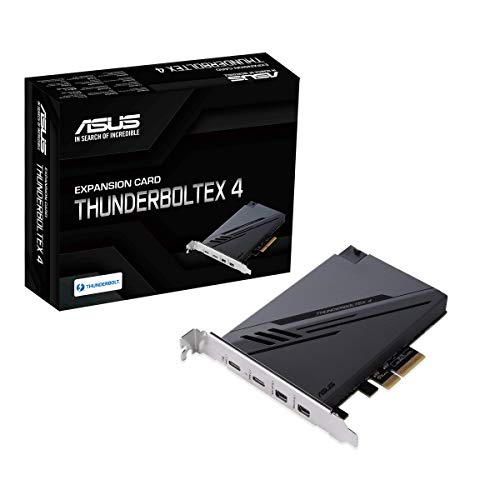
If you’re a creative professional or gamer seeking ultra-fast connectivity, the ASUS ThunderboltEX 4 Expansion Card is a top choice. This card features the Intel Thunderbolt 4 JHL 8540 controller and offers two USB Type-C ports, supporting USB 4 with an impressive 40Gb/s bi-directional bandwidth per port. You can connect up to five Thunderbolt-enabled devices in a daisy-chain configuration, maximizing your setup. With DisplayPort 1.4 support, you’ll enjoy stunning 8K resolution on your monitors. Plus, its 100W quick charge capability guarantees your devices stay powered. Upgrade your workstation for seamless performance and unmatched speed with this essential addition.
Best For: Creative professionals and gamers looking for ultra-fast connectivity and high-resolution display capabilities.
Pros:
- High-speed connectivity with up to 40Gb/s bandwidth per port for seamless data transfer.
- Supports multiple devices with the ability to connect up to five Thunderbolt-enabled devices in a daisy-chain configuration.
- Impressive display capabilities with DisplayPort 1.4 support, allowing for stunning 8K resolution.
Cons:
- Requires a compatible motherboard with Thunderbolt support for full functionality.
- Limited to USB Type-C ports, which may require adapters for other types of connections.
- Higher price point compared to standard expansion cards without Thunderbolt capabilities.
ASUS ThunderboltEX 5 Expansion Card

The ASUS ThunderboltEX 5 Expansion Card is an excellent choice for professionals who demand high-speed connectivity and versatile video output. With dual Thunderbolt™ 5 USB-C ports and PCIe 4.0 x4, you’ll experience bandwidth up to 120 Gbps. This card supports daisy-chaining of up to five Thunderbolt devices and can drive three 8K displays at 60 Hz, thanks to DisplayPort™ 2.1. Plus, it offers impressive power delivery, charging devices up to 130 watts, with 96W for fast charging. Compatible with Intel 800 Series motherboards and USB4®, the ThunderboltEX 5 enhances your workstation’s performance effortlessly.
Best For: Professionals seeking high-speed connectivity and versatile video output for demanding tasks and multiple displays.
Pros:
- High bandwidth of up to 120 Gbps for fast data transfers.
- Supports daisy-chaining of up to five Thunderbolt devices, maximizing connectivity.
- Impressive power delivery capabilities, charging devices up to 130 watts.
Cons:
- Limited compatibility as it is only compatible with Intel 800 Series motherboards.
- PCIe x4 requirement may restrict usage on some older or less capable motherboards.
- Price point may be higher compared to standard expansion cards without Thunderbolt capabilities.
Thunderbolt 3 to PCIe Card Dock (TD1)

For professionals looking to enhance their workstation’s capabilities, the Thunderbolt 3 to PCIe Card Dock (TD1) stands out as an ideal solution. This dock features one PCIe 3.0 x16 slot, allowing you to integrate various PCIe cards seamlessly. It’s compatible with Thunderbolt 3/4 and USB4 devices and supports Windows, Linux, and macOS. With a bandwidth of up to 40Gbps, you’ll experience impressive performance. The all-aluminum housing guarantees silent operation through passive cooling, and the driverless installation simplifies setup. Plus, it accommodates PCIe cards measuring up to 163mm x 28mm x 121mm, making it a versatile addition to your workstation.
Best For: Professionals seeking to enhance their workstation capabilities with high-performance PCIe card integration.
Pros:
- High-speed performance with up to 40Gbps bandwidth via Thunderbolt 3.
- Driverless installation allows for easy setup without complicated software.
- Silent operation due to all-aluminum housing and passive cooling design.
Cons:
- Limited to non-GPU PCIe cards, restricting certain high-performance graphics card options.
- Maximum PCIe card dimensions may not accommodate larger or specialized cards.
- Requires a universal power adapter, which adds to the overall setup complexity.
JMT ADT-K993G PCIE 5.0 to OCuLink External Dock Adapter

Designed for tech enthusiasts and professionals seeking high-performance connectivity, the JMT ADT-K993G PCIe 5.0 to OCuLink External Dock Adapter offers a cutting-edge solution for NUC STX ITX motherboards and mini PCs. With a PCIe 5.0 x4 interface, you’ll enjoy an impressive bandwidth of 128Gbps, far exceeding traditional Thunderbolt options. Pair it with the R29Q/F4Q for best speeds, and rest easy knowing the K993G-BK7 includes a bracket for enhanced support. Just verify your motherboard supports PCIe 5.0 and that your power supply meets your graphics card’s requirements for peak performance.
Best For: Tech enthusiasts and professionals looking for high-performance external connectivity options for NUC STX ITX motherboards and mini PCs.
Pros:
- High Bandwidth: Achieves an impressive bandwidth of 128Gbps under PCIe 5.0 x4 conditions, significantly outperforming traditional Thunderbolt solutions.
- Enhanced Compatibility: The K993G-BK7 model includes a bracket for improved support and compatibility with various systems.
- Flexible Connectivity: Compatible with PCIe 5.0 x4 graphics cards and can be paired with R29Q/F4Q for full speed capabilities.
Cons:
- Motherboard Requirement: Requires a motherboard that supports PCIe 5.0 for optimal performance.
- Power Supply Dependency: Users must ensure their power supply meets the specifications of their graphics card, which may limit compatibility.
- Additional Component Needed: To achieve full PCIe 5.0 speeds, pairing with R29Q/F4Q is necessary, adding to the overall cost and complexity.
Factors to Consider When Choosing a Workstation Thunderbolt Upgrade Card
When choosing a workstation Thunderbolt upgrade card, you should consider several key factors. Think about your bandwidth requirements, compatibility with your existing devices, and the power delivery capacity you’ll need. Don’t forget to check the display capabilities and whether the card supports daisy-chaining for added flexibility.
Bandwidth Requirements
How do you guarantee your workstation’s Thunderbolt upgrade card meets your needs? Start by evaluating the required bandwidth. Thunderbolt 3 and 4 offer up to 40 Gbps, but if you need more power, consider Thunderbolt 5, which can reach 120 Gbps. Higher bandwidth is essential for handling large file transfers and high-resolution video editing efficiently. If you plan to daisy-chain multiple devices, verify the card supports the necessary bandwidth to maintain peak performance across all peripherals. Mismatched bandwidth can lead to frustrating bottlenecks. Opt for cards that support PCIe 5.0 for even better performance, achieving effective bandwidths of up to 128 Gbps when paired with compatible devices. This way, you can maximize your workstation’s capabilities.
Compatibility With Devices
Understanding bandwidth requirements is just the start; ensuring your Thunderbolt upgrade card is compatible with your existing devices is equally important. First, check that the card fits your motherboard; some are tailored to specific Intel series or require certain PCIe slots. Next, confirm compatibility with Thunderbolt versions—newer cards may support Thunderbolt 4 or 5, while older systems might only handle Thunderbolt 3. Also, verify support for USB standards like USB4 for seamless integration. Don’t forget to take into account your operating system, as compatibility can vary across Windows, Linux, and macOS. Finally, think about how many devices you plan to connect, since some cards allow daisy-chaining, which could affect your overall setup compatibility.
Power Delivery Capacity
Power delivery capacity plays a vital role in guaranteeing that your connected devices receive adequate charging while in use. When you’re choosing a Thunderbolt upgrade card, look for options that offer up to 100W or more for quick charging capabilities. Some advanced cards can provide up to 130 watts, allowing you to charge multiple devices simultaneously. If you’re using power-hungry peripherals, consider cards that support up to 96W for a single device, which enhances efficiency. A higher power delivery capacity is important for keeping laptops and high-performance devices operating without draining their batteries. Always check the power delivery specifications to verify they meet the demands of your setup for peak performance.
Display Capabilities
When selecting a Thunderbolt upgrade card, it’s essential to evaluate its display capabilities, especially if you aim to connect high-resolution monitors. Look for cards that support up to 8K resolution for outstanding clarity. DisplayPort support is vital, as it allows you to connect multiple displays with ease. Some Thunderbolt cards also provide high bandwidth—up to 120 Gbps—making certain smooth video playback and higher refresh rates. Additionally, compatibility with the latest DisplayPort standards, like DisplayPort 2.1, enhances your video output capabilities, enabling advanced features such as Display Stream Compression (DSC). By focusing on these factors, you’ll guarantee your workstation can handle demanding visual tasks efficiently and effectively, maximizing your overall productivity.
Daisy-Chaining Support
Daisy-chaining support is an imperative factor to evaluate as you choose a Thunderbolt upgrade card for your workstation, particularly if you need to connect multiple devices. With Thunderbolt 3 and 4 supporting daisy-chaining of up to six devices, and Thunderbolt 5 allowing five, you can maximize connectivity while minimizing cable clutter. Each port offers bi-directional bandwidth—up to 40Gbps for Thunderbolt 3 and 4, and a whopping 120Gbps for Thunderbolt 5. This capability is vital for connecting high-resolution displays without sacrificing performance. Ensuring compatibility with daisy-chaining enhances data transfer rates and device performance, allowing all your connected devices to operate efficiently without bottlenecks. Choose wisely to boost your workstation’s versatility and efficiency.
Installation Process
Choosing the right Thunderbolt upgrade card for your workstation requires careful consideration of the installation process to confirm peak performance. First, verify the card is compatible with your motherboard’s PCIe slots; different cards may need specific versions like PCIe 4.0 or 5.0. Next, follow the manufacturer’s installation instructions closely, securing the card in the PCIe slot and connecting any necessary power cables. Don’t forget to use anti-static precautions, like wearing an anti-static wrist strap, to protect sensitive components during installation. After you’ve installed the card, install or update the appropriate drivers to confirm full functionality. Finally, verify that your system BIOS is updated to support the new Thunderbolt hardware and enhance overall compatibility.
Cooling Solutions
To guarantee your workstation Thunderbolt upgrade card performs at its best, effective cooling solutions must be a top priority. High data transfer rates can generate significant heat, so consider options with passive cooling designs, like aluminum housings that dissipate heat silently. Some models come with integrated thermal management features, ensuring reliability during prolonged use. Pay attention to airflow in your workstation case; poor ventilation can compromise cooling efficiency. The materials and construction of the card also matter—high-quality components generally provide better heat dissipation. By choosing a card with robust cooling solutions, you’ll enhance performance and prolong the life of your workstation, ensuring it meets your demanding needs without overheating.