Choosing the right tablet can make photo retouching faster, more precise, and far more comfortable than using a mouse alone. For detailed masking, dodging and burning, and fine brush work, the best drawing tablets for photo editing PC workflows offer accurate pens, responsive pressure sensitivity, and an ergonomic editing experience.
Below, we focus on options that balance control, display quality, shortcut support, and value so you can find a tablet that fits your editing style and budget.
Best 10 Drawing Tablets for Photo Editing PC Picks for 2026
Professional Color Studio
XPPen Artist Pro 22 Gen 2 22" 2.5K Display
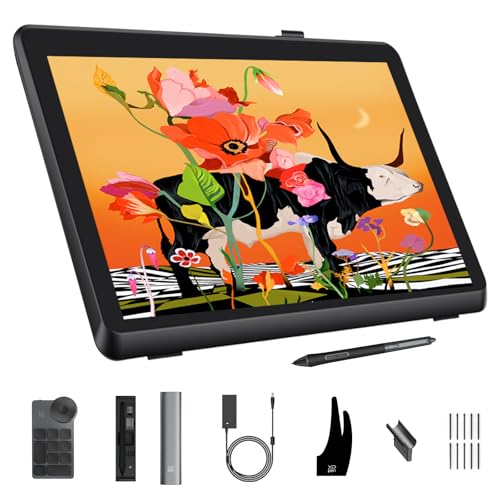
- Calman Verified Delta E<1 color accuracy
- 99% Adobe RGB large-format pen display
- Includes shortcut remote and adjustable stand
Best For: Photo editors needing a big, color-accurate PC display
Wireless Everyday Editor
Wacom Intuos Medium Bluetooth Pen Tablet

- Battery-free pen with Wacom EMR feel
- Bluetooth or USB-A for flexible use
- 4 ExpressKeys plus included software
Best For: Editors wanting a portable non-screen tablet for PC work
Compact Pro Display
XPPen Artist 16 3rd 15.4" Screen Tablet

- 15.4-inch laminated display with near-zero parallax
- 99% sRGB plus 98% Adobe RGB coverage
- Dual wheels, 8 hotkeys, and foldable stand
Best For: PC photo editors who want a smaller screen tablet with shortcuts
Starter Editing Tablet
Wacom Intuos Small Wired Pen Tablet

- Battery-free Wacom pen input
- USB-A wired and Chromebook compatible
- Compact design for simple PC editing
Best For: Beginners needing an affordable non-screen editing tablet
Display Pen Tablet

- 13.3-inch fully laminated display
- 123% sRGB and 16,384 pressure levels
- 8 shortcut keys plus red dial
Best For: Artists and editors who want a compact pen display with strong color control
Pen Tablet with Scroll Wheel
HUION Inspiroy 2 Medium for Photo Editing

- 9 x 5-inch active area
- Scroll wheel and 8 customizable keys
- PenTech 3.0 with tilt support
Best For: Photo editors who want a responsive non-display tablet with quick controls
Large Graphics Tablet

- 10 x 6.25-inch active area
- Touch ring and 10 hot keys
- Battery-free stylus with 8192 levels
Best For: Beginners and hobbyists who want a roomy tablet with lots of shortcut control
Large Precision Tablet

- Large active area for editing and retouching
- Programmable scroll wheel and 24 shortcut keys
- PenTech 3.0 stylus with 8192 pressure levels
Best For: Editors and designers who want a roomy pen tablet with customizable controls for PC photo work.
Beginner Shortcut Tablet

- 16,384 pressure levels with tilt support
- 8 hotkeys for quicker editing workflows
- Large 10 x 6.25-inch drawing area
Best For: Beginners who want an easy-to-use tablet for editing photos and learning digital art on a PC.
Pen Display Editor

- 11.6-inch full HD pen display
- Matte film reduces glare and feels paper-like
- 8192-level battery-free stylus with tilt
Best For: Photo editors who want an affordable pen display for hands-on editing and illustration on a PC or Mac.
Professional Color Studio – XPPen Artist Pro 22 Gen 2 22" 2.5K Display
If you’re comparing drawing tablets for photo editing pc workflows, the XPPen Artist Pro 22 Gen 2 stands out as a large pen display built around color accuracy and a roomy 2.5K workspace. Its Calman Verified panel, Delta E<1 calibration, and 99% Adobe RGB coverage make it a strong fit for retouching, color grading, and design tasks where visual consistency matters.
Best For: Photo editors and designers who want a large, color-accurate pen display for detailed desktop work.
Pros:
- Calman Verified with Delta E<1 for highly consistent color output
- 99% Adobe RGB, 99% sRGB, and 94% Display P3 coverage
- 22-inch 2560 x 1440 display with 137 PPI for a spacious editing area
- 16K pressure stylus with tilt support and included shortcut remote
Cons:
- Larger display takes up more desk space than smaller tablets
- Best suited to a stationary PC setup rather than compact travel use
- Premium feature set may be more than casual users need
For users who edit photos on a PC and want a monitor-like pen display, this model emphasizes precision, comfort, and workflow speed. The adjustable stand and shortcut remote help round out a setup aimed at serious creative work.
Wireless Everyday Editor – Wacom Intuos Medium Bluetooth Pen Tablet
For drawing tablets for photo editing pc users who prefer a classic pen-tablet workflow, the Wacom Intuos Medium focuses on control, portability, and reliable input rather than a built-in screen. Its battery-free pen, Bluetooth connection, and software support make it a practical choice for editing, masking, and general creative tasks at a desk or on the go.
Best For: Creators and photo editors who want a compact wireless pen tablet with dependable Wacom pen input.
Pros:
- Battery-free EMR pen for a natural pen-on-paper feel
- Bluetooth or USB-A connectivity for flexible setup options
- 4 ExpressKeys for shortcut access during editing
- Includes software and Wacom training after registration
Cons:
- No screen, so you work by looking at your monitor while drawing
- Smaller active area than a display tablet
- 4096 pressure levels are solid, but not as high as newer premium models
This is a sensible pick if you want reliable photo-editing input without paying for a pen display. It keeps the workspace light and portable while still giving you Wacom’s established pen performance.
Compact Pro Display – XPPen Artist 16 3rd 15.4" Screen Tablet
The XPPen Artist 16 3rd is a strong option if you want drawing tablets for photo editing pc setups with a smaller footprint but still want a true pen display. Its fully laminated 15.4-inch screen, high color coverage, and dual scroll wheels make it useful for retouching, brush work, and quick zoom or layer adjustments in desktop software.
Best For: Photo editors and digital artists who want a mid-size screen tablet with fast shortcut controls.
Pros:
- 15.4-inch fully laminated FHD display with near-zero parallax
- 99% sRGB, 98% Adobe RGB, and 97% Display P3 coverage
- 2 wheels and 8 hotkeys help speed up editing workflow
- 16K pressure stylus with low activation force for precise lines
Cons:
- Smaller canvas than larger 22-inch pen displays
- Requires a cable-connected setup rather than wireless use
- Most valuable for users who will take advantage of the shortcut controls
For PC photo editing, this model balances desk-friendly size with pro-oriented display specs. The included foldable stand and broad compatibility make it a versatile pick for creators who want a more compact pen display without giving up accuracy.
Starter Editing Tablet – Wacom Intuos Small Wired Pen Tablet
If you want drawing tablets for photo editing pc use and prefer a simple, affordable pen tablet, the Wacom Intuos Small keeps the focus on essentials. It offers Wacom’s battery-free pen technology, plug-and-play USB-A connectivity, and software support for editing photos, making it a straightforward entry point for desktop creative work.
Best For: Beginners and budget-minded users who need a compact wired tablet for photo editing on a PC.
Pros:
- Battery-free pen with Wacom EMR technology
- Works with Windows, Mac, Android, and Chromebook
- Compact size is easy to keep beside a laptop or PC monitor
- Built for designing and photo editing with included software
Cons:
- No display, so all work is done by looking at the computer screen
- Small active area may feel limiting for larger edits
- Only 4,096 pressure levels, which is more basic than premium options
This is the most minimal pick in the group, but it still covers the fundamentals well for editing workflows. If you want a dependable pen tablet from a known brand and don’t need a screen, it is easy to recommend for everyday PC use.
Display Pen Tablet – XP-Pen Artist 13.3 Pro for PC
If you want drawing tablets for photo editing pc that feel closer to working on a monitor than a standard pen pad, the XP-Pen Artist 13.3 Pro is a strong pick. Its fully laminated 13.3-inch screen, 123% sRGB coverage, and included adjustable stand make it practical for editing, retouching, and detailed creative work on a computer.
Best For: Artists and editors who want a compact pen display with strong color and shortcut control.
Pros:
- Fully laminated 13.3-inch display with low-parallax feel.
- 123% sRGB color gamut and 88% NTSC for vivid image work.
- 8 shortcut keys plus a red dial for zoom, brush size, and canvas control.
- Battery-free stylus with 16,384 pressure levels and 60-degree tilt support.
Cons:
- Must be connected to a computer or laptop to work.
- Smaller screen size may feel limited for users wanting more canvas space.
This model is a good fit if you want a screen-based workflow and value color accuracy, tilt support, and convenient controls. It is especially appealing for beginners and artists who want a portable display tablet for editing and drawing on PC.
Pen Tablet with Scroll Wheel – HUION Inspiroy 2 Medium for Photo Editing
The HUION Inspiroy 2 Medium is a practical choice if you want drawing tablets for photo editing pc without a built-in screen. Its 9 x 5-inch active area, programmable scroll wheel, and 8 shortcut keys make it easy to speed through brush changes, zooming, and navigation while working on a PC or Mac.
Best For: Photo editors and digital artists who want a responsive non-display tablet with quick controls.
Pros:
- PenTech 3.0 stylus is designed for precise control with no noticeable lag or wobble.
- Scroll wheel and 8 press keys can be customized for different apps.
- Battery-free stylus with 60-degree tilt support for natural strokes.
- Multi-OS compatibility includes Windows, macOS, Linux, Android, and ChromeOS.
Cons:
- No internal power source; it must stay connected to a device.
- Smaller active area may be less ideal for users who prefer a larger workspace.
This is a solid workflow tablet if you want comfort, portability, and customizable controls more than a screen. It makes sense for editors who already prefer a monitor-and-tablet setup and want fast access to shortcuts.
Large Graphics Tablet – GAOMON M10K for Editing
For buyers comparing drawing tablets for photo editing pc, the GAOMON M10K stands out as a straightforward large-format pen tablet. Its 10 x 6.25-inch work area, touch ring, and 10 customizable hot keys give you handy control for zooming, scrolling, and brush adjustments during editing sessions on Mac, Windows, or supported Android devices.
Best For: Beginners and hobbyists who want a roomy tablet with lots of shortcut control.
Pros:
- Large 10 x 6.25-inch drawing space with a papery texture surface.
- Touch ring adds useful control for zoom, scrolling, and brush adjustments.
- 10 hot keys plus two pen side buttons help streamline workflow.
- Battery-free stylus with 8192 pressure levels.
Cons:
- No display, so you will work by mapping pen movement to your screen.
- Requires driver installation and may need other tablet drivers removed first.
The M10K is a practical, beginner-friendly option if you want more working room and shortcut flexibility than a smaller tablet. It is a strong value pick for editing, drawing, and remote work tasks that benefit from a larger pen surface.
Large Precision Tablet – HUION Inspiroy 2 Large
If you want drawing tablets for photo editing pc use, the HUION Inspiroy 2 Large is a practical pen tablet for fast masking, retouching, and shortcut-driven workflows. Its large active area, programmable scroll wheel, and customizable express keys can help you move through editing tasks more efficiently on a desktop setup.
Best For: Editors and designers who want a roomy pen tablet with customizable controls for PC-based photo work.
Pros:
- PenTech 3.0 stylus aims for precise, low-lag control.
- 3-set 8 customizable keys plus a programmable scroll wheel.
- Compatible with Windows, Mac, Linux, and some Android devices.
- Slim, portable design for home, office, or school use.
Cons:
- Not a standalone device and needs a connected computer or device.
- No built-in display, so editing happens off-screen.
For PC photo editing, this model stands out if you value shortcuts and a larger drawing surface over a screen. It is a good fit for users who want an efficient, no-fuss tablet that works across multiple operating systems.
Beginner Shortcut Tablet – XPPen Deco 01 V3
Among drawing tablets for photo editing pc workflows, the XPPen Deco 01 V3 is a straightforward choice for beginners who want a large active area and simple shortcut control. Its battery-free stylus, 8 hotkeys, and wide software compatibility make it useful for photo cleanup, basic retouching, and everyday creative tasks.
Best For: Beginners who want an easy-to-use tablet for editing photos and learning digital art on a PC.
Pros:
- 16,384 pressure levels and 60-degree tilt support.
- 8 customizable hotkeys for faster editing and drawing.
- Large 10 x 6.25-inch work area in a thin, portable body.
- Works with Windows, Mac, Chrome OS, Linux, and Android 10+.
Cons:
- Not a standalone tablet.
- Requires setup and driver installation before use.
This is a sensible pick if you want an affordable-feeling, beginner-friendly pen tablet for desktop photo editing. The large surface and strong compatibility make it easy to plug into a PC workflow and start working quickly.
Pen Display Editor – GAOMON PD1161
If you prefer drawing tablets for photo editing pc work with direct on-screen control, the GAOMON PD1161 gives you a compact pen display for sketching and retouching. The matte film, full HD IPS screen, and battery-free stylus make it a practical option for editing images while keeping your strokes visible where you work.
Best For: Photo editors who want an affordable pen display for hands-on editing and illustration on a PC or Mac.
Pros:
- 11.6-inch full HD IPS screen for drawing directly on display.
- Matte film reduces glare and adds a paper-like feel.
- 8192-level battery-free stylus with tilt support.
- 8 shortcut keys and 2 pen buttons for faster workflows.
Cons:
- Not a standalone tablet and must connect to a computer.
- Needs HDMI and USB ports, and may require an adapter.
- May need the power adapter if your computer cannot supply enough power.
This model makes sense if you want the familiarity of drawing on a screen without moving to a larger display tablet. Its smaller size and shortcut support are useful for image editing, note-taking, and general creative work on desktop systems.
How We Picked the Best Drawing Tablets for Photo Editing PC
For Drawing Tablets for Photo Editing PC use, we prioritized pen accuracy, pressure sensitivity, tilt support, driver reliability, shortcut controls, and overall comfort during long editing sessions. For display tablets, we also considered panel size, lamination, and color coverage, since those matter more for retouching and tonal work.
We favored models that suit real editing tasks such as skin cleanup, local adjustments, precise masking, compositing, and brush-based corrections. Portability, connection options, and value were also weighed so the list covers both casual editors and more demanding workflows.
Quick Comparison
Pen tablets are usually lighter, cheaper, and ideal if you already edit on a good monitor. Screen tablets add direct-to-canvas control, which many users prefer for detailed retouching, but they cost more and take up more desk space. Larger tablets give you more working room and often feel better for broad strokes and multi-panel workflows, while smaller models are easier to travel with or use in tight setups.
Key Buying Factors for Drawing Tablets for Photo Editing PC
Pressure and Pen Control
Higher pressure levels are useful, but consistency matters more than the headline number. Look for a pen that feels smooth, stable, and predictable when adjusting opacity, brush size, and masking edges.
Display Quality and Surface Feel
If you choose a screen tablet, prioritize color accuracy, lamination, and a surface that reduces parallax and glare. For photo work, a panel with reliable color reproduction is more important than stylus gimmicks.
Shortcut Workflow
Custom keys, scroll wheels, and touch rings can speed up zooming, brush switching, and layer navigation. These controls are especially helpful if you spend hours editing in Photoshop, Lightroom, or similar apps.
Size and Desk Space
Medium tablets are the best all-around pick for most users. Larger tablets feel more spacious, but they need more room and may be overkill if you only do occasional edits.
Who Should Buy Which Drawing Tablets for Photo Editing PC?
Pick a pen tablet if you want the best value, already have a strong monitor, or mainly need precision for selections and retouching. Choose a screen tablet if you prefer drawing or editing directly on the image and want a more natural hand-eye workflow. Go with a compact model for travel or occasional use, and a larger model if photo editing is a core part of your daily work.
In short, the best choice depends on how you edit, how much desk space you have, and whether direct-on-screen control is worth the extra cost for your setup.