Choosing the right pen display can make animation work feel faster, cleaner, and more natural. The best options balance pen precision, screen quality, shortcut access, and comfort for long sessions.
Below, you’ll find a focused roundup of the best pen displays for animation on PC in 2026, with picks suited to beginners, students, and working artists alike.
Best 10 Pen Displays for Animation on PC Picks for 2026
Large-format workspace
XP-Pen Artist 22 2nd 21.5-inch pen display

- 21.5-inch full HD screen
- 122% sRGB color gamut
- 8,192 pressure levels with tilt
Best For: Desktop animators who want a large working area
Portable pro pick
HUION Kamvas 13 Gen 3 compact pen display
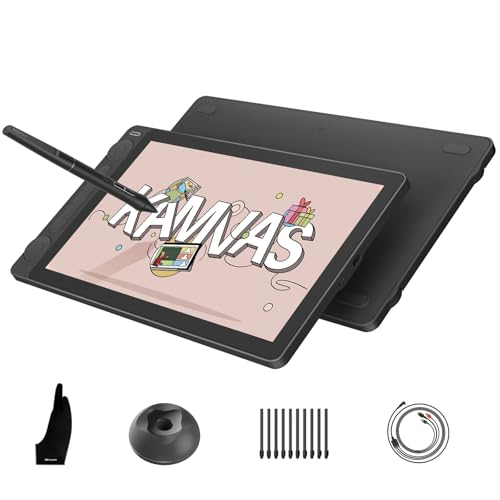
- 13.3-inch laminated screen
- 16,384 pressure levels
- Dual dials and 5 shortcut keys
Best For: Creators who want a portable but precise animation display
Starter-friendly option
XP-PEN Artist12 compact FHD pen display

- 11.6-inch full HD IPS screen
- Battery-free pen with eraser
- 6 shortcut keys plus touch bar
Best For: Beginners and students setting up a first PC pen display
Compact accuracy focus
HUION Kamvas 13 Gen 3 with stand

- 13.3-inch laminated display
- 16,384 pressure levels
- Includes adjustable stand
Best For: Artists who want color accuracy in a compact setup
Studio-Grade Portable Pick
Xencelabs Pen Display 16 Bundle

- 4K OLED with 1.07 billion colors
- Quick Keys add up to 40 shortcuts
- Lightweight 16-inch portable design
Best For: Animators who want a portable pro display with strong shortcut control
Color-Accurate Touch Option

- 4K OLED touch screen with full lamination
- 99% Adobe RGB and Calman-verified color
- Includes two styluses and shortcut remote
Best For: Artists who want touch control and highly accurate color
Compact Budget-Friendly Pick

- 11.6-inch full-laminated screen
- Two battery-free pens with tilt
- Six customizable shortcut keys
Best For: Beginners and PC animators wanting a compact, simple setup
Portable Pen Display for Beginners

- 11.9" portable laminated screen
- X4 pen with 16K pressure and tilt
- Dual X-Dials plus 8 shortcut keys
Best For: Beginners and students doing PC animation
Shortcut-Heavy Animation Tablet

- 40 programmable Quick Keys for workflow control
- Two battery-free styluses included
- 8192 pressure levels with tilt recognition
Best For: Animators who prefer shortcut-rich tablet workflows
Large Color-Accurate Pen Display

- 15.4" full-laminated display
- 143% sRGB and four color modes
- 16K pressure pen with 8 keys and wheel
Best For: Artists wanting a bigger PC pen display for animation
Large-format workspace – XP-Pen Artist 22 2nd 21.5-inch pen display
If you want a roomy pen display for animation on pc, the XP-Pen Artist 22 2nd gives you a 21.5-inch canvas with full HD resolution and a battery-free stylus. It is built for creators who want more screen space for timelines, line work, and detailed drawing without moving up to a standalone tablet.
Best For: Animators and illustrators who want a large, color-rich display for desktop drawing and general creative work.
Pros:
- 21.5-inch 1920×1080 display gives you plenty of room for animation and sketching.
- 122% sRGB and 86% NTSC color gamut help with vivid, lifelike artwork.
- 8,192 pressure levels and 60-degree tilt support smoother strokes and shading.
- Adjustable stand and cable management make it easier to set up comfortably.
Cons:
- Must be connected to a computer to work.
- USB-C to USB-C connection requires a separately sold cable.
- Larger size is less portable than 13-inch class pen displays.
This is a practical choice if you want more screen real estate than a compact model and need compatibility with Windows, Mac, and Linux for creative software like Photoshop, Krita, and Blender.
Portable pro pick – HUION Kamvas 13 Gen 3 compact pen display
The HUION Kamvas 13 (Gen 3) is a strong pick if you want a compact pen display for animation on pc with premium pen feel and color accuracy. Its 13.3-inch fully laminated screen, anti-sparkle glass, and dual dials are aimed at creators who want smoother control in a smaller desktop-friendly package.
Best For: Animators and digital artists who want a portable, feature-rich pen display with excellent color accuracy.
Pros:
- 13.3-inch full-laminated screen with anti-sparkle Canvas Glass 2.0 reduces glare and image noise.
- PenTech 4.0 offers 16,384 pressure levels and 2g IAF for detailed strokes.
- Factory calibration and 99% sRGB/Rec.709 coverage support accurate color work.
- Dual dials and 5 silent press keys add efficient shortcut control.
Cons:
- Not a standalone display and must be connected to a computer or laptop.
- USB-C to USB-C cable is used for convenience but depends on compatible devices/cabling.
- Smaller screen may feel tight for users who prefer large animation canvases.
Overall, this model balances portability and performance very well, especially if you want a compact screen with strong pen responsiveness and professional-looking color output.
Starter-friendly option – XP-PEN Artist12 compact FHD pen display
The XP-PEN Artist12 is a compact option for pen displays for animation on pc, especially if you want an easy entry point into screen drawing. Its 11.6-inch FHD panel, shortcut controls, and battery-free pen make it a practical choice for smaller desks, learning, and everyday creative work.
Best For: Beginners, students, and creators who want an affordable compact drawing monitor for PC use.
Pros:
- 11.6-inch 1920×1080 IPS display with 72% NTSC / 100% sRGB color gamut.
- Battery-free P06 pen includes an eraser end and comfortable hexagonal design.
- 6 customizable shortcut keys and a programmable touch bar improve workflow.
- Compatible with Windows, Mac, and Linux, plus many art and animation apps.
Cons:
- Smaller screen size may feel limited for animation timelines and large canvases.
- Needs HDMI and USB-A connections, so some computers may require adapters.
- Made for connected use rather than standalone drawing.
If you want a straightforward screen tablet for animation without jumping to a larger or pricier display, this is a sensible, well-equipped starting point.
Compact accuracy focus – HUION Kamvas 13 Gen 3 with stand
If you need a dependable pen display for animation on pc with a compact footprint, the HUION Kamvas 13 (Gen 3) is built around color accuracy and workflow speed. The fully laminated 13.3-inch screen, Canvas Glass 2.0, and bundled stand make it a polished desktop option for drawing, painting, and designing.
Best For: Artists who want a compact desktop pen display with strong color handling and an included stand.
Pros:
- 13.3-inch fully laminated screen with anti-sparkle Canvas Glass 2.0.
- 16,384 pressure levels and 2g IAF support fine, natural-looking strokes.
- 99% sRGB coverage and factory calibration help with accurate color output.
- Includes an adjustable stand and dual dial controls for more comfortable workflow.
Cons:
- Requires connection to a computer or laptop to operate.
- Some connectivity features depend on a full-featured USB-C cable sold separately.
- 13.3-inch size may be too small for artists who prefer a larger animation canvas.
This is a well-rounded choice if you want a smaller pen display that still emphasizes accuracy, comfort, and efficient control for everyday creative work.
Studio-Grade Portable Pick – Xencelabs Pen Display 16 Bundle
If you want pen displays for animation on pc that feel built for serious work, the Xencelabs Pen Display 16 Bundle stands out for its 4K OLED panel, tuned pressure curve, and portable 16-inch design. It is a strong fit for artists who want accurate strokes, rich color, and a compact setup they can move between workspaces.
Best For: Animators and illustrators who want a portable 4K OLED pen display with pro-level color and shortcut control.
Pros:
- 4K OLED screen with 1.07 billion colors and 5 color gamut coverage for detailed, color-aware animation work
- Tuned 8192-level pressure response from 3g to 500g for fluid, precise pen strokes
- Includes Quick Keys with up to 40 app-specific shortcuts plus a dial for zoom, rotation, and brush size
- Lightweight 16-inch body, single USB-C connectivity, and carrying case make it easy to move around
Cons:
- Higher-end bundle may be more than a casual user needs
- 16-inch size is portable, but still smaller than a full desktop monitor setup
The bundled pens, shortcut hardware, and Virtual Tablet Mode make this a practical workstation tool for animation workflows on PC, especially if you value both portability and control.
Color-Accurate Touch Option – XPPen Artist Ultra 16
For buyers comparing pen displays for animation on pc, the XPPen Artist Ultra 16 brings a lot to the table: a 4K OLED touch screen, strong color coverage, and two included styluses with 16K pressure levels. Its touch gestures and shortcut remote make it especially appealing if you want a more hands-on canvas workflow.
Best For: Animation artists and visual creators who want a touch-enabled 4K OLED display with excellent color accuracy.
Pros:
- 15.6-inch 4K OLED screen with anti-glare etched glass and full lamination for crisp visuals
- 99% Adobe RGB, 99% sRGB, and 98% Display P3 coverage with Calman verification for color-critical work
- X-Touch support lets you zoom, rotate, and slide with multi-point gestures on supported systems
- Includes two styluses, an ACK05 shortcut remote, and up to 40 customizable keys
Cons:
- Must be connected to a computer to work
- Touch and gesture features may be more than some users need for basic animation
This model is well suited to artists who want display quality first, but still want touch interaction and shortcut hardware to speed up workflow on a PC.
Compact Budget-Friendly Pick – VEIKK VK1200 V2
If you need a practical entry point into pen displays for animation on pc, the VEIKK VK1200 V2 focuses on the essentials: a laminated screen, battery-free pens, and a compact body that is easy to place on a crowded desk. It is built for users who want a simple connected drawing monitor rather than a large studio display.
Best For: PC animators and beginners who want a compact, straightforward pen display with solid core features.
Pros:
- Full-laminated 11.6-inch display with anti-glare glass for reduced parallax and a paper-like feel
- Includes two battery-free pens with 8192 levels of pressure and 60-degree tilt support
- Six programmable shortcut keys help speed up common animation and drawing tasks
- Single-cable USB-C support simplifies setup when your PC has the right port
Cons:
- Smaller 1920×1080 display may feel limited for detailed animation timelines and larger canvases
- 72% NTSC color gamut is modest compared with premium pen displays
This is a sensible choice if you want a connected screen tablet for PC animation without jumping into a larger or more expensive display category.
Portable Pen Display for Beginners – XPPen Artist 12 3rd
If you want a compact pen display for animation on pc, the XPPen Artist 12 3rd focuses on portability without dropping core creative features. The 11.9″ laminated screen, AG etched glass, and X4 pen with 16K pressure make it a practical pick for sketching, inking, and learning animation workflows on Windows, macOS, Android, ChromeOS, or Linux.
Best For: Beginners, students, and artists who need a lightweight pen display for PC-based animation and everyday digital art.
Pros:
- 11.9″ portable display with a lightweight 1.58 lb design
- AG etched glass and full lamination help reduce glare and parallax
- X4 pen offers 16,384 pressure levels, tilt support, and low initial pressure
- Dual X-Dial wheels plus 8 customizable keys speed up brush and canvas control
Cons:
- Smaller screen size may feel tight for complex animation timelines
- Most advanced controls are geared toward workflow efficiency, not standalone use
- Best results depend on using it with a compatible computer or device
The Artist 12 3rd is a strong entry-level pen display for animation on pc if portability and comfortable pen feel matter more than having a larger canvas. Its shortcut layout and color-accurate screen make it easy to build an efficient desktop creative setup.
Shortcut-Heavy Animation Tablet – XENCELABS Medium Bundle
For artists looking beyond basic pen displays for animation on pc, the XENCELABS Medium Bundle is built around workflow control and a paper-like drawing feel. It uses a 12″ tablet surface with a 16:9 active area, two battery-free styluses, and 40 programmable Quick Keys, making it a practical desktop tool for animators who prefer a pen tablet over a screen display.
Best For: Animation artists and illustrators who want a highly customizable PC tablet setup with lots of shortcut control.
Pros:
- 40 programmable Quick Keys and a dial help streamline animation workflows
- Two battery-free pens give you different grip options and eraser support
- 8192 pressure levels, tilt recognition, and low lag support precise strokes
- Curved slope and textured surface are designed for comfortable, paper-like drawing
Cons:
- This is a pen tablet, not a screen-equipped pen display
- Requires a learning curve if you are used to drawing directly on a display
- Its workflow focus may be more than casual users need
If your priority is speed, customization, and comfortable long sessions, this bundle stands out as a serious animation workstation companion. It is especially appealing for users who already work efficiently without needing an integrated screen.
Large Color-Accurate Pen Display – UGEE UE16 15.4" Pen Display
The UGEE UE16 is a larger pen display option for animation on pc, with a 15.4″ full-laminated screen and a strong focus on color range. Its 143% sRGB gamut, multiple color modes, and 16K pressure stylus make it well suited to drawing, editing, and animation work on a Windows, Mac, Android, ChromeOS, or Linux setup.
Best For: Artists who want a larger PC pen display with vivid color and a comfortable drawing surface for animation work.
Pros:
- 15.4″ full-laminated screen gives you more room to work
- 143% sRGB gamut with four color space modes supports vivid visuals
- 16,384 pressure levels and 60° tilt support detailed line control
- 8 shortcut keys and a wheel help speed up common actions
Cons:
- Larger size makes it less portable than compact displays
- 3-in-1 cable is packed separately, so setup may need extra attention
- Best suited to users who have desk space for a bigger display
The UE16 is a solid choice if you want more drawing space and strong color performance in a pen display for animation on pc. It balances screen size, shortcut control, and pen sensitivity in a way that should suit both drawing and production-focused work.
How We Picked These Pen Displays for Animation on PC
We prioritized the features that matter most for animation workflows: accurate pen tracking, low-latency feel, laminated screens, reliable shortcut controls, and color performance that supports clean line work and color decisions. Size, portability, and Windows PC compatibility also weighed heavily.
Quick Comparison
Smaller 11.6- to 13.3-inch models are better for portability and tighter desks, while 15.6- to 22-inch displays give you more room for timeline work, key framing, and comfortable canvas navigation. Premium models stand out for higher-end color support, better panels, and more advanced shortcut hardware.
Key Buying Factors for Pen Displays for Animation on PC
Screen Size and Desk Space
For animation, a larger display can reduce constant zooming and make motion cleanup easier. If you travel or work in a compact setup, a 13-inch model is often the best balance. If you want more room for detailed scenes, a 16-inch or larger screen is usually worth it.
Pen Performance
Look for strong pressure sensitivity, tilt support, and a battery-free stylus. A responsive pen helps with line confidence, shading, and frame-by-frame cleanup. For animation, natural pen feel matters more than flashy extras.
Color and Screen Quality
High color coverage, full lamination, and etched or anti-glare glass can improve visibility and reduce parallax. If you also do background painting or compositing, better color accuracy becomes even more important.
Shortcut Controls
Dial wheels, express keys, and remote shortcut options can speed up repetitive tasks like undo, zoom, brush changes, and timeline scrubbing. These controls are especially useful when you animate daily.
Who Should Buy Which Pen Displays for Animation on PC?
Beginners and students should focus on smaller, more affordable displays with solid pen support and enough screen quality to learn comfortably. Freelancers and serious hobbyists will usually benefit from a 13- to 16-inch laminated model with better shortcuts and color. Professionals working on detailed scenes, polished color work, or long sessions may prefer larger premium displays with stronger panel quality and more advanced workflow tools.
If you want the best all-around setup, choose a pen display that fits your desk, feels comfortable for your hand, and gives you enough screen space to animate without constant interruption. The right choice is the one that supports your workflow day after day.