If you’re looking to boost your MacBook Air’s connectivity, exploring the top Thunderbolt docks can make a significant difference. These docks offer a variety of ports and capabilities that enhance your workspace and streamline your tasks. Whether you need multiple displays or extra power, there’s a solution that fits your needs perfectly. Curious about which options stand out and why they might be the right choice for you? Let’s take a closer look.
Plugable Thunderbolt 4 Dock for M4 MacBook Air & Pro
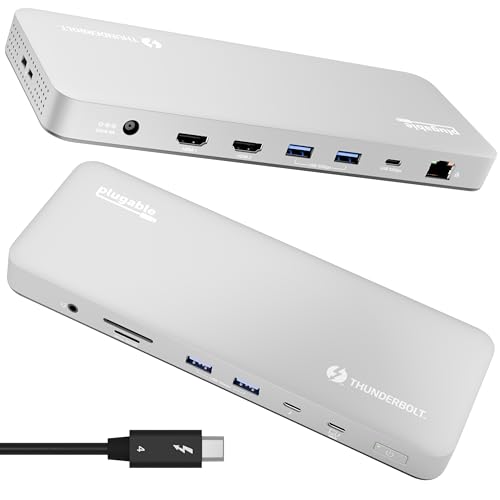
If you’re looking for a docking solution that maximizes the capabilities of your M4 MacBook Air or Pro, the Plugable Thunderbolt 4 Dock is an excellent choice. This 13-in-1 docking station offers a robust port configuration, including dual 4K HDMI outputs and multiple USB ports, ensuring you can connect all your devices effortlessly. With 100W host charging and data transfer speeds up to 40Gbps, it keeps your workflow smooth and efficient. Its aluminum design not only looks great but also manages heat effectively. Plus, the plug-and-play functionality means you can start using it right out of the box.
Best For: Users of M4 MacBook Air and Pro who require a versatile docking solution with high-speed connectivity and multiple display options.
Pros:
- Supports dual 4K displays at 60Hz for enhanced multitasking capabilities.
- Offers 100W host charging to power your MacBook while in use.
- Plug-and-play functionality ensures quick and easy setup without the need for additional drivers.
Cons:
- Limited to Gigabit Ethernet, lacking support for faster 2.5Gb Ethernet connections.
- Not designed for ultra-high refresh rate gaming monitors (no support for 4K@120Hz).
- HDMI cables are not included for the dual monitor setup, requiring additional purchases.
Anker USB C Hub for MacBook (7-in-2 with 4K HDMI)

The Anker USB C Hub for MacBook is ideal for users seeking versatile connectivity options, particularly those with MacBook Air M1 or M2 models. This 7-in-2 hub efficiently expands your two USB-C ports into a multi-function USB-C port, a USB-C data port, two USB-A ports, an HDMI port, and both SD and microSD card slots. With support for 4K@60Hz video output and charging capabilities up to 100W, it maximizes your productivity. Although M1 and M2 devices can’t support dual external displays, this hub still offers impressive performance, making it a perfect addition to your setup. Enjoy seamless connectivity!
Best For: Users with MacBook Air M1 or M2 models seeking versatile connectivity and charging options.
Pros:
- Expands two USB-C ports into multiple connectivity options, enhancing productivity.
- Supports 4K@60Hz video output for high-resolution displays.
- High charging power of up to 100W ensures devices stay powered.
Cons:
- M1 and M2 MacBooks do not support dual external displays.
- Limited to compatibility with MacBook models, may not suit users of other laptops.
- The design may obstruct the MagSafe port depending on MacBook configurations.
Anker USB C Hub, 5-in-1 USBC to HDMI Splitter

For MacBook Air users needing versatile connectivity, the Anker USB C Hub, 5-in-1 USBC to HDMI Splitter stands out with its impressive 4K HDMI port. You can stream and mirror content at up to 30Hz, making it perfect for presentations or movie nights. With a 5 Gbps USB-C data port and two USB-A ports, transferring files is quick and efficient. Plus, the hub supports pass-through charging up to 85W, ensuring your laptop stays powered while you work. Compatible with macOS 12 and newer, this hub is a reliable choice for enhancing your MacBook Air’s connectivity options.
Best For: MacBook Air users seeking versatile connectivity options with high-quality streaming capabilities.
Pros:
- High-quality 4K HDMI output for streaming and mirroring up to 30Hz.
- Multiple ports (5 Gbps USB-C data port and two USB-A ports) for efficient file transfers.
- Pass-through charging up to 85W, ensuring your laptop remains powered during use.
Cons:
- Not compatible with Linux, limiting usability for some users.
- USB C 100W PD-IN port does not support data transfer for devices like headphones or speakers.
- Limited video output capabilities from USB-C ports, which may restrict connectivity options for some users.
Plugable Thunderbolt 4 Dock with 100W Charging (TBT4-UD5)
Designed for professionals and creatives, the Plugable Thunderbolt 4 Dock (TBT4-UD5) stands out with its impressive 100W charging capability. With 13 high-performance ports, it supports dual 4K 60Hz HDMI displays or a single 8K display, making multitasking effortless. You’ll enjoy ultra-fast 40Gbps speeds and reliable Ethernet, ensuring stable internet for your work. Plus, it’s compatible with various systems, including MacBook Pro models. While some users prefer rear port placements for a cleaner look, overall feedback highlights solid performance and excellent customer support. If you need enhanced connectivity, this dock is a fantastic choice.
Best For: Professionals and creatives looking for high-performance connectivity and charging solutions for multitasking with multiple displays.
Pros:
- Supports dual 4K 60Hz HDMI displays or a single 8K display, enhancing multitasking capabilities.
- Delivers ultra-fast 40Gbps speeds and reliable Ethernet for stable internet connections.
- Compatible with various systems, including MacBook Pro models, and offers excellent customer support.
Cons:
- Some users prefer rear port placements for a cleaner setup, as the front-mounted Thunderbolt port design may be less aesthetically pleasing.
- Intermittent disconnections have been reported by some users.
- Setup difficulties with monitor assignments can be an issue for certain users.
Plugable 16-in-1 Thunderbolt 4 Dock for MacBook and Windows

Supporting dual 4K 60Hz displays, the Plugable 16-in-1 Thunderbolt 4 Dock is an ideal choice for MacBook Air users who crave seamless multitasking and enhanced productivity. With seven USB ports, dual HDMI, and dual DisplayPort, connecting multiple devices is a breeze. You’ll appreciate the 100W Power Delivery for reliable laptop charging while enjoying fast 2.5Gbps Ethernet and an SD/microSD card reader. Plug and play functionality guarantees easy setup without drivers. Users rave about its performance across macOS and Windows, and responsive customer support adds to its appeal. This dock is perfect for managing your professional workflows effortlessly.
Best For: The Plugable 16-in-1 Thunderbolt 4 Dock is best for MacBook Air users seeking efficient multitasking with dual 4K display support and multiple device connectivity.
Pros:
- Versatile connectivity with seven USB ports, dual HDMI, and dual DisplayPort for easy device integration.
- 100W Power Delivery ensures reliable charging for laptops while using multiple peripherals.
- Plug and play functionality allows for quick and hassle-free setup without the need for additional drivers.
Cons:
- Some users suggest the addition of more USB-C ports for enhanced connectivity options.
- Cable management could be improved for a tidier setup.
- Initial connectivity issues reported by some users, though often resolved through customer support.
Anker 555 USB-C Hub (8-in-1)

The Anker 555 USB-C Hub (8-in-1) stands out with its impressive 85W Power Delivery, making it an ideal choice for MacBook Air users who need to charge their devices while accessing multiple peripherals. With a 4K 60Hz HDMI port, 10Gbps USB-C and USB-A data ports, Ethernet, and microSD/SD card reader, it covers all your connectivity needs. Weighing just 4.5 ounces, it’s portable and easy to integrate into your setup. Users appreciate its build quality and functionality, though some have reported overheating and visibility issues. Overall, it’s a solid choice for enhancing your MacBook’s connectivity.
Best For: The Anker 555 USB-C Hub is best for MacBook users seeking a versatile and portable solution to enhance connectivity while charging their devices.
Pros:
- Versatile connectivity with 8-in-1 functionality, including HDMI, USB-C, USB-A, Ethernet, and card readers.
- Impressive 85W Power Delivery for charging devices while in use.
- Lightweight and portable design, making it easy to carry and integrate into various setups.
Cons:
- Some users reported overheating issues during extended use.
- Visibility of port labels can be poor due to color choices.
- Lack of an additional USB-C port may limit connectivity options for some users.
Plugable USB C Laptop Docking Station (UD-6950PDH)

For MacBook Air users seeking to maximize their productivity, the Plugable USB C Laptop Docking Station (UD-6950PDH) stands out with its dual 4K display support. You can effortlessly connect two 4K monitors at 60Hz using HDMI or DisplayPort, thanks to DisplayLink technology, which overcomes display limitations on M1 through M4 MacBooks. This dock’s 14-in-1 design includes multiple USB ports, SD card readers, Ethernet, and a 3.5mm headset jack, providing versatile connectivity. Plus, with 100W charging capability, it keeps your MacBook powered while you multitask, making it an ideal addition to any workspace.
Best For: MacBook Air users looking to enhance productivity with dual 4K display support and versatile connectivity options.
Pros:
- Supports dual 4K monitors at 60Hz, ideal for multitaskers.
- 14-in-1 design with multiple USB ports, SD card readers, and Ethernet.
- Provides 100W charging capability to keep your MacBook powered.
Cons:
- Driver installation is required for full functionality.
- HDCP is not supported, limiting certain video content playback.
- Compatibility may vary with non-Mac systems, requiring verification.
Thunderbolt Docking Station for MacBook Pro/Air (19 in 1, 4K@60Hz)
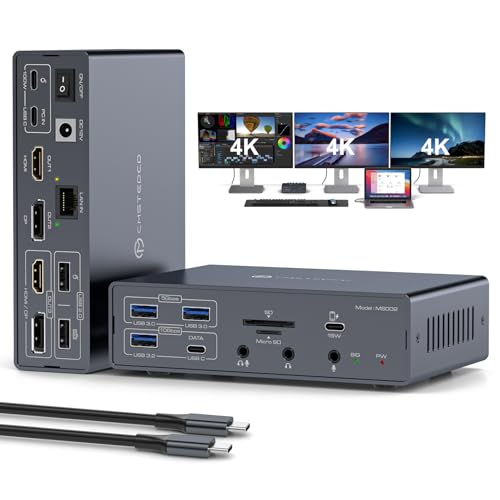
Elevate your MacBook Air experience with the Thunderbolt Docking Station, designed specifically for M1, M2, M3, and M4 models. This 19-in-1 USB C dock features two HDMI and two DisplayPort outputs, enabling you to connect up to three 4K@60Hz displays effortlessly. Enjoy high-speed data transfers with multiple USB ports, including USB 3.2 and USB-C options. The built-in SD and Micro SD card readers streamline file access, while Gigabit Ethernet guarantees stable network connections. Plus, with 100W charging, your MacBook stays powered up. Compatible with various devices, setup is simple—just plug and play!
Best For: Professionals and creators using M1, M2, M3, and M4 MacBook Pro/Air models who need robust connectivity and high-resolution display options.
Pros:
- Supports up to three 4K@60Hz displays for enhanced multitasking.
- Offers high-speed data transfer with multiple USB ports and card readers.
- Plug-and-play functionality for easy setup with various devices.
Cons:
- Requires specific drivers for MST and SST modes, which may complicate setup.
- 100W PD power adapter sold separately, adding to the overall cost.
- Limited compatibility with non-USB-C devices.
Satechi Thunderbolt 4 Dock with 100W Charging and Dual Monitor Support

If you’re looking to enhance your MacBook Air experience with dual monitor support, the Satechi Thunderbolt 4 Dock is a standout choice. With 100W charging and the ability to connect up to four external displays (three for M2/M1), it’s perfect for multitasking. You’ll enjoy lightning-fast 40Gbps data transfer through Thunderbolt 4 ports, plus two USB-A 3.2 ports for your peripherals. The dock weighs just 1.08 pounds and comes with a generous two-year warranty, ensuring durability. However, remember to install DisplayLink drivers for full functionality. This dock’s design and performance make it ideal for demanding tasks like photo editing.
Best For: Users seeking a reliable docking solution for their MacBook Air or Pro that supports multiple monitors and high-speed data transfer.
Pros:
- 100W charging capabilities ensure your devices stay powered during intensive tasks.
- Supports up to 4 external displays, enhancing multitasking efficiency for professionals.
- Compact and lightweight design makes it easy to transport while providing robust functionality.
Cons:
- Requires installation of DisplayLink drivers for multi-display functionality, which may be a hassle for some users.
- Some users have reported slower performance with certain SSDs, potentially affecting data transfer speeds.
- Cable management design criticized, leading to possible clutter in workspace setups.
USB C Adapter HDMI Hub for MacBook Pro/Air (7-in-2)

The USB C Adapter HDMI Hub for MacBook Pro/Air (7-in-2) is ideal for creative professionals and tech-savvy users who need versatile connectivity on the go. This compact hub features HDMI, Thunderbolt 3, USB-C, and two USB 3.0 data ports, along with SD and microSD card readers. It’s custom-designed for your MacBook models from 2016 to 2023, ensuring the MagSafe port remains unobstructed. Enjoy dual monitor support with stunning 4K resolution, and transfer data at impressive speeds. With a 360-day warranty and robust customer service, this hub is a reliable choice for enhancing your MacBook’s capabilities.
Best For: Creative professionals and tech-savvy users seeking versatile connectivity for their MacBook Pro and Air models.
Pros:
- Supports dual monitor functionality with 4K@60Hz resolution for an enhanced viewing experience.
- Custom-designed to avoid obstruction of the MagSafe port, ensuring seamless usage with MacBook models.
- High data transfer speeds of up to 5 Gb/s, allowing for quick file transfers and efficient workflow.
Cons:
- Cannot work with MacBook Pro cases, limiting compatibility for users with protective covers.
- All functions cannot be utilized simultaneously, which may restrict usage in certain scenarios.
- May not support legacy devices due to its focus on modern connectivity standards.
Factors to Consider When Choosing a Macbook Air Thunderbolt Dock
When choosing a Thunderbolt dock for your MacBook Air, you should consider several key factors. Think about the variety and configuration of ports you’ll need, along with charging power delivery and display support capabilities. Also, don’t overlook the build quality and design, as well as compatibility with your other devices.
Port Variety and Configuration
Choosing a Thunderbolt dock for your MacBook Air means considering the variety and configuration of ports available. You’ll want to assess the number and types of ports, like USB-A, USB-C, HDMI, Ethernet, and card readers, to guarantee compatibility with your devices. Look for docks offering multiple USB ports with various data transfer speeds—higher speeds, such as 10Gbps or 40Gbps, can greatly improve efficiency. It’s also essential to evaluate the number of display outputs; some docks support dual or triple 4K displays, which markedly boosts multitasking. Additionally, check for SD/microSD card readers for easy access to external storage, especially if you’re a photographer or content creator. This thoughtful selection will optimize your connectivity experience.
Charging Power Delivery
Selecting a Thunderbolt dock for your MacBook Air involves careful consideration of its charging power delivery capability. Many docks offer up to 100W of power delivery, ensuring your laptop charges efficiently while in use. It’s essential to choose a dock whose power output meets or exceeds your MacBook Air’s requirements to prevent slow charging or performance issues during heavy tasks. Docks providing 96W or 85W can be particularly advantageous when multitasking with multiple peripherals. Additionally, confirm whether the dock needs a specific wattage power adapter for ideal performance, as using a lower wattage charger may hinder charging capabilities. Look for docks that offer pass-through charging alongside data transfer, creating a seamless setup without compromising power to your laptop.
Display Support Capabilities
Understanding the display support capabilities of a Thunderbolt dock is vital for maximizing your MacBook Air’s potential. First, check how many external displays the dock supports. If you have an M4 MacBook, you can enjoy dual 4K displays at 60Hz, while M1 and M2 models are limited to one. Look for docks with HDMI or DisplayPort outputs for compatibility with high-resolution monitors, preferably supporting up to 4K at 60Hz. Some docks use DisplayLink technology, enabling dual monitor setups even on M1/M2 Macs. Don’t forget to take into account refresh rates; not all docks can handle high-refresh-rate monitors, important for gaming or video editing tasks. Finally, verify the dock’s ports match your display connections for peak performance.
Build Quality and Design
When evaluating a Thunderbolt dock for your MacBook Air, build quality and design play essential roles in your decision-making process. Look for a dock with an aluminum-clad design; this material typically offers enhanced durability and a premium appearance. Consider the dimensions and weight; a compact, lightweight dock saves desk space and is easy to transport. Effective heat management features are vital, as they minimize overheating, which can affect performance and longevity. Additionally, check the layout of ports—strategically placed ports allow for easy access without cluttering your workspace. Opt for a dock with solid construction that reports minimal overheating during use, ensuring you enjoy reliable performance, even during extended sessions.
Compatibility With Devices
Choosing a Thunderbolt dock for your MacBook Air means ensuring compatibility with your specific model, especially since the M1, M2, and M3 versions can only support a single external display. If you’re using an M4 MacBook, look for docks that offer dual 4K display support at 60Hz.
It’s vital to verify that the dock supports Thunderbolt 4 or USB4 connections, which provide best performance and data transfer speeds up to 40Gbps. Additionally, check for essential ports like HDMI, USB-A, and USB-C, as compatibility can vary. Finally, confirm that the dock’s charging capabilities meet your needs, aiming for options that deliver up to 100W power to keep your MacBook Air charged during use.
Data Transfer Speeds
Data transfer speeds play an essential role in enhancing your MacBook Air’s performance, especially for demanding tasks like video editing or transferring large files. Thunderbolt docks can deliver impressive speeds of up to 40 Gbps, making them ideal for high-bandwidth activities. When choosing a dock, consider those with multiple USB ports—USB-A and USB-C ports typically offer 10 Gbps, perfect for connecting external drives. Some docks also include USB 5 Gbps ports for everyday tasks, though these are slower compared to Thunderbolt 4 connections. Keep in mind that the speed capability of your connected devices affects overall performance; older USB standards will lead to slower transfers. Opting for a dock with higher speeds guarantees efficient multitasking and seamless connectivity.
Ease of Use
Selecting a Thunderbolt dock for your MacBook Air can greatly enhance your user experience, especially if you prioritize ease of use. Look for a docking station with plug-and-play functionality, which means you won’t have to deal with driver downloads. Check user feedback to verify that connecting and disconnecting devices is hassle-free, and that the port layout is intuitive. Clear labeling of ports is essential for quick identification of functionalities. If you’re often on the go, a lightweight and compact design will make it easier to store and transport your dock. Finally, consider the availability of customer support, as it can help resolve any setup issues efficiently, guaranteeing a smoother overall experience.
Warranty and Support Options
When you’re considering a Thunderbolt dock for your MacBook Air, warranty and support options play an essential role in ensuring peace of mind. Look for docks with at least an 18-month warranty; this often reflects the manufacturer’s confidence in their product’s durability. Accessible customer support is vital, as you’ll want help for any setup or operational issues. A satisfaction guarantee or easy return policy lets you try the product risk-free. Research user feedback on customer service quality; responsive support can speed up issue resolution. Finally, check if the manufacturer offers lifetime support or extensive resources like manuals and guides, which can be incredibly helpful for ongoing use and troubleshooting.