If you’re a MacBook Pro user, you know how vital connectivity is for productivity. The right Thunderbolt dock can enhance your setup, offering high-speed data transfer, multiple display options, and efficient charging. With so many options available, it’s essential to choose one that fits your needs. In the following sections, you’ll discover the top ten docks that can elevate your workspace and streamline your workflow. Which one will suit you best?
Plugable Thunderbolt 4 Dock for M4 MacBook Air & Pro
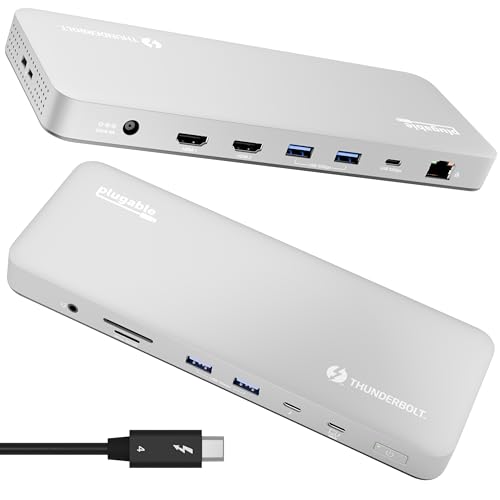
If you’re looking for a versatile docking solution for your M4 MacBook Pro, the Plugable Thunderbolt 4 Dock is an excellent choice. This 13-in-1 docking station boasts a robust port configuration, including dual 4K HDMI outputs and multiple USB ports for seamless connectivity. With 100W host charging, it keeps your MacBook powered while delivering data at lightning speeds up to 40Gbps. Its aluminum-clad design not only looks sleek but also manages heat efficiently. Plus, you’ll enjoy plug-and-play functionality with lifetime support from experts. Overall, it’s a reliable choice to elevate your connectivity experience with ease.
Best For: Users with M4 MacBook Air and Pro models seeking a high-performance docking solution for enhanced connectivity and charging capabilities.
Pros:
- Versatile Connectivity: Offers a wide range of ports including dual 4K HDMI outputs, USB-A, USB-C, and an SD/microSD card reader for multiple device connections.
- Powerful Performance: Supports 100W host charging and data transfer speeds up to 40Gbps via Thunderbolt 4, making it ideal for demanding tasks.
- Premium Build Quality: Features an aluminum-clad design that is not only aesthetically pleasing but also efficient in heat management.
Cons:
- Limited Ethernet Speed: Only supports Gigabit Ethernet, which may not meet the needs of users requiring faster networking options.
- Gaming Limitations: Not suitable for ultra-high refresh gaming monitors, lacking support for 4K@120Hz.
- Missing HDMI Cables: Does not include HDMI cables for setting up dual monitor configurations, which may require additional purchases.
Anker USB C Hub for MacBook (7-in-2 with 4K HDMI)

The Anker USB C Hub for MacBook is a stellar choice for users seeking robust port expansion without compromising on performance. This 7-in-2 hub transforms your two USB-C ports into a multi-function USB-C port, a USB-C data port, two USB-A ports, an HDMI port, and both an SD and microSD card slot. It supports charging up to 100W and data transfer speeds of 40 Gb/s, with HDMI capable of 4K@60Hz. While M1 and M2 MacBooks can only use one external display, this hub guarantees seamless connectivity for your essential devices and includes an 18-month warranty for peace of mind.
Best For: Users of MacBook Pro 13 Inch and MacBook Air M1/M2 who need versatile port expansion and high-performance connectivity.
Pros:
- Supports high charging power of up to 100W and data transfer speeds of 40 Gb/s.
- Includes multiple ports for various devices, including USB-C, USB-A, HDMI, and card slots for SD and microSD.
- Compact design that avoids obstruction of the MagSafe port, ensuring a neat setup.
Cons:
- Limited to one external display on M1 and M2 MacBooks, which may be a drawback for multi-monitor users.
- Compatibility primarily focused on MacBooks, limiting use with other devices.
- Warranty period of 18 months may be shorter compared to some competitors.
Amazon Basics Thunderbolt4/USB4 Pro Docking Station
For those seeking a versatile docking solution for their non-M1/M2 MacBook Pro, the Amazon Basics Thunderbolt4/USB4 Pro Docking Station stands out with its dual Thunderbolt 4 USB-C ports, allowing seamless connectivity with multiple high-resolution displays. It features an HDMI 2.1 port, three USB A 3.1 ports, and a 2.5Gbps RJ45 Ethernet connection. With dynamic power delivery up to 96W, it supports charging your laptop efficiently. Users appreciate its plug-and-play functionality and compact design. While some reported audio issues or compatibility quirks, it remains a cost-effective choice for enhancing your connectivity game.
Best For: Users with non-M1/M2 MacBooks or Thunderbolt 4 compatible laptops looking for a reliable and versatile docking station to enhance connectivity and display options.
Pros:
- Excellent connectivity with dual Thunderbolt 4 USB-C ports and multiple display support.
- Compact design makes it easy to transport and fit in various workspaces.
- Dynamic power delivery of up to 96W allows efficient charging while using the dock.
Cons:
- Some users experience audio output issues and monitor connectivity problems after sleep mode.
- Limited functionality with Thunderbolt 3 laptops may affect performance.
- Not compatible with Linux or Chrome OS, restricting its use to specific systems.
Anker Prime TB5 Docking Station (14-in-1 Thunderbolt 5)

Designed for professionals and creatives who demand high performance, the Anker Prime TB5 Docking Station offers an impressive 14 ports, making it an ideal choice for your MacBook Pro. With a max transfer speed of 120Gbps, you can move 150GB in just 25 seconds. It supports dual displays up to 8K@60Hz and delivers 140W charging via PD 3.1. The advanced cooling system prevents overheating, ensuring reliable performance. Though it has some limitations, like a single video output and slower SD card speeds, its build quality and seamless integration make it a top contender for enhancing your connectivity game.
Best For: Professionals and creatives seeking high-performance connectivity solutions for their MacBook Pro or Thunderbolt 5 compatible devices.
Pros:
- High transfer speeds of up to 120Gbps, allowing for rapid file transfers.
- Supports dual 8K displays at 60Hz, ideal for multitasking and high-resolution work.
- Advanced cooling system prevents overheating, ensuring reliable and consistent performance.
Cons:
- Limited to one video output at a time (either HDMI or DisplayPort).
- Slower SD card reader speeds (UHS-I) may not meet the needs of some users.
- Occasional issues with SD card functionality after sleep mode can be inconvenient.
Plugable Thunderbolt 4 Dock with 100W Charging (TBT4-UD5)
Offering 100W charging and Thunderbolt Certified performance, the Plugable Thunderbolt 4 Dock (TBT4-UD5) is perfect for professionals who demand high-speed connectivity and versatility from their MacBook Pro. With 13 high-performance ports, you can connect dual 4K displays or a single 8K display, enhancing your multitasking capabilities. Experience ultra-fast 40Gbps speeds and reliable Ethernet with its built-in 1 Gbps port. The dock supports various USB-C peripherals without lag, ensuring smooth operation. While some users prefer rear port placement for a cleaner setup, Plugable’s excellent customer support helps you navigate any challenges you may encounter.
Best For: Professionals seeking high-speed connectivity and versatility for their MacBook Pro with dual display capabilities.
Pros:
- Supports dual 4K displays or a single 8K display, enhancing multitasking capabilities.
- Ultra-fast 40Gbps speeds and reliable 1 Gbps Ethernet for stable connections.
- Excellent customer support from Plugable to assist with any setup challenges.
Cons:
- Some users prefer rear-mounted ports for a cleaner setup instead of front-mounted.
- Intermittent disconnections reported by some users during operation.
- Setup difficulties noted with monitor assignments for certain configurations.
Plugable 16-in-1 Thunderbolt 4 Dock for M4 MacBook Air/Pro

The Plugable 16-in-1 Thunderbolt 4 Dock stands out as an exceptional choice for MacBook Pro users who demand versatility and performance. It supports dual 4K 60Hz displays, making multitasking seamless. With 7 USB ports, dual HDMI, and a 2.5Gbps Ethernet, you can connect all your devices effortlessly. The dock offers 100W Power Delivery, ensuring your MacBook stays charged while you work. Users appreciate its plug-and-play functionality, which simplifies setup without needing drivers. Plus, responsive customer support enhances your experience, making it a reliable option for professional workflows and creative tasks alike. You won’t be disappointed!
Best For: The Plugable 16-in-1 Thunderbolt 4 Dock is best for MacBook Pro users seeking a versatile docking solution for dual monitor setups and multiple peripheral connections.
Pros:
- Supports dual 4K 60Hz displays, enhancing multitasking capabilities.
- Plug-and-play functionality allows for easy setup without the need for drivers.
- Excellent customer support with quick response times and effective solutions.
Cons:
- Limited number of USB-C ports may not meet all user needs.
- Some users reported initial connectivity issues that required troubleshooting.
- Improvements in cable management options could enhance user experience.
CalDigit TS4 Thunderbolt 4 Dock

If you’re looking for a Thunderbolt dock that can transform your MacBook Pro into a powerful workstation, the CalDigit TS4 Thunderbolt 4 Dock is an excellent choice. With 18 ports, including three Thunderbolt 4 and eight USB ports, it supports high-speed connections up to 40Gb/s. You can easily connect dual 6K displays or a single 8K monitor. Plus, the 98W charging capability means you can power your laptop while connecting multiple devices through a single cable. Users love the straightforward setup, though a few report occasional connectivity issues. Overall, it’s a solid investment for enhancing your connectivity game.
Best For: Professionals and creatives using MacBook Pro or other Thunderbolt-compatible devices who need extensive connectivity and high-performance charging options.
Pros:
- Supports high-speed connections with up to 40Gb/s and multiple display options, including dual 6K or single 8K monitors.
- Delivers 98W charging capability, allowing for simultaneous power and data transfer through a single cable.
- Easy setup and user-friendly design enhance productivity by transforming laptops into full desktop workstations.
Cons:
- Some users report occasional connectivity issues, including ethernet problems and USB drive disconnections.
- A few users experience warm temperatures during use, which may be a concern for prolonged operation.
- Limited number of USB ports compared to the demand, with suggestions for more instead of card readers.
MOKiN Thunderbolt 4 Dock – 16 Ports Laptop Docking Station
For MacBook Pro users seeking extensive connectivity, the MOKiN Thunderbolt 4 Dock stands out with its impressive 16 ports. You can enjoy dual 4K 60Hz displays if you have Intel or M1 Pro/Max, M2 Pro/Max, or M3 Pro/Max models. With Thunderbolt-certified speeds of 40Gbps, it supports one 8K or triple 4K displays. The dock also offers up to 100W Power Delivery and includes a 150W power adapter. While many users appreciate its build quality and functionality, some have faced monitor recognition issues and limitations with base M1/M2 chips. Overall, it’s a robust option for extensive connectivity needs.
Best For: Users with MacBook Pro models needing extensive connectivity options and support for dual or triple monitor setups.
Pros:
- Supports dual 4K 60Hz displays on compatible MacBook Pro models, enhancing productivity and multitasking.
- Thunderbolt-certified speeds of 40Gbps allow for fast data transfer and support for high-resolution displays.
- Includes a 150W power adapter and provides up to 100W Power Delivery, ensuring devices stay charged while in use.
Cons:
- Users with base M1/M2 chips may only utilize mirrored displays, limiting multi-monitor functionality.
- Some customers experienced monitor recognition issues, particularly with specific configurations or older monitors.
- Customer support can be challenging to navigate due to language barriers and responsiveness concerns.
Docking Station for 16″ Apple MacBook Pro (Dual Displays, Thunderbolt 4)

Crafted specifically for the 16″ Apple MacBook Pro, this Thunderbolt 4 docking station enhances your workspace with dual display capabilities. Weighing just 3.1 pounds, it features a sleek design in space gray, ensuring your MacBook shines. The vertical docking design provides a secure fit and efficient heat dissipation. With Thunderbolt-4 USB-C ports, you’ll enjoy rapid 40Gbps speeds for charging and connecting devices. Users love the ease of switching between laptop and desktop modes, though some report occasional connectivity issues. While it may seem pricey, the functionality and aesthetics make it a worthy investment for enhancing your connectivity game.
Best For: This docking station is best for professionals using the 16″ Apple MacBook Pro who seek enhanced connectivity and seamless desktop integration.
Pros:
- Elegant Design: Crafted from premium alloys in space gray, it complements the MacBook aesthetically.
- Fast Connectivity: Thunderbolt-4 USB-C ports provide rapid 40Gbps speeds for device connections and charging.
- User-Friendly: Allows easy switching between laptop and desktop modes, reducing cable clutter.
Cons:
- Compatibility Limitations: Not compatible with MacBook Air models or earlier MacBook Pro models with TouchBar.
- Connectivity Issues: Some users experience problems such as screens not turning on or internet speeds dropping.
- Potential Need for Additional Hubs: Users may require extra USB hubs to connect multiple peripherals and monitors.
UGREEN Revodok Max Thunderbolt 4 Dock 8-in-1

The UGREEN Revodok Max Thunderbolt 4 Dock 8-in-1 stands out as an exceptional choice for MacBook Pro users seeking robust connectivity options. With three Thunderbolt 4 ports and three USB A 3.2 ports, it delivers impressive versatility. You’ll enjoy data transfer speeds up to 40Gbps and dual 4K@60Hz display support. Plus, the 85W charging capability guarantees your devices stay powered. It’s compatible with a wide range of Thunderbolt and USB-C devices, making it a reliable hub for your setup. Though some users report Ethernet issues, overall, its build quality and performance have garnered positive feedback.
Best For: MacBook Pro users seeking versatile connectivity options and high-speed data transfer.
Pros:
- Impressive data transfer speeds of up to 40Gbps.
- Dual 4K@60Hz display support for enhanced visual experience.
- 85W charging capability keeps devices powered while in use.
Cons:
- Some users report issues with Ethernet connectivity.
- Dual monitor functionality may not work seamlessly for all users.
- Customer support experiences can be inconsistent.
Factors to Consider When Choosing a Macbook Pro Thunderbolt Dock
When choosing a Thunderbolt dock for your MacBook Pro, consider the port configuration options that best fit your needs. You’ll also want to evaluate display support capabilities and guarantee the dock meets your power delivery requirements. Finally, check the build quality and design for durability, and confirm compatibility with your other devices.
Port Configuration Options
Choosing the right Thunderbolt dock for your MacBook Pro hinges on understanding the port configuration options available. First, consider the number and types of ports you need, like USB-A, USB-C, HDMI, and card readers, to guarantee compatibility with your peripherals. If you’re planning to use multiple monitors, look for docks that support dual 4K displays at 60Hz or higher. Evaluate the dock’s power delivery capabilities, ideally between 85W to 100W, to keep your MacBook charged during use. High-speed data transfer ports, like Thunderbolt 4, can provide speeds up to 40Gbps for efficient connectivity. Finally, additional features such as Ethernet ports, audio jacks, and SD/microSD card readers can enhance your overall workflow.
Display Support Capabilities
Understanding display support capabilities is essential for maximizing your MacBook Pro’s potential with a Thunderbolt dock. First, check how many external displays your model supports; M4 Macs can handle dual 4K displays at 60Hz, while M1 and M2 models are limited to one external display. Next, verify the dock’s HDMI or DisplayPort specifications meet your needs—some support resolutions up to 8K@30Hz, while others max out at dual 4K. Also, consider the dock’s compatibility with various display ports; Thunderbolt 4 docks usually offer both HDMI and DisplayPort outputs. Finally, if you’re using an M3 Mac, look for clamshell mode support to use external displays with your laptop closed, optimizing your workspace setup.
Power Delivery Requirements
Power delivery is a crucial factor in selecting a Thunderbolt dock for your MacBook Pro. You want a dock that offers at least 100W to efficiently charge your device while it’s in use. Verify the dock’s power delivery capabilities match or exceed your MacBook’s requirements to avoid slow charging or disconnections. If you’re using high-demand devices, look for docks that support PD 3.1 for improved performance. Some docks even feature dynamic power profiles, adapting the charging based on connected devices, which is especially helpful in multi-device setups. By choosing a dock with robust power delivery and multiple ports, you’ll streamline your workspace and reduce clutter from unnecessary cables and adapters.
Build Quality and Design
When it comes to selecting a Thunderbolt dock for your MacBook Pro, build quality and design play a significant role in ensuring longevity and performance. Aluminum-clad designs often provide a premium feel and better heat management, making them more reliable than plastic alternatives. If you travel frequently, consider the dock’s weight; lighter models, ranging from 1.41 to 3.94 pounds, are more portable. Dimensions also matter—compact designs like 4.46 x 1.65 x 5.55 inches can save desk space, while larger models may offer additional features. Look for enhanced cooling systems to prevent overheating during intensive tasks and designs that allow easy access to ports, ensuring quick connections without cluttering your workspace.
Compatibility With Devices
Selecting a Thunderbolt dock that fits your MacBook Pro is vital for maximizing its potential. First, verify the dock is compatible with your specific model, as M1 and M2 devices have limitations on external displays. Check that it supports Thunderbolt 4 or USB4 for peak data transfer speeds and charging. You’ll also want to confirm compatibility with multiple operating systems, as some docks may only work with certain versions of macOS or Windows. It’s important to verify the number of external displays the dock can handle; M4 models can support dual displays, while M1 and M2 are limited to one. Finally, consider the dock’s port configuration to meet your connectivity needs, including USB-A, USB-C, HDMI, and Ethernet.
Cooling and Heat Management
Effective cooling and heat management are essential factors to take into account in a Thunderbolt dock for your MacBook Pro. Overheating can negatively impact performance and reliability during extended use, so choose a dock with advanced active cooling methods. These systems help dissipate heat, ensuring ideal operating temperatures even under heavy loads. A well-designed dock should feel warm to the touch without becoming excessively hot, with normal operating temperatures around 122°F (50°C) under full load. Proper heat management not only maintains stable connectivity but also protects internal components and connected devices from potential damage. Prioritize docks that excel in cooling efficiency to enhance your overall experience while using your MacBook Pro.