In 2025, enhancing your MacBook Pro’s connectivity is essential for maximizing productivity. With various Thunderbolt hubs available, you’ll find options that cater to high-speed data transfer and power delivery. From compact designs to versatile port configurations, these hubs can greatly improve your workflow. But with so many choices, how do you decide which one is right for you? Let’s explore the top contenders and what sets them apart.
Anker USB C Hub for MacBook (7-in-2)

If you’re looking to maximize the connectivity of your MacBook Pro or MacBook Air, the Anker USB C Hub (7-in-2) is an excellent choice. This hub expands your two USB-C ports into a versatile setup with a multi-function USB-C port, two USB-A ports, an HDMI port, and both SD and microSD card slots. You can enjoy 4K HDMI output and impressive data transfer speeds of up to 40 Gb/s. Plus, it’s designed to avoid obstructing your MagSafe port. With its compatibility with the latest MacBooks, the Anker hub enhances your productivity seamlessly, making it a must-have accessory.
Best For: Users of MacBook Pro and MacBook Air looking to expand connectivity options and enhance productivity.
Pros:
- Versatile port expansion with multiple USB-C, USB-A, HDMI, and card slots.
- High-performance capabilities including 4K HDMI output and data transfer speeds up to 40 Gb/s.
- Designed specifically for MacBooks, ensuring no obstruction of the MagSafe port.
Cons:
- Limited dual display support for M1 and M2 MacBooks, restricting multi-monitor setups.
- May not be compatible with non-MacBook devices, limiting its versatility.
- Some users may find the price a bit higher compared to other generic hubs.
USB C Adapter HDMI Hub for MacBook Pro/Air (7-in-2)

For MacBook Pro and Air users seeking versatility, the USB C Adapter HDMI Hub (7-in-2) is an ideal choice. This hub features HDMI, Thunderbolt 3, USB-C, two USB 3.0 data ports, and both SD and microSD card readers. Designed specifically for MacBook models from 2016 to 2023, it avoids blocking the MagSafe port, though it won’t work with cases. Enjoy stunning visuals with 4K@60Hz and 5K@60Hz display capabilities. Plus, with data transfer speeds up to 40 Gb/s, you’ll connect external devices effortlessly. A 360-day warranty guarantees peace of mind for your connectivity needs.
Best For: MacBook Pro and Air users looking for a multifunctional hub to enhance their connectivity options.
Pros:
- Supports dual monitor functionality with stunning 4K and 5K display capabilities.
- High-speed data transfer rates of up to 40 Gb/s, ensuring quick connections to external devices.
- Custom designed to fit MacBook models from 2016 to 2023 without obstructing the MagSafe port.
Cons:
- Not compatible with MacBook Pro cases, limiting usage options.
- Cannot utilize all functions simultaneously, which may restrict multitasking capabilities.
- Limited to specific MacBook models, which could exclude potential users with older devices.
Anker USB C Hub, 5-in-1 HDMI Splitter

The Anker USB C Hub, 5-in-1 HDMI Splitter, is an ideal choice for MacBook Pro users seeking seamless connectivity and high-definition display options. With a 4K HDMI port, you can enjoy stunning visuals while the five USB ports—one USB-C and two USB-A—allow for fast data transfers up to 5 Gbps. You’ll appreciate the 100W PD-IN port for charging, ensuring your laptop stays powered during use. It’s compatible with macOS 12 and newer, making it perfect for your setup. Plus, with an 18-month warranty and responsive customer service, you can buy with confidence.
Best For: MacBook Pro users seeking seamless connectivity and high-definition display options.
Pros:
- Supports 4K HDMI output for stunning visuals.
- Fast data transfers up to 5 Gbps via multiple USB ports.
- 100W pass-through charging capability to keep your laptop powered during use.
Cons:
- Not compatible with Linux operating systems.
- USB C data port does not support video output.
- Recommended wall charger for iPad is 45W, which may limit charging options.
Anker 555 USB-C Hub (8-in-1)

Designed for users seeking versatility and high performance, the Anker 555 USB-C Hub (8-in-1) stands out with its impressive 85W Power Delivery feature. You’ll appreciate the 4K@60Hz HDMI output, perfect for high-resolution displays, alongside 10Gbps data transfer speeds from its USB-C and USB-A ports. Weighing just 4.5 ounces and compact at 4.76 x 2.17 inches, it’s easy to carry. While it’s compatible with macOS 12 and newer, Windows 10 and 11, and ChromeOS, it’s not compatible with Linux. Just remember to use quality cables for peak performance, as some users noted connectivity issues with lower-quality ones.
Best For: Users seeking a versatile and high-performance USB-C hub for their laptops, particularly MacBook users and those needing multiple ports.
Pros:
- Versatile 8-in-1 design with multiple ports, including HDMI and USB-C.
- Supports 85W Power Delivery for fast charging alongside data transfer.
- Compact and lightweight, making it highly portable for on-the-go use.
Cons:
- Not compatible with Linux operating systems.
- Reports of overheating and poor visibility of port labels.
- Some users experienced connectivity issues with lower-quality cables.
Anker 7-in-1 Multi-Port USB C Hub for Laptops

If you’re looking to expand your MacBook Pro’s capabilities, the Anker 7-in-1 Multi-Port USB C Hub is an excellent choice. It features an HDMI port for stunning 4K video, three USB-A 3.0 ports for speedy data transfers, and SD/TF card slots for easy access to your files. With a maximum power delivery of 85W, it charges your laptop efficiently while you work. Weighing just 2.36 ounces and boasting a compact aluminum design, it’s perfect for travel. Users love its plug-and-play functionality and the ability to connect multiple devices simultaneously, making it a reliable addition to your setup.
Best For: Users looking to enhance their laptop’s connectivity with multiple ports for data transfer, video output, and charging capabilities.
Pros:
- Compact and lightweight design makes it ideal for travel.
- High-speed data transfer with USB-A 3.0 ports and 4K video support via HDMI.
- Supports simultaneous use of multiple ports without performance issues.
Cons:
- HDMI port is video-only, lacking audio output capabilities.
- Some users report compatibility issues with certain tablets.
- Absence of an Ethernet port limits wired internet options.
Plugable Thunderbolt 4 Dock for M4 MacBook Air & Pro
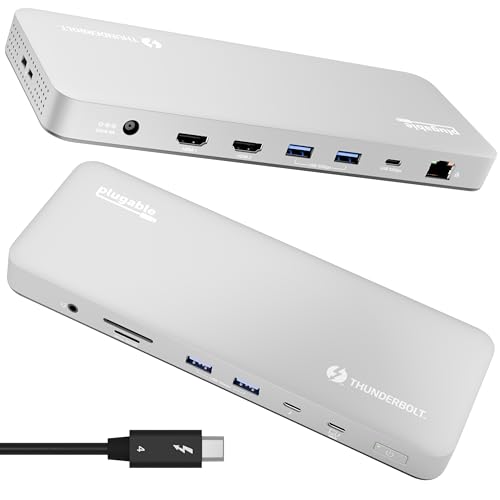
For users of the M4 MacBook Air and Pro, the Plugable Thunderbolt 4 Dock (Model: TBT-UDM) stands out as an ideal solution, thanks to its impressive 13-in-1 port configuration. You’ll enjoy dual 4K display support at 60Hz, along with fast data transfer speeds of up to 40Gbps. This dock charges your device with up to 100W, ensuring you stay powered throughout your day. Its aluminum design not only looks sleek but also helps manage heat effectively. With plug-and-play functionality and lifetime support from connectivity experts, it’s a reliable choice for enhancing your setup.
Best For: Users of M4 MacBook Air and Pro who seek a versatile and high-performance docking solution for dual 4K displays and fast data transfer.
Pros:
- Supports dual 4K displays at 60Hz, maximizing visual productivity.
- Fast data transfer speeds of up to 40Gbps for efficient file handling.
- Plug-and-play functionality with lifetime support from North American connectivity experts.
Cons:
- Limited to Gigabit Ethernet; does not support 2.5Gb Ethernet.
- Not designed for ultra-high refresh rate gaming monitors (no support for 4K@120Hz).
- HDMI cables are not included for dual monitor setup.
Anker USB-C Hub for MacBook (8-in-2 Adapter)
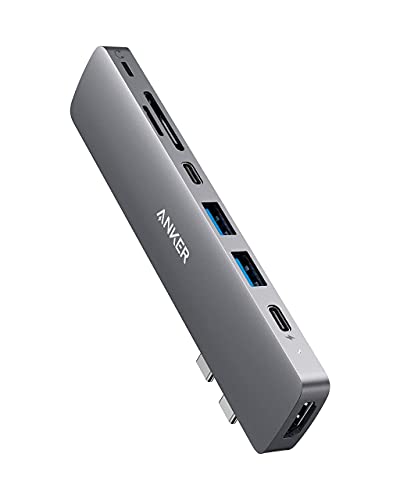
The Anker USB-C Hub for MacBook (8-in-2 Adapter) is perfect for users seeking to maximize their MacBook’s connectivity options without the hassle of multiple dongles. This compact hub transforms two USB-C ports into a multi-functional USB-C port, two USB-A ports, an HDMI port supporting 4K@30Hz, and both SD and microSD card slots. Weighing only 2.4 ounces, it’s portable and easy to use with a plug-and-play design. While some users appreciate its high-speed capabilities, including 100W charging, there are occasional compatibility issues with M1 models. Overall, it’s a solid choice for enhancing your MacBook’s functionality.
Best For: Users looking to expand their MacBook’s connectivity options without the need for multiple dongles.
Pros:
- High-speed capabilities with support for 100W charging and 40 Gb/s data transfer.
- Compact and portable design makes it easy to carry and use on the go.
- User-friendly plug-and-play functionality for quick setup.
Cons:
- Compatibility issues reported with M1 MacBook Pro, particularly with the Lightning audio port.
- Overheating concerns during extended use, though generally manageable.
- Color mismatch and noticeable branding may detract from the aesthetic appeal for some users.
Amazon Basics Thunderbolt 4/USB4 Pro Docking Station
Designed for users seeking reliable connectivity, the Amazon Basics Thunderbolt 4/USB4 Pro Docking Station excels with its dual Thunderbolt 4 USB-C ports and robust display support. Measuring 7.86 x 2.95 x 1.23 inches and weighing just 2.15 pounds, it’s a compact addition to your setup. You’ll enjoy dual 4K@60Hz display support, along with an HDMI 2.1 port capable of 8K@30Hz. Plus, the RJ45 Ethernet port supports speeds up to 2.5Gbps. Users appreciate its plug-and-play functionality, making it a cost-effective choice for enhancing connectivity without breaking the bank. Just remember to use high-quality cables for peak performance.
Best For: Users seeking a reliable and cost-effective docking station for enhanced connectivity with dual display support and high-speed data transfer.
Pros:
- Excellent dual 4K@60Hz display support through Thunderbolt 4 ports.
- Compact and lightweight design makes it easy to integrate into any workspace.
- Plug-and-play functionality for quick and hassle-free setup.
Cons:
- Limited compatibility with certain laptops, leading to potential connectivity issues.
- May experience reduced performance with multiple high-bandwidth devices connected simultaneously.
- Some users reported audio output problems after sleep mode on specific laptop models.
Satechi Thunderbolt 4 Dock Slim Hub Pro

If you’re looking for a versatile docking solution for your MacBook Pro, the Satechi Thunderbolt 4 Dock Slim Hub Pro stands out with its impressive 100W charging capability. It supports single 8K or dual 4K displays, giving you stunning visuals for your projects. With four Thunderbolt 4 ports and USB 3.2 Gen2 compatibility, connecting your devices is seamless. The hub effectively manages heat, ensuring peak performance during intensive tasks. Plus, it’s compatible with a range of systems, including Windows and various USB-C devices. With a 2-year warranty, you can trust in its durability and quality for your connectivity needs.
Best For: Professionals and creatives who require high-resolution displays and versatile connectivity options for their MacBook Pro or other compatible devices.
Pros:
- Supports stunning visuals with single 8K or dual 4K display capabilities.
- Offers 100W charging to power your devices while using the dock.
- Compatible with a wide range of systems, including macOS, Windows, and Android devices.
Cons:
- Limited to single external display for M2/M1 base model MacBooks.
- Not compatible with DisplayLink software, which may limit certain display configurations.
- May generate heat during intensive tasks, although designed for efficient heat dissipation.
UGREEN Revodok Pro USB C Hub for Laptop

For creative professionals and tech enthusiasts who demand high-quality video output, the UGREEN Revodok Pro USB C Hub shines with its 4K@60Hz HDMI support. This 8-in-1 docking station offers two USB-C and two USB-A 10Gbps data ports, making file transfers quick and efficient. With 100W power delivery, it keeps your devices charged while you work. Measuring just 4.69 x 1.77 x 0.63 inches, it’s compact and portable, perfect for travel. Users appreciate its strong build and versatility, though a few have reported overheating issues. Overall, the UGREEN Revodok Pro is a solid choice for enhancing your MacBook’s connectivity.
Best For: Creative professionals and tech enthusiasts seeking high-quality video output and versatile connectivity options for their devices.
Pros:
- Compact and portable design, ideal for travel.
- High-speed data transfer with 10Gbps capabilities on USB-C and USB-A ports.
- Supports 4K@60Hz HDMI output for exceptional video quality.
Cons:
- Some users have reported overheating issues during prolonged use.
- A few device failures have been noted in customer feedback.
- Limited availability of warranty information upon request.
Factors to Consider When Choosing a Macbook Pro Thunderbolt Hub
When you’re choosing a Thunderbolt hub for your MacBook Pro, consider what ports you need and how many devices you’ll connect. It’s also important to look at data transfer speeds and power delivery capabilities to guarantee peak performance. Don’t forget about display resolution support and the hub’s build quality, as these factors will impact your overall experience.
Port Variety and Availability
Choosing the right Thunderbolt hub for your MacBook Pro hinges on the variety of ports it offers. You’ll want a hub that includes HDMI, USB-A, USB-C, and card readers to guarantee compatibility with various devices. Multiple USB-C ports are essential, allowing for data transfer and charging, which boosts your productivity. If you’re connecting external monitors, check that the hub supports high-resolution outputs like 4K@60Hz or even 5K for exceptional visual performance. Don’t overlook the USB-A ports, as they’re commonly used for external storage devices, providing flexibility in connectivity. Additionally, having SD/microSD card slots can make life easier, especially for photographers and videographers needing quick data transfer from their cameras.
Data Transfer Speeds
While evaluating Thunderbolt hubs for your MacBook Pro, data transfer speeds play a crucial role in ensuring efficient performance. Many hubs support speeds up to 40 Gbps, especially those featuring Thunderbolt 3 and 4 technology. If you’re using USB 3.1 or 3.2 ports, expect rates of up to 10 Gbps, while USB-A ports typically reach 5 Gbps—adequate for most peripherals. Remember, the choice of cables greatly impacts speeds; high-quality Thunderbolt 4 or USB4 cables are essential. Be mindful that some hubs might limit transfer speeds across multiple ports due to shared bandwidth, so think about how many devices you’ll connect. Also, check compatibility with data transfer protocols like UHS-I for ideal media file access and transfer speeds.
Power Delivery Capability
Understanding the power delivery capability of a Thunderbolt hub is essential for maximizing your MacBook Pro’s performance. Power delivery indicates the maximum wattage the hub can provide to charge connected devices, with many hubs supporting up to 100W for laptops. You need to verify the hub meets your MacBook Pro’s power requirements, especially when running demanding applications or using multiple peripherals. Keep in mind that high-quality hubs often reserve some power for operational functions; a 100W hub might only provide around 85W for charging while ports are active. Monitoring this capability helps prevent connectivity issues like disconnections or reduced performance, particularly when multiple ports are in use, which can affect charging efficiency and overall device performance.
Display Resolution Support
Power delivery isn’t the only factor to evaluate when selecting a Thunderbolt hub for your MacBook Pro; display resolution support is equally important. You’ll want to check if the hub supports resolutions like 4K at 60Hz or higher, especially for graphic design or video editing tasks. Consider dual monitor functionality as well; some hubs enable extended desktop setups, while others may only mirror displays, particularly with M1 or M2 models. If you need ultra-high-definition output, choose a hub that supports 5K at 60Hz. Ascertain compatibility with your MacBook’s Thunderbolt version, as newer hubs typically offer better resolution support. Look for hubs specifying DisplayPort 1.4 or HDMI 2.1 to maximize your connected displays’ potential.
Build Quality and Design
When choosing a Thunderbolt hub for your MacBook Pro, build quality and design play significant roles in your overall experience. Opt for hubs made from durable materials like aluminum to guarantee longevity and withstand daily use. A compact, lightweight design is essential for portability, making it easy to carry while traveling or commuting. Look for clearly labeled ports to enhance usability, especially with high-contrast labels for better visibility. The dimensions and form factor should allow for a snug fit alongside your MacBook, avoiding any obstruction of ports or connections. Finally, effective heat management features are critical to prevent overheating, assuring consistent performance and safety during operation. Prioritize these factors for a seamless experience.
Compatibility With Devices
Choosing the right Thunderbolt hub for your MacBook Pro requires careful consideration of compatibility with your specific devices. First, make sure the hub matches your MacBook model, as some are tailored for specific generations like M1, M2, M3, or M4. Next, check the supported operating systems; compatibility can vary with macOS versions, and older systems might not work with certain hubs. Verify that the hub provides the necessary power delivery (PD) wattage for peak charging and performance. If you plan to connect multiple displays, look for hubs that support dual monitor setups, keeping in mind potential limitations based on your MacBook model. Finally, confirm the hub has the required ports and data transfer speeds for your devices.
Warranty and Support Options
While selecting a Thunderbolt hub for your MacBook Pro, it’s essential to take into account warranty and support options. Look for hubs that offer an 18-month to 2-year warranty against defects in materials and workmanship. This time frame often indicates the manufacturer’s confidence in their product. Make sure the hub includes customer support to help you troubleshoot any issues that may arise. Reading user reviews can provide insights into the reliability of warranty claims and the effectiveness of customer service. Additionally, check if the warranty covers specific problems like overheating or power delivery failures for more thorough protection. Finally, verify the return policy to understand your options for refunds or exchanges if the hub doesn’t meet your expectations.