A Thunderbolt 5 dock can turn your MacBook Pro M4 into a one-cable workstation, but the right choice depends on more than a long port list. Charging capacity, monitor connections, and where you need high-speed ports all matter.
These 10 picks cover full-size docks, a compact hub, and options with storage or networking features. Use the guide below to narrow the field to the setup you actually need.
Best 10 Thunderbolt 5 Dock for Macbook Pro M4 Picks for 2026
Best for Thunderbolt Expansion
WAVLINK 12-in-1 Thunderbolt 5 Dock

- Three downstream Thunderbolt 5 ports
- Up to 140W host charging
- SD 4.0 and 2.5GbE
Best For: Multiple Thunderbolt peripherals and wired networking
Best for Quiet Workstations
OWC 11-Port Thunderbolt 5 Dock

- Fanless aluminum enclosure
- SD and microSD UHS-II readers
- Three downstream Thunderbolt 5 ports
Best For: Quiet desks and frequent camera-card offloads
Best with Built-In SSD Expansion
UGREEN Maxidok Thunderbolt 5 Dock

- M.2 NVMe slot supports up to 8TB
- 17 ports, including DisplayPort
- Up to 140W host charging
Best For: Integrated SSD storage and varied desk connections
Best for Display Flexibility
CalDigit TS5 Thunderbolt 5 Dock

- DisplayPort 2.1 plus three downstream TB5 ports
- Up to 140W host charging
- SD, microSD, and 2.5GbE
Best For: High-resolution displays and Thunderbolt peripherals
Best for Max-Chip Multi-Monitor Setups
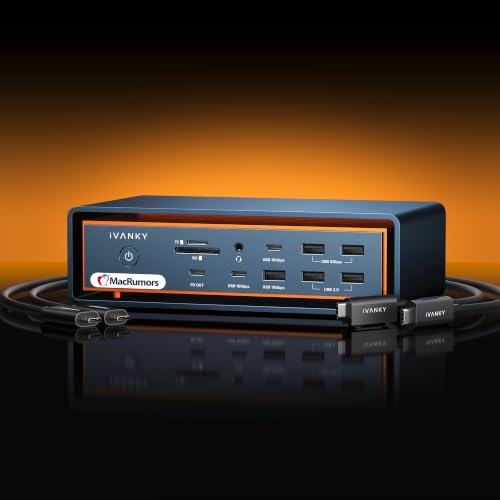
- Three downstream Thunderbolt 5 ports and ten USB ports
- Up to three extended displays with M4 Max
- Mac-only; restricted to one Mac
Best For: A fixed M4 Max desk with three external displays
Best Compact Hub

- Four Thunderbolt 5 ports total; nine ports overall
- Up to two 6K/60Hz or 8K/60Hz displays on compatible Macs
- 90W charging; no built-in Ethernet or SD reader
Best For: Compact Thunderbolt expansion for a MacBook Pro M4
Best for 140W Charging

- Up to 140W host charging
- Three downstream Thunderbolt 5 ports, 2.5G Ethernet, and SD 4.0
- macOS supports up to two external displays
Best For: An M4 MacBook Pro workstation needing high-wattage charging
Flexible Desk Setup
UGREEN Maxidok Thunderbolt 5 Dock

- Three downstream Thunderbolt 5 ports
- Up to 140W dynamic charging
- 2.5GbE and UHS-II card slots
Best For: Thunderbolt-monitor setups that need flexible dock placement
Built-In Video Ports
StarTech Thunderbolt 5 USB4 Dock

- Built-in HDMI and DisplayPort
- Up to 140W laptop charging
- Thunderbolt 5/4 and USB4 hosts
Best For: Mixed-computer desks needing built-in video connectors
Storage-Ready Workstation
Kensington EQ Pro Thunderbolt 5 Dock

- Lockable M.2 SSD slot; SSD not included
- CF, SD, and microSD readers
- Up to 140W power delivery
Best For: Creative desks needing dock-based storage expansion
Best for Thunderbolt Expansion – WAVLINK 12-in-1 Thunderbolt 5 Dock
If you want a thunderbolt 5 dock for macbook pro m4 with plenty of room for Thunderbolt peripherals, this WAVLINK model pairs three downstream Thunderbolt 5 ports with four USB-A ports, SD 4.0, and 2.5GbE.
Best For: MacBook Pro users who want multiple Thunderbolt connections and wired networking.
Pros:
- Up to 140W host charging.
- Three downstream Thunderbolt 5 ports.
- Four 10Gbps USB-A ports, SD 4.0, and 2.5GbE.
Cons:
- macOS supports up to two external displays through the dock, not the advertised Windows triple-display setup.
- Display adapter cables are not included.
It’s a strong fit when Thunderbolt expansion matters more than built-in display connectors. Check your MacBook’s display limits before planning a two-monitor setup.
Best for Quiet Workstations – OWC 11-Port Thunderbolt 5 Dock
For a thunderbolt 5 dock for macbook pro m4 that keeps a desk setup simple, the OWC dock connects through one included Thunderbolt cable and offers three downstream Thunderbolt 5 ports in a fanless aluminum enclosure.
Best For: Quiet MacBook workstations with several Thunderbolt devices and frequent camera-card transfers.
Pros:
- Up to 140W notebook charging.
- Separate SD and microSD 4.0 UHS-II readers.
- Three downstream Thunderbolt 5 ports support separate device chains.
Cons:
- No dedicated DisplayPort or HDMI connector is listed.
- Only three USB-A ports are listed, including one 5Gbps port.
The fanless design and dual card readers distinguish this dock. Treat the advertised display capability as host-dependent rather than assuming every MacBook supports three external screens.
Best with Built-In SSD Expansion – UGREEN Maxidok Thunderbolt 5 Dock
If your thunderbolt 5 dock for macbook pro m4 also needs storage expansion, the UGREEN Maxidok stands out with a built-in M.2 NVMe slot supporting compatible SSDs up to 8TB. Its 17-port layout also includes DisplayPort, six 10Gbps USB ports, and 2.5GbE.
Best For: MacBook users who want integrated NVMe storage alongside a broad mix of desk connections.
Pros:
- Built-in PCIe Gen4x4 M.2 NVMe slot supports 2230–2280 drives.
- Two downstream Thunderbolt 5 ports plus DisplayPort 1.4.
- SD/TF 4.0 readers, 2.5GbE, and up to 140W host charging.
Cons:
- SSD size and heatsink limits rule out some drives.
- The cooling fan can be audible while running.
- The DisplayPort connection needs an active adapter for HDMI monitors.
Choose this dock for its storage slot and varied connections, not for a triple-monitor Mac setup: the supplied notes specify dual displays on Mac.
Best for Display Flexibility – CalDigit TS5 Thunderbolt 5 Dock
For a thunderbolt 5 dock for macbook pro m4 built around demanding monitors and peripherals, the CalDigit TS5 offers three downstream Thunderbolt 5 ports, DisplayPort 2.1, and a 240W power supply with up to 140W host charging.
Best For: MacBook Pro desks combining high-resolution displays, Thunderbolt peripherals, and fast wired networking.
Pros:
- Supports up to dual 6K 60Hz displays on macOS, or dual 8K 60Hz on Macs that support it.
- Three downstream Thunderbolt 5 ports and a dedicated DisplayPort 2.1 connection.
- SD and microSD 4.0 readers plus 2.5GbE.
Cons:
- Triple-display configurations described in the notes are for supported Windows hosts, not macOS.
- Maximum performance requires a Thunderbolt 5 or USB4 v2 host; older connections have reduced functionality.
The TS5 is a practical pick when you need both a dedicated display output and downstream Thunderbolt ports. Confirm your particular MacBook Pro’s supported display count and resolutions first.
Best for Max-Chip Multi-Monitor Setups – iVANKY FusionDock Max 2
If you need a thunderbolt 5 dock for macbook pro m4 with plenty of connections, the iVANKY FusionDock Max 2 pairs three downstream Thunderbolt 5 ports with ten USB ports. Its fanless aluminum enclosure is designed to shed heat without fan noise.
Best For: A dedicated Mac workstation, especially an M4 Max setup that needs three extended displays.
Pros:
- Supports two 6K/60Hz displays plus one 4K/60Hz display on M4 Max Macs.
- Offers 140W host charging, 2.5GbE, and SD/TF 4.0 card slots.
- Passive cooling eliminates fan noise.
Cons:
- M4 Pro and base M4 Macs are limited to two external 6K/60Hz displays, not three.
- Not compatible with Windows or Chrome laptops; restricted to one Mac rather than switching between Macs.
This is the most specialized choice here: its extensive port selection suits a fixed Mac desk, but check both your M4 chip and the one-Mac restriction before buying.
Best Compact Hub – CalDigit Element 5
For a compact thunderbolt 5 dock for macbook pro m4, the CalDigit Element 5 is a nine-port hub with four Thunderbolt 5 connections in total, plus three USB-A and two USB-C ports. It prioritizes fast expansion over built-in Ethernet or card readers.
Best For: MacBook Pro M4 owners who want multiple Thunderbolt peripherals and a small desktop footprint.
Pros:
- Three available downstream Thunderbolt 5 ports alongside five 10Gb/s USB ports.
- Supports up to two 6K/60Hz or 8K/60Hz displays on compatible Macs.
- Provides sustained 90W laptop charging and a compact 4.5-by-2.75-inch footprint.
Cons:
- No built-in Ethernet or SD card reader among its nine ports.
- 90W charging may not match the needs of every higher-power MacBook Pro configuration.
Choose this hub if Thunderbolt expansion matters more than an all-in-one port lineup. Display modes still depend on the connected Mac’s capabilities.
Best for 140W Charging – WAVLINK Thunderbolt 5 Dock
The WAVLINK is a thunderbolt 5 dock for macbook pro m4 worth considering when high-wattage host charging is a priority. Its 12-in-1 design combines 140W Power Delivery with three downstream Thunderbolt 5 ports, 2.5G Ethernet, and an SD 4.0 reader.
Best For: An M4 MacBook Pro desk that needs 140W charging, wired networking, and card access in one dock.
Pros:
- Delivers up to 140W Power Delivery to the host laptop.
- Includes three downstream Thunderbolt 5 ports, 2.5G Ethernet, and an SD 4.0 reader.
- Offers four USB-A ports for existing accessories.
Cons:
- macOS supports up to two external displays; the advertised triple-display setup requires Windows 11 or later and a Thunderbolt 5 port.
- Display resolution and refresh rate depend on the host; USB-C-to-HDMI/DisplayPort cables are not included.
The port mix is practical for a single-cable workstation, but do not count on its Windows-only triple-display feature for your Mac. Confirm your particular M4 Mac’s display capabilities before planning a high-resolution setup.
Flexible Desk Setup – UGREEN Maxidok Thunderbolt 5 Dock
If you want a thunderbolt 5 dock for macbook pro m4 that can sit vertically or horizontally, the UGREEN Maxidok offers a flexible way to connect your desk. It pairs three downstream Thunderbolt 5 ports with 140W dynamic laptop charging, 2.5GbE, and UHS-II SD and microSD readers.
Best For: MacBook Pro M4 users who prefer Thunderbolt-based monitor connections and want a dock that fits different desk layouts.
Pros:
- Supports up to three 4K displays, two 6K displays, or one 8K display, subject to the connected Mac’s capabilities.
- Includes a 180W GaN power adapter with US, EU, and UK plugs.
- Provides five USB peripheral ports plus 2.5GbE and UHS-II card slots.
Cons:
- No built-in HDMI or DisplayPort; monitors connect through Thunderbolt ports.
- Not compatible with Thunderbolt 3 computers or devices; Mac use requires macOS 15 or later.
Choose this dock if Thunderbolt display output works for your monitors. If you need native HDMI or DisplayPort, factor an appropriate connection solution into your setup.
For shoppers seeking a thunderbolt 5 dock for macbook pro m4 with built-in display connectors, this StarTech model includes HDMI and DisplayPort alongside USB-C connectivity. It also supplies up to 140W laptop power, 2.5GbE, and SD and microSD 4.0 readers.
Best For: MacBook Pro M4 owners who want HDMI or DisplayPort on the dock and also connect Thunderbolt 4 or USB4 computers.
Pros:
- Thunderbolt-certified dock supports Thunderbolt 5, Thunderbolt 4, and USB4 hosts.
- Includes a 180W adapter for up to 140W laptop power delivery and a 30W USB-C charging port.
- Offers 2.5GbE plus UHS-II-compatible SD and microSD 4.0 slots.
Cons:
- Maximum monitor count and resolution depend on the connected Mac’s display capabilities; advertised Windows display configurations do not establish what an M4 MacBook Pro can drive.
This is a practical pick when built-in video ports and host compatibility matter. Check the display limits of your specific M4 MacBook Pro before planning a multi-monitor layout.
If your thunderbolt 5 dock for macbook pro m4 needs to do more than connect peripherals, the Kensington EQ Pro adds a built-in, lockable PCIe M.2 SSD slot. Its 19-in-1 design also includes three downstream Thunderbolt 5 ports, CF/SD/microSD readers, 2.5GbE, and up to 140W power delivery.
Best For: MacBook Pro M4 creative workflows that benefit from a dock with expandable SSD storage and multiple media-card readers.
Pros:
- Lockable PCIe M.2 slot lets you add storage directly to the dock.
- Supports one 8K or two 6K displays at 60Hz for the specified compatible MacBook chipsets.
- Includes a 30W USB-C charging port and KonstantCharge for charging connected devices while the laptop is undocked.
Cons:
- SSD is not included.
- Mac use requires macOS 14.5 or later; Konnect software is needed for the configurable dock-button features.
The built-in SSD slot and CF reader distinguish this dock for media-heavy desks. Budget separately for an M.2 SSD if you intend to use its storage expansion.
How We Picked the Best Thunderbolt 5 Dock for Macbook Pro M4
We focused on the connections that make a dock useful with a MacBook Pro M4: upstream charging, downstream Thunderbolt bandwidth, monitor options, USB ports, networking, and storage features. We also considered whether each device is a full desk dock or a smaller hub. Advertised specifications are a starting point, not a guarantee that every listed display configuration will work with every Mac.
Quick Comparison: Which Type Fits Your Desk?
- Port-heavy workstation: Start with the CalDigit TS5 or iVANKY FusionDock Max 2 if you need many devices connected at once.
- Thunderbolt expansion: The CalDigit Element 5 hub suits a setup built around Thunderbolt peripherals rather than numerous dedicated display or network ports.
- Storage-focused setup: Consider the UGREEN Maxidok model with M.2 NVMe support if integrated SSD expansion is a priority. Check the exact listing, since two Maxidok models appear here.
- High-power charging and networking: Compare the WAVLINK 140W model and StarTech dock; verify their other ports against your monitor and Ethernet needs.
- Mac-focused option: The Kensington EQ Pro is worth a look if you prefer a dock marketed for MacBook and M-series Pro/Max systems.
Key Buying Factors for a Thunderbolt 5 Dock for Macbook Pro M4
Check Your Mac's Display Limits First
Do not assume a dock’s “dual 8K” or “triple 4K” claim describes what your particular MacBook can drive. External-display support varies by M4, M4 Pro, and M4 Max configuration, and by resolution, refresh rate, and connection method. Match the dock’s display outputs to your monitors, then confirm the supported arrangement with both Apple and the dock maker. If you need HDMI or DisplayPort, check whether the dock includes it or requires a separate USB-C adapter.
Match Charging to Your MacBook
Compare the dock’s upstream power delivery rating with your laptop’s charging requirements, especially for a 16-inch model under sustained load. A dock offering 140W may be more suitable for higher-power setups than one with a lower charging limit. Confirm the included cable and power supply can deliver the advertised output.
Count the Ports You Will Actually Use
List your peripherals before shopping: Thunderbolt storage, USB-A accessories, USB-C devices, wired Ethernet, audio gear, and memory cards. Note which Thunderbolt port connects to the Mac; it is not available for a peripheral. Shared bandwidth can also affect simultaneous transfers, so prioritize direct downstream Thunderbolt ports for your fastest devices. If built-in SSD storage appeals to you, check supported drive sizes and whether a drive is included.
Who Should Buy Which Thunderbolt 5 Dock for Macbook Pro M4?
Choose a full-size dock such as the TS5, OWC, or a port-rich WAVLINK model for a permanent desk with mixed peripherals. Pick the Element 5 if extra Thunderbolt connections matter more than an all-in-one port selection. Consider the storage-equipped UGREEN for a cleaner SSD setup, or the StarTech and 140W WAVLINK options when high-power charging is high on your list. Whichever dock you choose, confirm your exact MacBook Pro chip, monitor combination, required ports, and charging target before checkout.