If you’re looking to boost your productivity in 2026, choosing the right Plugable DisplayLink docking station can make all the difference. These devices offer seamless connectivity for multiple displays and various port options to suit your needs. With robust power delivery and compact designs, they simplify your workspace. But with so many choices available, how do you determine which one fits your setup best? Let’s explore the top options that stand out this year.
Plugable USB C Triple Display Docking Station

If you’re looking to maximize your productivity with a multi-monitor setup, the Plugable USB C Triple Display Docking Station is an excellent choice. This 12-in-1 dock supports up to three HDMI monitors, letting you bypass the single-display limitations of Apple M1/M2/M3/M4/M5 chips. With 100W Power Delivery, you can keep your devices charged while you work. It’s compatible with Windows, macOS, and ChromeOS, making it versatile for any professional environment. Plus, the six USB 3.0 ports guarantee you’ve got plenty of connections for all your peripherals. Elevate your workspace and experience seamless multitasking with this powerful docking station.
Best For: Professionals and hybrid teams looking to enhance their productivity with a multi-monitor setup and extensive connectivity options.
Pros:
- Supports up to three HDMI monitors, allowing for efficient multitasking and productivity.
- 100W Power Delivery ensures devices stay charged during use.
- Universal compatibility with various operating systems and brands, making it versatile for different work environments.
Cons:
- Limited to HDMI connections, which may require adapters for other monitor types.
- Weight and size may be less portable compared to smaller docking solutions.
- Performance may vary depending on the host device’s specifications and capabilities.
Plugable USB-C Triple Monitor Docking Station (UD-ULTCDL)

The Plugable USB-C Triple Monitor Docking Station (UD-ULTCDL) stands out as an excellent choice for professionals who rely on multiple displays to enhance their productivity. With support for three HDMI displays, it connects seamlessly to laptops, delivering up to 100W charging. You can enjoy a primary monitor at 4K 30Hz and two additional displays at 1920×1200 60Hz. The docking station features 13 ports, including USB-A, USB-C, and Gigabit Ethernet, perfect for a complete desk setup. It’s compatible with various operating systems, though macOS users will need to install the DisplayLink Manager for peak performance.
Best For: Professionals and multitaskers who need to connect multiple displays and require extensive connectivity options for their laptops.
Pros:
- Supports up to three HDMI displays, enhancing productivity with multiple screens.
- Provides up to 100W charging for laptops, ensuring devices stay powered throughout the workday.
- Features 13 ports, including USB-A, USB-C, and Gigabit Ethernet, for versatile connectivity.
Cons:
- macOS users must install the DisplayLink Manager for full functionality, which may be an added step for some.
- The primary monitor is limited to 4K at 30Hz, which may not meet the needs of users requiring higher refresh rates.
- Weight and dimensions may make it less portable for users who travel frequently with their laptops.
Plugable Dual DisplayPort & HDMI Docking Station (UD-6950Z)

For professionals seeking to enhance their workspace, the Plugable Dual DisplayPort & HDMI Docking Station (UD-6950Z) stands out with its ability to support dual 4K monitors, making it an excellent choice for multitasking. This USB 3.0 and USB-C dock features six USB 3.0 ports, Gigabit Ethernet, and an audio jack, ensuring you’ve got all your connectivity needs covered. With a sleek vertical design, it promotes clean cable management. It’s compatible with Windows and ChromeOS for easy plug-and-play use, while macOS users can install the necessary drivers. Enjoy productivity without the hassle, all backed by a 30-day return policy.
Best For: Professionals looking to enhance their productivity with dual 4K monitor support and multiple connectivity options.
Pros:
- Supports dual 4K monitors, ideal for multitasking and productivity.
- Features a sleek vertical design for improved cable management.
- Plug-and-play compatibility with Windows and ChromeOS for easy setup.
Cons:
- Requires manual driver installation for macOS users.
- Not optimized for gaming or HDCP content playback (e.g., Netflix, Hulu).
- Not compatible with Linux operating systems.
Plugable USB C Laptop Docking Station (UD-6950PDH)

Looking to enhance your productivity with a sleek and powerful docking solution? The Plugable USB C Laptop Docking Station (UD-6950PDH) is your go-to choice. This 14-in-1 dock features a premium aluminum design and supports dual 4K 60Hz monitors, perfect for multitasking on M1 to M5 Macs. With 15 ports, including HDMI, USB, and SD card readers, you can connect all your essential devices effortlessly. Plus, it offers 100W charging capability, ensuring your laptop stays powered. With lifetime support and a 2-year warranty, you can rely on this dock for all your productivity needs.
Best For: Professionals and creatives using M1 to M5 Macs who require a versatile docking solution for multiple devices and displays.
Pros:
- Supports dual 4K 60Hz monitors, enhancing multitasking capabilities.
- 15 ports provide extensive connectivity options for various devices.
- Lifetime support and 2-year warranty ensure reliability and assistance when needed.
Cons:
- Requires installation of DisplayLink software for full functionality, which may be an extra step for some users.
- Limited to Mac compatibility for certain features, potentially excluding Windows users from all benefits.
- Weight of 11.7 ounces may be less portable for users who prefer lightweight solutions.
Plugable Universal Laptop Docking Station (UD-3900)

Designed for professionals seeking seamless multitasking, the Plugable Universal Laptop Docking Station (UD-3900) offers dual HDMI monitor support, making it an ideal choice for those who thrive on efficiency. With connectivity options through USB 3.0 or USB-C, you can easily connect your laptop. It features six USB ports, a Gigabit Ethernet port, and audio jacks, ensuring all your peripherals are covered. This dock supports dual HDMI displays up to 1920×1200 @ 60Hz, perfect for productivity tasks. Plus, it’s compatible with Windows and macOS, with 2-year coverage against defects for peace of mind.
Best For: Professionals seeking efficient multitasking with dual monitor support and extensive connectivity options.
Pros:
- Supports dual HDMI displays up to 1920×1200 @ 60Hz, enhancing productivity.
- Multiple connectivity options with 6 USB ports, Gigabit Ethernet, and audio jacks accommodate various peripherals.
- 2-year warranty and lifetime support offer peace of mind and reliable assistance.
Cons:
- Driver installation required for Windows and macOS, which may complicate setup for some users.
- 4K resolution not supported, limiting its use for high-resolution displays or gaming.
- Not compatible with Linux/Unix, reducing its appeal for users on those operating systems.
Plugable 13-in-1 USB C Docking Station
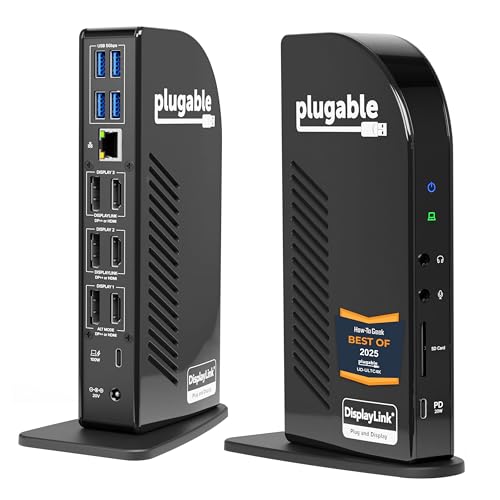
The Plugable 13-in-1 USB C Docking Station stands out as the ideal choice for professionals who need seamless multitasking capabilities, thanks to its ability to support triple 4K monitor setups at 60Hz. With 13 versatile ports including USB-C with 100W charging, four USB-A, and Ethernet, it meets all your connectivity needs. You can easily mix HDMI and DisplayPort outputs without extra dongles. Plus, it’s compatible with a wide range of devices, from Windows laptops to macOS and ChromeOS systems. Enjoy the convenience of a 2-year warranty and the peace of mind that comes with Amazon’s 30-Day Return Guarantee.
Best For: Professionals and multitaskers who require a powerful docking solution for triple 4K monitor setups and versatile connectivity options.
Pros:
- Supports triple 4K monitors at 60Hz, enhancing productivity and multitasking capabilities.
- Offers 13 ports, including USB-C with 100W charging, ensuring comprehensive connectivity for various devices.
- Compatible with multiple operating systems (Windows, macOS, ChromeOS), making it versatile for different user needs.
Cons:
- Requires DisplayLink drivers for full functionality, which may be an additional step for some users.
- The size and weight may be less portable for users who frequently travel with their setups.
- Customer rating of 4.2 out of 5 stars indicates there may be some mixed reviews regarding performance or issues experienced.
Plugable USB 3.0 Universal Docking Station for Windows and macOS

If you’re juggling multiple tasks and need a reliable solution for connecting your devices, the Plugable USB 3.0 Universal Docking Station (Model UD-3900H) is an excellent choice for both Windows and macOS users. With 12 ports, including 6 USB ports, dual HDMI outputs, and Gigabit Ethernet, it enhances your productivity effortlessly. You can connect two displays at 1920×1200 @ 60Hz, perfect for multitasking. While it’s ideal for web and productivity software, it doesn’t support gaming or HDCP streaming. Plus, with lifetime support and a 2-year warranty, you can trust in its quality and reliability.
Best For: Users looking for a versatile docking station to enhance productivity in mixed laptop environments, particularly those using Windows or macOS.
Pros:
- Supports dual HDMI displays with a resolution of up to 1920×1200 @ 60Hz, ideal for multitasking.
- Includes multiple connectivity options with 12 total ports, including 6 USB ports and Gigabit Ethernet.
- Backed by lifetime support and a 2-year limited warranty, ensuring reliability and assistance when needed.
Cons:
- Not suitable for gaming or streaming services that require HDCP, limiting its use for entertainment purposes.
- Does not provide power to charge laptops, requiring a separate power adapter for each device.
- May not support higher resolution displays beyond 1920×1200 @ 60Hz, which could be a limitation for some users.
Plugable 7-in-1 USB-C DisplayLink Dock
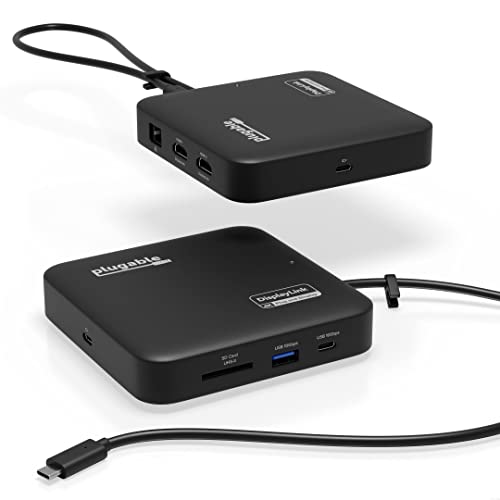
Compact and versatile, the Plugable 7-in-1 USB-C DisplayLink Dock is perfect for professionals on the go who need to maximize productivity. With dual HDMI outputs supporting 4K displays, you can easily expand your workspace. It features fast USB-C and USB-A ports, an SD card slot, and Gigabit Ethernet for seamless connectivity. Weighing only 250 grams, it’s travel-ready and won’t clutter your setup. Enjoy up to 82W pass-through charging with a 100W power adapter. This dock is compatible with Windows and macOS, including MacBooks with Apple Silicon, ensuring you stay productive wherever you are.
Best For: Professionals and travelers who need a compact and versatile docking solution to expand their workspace with multiple displays.
Pros:
- Dual HDMI outputs support dual 4K 60Hz displays, enhancing productivity.
- Lightweight and travel-ready design makes it easy to carry.
- Offers up to 82W pass-through charging, ensuring devices stay powered.
Cons:
- Requires DisplayLink driver for dual display functionality, which may be an extra step for some users.
- Not compatible with HDCP protected video playback, limiting its use for certain media.
- Might not support high-performance gaming or 3D rendering due to compatibility limitations.
Plugable USB C Docking Station for 5 Monitors

For professionals juggling multiple tasks, the Plugable USB C Docking Station (UD-7400PD) is an exceptional choice, as it connects up to five high-resolution displays, enhancing your multitasking capabilities. With support for up to 3x 8K and 5x 4K resolutions, you’ll enjoy crisp visuals on every screen. This dock also charges your laptop with 140W and supports 30W for other devices. Featuring two HDMI ports, three USB-C DisplayLink ports, and a 2.5Gbps Ethernet connection, it’s perfect for various laptops, including MacBooks. Plus, you’ll benefit from lifetime support, ensuring you stay productive without interruptions.
Best For: Professionals who require extensive multitasking capabilities with multiple high-resolution displays.
Pros:
- Supports up to five high-resolution displays (up to 3x 8K or 5x 4K) for enhanced productivity.
- Provides high power delivery with 140W laptop charging and 30W for other devices.
- Includes lifetime support from connectivity experts for troubleshooting and assistance.
Cons:
- Requires DisplayLink driver installation for HDMI outputs to function, which may complicate setup for some users.
- Does not support HDCP video, limiting access to certain streaming services like Netflix and Hulu.
- May be overkill for users who only need basic connectivity and do not utilize multiple monitors.
Plugable 12-in-1 USB C Triple Monitor Docking Station

The Plugable 12-in-1 USB C Triple Monitor Docking Station is an ideal choice for professionals who need to enhance their productivity with multiple high-resolution displays. It supports triple 4K connections, allowing you to connect three screens at 60Hz without the hassle of adapters. With six USB 3.0 ports, Ethernet, and 3.5mm audio, you can easily connect various devices. Plus, it delivers up to 100W of power to keep your laptop charged all day. Compatible with USB-C, Thunderbolt, and multiple operating systems, this docking station boosts your workspace efficiency effortlessly. Enjoy a streamlined setup with reliable support and warranty.
Best For: Professionals who require a versatile docking solution to connect multiple high-resolution displays and enhance their workspace productivity.
Pros:
- Supports triple 4K displays at 60Hz without the need for additional adapters.
- Offers a total of 12 ports including 6 USB 3.0 ports for extensive device connectivity.
- Provides 100W power delivery for charging laptops, ensuring uninterrupted operation throughout the day.
Cons:
- May be limited by compatibility with certain older devices that do not support USB-C or Thunderbolt.
- Larger footprint compared to simpler docking stations, which may not suit compact workspaces.
- Potentially higher price point than basic docking solutions without advanced features.
Factors to Consider When Choosing a Plugable Displaylink Docking Station
When choosing a Plugable DisplayLink docking station, you need to take into account several key factors. Think about display support options, port variety, and power delivery capabilities to guarantee it meets your productivity needs. Additionally, check compatibility with your devices and contemplate the size and design that fit your workspace.
Display Support Options
How do you decide which display support options are best for your needs when choosing a Plugable DisplayLink docking station? First, consider how many monitors you want to connect. DisplayLink technology allows you to set up multiple monitors, with options for up to three HDMI displays or dual 4K monitors, depending on the model. If you’re using a Mac with M1, M2, M3, or M4 chips, look for docking stations that bypass single-display limitations. You’ll also want to check resolution support; primary monitors typically handle 4K at 30Hz, while secondary displays usually support 1920×1200 at 60Hz. Finally, confirm you install the necessary DisplayLink drivers on macOS for full functionality.
Port Variety and Count
Choosing the right Plugable DisplayLink docking station often comes down to the variety and count of ports it offers. You’ll find models ranging from 7 to 13 ports, giving you plenty of options to suit your needs. A diverse selection of connection types, like HDMI, DisplayPort, USB-A, USB-C, Ethernet, and audio ports, enhances versatility for connecting different devices and peripherals. Be sure the docking station supports the video outputs you require, especially if you plan on setting up dual or triple monitors at resolutions like 4K. Finally, consider compatibility with your operating system—whether it’s Windows, macOS, or ChromeOS—since this can affect your docking station choice and overall productivity.
Power Delivery Capability
While port variety and count are important, power delivery capability is another key factor to evaluate in your Plugable DisplayLink docking station selection. This capability refers to the docking station’s ability to charge connected devices while providing data connectivity. Look for models that offer up to 100W charging for laptops, ensuring your device can run without draining battery power during intensive tasks. Some stations charge laptops at higher wattages while offering lower rates for smaller devices like smartphones, which is useful if you juggle multiple gadgets. Make sure the docking station meets your laptop’s power demands; insufficient delivery can lead to slower charging or battery drain. Also, check for compatibility with USB-C Power Delivery standards for seamless power transfer.
Compatibility With Devices
When selecting a Plugable DisplayLink docking station, validating compatibility with your devices is essential for maximizing productivity. First, check that the docking station works with your operating system, as many models support Windows 10/11, macOS 11+, and ChromeOS v100 or later. You may need specific drivers for full functionality. Next, verify the type of USB connection your device uses—USB-C, USB4, or Thunderbolt—as this impacts power delivery and data transfer. If you’re using Apple Silicon Macs (M1/M2/M3/M4/M5), verify the docking station can bypass their single-display limitation. Also, consider whether it supports multiple displays and confirm it includes the necessary ports, like HDMI or DisplayPort, to connect your monitors and peripherals effectively.
Size and Design
Once you’ve confirmed compatibility with your devices, the size and design of a Plugable DisplayLink docking station become key factors to evaluate. The dimensions vary, with some models around 7.87L x 3.3W x 1.2H inches and others at 12L x 6.7W x 17.5H cm, offering choices for different workspaces. Weight matters too; lighter models, like those weighing just 250 grams, enhance portability and ease of integration into mobile setups. A compact and sleek design not only reduces desk clutter but also appeals to minimalists. Additionally, premium materials, such as aluminum, boost durability and aesthetics. Finally, the dock’s orientation—vertical or horizontal—affects cable management and overall desk organization, enhancing your workspace’s efficiency and look.
Driver Installation Requirements
Understanding driver installation requirements is essential for maximizing the functionality of your Plugable DisplayLink docking station. For Windows users, most stations offer plug-and-play capabilities, meaning you can typically start using them right away. However, if you’re on macOS, you’ll need to install the DisplayLink Manager software to enable multi-monitor support. Some models might require manual driver installation to avoid single display limitations. It’s vital to check the compatibility of your operating system with the necessary drivers, particularly if you’re using Apple Silicon models, as they may have specific needs. Remember, failing to install the right drivers can lead to limited or no functionality when connecting multiple displays, so take this step seriously.
Warranty and Support Options
Choosing a Plugable DisplayLink docking station isn’t just about the features; warranty and support options are essential factors to take into account as well. Most Plugable stations come with a 2-year limited warranty, giving you peace of mind against defects and malfunctions. You’ll also benefit from lifetime support from a North American team of experts, ready to help with troubleshooting and inquiries. Plus, if you receive a defective product, you can return it within 30 days for a full refund. Many users appreciate the assistance offered during driver installation, ensuring your device works seamlessly. With customer ratings averaging around 4.3 to 4.5 stars, you can trust Plugable for reliability and exceptional service.