Long editing sessions demand more than a familiar keyboard. The right ergonomic video editing keyboard can reduce wrist strain while making shortcuts, timeline navigation, and repetitive commands easier to manage.
This roundup covers split ergonomic keyboards, editing-specific controllers, programmable shortcut boards, and compact wireless options so you can match your setup to your software, desk, and workflow.
Best 10 Ergonomic Video Editing Keyboards Picks for 2026
Best Compact Dial Controller

- Ten keys support up to 40 customizable shortcuts.
- Tactile dial handles zoom, rotation, and size adjustments.
- Bluetooth, dongle, or wired connectivity.
Best For: One-handed editing control in compact workspaces
Best for Final Cut Pro
KB Covers Backlit Aluminum Keyboard

- Prints over 150 Final Cut Pro shortcuts on the keys.
- Color-coded commands cover editing and timeline tasks.
- Wired USB-C and backlit aluminum full-size design.
Best For: Mac-based Final Cut Pro workstations
Best Split Mechanical Option
KINESIS Freestyle Edge RGB Plus

- Split mechanical design supports adjustable positioning.
- Fully programmable with hot-swappable linear switches.
- Includes palm support, RGB lighting, and lift kit.
Best For: Windows editors who also type extensively
Best Creative Control
TourBox Elite Editing Controller

- Haptic feedback for precise adjustments
- Customizable workflow for editing and grading
- Wireless Bluetooth or wired USB-C use
Best For: Editors who want tactile, one-handed creative control
Best Split Ergonomics
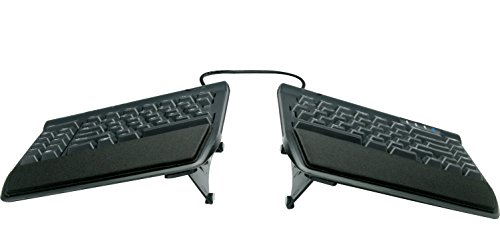
- Separates up to 9 inches
- Adjustable 5°, 10°, or 15° tenting
- Low-force membrane switches
Best For: PC editors needing customizable typing posture
Best Wireless Keyboard Combo
SABLUTE Ergonomic Keyboard and Mouse

- Wave keys and adjustable wrist-support design
- Rechargeable 4000mAh keyboard battery
- Includes backlit keyboard and RGB mouse
Best For: Editors wanting an all-in-one wireless workstation setup
Posture-Focused Pick

- Curved split frame supports a natural posture
- Memory-foam wrist rest reduces wrist bending
- Bluetooth and USB connectivity for Windows and Mac
Best For: Editors who want a full-size, comfort-focused ergonomic keyboard
Compact Comfort Choice

- Wave shape supports a natural typing position
- Cushioned memory-foam palm rest
- Easy-Switch connects up to three devices
Best For: Editors seeking approachable ergonomics and multi-device convenience
Rechargeable Split-Layout Value
TECKNET Wireless Ergonomic Keyboard

- Split curved layout supports neutral wrist positioning
- Rechargeable battery lasts up to 200 hours
- Bluetooth and 2.4GHz connectivity with multi-device switching
Best For: Windows editors who want rechargeable power and adjustable ergonomics
Best Compact Dial Controller – XPPen ACK05 Shortcut Keyboard
For editors who want ergonomic video editing keyboards without giving up desk space, the XPPen ACK05 combines programmable shortcut keys with a control dial in a lightweight wireless format. It supports Bluetooth, dongle, or wired connections and can store up to 40 shortcuts across four customizable sets when configured with the driver.
Best For: Video editors, artists, and creators who prefer one-handed shortcut control and dial-based adjustments.
Pros:
- Ten keys can be customized across four shortcut sets.
- Dial provides tactile control for zooming, canvas rotation, or brush-size adjustments.
- Compact 75 g design and 1000 mAh battery offer flexible wireless use.
- Works with Windows, macOS, and Linux, with anti-ghosting on all ten keys.
Cons:
- Customization requires downloading and configuring the driver.
- iPad and iOS users need the Shortcut Remote app.
- It is a shortcut controller rather than a full-size typing keyboard.
The ACK05 is a practical choice when fast, programmable controls matter more than a traditional keyboard layout. Its multiple connection options and tactile dial make it especially useful for compact editing stations.
Best for Final Cut Pro – KB Covers Backlit Aluminum Keyboard
The KB Covers Final Cut Pro keyboard is a full-size option for Mac editors seeking ergonomic video editing keyboards with shortcuts printed directly on the keys. Its wired USB-C connection avoids charging or pairing interruptions, while the backlit, color-coded layout makes common Final Cut Pro commands easier to locate.
Best For: Mac users who primarily edit in Final Cut Pro and want visible, dedicated shortcut guidance.
Pros:
- Displays more than 150 color-coded Final Cut Pro shortcuts.
- Wired USB-C connection provides consistent, latency-free operation.
- Backlit 104-key layout suits dim studios and evening editing.
- Aluminum enclosure provides a stable, premium-feeling workstation keyboard.
Cons:
- Designed for Mac computers and macOS rather than a broad range of platforms.
- Wired operation limits desk flexibility.
- Shortcut labeling is specialized for Final Cut Pro.
For Final Cut Pro workflows, this keyboard emphasizes discoverability and dependable operation over wireless portability. It is a strong fit for a permanent Mac editing desk where shortcut visibility is a priority.
Best Wireless Editing Dial – ULANZI D100H Video Keyboard
The ULANZI D100H is a focused option among ergonomic video editing keyboards, pairing seven customizable buttons with an aluminum control knob. Bluetooth 5.1, tactile feedback, and support for major editing applications make it suited to hands-on timeline, color, and media controls.
Best For: Windows and Mac creators who want a compact wireless controller for video and photo editing software.
Pros:
- Seven customizable buttons and a multifunctional knob support one-hand operation.
- Motor vibration feedback and an anti-slip aluminum knob provide tactile adjustment.
- Works with CapCut, DaVinci Resolve, Final Cut Pro, Photoshop, and Lightroom Classic.
- Can connect and switch among three devices over Bluetooth.
Cons:
- Only supports Windows 10+ and macOS 12+.
- Does not support iPad or iPhone devices despite multi-device Bluetooth claims.
- USB is for charging only, not wired data connectivity.
The D100H is best viewed as a specialized editing controller rather than a conventional keyboard. Its knob and tactile response can make repeated parameter adjustments more direct, provided your computer and software meet its compatibility requirements.
Best Split Mechanical Option – KINESIS Freestyle Edge RGB Plus
The KINESIS Freestyle Edge RGB Plus takes a different approach to ergonomic video editing keyboards with a split mechanical design, detachable palm support, and a lift kit. Its fully programmable keys and hot-swappable linear switches offer a customizable foundation for editors who also spend substantial time typing.
Best For: Windows users who want an adjustable split keyboard with mechanical switches and programmable controls.
Pros:
- Split layout is designed for ergonomic positioning.
- Fully programmable controls can be adapted to editing shortcuts.
- Hot-swappable linear switches allow switch customization.
- Includes detachable palm support, RGB lighting, Mac keycaps, and a lift kit.
Cons:
- Supplied details list Windows 10 as the minimum operating system requirement.
- USB-A connectivity keeps it wired rather than wireless.
- Its split mechanical layout may require adjustment for users accustomed to standard keyboards.
This is the most traditional keyboard option in the roundup, with ergonomic adjustability and full programmability rather than a dedicated editing dial. It makes sense for editors who want one keyboard for shortcut-heavy work and everyday typing.
Best Creative Control – TourBox Elite Editing Controller
For editors seeking ergonomic video editing keyboards alternatives, the TourBox Elite provides a compact, hand-focused control system for timeline navigation, trimming, color work, and parameter adjustments. Its haptic feedback, adjustable control speed, and customizable workflow are designed to reduce mouse dependence, though it is a controller rather than a traditional keyboard.
Best For: Video editors, colorists, photographers, and digital artists who want precise one-handed control on Windows or macOS.
Pros:
- Haptic feedback and variable-speed control support fine timeline and parameter adjustments.
- Customizable controls cover editing, grading, audio, delivery, and creative applications.
- Dual-channel Bluetooth and USB-C support wireless or wired use.
- Replaceable AA batteries can provide up to two months of wireless creative work.
Cons:
- It is not a full keyboard, so a separate keyboard may still be needed.
- Not compatible with iPad, iOS, Linux, or Android devices.
The TourBox Elite is best viewed as a specialized editing companion rather than a standalone typing device. Choose it when precise, tactile control matters more than conventional keyboard shortcuts.
Best Split Ergonomics – KINESIS Freestyle2 with VIP3
KINESIS Freestyle2 USB-A Ergonomic Keyboard w/ VIP3 Lifters for PC (9" Separation) (KB820PB-US)
Check Price On AmazonThe KINESIS Freestyle2 is a practical choice among ergonomic video editing keyboards for users who spend long sessions typing shortcuts, notes, and commands. Its split design, adjustable separation, and tenting accessories let you position the key modules and wrists more naturally while retaining a standard Windows layout.
Best For: PC-based video editors who prioritize adjustable wrist and forearm positioning during extended keyboard work.
Pros:
- Split modules can separate up to 9 inches for customized hand positioning.
- VIP3 lifters provide 5, 10, or 15 degrees of tenting with cushioned palm supports.
- Low-force membrane switches and tactile feedback may help reduce finger fatigue.
- Includes editing-friendly Cut, Copy, Paste, multimedia, and numeric-key functions.
Cons:
- USB connectivity requires a wired connection.
- The design is primarily a standard PC keyboard and does not provide dedicated editing dials or haptic controls.
- Its listed layout and compatibility focus on Windows PCs.
For editors who rely heavily on keyboard shortcuts, the Freestyle2 offers more positioning flexibility than a fixed ergonomic keyboard. It is a strong fit when posture and typing comfort come before specialized timeline controls.
Best Wireless Keyboard Combo – SABLUTE Ergonomic Keyboard and Mouse
The SABLUTE combo is a versatile option for shoppers comparing ergonomic video editing keyboards for a general workstation. Wave keys, adjustable stands, a soft faux-lambskin palm rest, shortcut keys, and included mouse support everyday editing, browsing, and office tasks without requiring a wired setup.
Best For: Editors who want a comfortable wireless keyboard-and-mouse bundle for Windows, Mac, Chrome OS, Linux, or Android devices.
Pros:
- Wave keys, adjustable stands, and a cushioned palm rest support extended typing.
- Rechargeable 4000mAh keyboard battery is designed to last weeks with auto-sleep.
- Backlighting offers multiple color choices for a more visible workspace.
- Includes a six-button RGB mouse with three DPI levels and nine keyboard shortcut keys.
Cons:
- The 2.4GHz connection uses a USB receiver rather than Bluetooth.
- The mouse is right-handed and limited to 1600 DPI maximum sensitivity.
- It offers general shortcut keys rather than dedicated video-editing controls or jog-wheel functionality.
This SABLUTE set makes sense for editors who want comfort, wireless convenience, and a matching mouse in one package. Consider a dedicated controller if frame-by-frame precision and tactile timeline navigation are priorities.
Posture-Focused Pick – Logitech Ergo K860
For shoppers comparing ergonomic video editing keyboards, the Logitech Ergo K860 stands out with a curved split frame, adjustable tilt, and a full-size layout. Its wireless Bluetooth or USB connectivity and customizable function keys also suit editing workstations that need convenient shortcuts.
Best For: Editors who prioritize split-key ergonomics, wrist support, and a familiar full-size layout.
Pros:
- Curved split design encourages a more natural typing posture.
- Pillowed memory-foam wrist rest provides 54% more wrist support and 25% less wrist bending than a standard keyboard without a palm rest.
- Adjustable palm lift offers 0, -4, and -7-degree tilt positions.
- Works with Windows, macOS, Linux, and Chrome OS through Bluetooth or the included USB receiver.
Cons:
- Uses two AAA batteries rather than a rechargeable battery.
- Its full-size footprint may take more desk space than a compact editing keyboard.
- Backlighting is not specified in the supplied details.
The K860 is a strong comfort-first option for long editing sessions, especially if you want dedicated full-size keys and flexible wireless connectivity. Its ergonomic design is more substantial than a conventional keyboard, so measure your workspace before buying.
Compact Comfort Choice – Logitech Wave Keys
The Logitech Wave Keys is a practical choice among ergonomic video editing keyboards for users who want a less extreme shape and built-in palm support. Its wave layout places the hands and forearms in a natural position while Easy-Switch supports multi-device workflows.
Best For: Editors who want cushioned palm support, a compact layout, and easy switching between devices.
Pros:
- Wavy design helps position hands, wrists, and forearms naturally.
- Cushioned memory-foam palm rest provides all-day support.
- Connects through Bluetooth or a Logi Bolt receiver and switches among up to three devices.
- Offers up to three years of battery life according to the supplied notes.
Cons:
- Uses a membrane switch design rather than a mechanical typing system.
- The supplied details list compatibility limitations primarily around Windows and Mac ecosystems.
- Its compact layout may provide fewer dedicated controls than a larger editing keyboard.
Wave Keys balances ergonomic support with a relatively approachable design, making it suitable for editors who also type, browse, or work across several devices. Choose it if palm comfort and easy switching matter more than specialized editing controls.
Rechargeable Split-Layout Value – TECKNET Wireless Ergonomic Keyboard
The TECKNET wireless keyboard is a flexible option for ergonomic video editing keyboards if you prefer a rechargeable design with a split layout. It combines Bluetooth 5.0, 2.4GHz wireless connectivity, adjustable feet, and an integrated dual-density wrist rest for extended computer work.
Best For: Windows editors who want rechargeable power, multi-device switching, and adjustable typing angles.
Pros:
- Split, curved key arrangement is designed to follow the natural arc of the fingers.
- Dual-density memory-foam wrist rest provides stable, cushioned support.
- Pairs with up to three Bluetooth devices and also includes a USB wireless dongle.
- 500mAh rechargeable battery provides up to 200 hours of continuous use and supports USB-C charging while in use.
Cons:
- The supplied compatibility details specify Windows 10 or later and PC use.
- Its Workman layout may require adjustment for users accustomed to standard QWERTY.
- Some warranty benefits require registration.
TECKNET offers the most charging flexibility of these three options, along with four foot-angle settings for different desk positions. It is particularly compelling for Windows users who want a split ergonomic design without relying on disposable batteries.
How We Picked the Best Ergonomic Video Editing Keyboards
We focused on products that combine comfort-oriented design with features useful for video production. Our selection includes split layouts, tenting or adjustable separation, wrist support, low-profile wireless models, dedicated dials, programmable keys, and editing controls. We also considered compatibility, connection options, portability, lighting, rechargeable batteries, and whether a keyboard is designed for broad computer use or a specific application such as Final Cut Pro.
Because editing workflows vary, the list includes both full-size typing keyboards and specialized consoles. A dedicated controller may not replace a conventional keyboard, but it can complement one by putting frequently used commands, jog controls, and shortcuts closer at hand.
Quick Comparison
| Best For | Recommended Type | What to Look For |
|---|---|---|
| General comfort | Split ergonomic keyboard | Adjustable separation, wrist support, and familiar key layout |
| Shortcut-heavy editing | Programmable controller | Custom keys, profiles, dial or jog control, and software support |
| Final Cut Pro users | Application-specific keyboard | Clearly labeled shortcuts and macOS compatibility |
| Flexible workstations | Wireless ergonomic keyboard | Bluetooth or 2.4GHz connectivity, battery life, and device switching |
| Mechanical-keyboard fans | Split mechanical model | Switch choice, hot-swappable sockets, tenting, and palm support |
Key Buying Factors for Ergonomic Video Editing Keyboards
Layout and Adjustability
A split design can let you position each hand more naturally, but it may require a learning period. Check the available separation, tenting accessories, thumb-key placement, and whether the palm rest is detachable or adjustable.
Editing Controls and Software
If you regularly trim clips, scrub timelines, or switch tools, a dial and programmable buttons can be more valuable than extra typing features. Confirm that the companion software works with your operating system and preferred editor, including Premiere Pro, Final Cut Pro, DaVinci Resolve, or other applications.
Connectivity and Compatibility
Wireless models reduce desk clutter, while USB connections offer simple reliability and no battery concerns. Verify macOS or Windows support, included receivers, Bluetooth compatibility, and whether shortcuts match your operating system.
Comfort for Long Sessions
Look beyond the word “ergonomic.” Consider key force, switch noise, wrist-rest cushioning, keyboard height, backlighting, and the amount of desk space required. A keyboard that feels comfortable for typing may still be awkward if its editing controls force excessive reaching.
Who Should Buy Which Ergonomic Video Editing Keyboards?
Choose a split keyboard such as a Kinesis or Logitech ergonomic model if everyday comfort and sustained typing are your priorities. Pick a programmable shortcut keyboard or editing console from XPPen, ULANZI, or TourBox if rapid command access and timeline control matter most. A Final Cut Pro-labeled keyboard is a practical choice for Mac editors who want shortcuts visible at a glance.
For shared desks or multi-device setups, prioritize wireless models with rechargeable batteries and device switching. If you already own a comfortable keyboard, add a dedicated editing controller instead of replacing it. Mechanical options are best for buyers who want customizable switches and a more tactile feel, while compact dial-equipped models suit editors who value portability and a smaller footprint.