The best drawing display tablets for content creators can make illustration, photo editing, animation, and video-production work feel more direct and precise. The right model depends on your preferred screen size, computer setup, portability needs, and budget.
We selected 10 options spanning compact pen displays, standalone tablets, affordable creator tools, and large professional monitors. Use the guide below to narrow the list by features that matter in your workflow.
Best 10 Drawing Display Tablets for Content Creators Picks for 2026
Reliable Studio Favorite
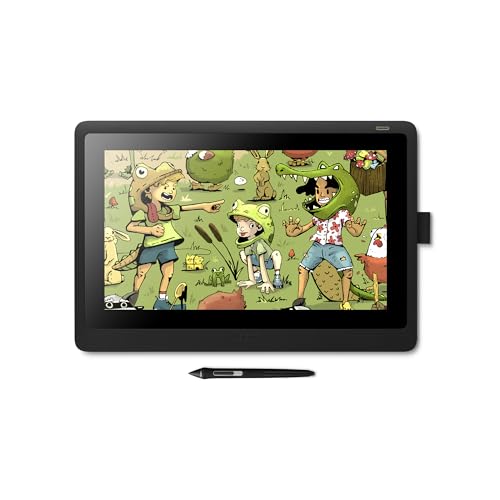
- 15.6-inch Full HD pen display
- Pro Pen 2 with tilt and 8,192 levels
- Includes replacement nibs and 3-in-1 cable
Best For: Students and home or studio creators
Standalone Starter Pick

- Works without a separate computer
- 10-inch laminated drawing display
- Includes apps, tutorials, and accessories
Best For: Beginners and mobile creators
Color-Accurate Pro Choice
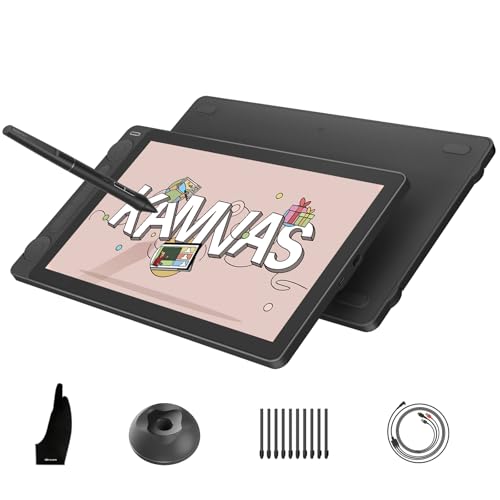
- 16,384-level PenTech 4.0 stylus
- 99% sRGB and factory-calibrated color
- Dual dials and five shortcut keys
Best For: Artists and designers needing accurate color
Ultra-Portable OLED Pick

- Less than one pound and up to 6.6mm thin
- 13.3-inch OLED with 10-bit color
- Touchscreen and customizable shortcuts
Best For: Mobile illustrators and photo editors
Vivid Versatility
UGEE UE16 15.4-Inch Drawing Display

- 143% sRGB with four display modes
- 16K pressure sensitivity and tilt support
- Eight keys, scroll wheel, and broad OS compatibility
Best For: Creators wanting a large, color-flexible display tablet
Professional Precision

- 4K 120Hz touchscreen for responsive work
- Customizable Pro Pen 3 with 8,192 pressure levels
- Multi-touch, ExpressKeys, and Easy Stand included
Best For: Professional studio artists and animation or 3D workflows
Portable Creator Control

- 16K stylus with fully laminated color display
- USB-C connectivity and broad device support
- Dial, eight keys, stand, and dual operating modes
Best For: Mobile-minded artists, students, and remote creators
Best Starter Tablet

- Battery-free EMR pen with 4,096 pressure levels
- Compact 6 x 3.7-inch active area
- Works with Mac, Windows, Android, and Chromebook
Best For: Students, teachers, beginners, and compact desk setups
Best Large Professional Display
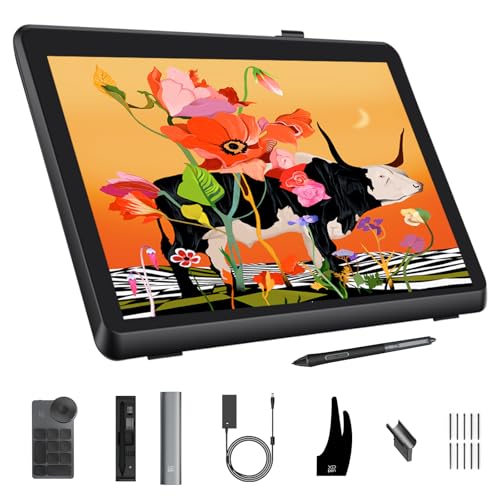
- 21.5-inch 2.5K display with 137 PPI
- Calman-verified color with Delta E under 1
- Includes 16K stylus and 40-key wireless keydial
Best For: Professional artists and designers needing a spacious color-accurate canvas
Best 4K Color Detail

- 18.4-inch 4K UHD full-laminated display
- Up to 1.07 billion colors with wide gamut coverage
- Includes Roller and Slim 16K styluses
Best For: Color-critical illustration, photography, design, and film workflows
Reliable Studio Favorite – Wacom Cintiq 16
For content creators seeking drawing display tablets for content creators, the Wacom Cintiq 16 offers a familiar, paper-like workflow on a 15.6-inch Full HD screen. Its pressure-sensitive Pro Pen 2 and anti-glare display make it a practical choice for illustration, animation, and graphic design on Mac or PC.
Best For: Students, hobbyists, and home or studio creators who want a dependable pen display.
Pros:
- Pro Pen 2 includes tilt recognition, 8,192 pressure levels, and virtually lag-free tracking.
- Full HD LCD provides uniform brightness and true-to-life color quality.
- Includes replacement nibs, a pen holder, and a 3-in-1 connectivity cable.
Cons:
- Requires a Mac or PC; it is not a standalone tablet.
- Its 4.2-pound weight is less travel-friendly than slimmer alternatives.
The Cintiq 16 is a straightforward, established option for creators who prioritize a larger drawing surface and responsive pen performance over portability.
Standalone Starter Pick – PicassoTab A10
The PicassoTab A10 stands out among drawing display tablets for content creators because it works without a separate computer. Its portable 10-inch laminated display, built-in creative apps, and beginner-focused tutorials make it suited to sketching, learning, and creating on the go.
Best For: Beginners, students, and mobile creators who want an all-in-one drawing tablet.
Pros:
- Standalone Android tablet requires no computer to draw or use creative apps.
- Laminated screen reduces glare and parallax for a more natural drawing feel.
- Includes tutorials, app upgrades, a case, glove, adapter, and screen protector.
Cons:
- The 10-inch screen and 4,096 pressure levels are more modest than professional pen displays.
- At 1.5 kg, it is portable but not especially lightweight for its screen size.
With built-in software and guided lessons, the A10 is an accessible starting point for creators who value independence and convenience more than advanced workstation features.
Color-Accurate Pro Choice – HUION Kamvas 13 Gen 3
For creators comparing drawing display tablets for content creators, the HUION Kamvas 13 Gen 3 combines a full-laminated Canvas Glass display with professional color coverage and a highly sensitive pen. Dual dials and five press keys also provide useful control for illustration, animation, design, and editing workflows.
Best For: Artists, designers, editors, and students who need detailed pen control and accurate color.
Pros:
- PenTech 4.0 delivers 16,384 pressure levels, 2g initial activation force, and tilt alignment.
- Covers 99% sRGB/Rec.709 and 90% Adobe RGB, with factory calibration to ΔE<1.5.
- Two dials and five silent keys support customizable workflow shortcuts.
- Thin 11.7mm profile and 865g weight suit mobile setups.
Cons:
- Requires connection to a computer or laptop; it is not standalone.
- Compatible USB-C connectivity depends on supported video and USB specifications.
The Kamvas 13 Gen 3 is a strong fit when color fidelity, high pen sensitivity, and physical workflow controls matter more than an all-in-one design.
Ultra-Portable OLED Pick – Wacom Movink 13
The Wacom Movink 13 is a compact option among drawing display tablets for content creators, combining a 13.3-inch OLED touchscreen with a design that weighs less than a pound. Its color presets, touch gestures, and Pro Pen 3 make it well suited to creators who move between campus, studio, and home.
Best For: Traveling illustrators, photo editors, and creators who prioritize portability and color flexibility.
Pros:
- Weighs 14.8 ounces and measures just 4–6.6mm thick.
- OLED display supports 10-bit color, high contrast, and multiple professional color presets.
- Touchscreen, two ExpressKeys, and customizable on-screen shortcuts streamline workflows.
- Works with Windows, macOS, ChromeOS, and Android devices.
Cons:
- Requires a compatible USB-C or Thunderbolt connection for display and power.
- The compact active area may feel limiting for creators who prefer a larger canvas.
The Movink 13 is particularly compelling for mobile creative work, offering a rare combination of OLED color, touch input, and extremely low weight.
Vivid Versatility – UGEE UE16 15.4-Inch Drawing Display
The UGEE UE16 is a practical choice among drawing display tablets for content creators who want a spacious screen, vivid color options, and extensive shortcut controls. Its full-laminated 15.4-inch display, 16K pressure sensitivity, and battery-free stylus support detailed drawing, design, and writing workflows.
Best For: Content creators, students, and designers seeking a large, color-flexible pen display with broad device compatibility.
Pros:
- 143% sRGB gamut with sRGB, Adobe RGB, DCI-P3, and black-and-white modes
- 16,384 pressure levels, 60-degree tilt support, and a battery-free stylus
- Eight shortcut keys plus a multifunction scroll wheel
- Works with Windows, macOS, Chrome OS, Android, and Linux
Cons:
- Uses a 1920×1080 resolution rather than 4K
- HDMI and USB connectivity may require more cable management than a single-cable setup
The UE16 stands out for creators who value color-gamut flexibility and physical controls. It is a well-equipped option for illustration and design, though users seeking a higher-resolution professional display may prefer a premium 4K model.
Professional Precision – Wacom Cintiq Pro 22
The Wacom Cintiq Pro 22 is a premium pick among drawing display tablets for content creators working in animation, VFX, game art, 3D, and design. Its 4K 120Hz touchscreen combines a large active area with multi-touch controls and an adjustable Pro Pen 3.
Best For: Professional artists, studios, animators, and 3D creators who need a high-resolution, responsive workstation display.
Pros:
- 4K display with a 120Hz refresh rate for low-latency interaction
- Pro Pen 3 offers adjustable grips, balance, three side switches, and 8,192 pressure levels
- Eight ExpressKeys, on-screen menus, and 10-point multi-touch support
- Includes an Easy Stand and extensive replacement nib and grip accessories
Cons:
- At 11 pounds, it is less portable than smaller pen displays
- Designed for Windows and macOS rather than mobile operating systems
The Cintiq Pro 22 is built for demanding desktop workflows where screen quality, input responsiveness, and ergonomic adjustment matter most. Its larger size and professional feature set make it better suited to a dedicated studio than casual or travel use.
Portable Creator Control – XP-PEN Artist 13.3 Pro V2
The XP-PEN Artist 13.3 Pro V2 is a flexible option among drawing display tablets for content creators who want portability without giving up direct-on-screen drawing. It combines a fully laminated FHD display, 16K pressure sensitivity, a red dial, shortcut keys, and a foldable stand.
Best For: Digital art students, illustrators, animators, and remote creators who need a compact display that can connect to computers, Chromebooks, or compatible Android devices.
Pros:
- 16K pressure sensitivity with low initial activation force and a battery-free stylus
- Fully laminated 13.3-inch display with 99% sRGB, 89% Adobe RGB, and 95% P3 coverage
- USB-C single-cable option, plus HDMI compatibility through the legacy connection
- Eight shortcut keys, red dial, dual pen-display and pen-tablet modes, and included stand
Cons:
- Its 1920×1080 resolution provides less workspace detail than a 4K display
- It requires a compatible computer or laptop and is not a standalone tablet
- The 3-in-1 cable is sold separately for traditional HDMI setups
The Artist 13.3 Pro V2 is a strong fit for creators who prioritize a tidy USB-C setup, portability, and configurable controls. Its smaller FHD screen is easier to carry, while the included stand and dual modes add flexibility for everyday work.
Best Starter Tablet – Wacom Intuos Small
If you want drawing display tablets for content creators without paying for an integrated screen, the Wacom Intuos Small is a compact, straightforward option. Its battery-free pen, 4,096 pressure levels, and compatibility with Windows, Mac, Android, and Chromebook make it suitable for digital art, photo editing, and design work.
Best For: Students, teachers, beginners, and creators who prefer a compact, screenless tablet.
Pros:
- Battery-free pen uses EMR technology and provides 4,096 pressure levels.
- Works with Windows, Mac, Android, and Chromebook systems.
- Four ExpressKeys provide convenient shortcut access.
- Includes access to creative software and Wacom online training after registration.
Cons:
- The 6 x 3.7-inch active area is relatively compact.
- It has no built-in display, so you draw while viewing a separate screen.
- Connectivity is via USB-A.
The Intuos Small focuses on dependable pen control and simple setup rather than a large workspace or integrated monitor. It is a practical entry point for creators who value portability and broad software compatibility.
Best Large Professional Display – XPPen Artist Pro 22 Gen 2
For content creators seeking drawing display tablets with a spacious on-screen canvas, the XPPen Artist Pro 22 Gen 2 combines a 21.5-inch 2.5K display with professional color coverage. Its Calman verification, AG Nano Etched Glass, and included wireless keydial support detailed, long-form creative workflows.
Best For: Professional artists, photographers, and graphic designers who need a large, color-accurate drawing display.
Pros:
- 21.5-inch 2560 x 1440 display provides a spacious 2.5K workspace.
- Calman-verified color accuracy with Delta E under 1 and 99% Adobe RGB coverage.
- 16,384-pressure-level stylus includes tilt support, felt nibs, and a digital eraser.
- Included wireless keydial offers 40 customizable keys and a physical dial.
Cons:
- Its large 21.5-inch format is less portable than a compact tablet.
- The display reaches 250 cd/m² peak brightness.
- The optional height-adjustable ACS15 stand is not included.
This model is built around a generous, color-focused workspace and workflow controls. The included ACS02 stand supports one-handed angle adjustment from 15° to 88°, while broad operating-system compatibility helps it fit into varied creator setups.
Best 4K Color Detail – XPPen Artist Pro 19 Gen2
The XPPen Artist Pro 19 Gen2 is aimed at content creators who need high-resolution drawing display tablets for detailed illustration, photography, design, or video work. Its 18.4-inch 4K UHD screen, wide gamut coverage, dual styluses, and flexible USB-C connectivity make it a feature-rich workstation display.
Best For: Designers, photographers, illustrators, and film creators who prioritize 4K resolution and broad color coverage.
Pros:
- 18.4-inch 3840 x 2160 4K UHD display supports detailed editing and zooming.
- Calman-verified color covers 99.8% sRGB, 96% Adobe RGB, and 98% Display P3.
- Includes X3 Pro Roller and Slim styluses with 16,384 pressure levels and 60° tilt.
- Supports reversible USB-C connections, HDMI input, and VESA mounting.
Cons:
- The 4K display may require a compatible computer and suitable connection setup.
- The included ACK05 remote has ten customizable keys, fewer than the 22 Gen 2 keydial.
- The supplied notes do not specify the included stand’s adjustment range.
With 1.07 billion colors, a full-laminated anti-glare display, and two specialized pens, this tablet emphasizes visual precision and drawing flexibility. Its compact 18.4-inch format and VESA compatibility offer more setup options than a fixed desktop display.
How We Picked the Best Drawing Display Tablets for Content Creators
We focused on the features that have the greatest effect on everyday creative work: display quality, pen performance, workspace, shortcut controls, connectivity, portability, and compatibility. The lineup includes both screen-based tablets that connect to a computer and a standalone option for creators who need to work without one.
We also considered how each tablet fits a specific use case. A compact model may suit travel or a small desk, while a 22-inch or larger display can provide a more comfortable canvas for illustration, animation, and detailed retouching.
Quick Comparison
| Type | Best For | Main Advantage |
|---|---|---|
| Standalone tablet | Mobile creation | Works without a computer |
| 13- to 16-inch pen display | Students and general creators | Good balance of workspace and price |
| Portable OLED display | Travel and premium mobile setups | Thin design and strong contrast |
| 19- to 22-inch professional display | Illustration and production studios | Large, detailed canvas |
| Screenless pen tablet | Budget-conscious creators | Low cost and compact footprint |
Key Buying Factors for Drawing Display Tablets for Content Creators
Screen Size and Resolution
A 13- to 16-inch screen is easier to place on a crowded desk and generally easier to transport. Larger 19- to 22-inch displays provide more room for full-screen canvases, timelines, and reference panels. Full HD is suitable for many creative tasks, while 2.5K and 4K resolutions offer sharper detail and more workspace.
Pen Response and Surface Feel
Look for a pressure-sensitive, battery-free pen with tilt support if you use brushes, shading, or calligraphy tools. Higher pressure-resolution specifications can be useful, but real-world calibration and driver stability matter just as much. A laminated display can reduce the gap between the pen tip and cursor, while a textured surface may provide a more paper-like feel.
Color, Refresh Rate, and Touch
Creators working with photography, video, or color-sensitive artwork should check color-gamut coverage and calibration options. A higher refresh rate can make strokes and navigation feel smoother. Touch support is convenient for zooming and rotating, but it is not essential if you prefer keyboard shortcuts.
Compatibility and Connectivity
Confirm support for your operating system and creative applications before buying. Check whether the tablet requires HDMI, DisplayPort, USB-C, or multiple cables, and verify that your computer can supply the required power and video signal. Also consider shortcut keys, an adjustable stand, and available replacement nibs.
Who Should Buy Which Drawing Display Tablets for Content Creators?
- Traveling creators: Choose a standalone tablet or slim 13-inch model that is easy to pack and use in different locations.
- Students and beginners: A compact 13- to 16-inch display offers intuitive on-screen drawing without the cost or footprint of a professional monitor.
- Illustrators and animators: Prioritize a larger display, accurate color, strong pen tracking, and customizable shortcut controls.
- Video editors and photographers: Look for high resolution, wide color coverage, and enough workspace for tools, timelines, and reference windows.
- Budget-conscious users: A screenless pen tablet can deliver precise input at a lower price, provided you are comfortable looking at the monitor rather than the tablet surface.
Before ordering, compare the tablet’s active area with your desk, check your computer’s available ports, and confirm that the included stand or accessories match your setup.