The right trackball can make long editing, design, writing, and production sessions more comfortable without sacrificing pointer control. Unlike conventional mice, trackballs let you navigate with minimal wrist movement—useful when your workspace is tight or your workload is demanding.
This roundup compares 10 computer trackballs for content creators, including ergonomic thumb-operated designs, large finger-control models, and flexible wired or wireless options. We focus on comfort, connectivity, customization, tracking, and workflow-friendly features.
Best 10 Computer Trackballs for Content Creators Picks for 2026
Best Ergonomic Upgrade

- 20-degree ergonomic tilt and contoured grip
- Six customizable buttons with Smart Actions
- Bluetooth and Logi Bolt wireless connectivity
Best For: Creators prioritizing comfort and customizable controls
Best Budget Wired Pick

- Precise optical tracking
- Scroll ring for easy navigation
- Ambidextrous design with detachable wrist rest
Best For: Creators wanting a simple wired trackball
Best Multi-Computer Workflow

- Adjustable angles for personalized comfort
- FLOW supports switching between two computers
- Precision mode and tilt-capable scroll wheel
Best For: Creators working across two computers
Best Customizable Pro Pick

- Ten programmable buttons and tilt wheel
- Three connection modes with six-device pairing
- 12,000 DPI sensor and swappable bearings
Best For: Power users needing extensive shortcut customization
Best for Large-Hand Comfort
Kensington Expert Wireless Trackball

- Large 55mm ball for precise control
- Ambidextrous design with detachable wrist rest
- Bluetooth and 2.4GHz wireless options
Best For: Creators who prefer a large, comfortable trackball
Best for Customizable Workflows
ELECOM HUGE Plus Wireless Trackball

- Ten programmable buttons for shortcuts
- Bluetooth, 2.4GHz, and wired USB-C modes
- Rechargeable battery rated for up to five months
Best For: Right-handed creators with shortcut-heavy workflows
Best for Compact Creative Desks
Logitech Ergo M575S Wireless Trackball

- Stationary thumb control saves desk space
- Three customizable buttons with Smart Actions
- Bluetooth and Logi Bolt wireless connectivity
Best For: Creators working in compact or space-saving setups
Flexible Precision Pick
ProtoArc EM06 Tri-Mode Trackball
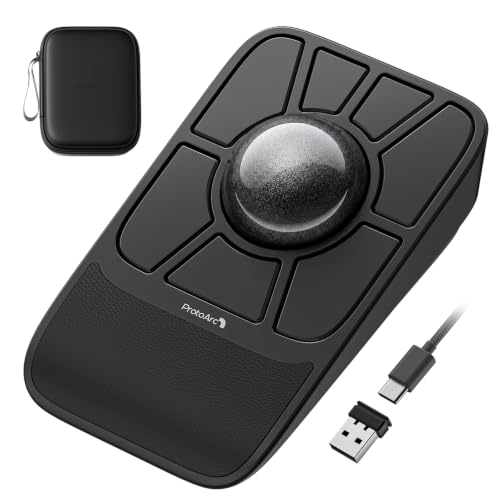
- Large 55mm ball with dual-sensor precision
- Five DPI levels and saved profiles
- Wired, 2.4G, and Bluetooth connectivity
Best For: Graphic and video creators using multiple devices
Comfort-Focused Value
Nulea M501 Thumb-Control Trackball

- Angled design with smooth thumb control
- Bluetooth and USB connectivity for three devices
- Rechargeable battery and six physical buttons
Best For: Right-handed creators seeking simple wireless comfort
Large-Surface Specialist
ELECOM Huge Wireless Trackball

- 52mm ball for index-finger control
- Eight buttons with horizontal scrolling
- Three DPI settings and a palm rest
Best For: Desktop editors wanting broad, finger-led control
Best Ergonomic Upgrade – Logitech MX Ergo S
For content creators seeking computer trackballs for content creators, the Logitech MX Ergo S combines thumb-controlled precision with an ergonomic 20-degree tilt. Its customizable controls and dual wireless connectivity make it practical for editing, writing, and general desktop workflows.
Best For: Creators who prioritize ergonomic comfort, quiet operation, and customizable productivity controls.
Pros:
- Switches between fast and high-precision tracking with a dedicated button.
- Ergonomic 20-degree tilt and contoured grip are designed to reduce forearm strain.
- Six customizable buttons and Smart Actions support efficient workflows.
- Bluetooth and included Logi Bolt receiver provide flexible wireless connectivity.
Cons:
- Designed for right-handed users and medium- to large-sized hands.
- Charging cable is not included.
- Its 2,048 DPI maximum sensitivity may be less appealing for users seeking very high cursor sensitivity.
The MX Ergo S is a strong all-around choice for creators who spend long hours at a computer and want a comfortable, programmable trackball with rechargeable power.
Best Budget Wired Pick – Kensington Orbit Trackball
The Kensington Orbit is a straightforward option for content creators comparing computer trackballs for content creators on a wired setup. Its optical tracking, distinctive scroll ring, and ambidextrous design make it easy to use for everyday editing, browsing, and document work.
Best For: Creators who want an affordable, ambidextrous wired trackball with simple scrolling.
Pros:
- Optical tracking supports precise cursor movement with less hand travel.
- Scroll ring makes navigating pages and documents convenient.
- Ambidextrous design accommodates both right- and left-handed users.
- Detachable wrist rest adds support during extended computer sessions.
Cons:
- USB wired connection offers less desk flexibility than wireless models.
- Only two programmable buttons are provided.
- Its listed macOS requirement is macOS 13 Ventura, while Windows support is listed for Windows 11.
Choose the Orbit when reliable wired operation and easy scrolling matter more than extensive button customization or wireless mobility.
Best Multi-Computer Workflow – Logitech MX Ergo Plus
Logitech MX Ergo Plus Wireless Trackball | Extra 10-degree wedge, PC and Mac compatibility
Check Price On AmazonThe Logitech MX Ergo Plus is a practical choice for content creators evaluating computer trackballs for content creators across multiple computers. Its adjustable positioning, precision mode, and FLOW support are suited to creators who move between systems during editing or production work.
Best For: Right-handed creators who need adjustable comfort and seamless control across two computers.
Pros:
- Adjustable hinge and included wedge offer multiple hand-positioning angles.
- Precision mode button switches between speed and high-accuracy tracking.
- FLOW and Easy-Switch support work across up to two computers.
- Rechargeable battery provides up to four months of use, according to the supplied notes.
Cons:
- Designed for right-handed use.
- The supplied operating-system details list Windows 7 and Windows 8, so newer-system compatibility should be verified.
- It uses Logitech’s older listed model and connectivity specifications compared with the newer MX Ergo S.
The MX Ergo Plus remains compelling for creators who value adjustable ergonomics and cross-computer workflows, especially when moving files or projects between two machines.
Best Customizable Pro Pick – ELECOM IST PRO Trackball
For creators who want extensive customization, the ELECOM IST PRO stands out among computer trackballs for content creators. It combines ten programmable buttons, a tilt wheel, three connection modes, and a large 36mm thumb ball for detailed control across creative and productivity applications.
Best For: Power users who need many shortcuts, high sensitivity, and support for multiple devices.
Pros:
- Ten programmable buttons and a tilt wheel can support editing shortcuts and repetitive tasks.
- Bluetooth 5.3, 2.4GHz wireless, and USB-C wired modes provide flexible connectivity.
- Supports pairing with up to six devices.
- Large 36mm trackball, up to 12,000 DPI, and selectable steel or ruby bearings offer precise control options.
Cons:
- Right-handed design may not suit left-handed creators.
- Its extensive controls and adjustment options may require more setup than simpler trackballs.
- At 156 g, it is heavier than some lightweight office-oriented models.
The IST PRO is the most feature-rich option here for creators who want to map many actions, switch among several devices, and fine-tune the trackball’s feel.
Best for Large-Hand Comfort – Kensington Expert Wireless Trackball
For content creators seeking computer trackballs for content creators, the Kensington Expert Wireless Trackball emphasizes precise control, broad compatibility, and wrist support. Its large 55mm ball, ambidextrous shape, and wireless connectivity make it a practical choice for editing, browsing, and desk-based creative work.
Best For: Creators who want a large, ambidextrous trackball with a detachable wrist rest and flexible wireless connection options.
Pros:
- Large 55mm ball and optical tracking support precise cursor movement.
- Detachable ergonomic wrist rest adds support during extended sessions.
- Bluetooth and 2.4GHz USB dongle connectivity offer setup flexibility.
- Four customizable buttons, scroll speed, and cursor speed can be adjusted through KensingtonKonnect.
Cons:
- Uses two AA batteries rather than a rechargeable battery.
- Linux is not supported, and Windows ARM-based computers are currently unsupported by KensingtonKonnect.
- Its large 8-inch length and 1.4-pound weight may be excessive for compact desks.
The Kensington Expert is a strong fit when comfort and a substantial trackball matter more than portability. Its ambidextrous design and customizable controls suit varied creative workflows, while the included wrist rest may help during long editing or browsing sessions.
Best for Customizable Workflows – ELECOM HUGE Plus Wireless Trackball
The ELECOM HUGE Plus is built for content creators who want extensive shortcut control from their computer trackballs for content creators setup. It combines a 52mm ball with 10 programmable buttons, three connection modes, silent clicks, and a rechargeable battery for flexible daily use.
Best For: Right-handed creators who rely on many shortcuts and switch between multiple computers, tablets, or other compatible devices.
Pros:
- Ten programmable buttons provide substantial shortcut customization.
- Tri-mode connectivity supports Bluetooth, 2.4GHz wireless, and wired USB-C use.
- Rechargeable battery offers up to five months of use per charge.
- Silent clicks and a large 52mm ball suit focused work sessions.
Cons:
- Right-handed design does not accommodate ambidextrous use.
- At 291 grams, it is heavier than a compact trackball.
- Its extensive controls may be more than casual users need.
The HUGE Plus stands out for creators who want to map frequent commands directly to the mouse. Its rechargeable design and three connection methods add convenience, while the replaceable bearings offer an unusual degree of long-term customization.
Best for Compact Creative Desks – Logitech Ergo M575S Wireless Trackball
Logitech Ergo M575S Wireless Ergonomic Trackball Mouse, Black/Blue (910-007026)
Check Price On AmazonThe Logitech Ergo M575S is a space-conscious option for creators comparing computer trackballs for content creators workflows. Its thumb-operated ball keeps the mouse stationary, making it useful on small desks or varied surfaces, while Bluetooth and the included Logi Bolt receiver simplify wireless setup.
Best For: Creators who need an ergonomic, compact trackball with basic shortcut customization and low desk-space demands.
Pros:
- Thumb control lets the cursor move without shifting the mouse.
- Ergonomic shape supports the hand and helps realign the forearm.
- Three customizable buttons and Smart Actions can streamline repeated tasks.
- Bluetooth and Logi Bolt receiver connectivity support flexible setups.
Cons:
- It has fewer programmable controls than the ELECOM model.
- The thumb-operated layout is less flexible for users seeking ambidextrous control.
- Cursor sensitivity is listed at up to 2,000 dpi, which may limit preference for very high sensitivity.
The Ergo M575S is a practical pick when desk space and hand comfort are priorities. It offers enough customization for everyday editing and productivity while avoiding the larger footprint and extensive button layout of full-size trackballs.
Flexible Precision Pick – ProtoArc EM06 Tri-Mode Trackball
For content creators comparing computer trackballs for content creators, the ProtoArc EM06 stands out for its large 55mm ball, adjustable DPI, and flexible wired, 2.4G, and Bluetooth connectivity. Its stationary design is useful for editing at a crowded desk or wherever a mouse pad is unavailable.
Best For: Graphic designers, video editors, and multi-device users who want customizable controls and rechargeable power.
Pros:
- Dual sensors and a gaming-grade chip support precise tracking and scrolling.
- Offers five DPI levels, customizable buttons, and up to four saved profiles.
- Tri-mode connectivity supports Windows, macOS, Android, iOS, and tablets.
- Includes a wrist rest, 930mAh rechargeable battery, and storage box.
Cons:
- Customization supports only 2.4G and wired connections.
- May not be detected through a multi-port hub and is not compatible with Safari.
- Requires regular trackball cleaning and a short learning curve.
The EM06 is a feature-rich option when creative work demands precision, profile switching, and connection flexibility. Its software and hub limitations are worth checking before purchase.
Comfort-Focused Value – Nulea M501 Thumb-Control Trackball
The Nulea M501 is a practical choice among computer trackballs for content creators who want thumb control and a compact wireless setup. Its angled ergonomic shape, adjustable DPI, and ability to connect with Bluetooth or a USB dongle suit everyday editing and office workflows.
Best For: Right-handed creators who prioritize wireless comfort, rechargeable operation, and switching between up to three devices.
Pros:
- Thumb-operated trackball helps reduce wrist and arm movement.
- Connects to up to three devices through Bluetooth or the USB receiver.
- Rechargeable battery eliminates disposable cell replacements.
- Six physical buttons include convenient back and forward controls.
Cons:
- Buttons are not programmable.
- Designed for right-handed use only.
- Requires the included cable or a standard 5V charging source; fast chargers should not be used.
The M501 keeps the feature set straightforward and focuses on comfortable thumb navigation. It is less suitable for creators who need macro assignments or ambidextrous handling.
Large-Surface Specialist – ELECOM Huge Wireless Trackball
The ELECOM Huge is built for creators who prefer index-finger control and a broad working surface. Among computer trackballs for content creators, its 52mm ball, palm rest, eight buttons, and horizontal scroll support make it especially appealing for long design, editing, and productivity sessions.
Best For: Right-handed desktop users who want a large finger-operated ball, physical controls, and reliable 2.4GHz wireless performance.
Pros:
- Large 52mm trackball provides controlled index-finger operation.
- Eight buttons include scroll-wheel tilt for horizontal scrolling.
- Switchable 500, 1000, and 1500 DPI settings support different cursor speeds.
- Soft palm rest and smooth ruby bearings support extended use and easy maintenance.
Cons:
- Uses a 2.4GHz USB connection rather than Bluetooth.
- Right-handed design limits flexibility for left-handed users.
- Runs on a replaceable battery instead of a rechargeable battery.
The ELECOM Huge favors spacious, finger-led control over portability. Its large body and single wireless connection are best suited to a dedicated desktop creator setup.
How We Picked the Best Computer Trackballs for Content Creators
We evaluated these models against the needs of people who spend hours editing photos and video, designing layouts, writing, coding, recording, or managing detailed production workflows. The most important criteria were control style, ergonomic design, connection options, sensor responsiveness, button customization, and compatibility with common desktop setups.
We also considered practical differences between thumb-operated trackballs and finger-operated designs. Thumb models often feel familiar to mouse users and occupy less desk space, while larger finger-controlled balls can offer broader, more precise movement with less thumb fatigue. No single layout is best for every creator, so comfort and hand size remain essential considerations.
Quick Comparison
| Feature | What to look for | Why it matters |
|---|---|---|
| Control style | Thumb, index-finger, or central finger ball | Determines learning curve, precision, and muscle comfort |
| Connectivity | Bluetooth, 2.4GHz wireless, USB wired, or tri-mode | Helps the trackball fit desktops, laptops, tablets, and multi-device workflows |
| Customization | Programmable buttons, adjustable DPI, and software support | Speeds up repetitive commands and creative shortcuts |
| Ergonomics | Tilted shells, wrist support, and stable feet | Can reduce strain during extended sessions |
| Ball size | Compact, standard, or oversized ball | Affects smoothness, range of motion, and precision |
Key Buying Factors for Computer Trackballs for Content Creators
Choose the Control Style First
Thumb-operated models are an easy transition from a standard mouse and are usually compact. Finger-operated trackballs place more control under the index or middle fingers, which may suit timeline scrubbing, image adjustments, and precise cursor work. Try to match the layout to the hand position that feels natural rather than choosing based on specifications alone.
Prioritize Connection Flexibility
Bluetooth is convenient for laptops and tablets, while a 2.4GHz receiver can provide a dependable desktop connection. Wired or tri-mode models are especially useful when you need backup connectivity, low setup friction, or compatibility across several devices. Multi-device switching is valuable for creators who move between a workstation, laptop, and secondary screen.
Look for Workflow Controls
Programmable buttons can assign common actions such as copy, paste, undo, zoom, playback, or application-specific shortcuts. Adjustable DPI helps balance broad navigation with fine positioning. Check whether the customization software supports your operating system and preferred creative applications.
Do Not Overlook Comfort and Maintenance
A supportive shape, stable base, and suitable wrist angle matter more than headline features during all-day use. Larger balls may feel smoother but require more desk and hand space. Trackballs also collect dust, so a removable ball and accessible sensor area can make cleaning easier.
Who Should Buy Which Computer Trackballs for Content Creators?
- Standard mouse users: Start with a thumb-operated ergonomic model for the shortest adjustment period.
- Precision-focused editors and designers: Consider a larger finger-operated ball for controlled, low-wrist-movement navigation.
- Multi-device creators: Choose a model with Bluetooth plus 2.4GHz or wired connectivity.
- Shortcut-heavy workflows: Prioritize programmable buttons and adjustable sensitivity over a minimal design.
- Small desks or mobile setups: A compact wireless trackball can preserve desk space while avoiding cable clutter.
Before buying, confirm operating-system support, receiver requirements, hand orientation, and the return policy. Trackballs have a genuine adjustment period, but the best fit can provide comfortable, precise control for years of creative work.