When it comes to enhancing your workspace, finding the right docking station with DisplayLink technology can make a significant difference. These devices not only offer multiple monitor support but also guarantee seamless connectivity with various peripherals. As you explore the top options available, consider how they can transform your productivity. Let’s take a closer look at the best choices that cater to your unique needs and preferences.
Anker Prime Docking Station (DL7400) – 14-Port Triple Display
If you’re a multitasker who relies on multiple screens to boost productivity, the Anker Prime Docking Station (DL7400) is your ideal companion. With 14 ports, it supports triple displays, including one 8K monitor, enabling ultra-efficient multitasking. You’ll enjoy seamless connectivity thanks to the 140W USB-C upstream port and additional USB-C and HDMI options. Plus, the built-in fan and ActiveShield 3.0 guarantee stability and cooling. Each port handles charging and data transfer, making it a powerhouse for your devices. Just remember to connect your mouse or keyboard receiver to the 480Mbps USB-A port for peak performance.
Best For: Multitaskers looking for a powerful docking station that supports multiple displays and seamless connectivity.
Pros:
- Supports triple external monitors, including one 8K display for enhanced productivity.
- Offers a wide range of connectivity options with 14 ports, including high-speed USB-C and HDMI.
- Features built-in cooling with ActiveShield 3.0 for stable performance during heavy use.
Cons:
- Requires the latest DisplayLink driver for optimal functionality.
- DRM-protected streaming may result in black screens, requiring adjustments in browser settings.
- Front USB-C ports do not support media display, limiting their use for certain devices.
ACASIS USB C to Dual HDMI DisplayLink Adapter

For professionals who need to boost productivity with multiple screens, the ACASIS USB C to Dual HDMI DisplayLink Adapter is an ideal solution. This compact hub connects two 4K monitors at 60Hz through a single USB-C or USB-A port, perfect for multitasking or coding. It’s compatible with Mac M1/M2/M3/M4/M5/Neo and Windows PCs. Plus, it features three USB-A ports and a USB-C port that provides 100W Power Delivery for fast charging. Lightweight and portable, it’s easy to carry to coffee shops or while traveling. With a 1-year warranty and Amazon’s return policy, you can purchase with confidence.
Best For: Professionals seeking to enhance productivity with dual 4K monitors for multitasking or coding.
Pros:
- Supports dual 4K displays at 60Hz, providing high-resolution output for improved clarity.
- Compact and lightweight design makes it highly portable for remote work or travel.
- 100W Power Delivery USB-C port ensures fast charging, preventing battery drain during use.
Cons:
- Not suitable for gaming or HDCP content, limiting its functionality for certain users.
- Requires DisplayLink drivers, which may complicate setup for some users.
- Limited to a single USB-C or USB-A port, potentially restricting connectivity options.
Plugable USB-C Triple Monitor Docking Station (UD-ULTCDL)

The Plugable USB-C Triple Monitor Docking Station (UD-ULTCDL) is perfect for professionals who need extensive display capabilities without compromising on performance. With support for three HDMI displays, it transforms your workspace, offering a primary monitor up to 4K 30Hz and secondary monitors at 1920×1200 60Hz. You’ll enjoy 100W charging for your laptop and 20W for devices, ensuring everything stays powered. Its 13 ports, including USB-A, SD card reader, and Gigabit Ethernet, provide extensive connectivity options. Compatible with various systems, this docking station enhances your productivity seamlessly. Plus, it comes with a 2-year warranty for peace of mind.
Best For: Professionals and creators who require multiple high-resolution displays and extensive connectivity options for enhanced productivity.
Pros:
- Supports up to three HDMI displays, allowing for an expansive multi-monitor setup.
- Provides 100W charging for laptops, ensuring devices remain powered during use.
- Includes a variety of ports (13 in total) for versatile connectivity, including USB-A, USB-C, and Ethernet.
Cons:
- Requires installation of DisplayLink Manager for macOS users to enable multiple displays.
- Maximum resolution for the primary monitor is limited to 4K at 30Hz.
- Not all laptops may be fully compatible; it requires USB-C, USB4, or Thunderbolt ports.
Plugable Dual 1080p HDMI Docking Station (UD-3900Z)

Ideal for professionals seeking seamless multi-monitor setups, the Plugable Dual 1080p HDMI Docking Station (UD-3900Z) supports dual HDMI displays at 1920×1200 resolution through a single USB connection. With 10 ports, including two HDMI, two USB 3.1, and Gigabit Ethernet, you’ll enjoy extensive connectivity. It’s compatible with M1 to M5 MacBooks, Windows 10+, and various laptop brands. While it’s designed for office productivity, keep in mind it doesn’t support HDCP and isn’t ideal for gaming. Plus, you’ll benefit from North American technical support and a two-year warranty, ensuring your investment is backed.
Best For: Professionals seeking a reliable docking station for seamless multi-monitor setups and extensive connectivity options.
Pros:
- Supports dual HDMI displays at 1920×1200 resolution through a single USB connection, enhancing productivity.
- Compatible with a wide range of devices, including M1 to M5 MacBooks, Windows 10+, and various laptop brands.
- Backed by North American technical support and a two-year warranty, ensuring assistance and peace of mind.
Cons:
- Does not support HDCP, limiting use for certain media playback.
- Not recommended for gaming or full-screen video playback, which may deter some users.
- DisplayPort monitors are not supported, restricting connectivity options for those using DisplayPort.
WAVLINK DisplayLink Docking Station for Triple Monitors

Looking to enhance your workspace with multiple displays? The WAVLINK DisplayLink Docking Station supports triple monitors at an impressive 4K@60Hz, delivering stunning visuals. With a powerful 160W adapter, it charges your laptop through the USB-C host while powering connected peripherals. Enjoy fast data transfer with six USB Gen2 ports and a 1Gbps Ethernet connection. It’s fully compatible with various operating systems, including Windows and macOS, making it ideal for the latest MacBook Neo. Don’t worry about low battery issues, as long as your type-C port supports power delivery. Elevate your productivity with this versatile docking station!
Best For: Professionals and creatives who need a multi-monitor setup for enhanced productivity and exceptional visual performance.
Pros:
- Supports triple monitors at 4K@60Hz, providing stunning visuals for an immersive experience.
- Includes a powerful 160W power adapter, allowing for charging and powering of peripherals simultaneously.
- Compatible with multiple operating systems, including Windows and macOS, making it versatile for various users.
Cons:
- Requires a USB 3.1 full-function type-C or Thunderbolt 3/4 port, limiting compatibility with some older laptops.
- Not compatible with Unix systems, Linux, and iPad OS, which may exclude certain users.
- May not support video output through type-C ports that do not have power delivery capability.
Anker 10-in-1 USB C Docking Station
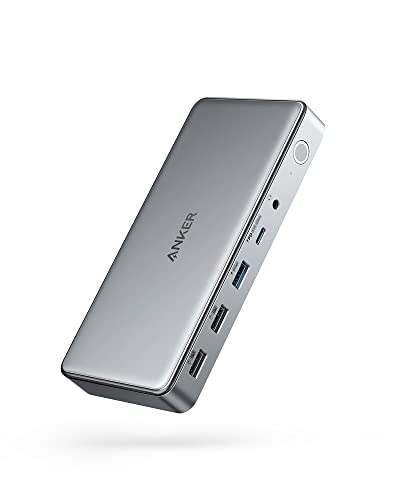
For professionals and creatives who need versatile connectivity options, the Anker 10-in-1 USB C Docking Station stands out with its robust port expansion capabilities. It transforms a single USB-C port into multiple connections, including two HDMI ports, a DisplayPort, and several USB ports. You can enjoy triple display support with resolutions up to 4K@30Hz, perfect for multitasking. Plus, it delivers up to 100W charging for your laptop while allowing you to charge your phone simultaneously. With fast file transfers of up to 5 Gbps, this docking station enhances your productivity and keeps everything organized.
Best For: Professionals and creatives seeking versatile connectivity options for enhanced productivity.
Pros:
- Robust port expansion with two HDMI ports, a DisplayPort, and multiple USB ports for diverse connectivity.
- Triple display support with high resolutions, allowing for efficient multitasking and improved workflow.
- High-speed file transfers of up to 5 Gbps and the capability to charge devices simultaneously, enhancing overall efficiency.
Cons:
- May require additional power for optimal performance, depending on the number of devices connected.
- Compatibility primarily focused on Windows laptops and MacBook models, limiting use with other systems.
- Slightly larger size may not be ideal for users seeking a more compact docking solution.
Plugable Dual DisplayPort & HDMI Docking Station (UD-6950Z)

If you’re a professional seeking to enhance your productivity with dual 4K monitors, the Plugable Dual DisplayPort & HDMI Docking Station (UD-6950Z) is designed for you. It supports dual displays with a maximum output of 3840×2160 at 60Hz, perfect for demanding tasks. With six USB 3.0 ports, Gigabit Ethernet, and an audio jack, connectivity is a breeze. Its vertical design keeps your workspace tidy. Compatible with Windows, macOS, and ChromeOS, you’ll enjoy easy plug-and-play functionality—just remember that Mac users need a driver. Weighing only 350 grams, it’s a portable solution to boost your efficiency on the go.
Best For: Professionals seeking to enhance productivity with dual 4K monitor setups.
Pros:
- Supports dual 4K monitors at 60Hz for high-resolution tasks.
- Offers multiple connectivity options with six USB 3.0 ports and Gigabit Ethernet.
- Vertical design promotes clean cable management and a tidy workspace.
Cons:
- Not optimized for gaming or HDCP content playback (e.g., Netflix, Hulu).
- Requires manual driver installation for macOS users.
- Not compatible with Linux operating systems.
Minisopuru Displaylink Triple Display Docking Station for MacBook and Windows
The Minisopuru Displaylink Triple Display Docking Station stands out as an ideal choice for professionals and creators who need seamless multitasking across multiple displays. Compatible with MacBook M1/M2/M3/M4 and Windows, it features 12 ports, including 2 x 4K HDMI and 2 x 4K DisplayPort, allowing you to connect multiple screens effortlessly. It supports USB-A and USB-C data transfer, making file sharing quick and efficient. With a lightweight design and a 2-year warranty, you’ll enjoy reliable performance. Plus, its fast-charging capability guarantees your devices stay powered. Experience ultimate connectivity with this versatile docking station.
Best For: Professionals and creators needing seamless multitasking across multiple displays.
Pros:
- Versatile Connectivity: Supports multiple displays with both HDMI and DisplayPort options.
- Fast Data Transfer: USB-A 3.2 Gen1 and USB-C ports enable quick file sharing.
- Powerful Fast Charging: USB-C PD port supports up to 100W charging for laptops.
Cons:
- Limited Compatibility: Does not support Linux/Unix operating systems.
- Simultaneous Use Limitation: HDMI and USB-C PD cannot function together when using USB-A.
- Power Adapter Required: A 36W power adapter is necessary for operation, which may be an additional consideration.
WAVLINK DisplayLink Docking Station for Dual Monitors
Designed for professionals and creatives seeking enhanced productivity, the WAVLINK DisplayLink Docking Station supports dual monitors with impressive 5K display capabilities. You can easily connect two monitors at 5120×1440@60Hz or 4096×2160@60Hz, making multitasking seamless. With 14-in-1 versatility, it offers 2 DisplayPort, 2 HDMI, 5 USB-A ports, and more. It’s compatible with Mac M1/M2/M3/M4 and various Windows laptops, though remember to install the DisplayLink driver first. Enjoy 100W power delivery and stable networking with the RJ45 Ethernet. Overall, it’s a reliable choice for boosting your setup, despite being unsuitable for gaming or intensive tasks.
Best For: Professionals and creatives seeking enhanced productivity with dual monitor support.
Pros:
- Supports dual 5K displays for seamless multitasking.
- Offers extensive connectivity options with 14-in-1 versatility.
- Provides 100W power delivery and stable wired networking.
Cons:
- Requires DisplayLink driver installation; not plug-and-play.
- Not suitable for gaming or intensive tasks.
- Limited compatibility with Linux, Unix, iOS, and iPadOS.
Plugable USB C Laptop Docking Station for Dual Monitor 4K 60Hz

Looking to enhance your productivity with dual 4K monitors? The Plugable USB C Laptop Docking Station (UD-6950PDH) is your go-to solution. This sleek, premium aluminum dock supports dual 4K displays at 60Hz via HDMI and DisplayPort, perfect for multitasking on your M1-M5 Macs. With 15 ports, including 5 USB options and card readers, it covers all your connectivity needs. Plus, it offers 100W charging capability, ensuring your devices stay powered. Just install the DisplayLink software for full functionality. With lifetime support and a 2-year warranty, you’re set for reliable performance. Upgrade your workspace today!
Best For: Professionals and creatives who need to enhance their productivity with dual 4K monitor setups on M1-M5 Macs.
Pros:
- Supports dual 4K monitors at 60Hz, allowing for an expansive workspace and efficient multitasking.
- Multiple connectivity options with 15 ports, including USB, HDMI, DisplayPort, and card readers, catering to various devices and accessories.
- 100W charging capability, ensuring that your laptop and devices remain powered while connected.
Cons:
- Requires installation of DisplayLink software for full functionality, which may be an additional step for users.
- Limited compatibility with older operating systems, as it requires macOS 11+, Windows 10+, or ChromeOS 100+.
- Potential restocking fees for returns on misrepresented products, which could deter some buyers.
Factors to Consider When Choosing Docking Stations With Displaylink
When choosing a docking station with Displaylink, you should consider several key factors. Think about port availability, display resolution support, and power delivery capability to guarantee it meets your needs. Also, check for compatibility with your devices and the size and design that fit your workspace.
Port Availability and Types
As you consider docking stations with DisplayLink technology, keep in mind that port availability and types play a essential role in your connectivity options. Look for a variety of ports, including HDMI, DisplayPort, USB-A, USB-C, and Ethernet, to guarantee compatibility with all your devices. The total number of ports is significant, as it affects how many peripherals and monitors you can connect. Don’t forget to evaluate USB data transfer speeds; higher speeds like 10Gbps enhance file transfers and peripheral performance. Additionally, check for Power Delivery (PD) ports that can charge your laptop and devices, ideally supporting up to 100W. Finally, verify the docking station supports your desired display configuration for a superior experience.
Display Resolution Support
Choosing a docking station with DisplayLink technology hinges on the display resolution support it offers, since this directly impacts your visual experience. First, check the maximum resolution; some models can handle dual 4K displays at 60Hz, while others are limited to 1920×1200. Consider how many external monitors you need—options range from single to triple setups, which can markedly boost your multitasking. Compatibility with your devices is essential, as specific resolutions may depend on your system’s capabilities and installed DisplayLink drivers. Finally, confirm the docking station’s ports, like HDMI or DisplayPort, match your display setup, since different ports support varying resolutions and refresh rates, enhancing your overall experience.
Power Delivery Capability
Power delivery capability is an important factor to evaluate in docking stations with DisplayLink technology, especially if you want to keep your laptop charged while using multiple peripherals. Look for docking stations that offer high wattage ratings, typically around 100W or 140W, to guarantee your laptop maintains battery life during use. Be aware that power output can vary across ports; upstream ports usually provide the highest wattage for charging laptops, while front USB-C ports might support lower speeds. It’s vital to check if your laptop’s USB-C port supports power delivery, so you can fully leverage the docking station’s charging capabilities. Enhanced power delivery not only charges your laptop but also powers connected peripherals, simplifying your workspace.
Compatibility With Devices
When selecting a docking station with DisplayLink technology, compatibility with your devices is a key consideration. First, make sure the docking station works with your operating system, as some require specific drivers for macOS, Windows, or ChromeOS. Check that it supports your device’s USB-C or USB-A port type, since some only function with full-featured USB-C or Thunderbolt connections. Think about how many displays you want to connect; different stations support varying setups, from dual to triple monitors. Additionally, verify that the docking station is optimized for your laptop model, especially newer MacBooks with external display limitations. Finally, confirm it can deliver adequate power for charging, typically ranging between 100W to 140W.
Size and Design
The size and design of your docking station can greatly influence your workspace efficiency and organization. Compact designs are perfect for limited desk spaces and make it easier to stay organized. Consider whether you prefer a vertical or horizontal layout, as this can affect cable management and accessibility to ports, enhancing your overall user experience. If you travel often, opt for lighter models that won’t weigh you down. Aesthetics matter too; choose a color and finish that complements your workspace for a cohesive look. Finally, verify the arrangement of ports and controls is user-friendly, so you can easily access frequently used connections without creating clutter. These factors will enhance your productivity and overall satisfaction with your docking station.
Heat Management Features
Effective heat management features are vital for ensuring your docking station with DisplayLink technology operates smoothly, especially during long work sessions. Look for models with built-in fans or heat-dissipating designs that prevent overheating. Active cooling systems can greatly enhance performance stability and prolong your docking station’s lifespan by maintaining ideal temperatures. Some stations utilize technologies like ActiveShield 3.0, which actively monitors and regulates heat, ensuring safe operation. If you need high power output—like 100W or more for charging—robust heat management solutions become essential to handle the extra thermal load. Additionally, choose designs that allow for adequate airflow, minimizing the risk of thermal throttling, especially when multitasking with multiple displays.
Driver Installation Requirements
Choosing a docking station with DisplayLink technology involves understanding the driver installation requirements, especially since missing the right driver can limit functionality. Most docking stations need you to install the DisplayLink driver, especially for multi-monitor setups on macOS, where it’s crucial for performance. On Windows, the installation often happens automatically, while macOS usually requires a manual setup. If you skip installing the necessary driver, you might find yourself unable to extend displays or use specific ports effectively. Verify your docking station supports the latest OS versions; outdated drivers can lead to performance issues. Some models even provide instructions or QR codes to simplify the driver installation process, making it easier for you to get started.
Warranty and Support Options
When considering a docking station with DisplayLink technology, it’s vital to evaluate warranty and support options to confirm peace of mind. Look for a warranty that lasts 1 to 2 years, as this reflects the manufacturer’s confidence in their product’s reliability. A solid return policy, like a 30-day guarantee, allows you to return the docking station if it doesn’t meet your expectations. Accessible and responsive customer support is imperative, so make sure you can communicate directly with technical experts for troubleshooting assistance. It’s also wise to check that the warranty covers both parts and labor. Finally, review customer ratings and feedback regarding support experiences to gauge the manufacturer’s service quality and reliability.