Mac Studio has plenty of built-in connectivity, but rear-facing ports can become inconvenient once you add external drives, displays, card readers, and peripherals. A Thunderbolt dock can put frequently used connections within reach and simplify your desk setup.
These eight options span Thunderbolt 4 and 5, compact hubs, and docks with built-in SSD enclosures. The right choice depends less on the biggest port count than on your Mac Studio model, display requirements, and the devices you actually connect.
Best 8 Mac Studio Docking Stations with Thunderbolt Expansion Picks for 2026
Best Compact All-Rounder
Anker Prime Thunderbolt 5 Dock

- Two downstream Thunderbolt 5 ports
- 2.5Gb Ethernet and SD/TF readers
- Mac Studio compatibility not listed
Best For: MacBook desks needing broad peripheral expansion
Best for Built-In SSD Expansion
Satechi Thunderbolt 5 CubeDock

- M.2 NVMe enclosure supports up to 8TB
- Mac Studio models listed as compatible
- SSD sold separately; active fan
Best For: Mac Studio setups needing integrated expandable storage
Best Fanless MacBook Dock
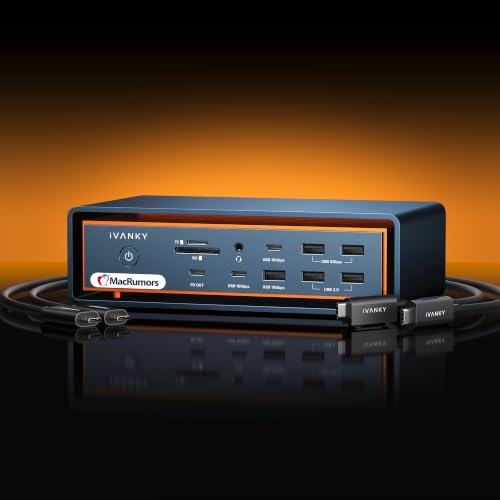
- Fanless passive cooling
- Thunderbolt 5 and ten USB ports
- Mac Studio compatibility not listed
Best For: Supported MacBook workstations where fan noise matters
Best for Audio and SSD Ports
UGREEN Maxidok Thunderbolt 5 Dock

- NVMe slot supports compatible SSDs up to 8TB
- Three audio jacks and 2.5Gb Ethernet
- Mac Studio compatibility not listed
Best For: Listed compatible hosts needing storage and audio connections
Best for Wired Networking
Belkin 14-in-1 Thunderbolt 4 Dock

- 14-port connection mix
- 2.5Gb wired Ethernet
- Thunderbolt 4 up to 40Gbps
Best For: Peripheral-heavy desks needing faster wired networking
Best for Display Flexibility
Plugable 16-in-1 Thunderbolt 4 Dock

- HDMI and DisplayPort outputs
- Seven USB ports
- 2.5Gb Ethernet and card readers
Best For: Desks using HDMI or DisplayPort monitors
Best for High-Refresh Displays
Plugable Thunderbolt 5 Dual-HDMI Dock

- Two native HDMI 2.1 ports
- Up to 4K 144Hz with TB5 hosts
- Six USB-C connections
Best For: Compatible TB5 setups with demanding HDMI displays
Best for Compact Desk Layouts
Plugable TBT-UDM Thunderbolt 4 Dock

- Low-profile 13-port design
- Downstream Thunderbolt 4 port
- USB-A and UHS-II card readers
Best For: Tidy desks with varied peripherals
Best Compact All-Rounder – Anker Prime Thunderbolt 5 Dock
Among mac studio docking stations with thunderbolt expansion, the Anker Prime is a compact option with two downstream Thunderbolt 5 ports, 2.5Gb Ethernet, card readers, and HDMI 2.1 or DisplayPort 2.1 output. Its listed compatibility focuses on MacBooks and Thunderbolt Windows laptops, so confirm Mac Studio compatibility before buying.
Best For: MacBook-based desks that need fast Thunderbolt expansion and everyday peripherals in one dock.
Pros:
- Two downstream Thunderbolt 5 ports alongside USB-C, USB-A, SD, and TF connections.
- 2.5Gb Ethernet and a dedicated HDMI 2.1 or DisplayPort 2.1 output.
- Active cooling and an included 3.3-foot Thunderbolt 5 cable.
Cons:
- Mac Studio is not listed among the compatible devices.
- Advertised dual 8K at 60Hz support is specified for Thunderbolt 5 Windows laptops, not Macs.
This is a capable general-purpose dock, but Mac Studio buyers should verify host and display support rather than assuming the Windows display specifications apply.
Best for Built-In SSD Expansion – Satechi Thunderbolt 5 CubeDock
The Satechi CubeDock stands out among mac studio docking stations with thunderbolt expansion by combining a listed Mac Studio compatibility range with an internal M.2 NVMe enclosure. It can add up to 8TB of dock-based storage, although you must supply the SSD.
Best For: Mac Studio users who want Thunderbolt connectivity and expandable NVMe storage in one compact dock.
Pros:
- Built-in PCIe 4.0 x4 M.2 NVMe enclosure supports up to 8TB.
- Includes 2.5Gb Ethernet, UHS-II SD/microSD readers, and 10Gbps USB-A/C ports.
- Vented aluminum design with adaptive cooling; Mac Studio models are listed as compatible.
Cons:
- SSD is not included.
- Active cooling is rated at 20–40 dB(A), so it may be audible.
Choose the CubeDock if consolidating storage and connections matters more than a fanless setup. Its advertised macOS display configurations should still be checked against your specific Mac Studio and monitors.
Best Fanless MacBook Dock – iVANKY FusionDock Max 2
The iVANKY FusionDock Max 2 offers extensive Thunderbolt 5 and USB expansion with silent passive cooling. However, shoppers comparing mac studio docking stations with thunderbolt expansion should note that its listed compatible devices are MacBook models from 2020 onward, not Mac Studio.
Best For: A supported MacBook workstation that needs many connections without fan noise.
Pros:
- Thunderbolt 5 expansion and ten USB ports provide room for a large peripheral setup.
- Fanless aluminum chassis eliminates cooling-fan noise.
- 2.5Gb Ethernet and SD/TF 4.0 card slots support wired networking and media transfers.
Cons:
- Mac Studio compatibility is not listed; the stated device support is for MacBooks.
- Not compatible with Windows or Chrome laptops, and restricted to one Mac without switching between Macs.
- Extended-display limits vary substantially by Mac chip.
Its port selection is appealing for a dedicated MacBook desk, but it is not a safe Mac Studio recommendation without explicit compatibility confirmation.
Best for Audio and SSD Ports – UGREEN Maxidok Thunderbolt 5 Dock
The UGREEN Maxidok packs 17 ports and an internal M.2 NVMe slot into a Thunderbolt 5 dock. For shoppers seeking mac studio docking stations with thunderbolt expansion, its storage, networking, and audio connections are useful, but the supplied compatibility list names MacBooks and certain Mac minis rather than Mac Studio.
Best For: A listed compatible Mac or Windows setup needing NVMe storage expansion and multiple audio connections.
Pros:
- M.2 NVMe PCIe Gen4x4 slot supports compatible 2230–2280 SSDs up to 8TB.
- Two downstream Thunderbolt 5 ports, six 10Gbps USB-A/C ports, and 2.5Gb Ethernet.
- Three 3.5mm audio connections plus SD/TF 4.0 card readers.
Cons:
- Mac Studio is not on the supplied compatibility list.
- Cooling fan can make noise; some SSDs with wide heatsinks will not fit.
- HDMI monitors require an active DisplayPort-to-HDMI adapter or cable.
Maxidok makes sense when its port mix fits your workstation, but Mac Studio owners should confirm compatibility and check SSD dimensions before ordering.
Best for Wired Networking – Belkin 14-in-1 Thunderbolt 4 Dock
Among mac studio docking stations with thunderbolt expansion, this Belkin dock is worth considering if fast wired networking matters. It combines 14 ports, Thunderbolt 4 connectivity up to 40Gbps, and 2.5Gb Ethernet.
Best For: A Mac Studio desk that needs peripheral connections and faster-than-gigabit wired networking.
Pros:
- 14 ports cover video, storage, cards, USB peripherals, and networking.
- 2.5Gb Ethernet supports a faster wired connection than standard gigabit.
- Includes a downstream Thunderbolt connection for expanding the setup.
Cons:
- Its 96W laptop charging is less useful with a desktop Mac Studio.
- The supplied compatibility list does not explicitly name Mac Studio; confirm your model and display setup before buying.
Choose this one for its port mix and wired network speed, rather than for its laptop-focused charging or advertised triple-display capability.
Best for Display Flexibility – Plugable 16-in-1 Thunderbolt 4 Dock
For shoppers comparing mac studio docking stations with thunderbolt expansion, this 16-in-1 Plugable model offers a broad port selection and both HDMI and DisplayPort outputs. Its advertised dual 4K 60Hz setup is driverless on supported Macs.
Best For: Workstations that need a choice of HDMI or DisplayPort connections alongside plenty of USB ports.
Pros:
- Two HDMI and two DisplayPort connections offer display-cable flexibility.
- Seven USB ports, 2.5Gb Ethernet, and SD/microSD readers cover common desk accessories.
- Includes a 1-meter Thunderbolt 4 cable.
Cons:
- The supplied compatibility information focuses on laptops and does not explicitly confirm Mac Studio support.
- Its 100W host charging provides little benefit for a desktop Mac.
This is a practical pick when display connector choice matters. Check your Mac Studio model’s external-display support before planning a dual-monitor layout through the dock.
Best for High-Refresh Displays – Plugable Thunderbolt 5 Dual-HDMI Dock
If high-resolution displays are your priority when comparing mac studio docking stations with thunderbolt expansion, this Plugable dock stands out for its native dual HDMI 2.1 ports. The stated ceiling is up to dual 8K 60Hz or 4K 144Hz with a Thunderbolt 5 host; Thunderbolt 4 hosts have a lower stated ceiling of dual 4K 120Hz.
Best For: A compatible Thunderbolt 5 workstation needing high-resolution or high-refresh HDMI displays and multiple USB-C connections.
Pros:
- Dual HDMI 2.1 ports avoid display adapters.
- Six USB-C connections include two front ports rated for up to 30W charging each.
- Includes 2.5Gb Ethernet and UHS-II card readers.
Cons:
- Thunderbolt 3 and ordinary USB-C hosts are not supported.
- Mac Studio is not explicitly listed in the supplied compatibility notes; verify its Thunderbolt generation and display limits.
This is the most display-ambitious option here, but its headline resolutions depend on the host. Confirm compatibility before paying for Thunderbolt 5 capabilities you may not be able to use.
Best for Compact Desk Layouts – Plugable TBT-UDM Thunderbolt 4 Dock
This low-profile Plugable model is a space-conscious option among mac studio docking stations with thunderbolt expansion. It brings 13 ports into a flat aluminum-clad design, including a downstream Thunderbolt 4 port for another compatible device.
Best For: A tidy desk that needs USB accessories, card readers, Ethernet, and a downstream Thunderbolt connection.
Pros:
- One downstream Thunderbolt 4 port supports up to 40Gbps.
- Four USB-A ports, USB-C, and SD/microSD UHS-II readers accommodate varied peripherals.
- Two HDMI ports support the advertised dual 4K 60Hz arrangement on specified compatible Macs.
Cons:
- Its 100W host charging is aimed at laptops, not a Mac Studio.
- The supplied compatibility notes do not explicitly list Mac Studio; verify dock and display compatibility for your model.
Pick it for straightforward desktop expansion and its low-profile shape. Treat its dual-display claim as host-dependent rather than a guarantee for every Mac Studio.
How We Picked the Best Mac Studio Docking Stations with Thunderbolt Expansion
We focused on connection options that matter at a Mac Studio desk: a Thunderbolt host connection, usable downstream ports, display connectivity, storage options, and accessible everyday I/O. The list includes Thunderbolt 4 and Thunderbolt 5 models so you can weigh current needs against future hardware plans. Charging wattage is prominent on many dock listings, but Mac Studio has its own power supply; it should not drive your purchase unless you also plan to use the dock with a laptop.
Quick Comparison: Which Type Fits Your Setup?
For a compact desk, consider the Satechi CubeDock or a dock with the specific ports you need rather than the highest overall count. If fast external storage is a priority, compare the Satechi and UGREEN models with M.2 NVMe support, including whether an SSD is included or purchased separately. The Anker, iVANKY, and Plugable Thunderbolt 5 options suit shoppers seeking newer Thunderbolt connectivity. The Belkin and Plugable Thunderbolt 4 docks remain relevant when their port layouts match your existing gear.
Key Buying Factors for Mac Studio Docking Stations with Thunderbolt Expansion
Match the Host Connection to Your Mac Studio
Check the Thunderbolt specification of your particular Mac Studio and connect the dock to a compatible Thunderbolt port. A Thunderbolt 5 dock can be a useful longer-term purchase, but it will not make an older Mac Studio’s host port run at Thunderbolt 5 speeds. Confirm the included cable’s rating and length, especially if the dock will sit at the front of a deep desk.
Check Displays Before Port Counts
Display support is easy to misread. A dock’s advertised monitor count or resolution may reflect Windows testing or a different Mac model. Verify macOS support, your Mac Studio’s display limits, and whether the dock uses native Thunderbolt video output or DisplayLink software. If you need HDMI, check the dock’s stated resolution and refresh rate for the exact combination of monitors you intend to use.
Plan Bandwidth and Desk Access
Thunderbolt devices share the host connection. Multiple displays, high-speed SSDs, and other demanding peripherals can compete for bandwidth, so prioritize the ports and workloads you will use simultaneously. Check the number of downstream Thunderbolt ports, USB speeds, Ethernet speed, SD card support, and whether frequently swapped connections are front-facing. An integrated NVMe enclosure may save a separate cable, but confirm compatible drive sizes, capacity limits, and whether installation requires opening the dock.
Who Should Buy Which Mac Studio Docking Stations with Thunderbolt Expansion?
Choose a Thunderbolt 5 model if you have a compatible Mac Studio or want a dock ready for a future upgrade; select by its actual downstream ports, not its charging figure. Pick an NVMe-equipped design if a built-in storage slot would simplify your workflow. A Thunderbolt 4 dock can be the more sensible buy when its display support and I/O already cover your setup. Before ordering any model, verify its Mac-specific compatibility notes against your exact Mac Studio and monitors.