Running three external monitors from a MacBook Pro takes more than finding a dock with three video ports. Your Mac’s chip, the dock’s display technology, and its software requirements all affect what will actually work.
These nine docks offer different mixes of monitor connections, charging, and everyday ports. Use the buying guide below to narrow the field before choosing a setup for your desk.
Best 9 Macbook Pro Docking Station Triple Display Picks for 2026
Office Workhorse
WAVLINK 15-in-1 DisplayLink Dock

- Three-monitor connections for office workflows
- Five USB data ports plus Ethernet and card readers
- Up to 100W laptop charging
Best For: Multi-monitor office productivity
Triple 4K Pick

- Up to three 4K@60Hz displays on compatible hosts
- 15 ports, including Ethernet and SD/TF
- Up to 100W laptop Power Delivery
Best For: Three-screen 4K office setups
Port-Rich Alternative
19-in-1 USB-C DisplayLink Dock

- Listed triple 4K@60Hz extended display
- Seven USB ports and multiple audio connections
- Separate PD charger needed for laptop charging
Best For: Accessory-heavy three-monitor desks
Best for Fast Triple 4K
WAVLINK USB-C DisplayLink Dock

- Claims three 4K displays at 60Hz
- Up to 100W laptop charging
- Six 10Gbps USB ports
Best For: High-resolution MacBook Pro desk setups
Best for Mixed-Device Offices
StarTech Universal Triple 4K Dock

- Two 4K/60Hz displays plus one 4K/30Hz
- Up to 100W laptop charging
- Three-year warranty
Best For: Shared desks and mixed laptop fleets
Best for Charging Flexibility
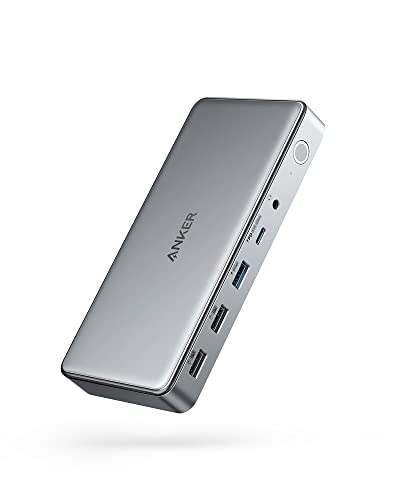
- One 4K/30Hz plus two 1080p/60Hz displays
- Up to 100W laptop charging
- Separate 30W USB-C phone charging
Best For: Mixed-resolution setups with laptop and phone charging
Best for Comfort
Plugable 13-in-1 Triple Monitor Dock

- Three extended HDMI displays via DisplayLink
- 100W laptop and 20W device charging
- SD reader, Gigabit Ethernet, and four USB-A ports
Best For: Shared desks with Mac, Windows, or ChromeOS laptops
Best for USB Peripheral Loads
TobenONE 14-in-1 DisplayLink Dock
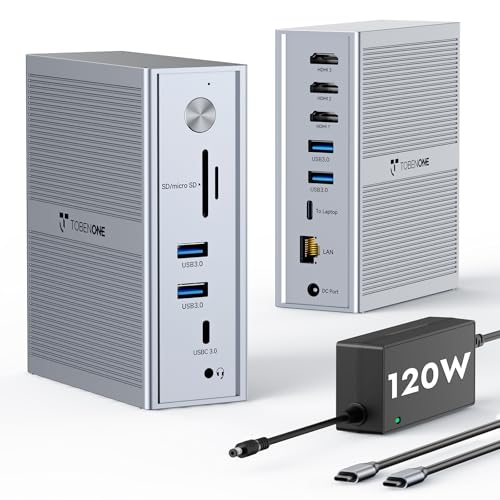
- Three extended HDMI displays with driver
- Five 5Gbps USB ports and Gigabit Ethernet
- Included 120W adapter supports 100W laptop charging
Best For: Three-screen desks with multiple USB accessories
Best for Six USB Peripherals
Plugable 12-in-1 Triple Display Dock

- One 4K 30Hz and two 1080p 60Hz HDMI outputs
- Six USB 3.0 ports plus Gigabit Ethernet
- 100W laptop charging and lifetime support
Best For: Accessory-heavy workstations with three displays
Office Workhorse – WAVLINK 15-in-1 DisplayLink Dock
If you need a macbook pro docking station triple display setup for spreadsheets, dashboards, and everyday office work, this WAVLINK dock offers flexible monitor connections alongside plenty of peripheral ports. Its DisplayLink chipset drives two display channels, while a third HDMI output requires USB-C video output from the laptop.
Best For: Office users who want three external monitors, wired networking, and laptop charging from one dock.
Pros:
- Three HDMI outputs and two DisplayPort outputs provide flexible connections for up to three monitors.
- Includes five USB data ports, Gigabit Ethernet, SD/TF readers, and audio connections.
- Included 130W adapter supports up to 100W USB-C Power Delivery to a compatible laptop.
Cons:
- Requires DisplayLink driver installation; it is not plug-and-play.
- The third HDMI output needs a host USB-C port with video output support, and HDMI and DisplayPort on the same channel cannot run simultaneously.
This is the productivity-focused choice of the three, rather than one aimed at gaming or professional video editing. Check your MacBook’s USB-C video and charging support before relying on all three displays and one-cable power.
Triple 4K Pick – WAVLINK DisplayLink-6950 Dock
For a macbook pro docking station triple display arrangement with sharper screen output, this WAVLINK model specifies up to three 4K displays at 60Hz on compatible laptops. Two displays use its DisplayLink-6950 channels; the third uses HDMI Alt Mode and needs a USB-C host port with video output.
Best For: MacBook and Windows users building a three-screen 4K workspace for research, dashboards, and spreadsheets.
Pros:
- Supports up to three 4K@60Hz displays when the host meets its connection requirements.
- Offers three HDMI and two DisplayPort connectors, plus USB-C, USB-A, Ethernet, SD/TF, and audio.
- Included 130W adapter can deliver up to 100W Power Delivery to a compatible laptop.
Cons:
- DisplayLink software and drivers must be installed before use.
- The third 4K display depends on HDMI Alt Mode; HDMI and DisplayPort connectors sharing a display channel cannot be used together.
Choose this over the other WAVLINK model if triple 4K@60Hz is your priority. Verify your MacBook’s USB-C video-output support before counting on the third screen.
Port-Rich Alternative – 19-in-1 USB-C DisplayLink Dock
This 19-in-1 option suits a macbook pro docking station triple display setup when you also need room for several USB accessories and dedicated audio connections. Its listed configuration supports up to three extended 4K@60Hz monitors on macOS or Windows with the required drivers installed.
Best For: Users who want three external screens, numerous USB peripherals, and separate audio connections at one workstation.
Pros:
- Lists triple 4K@60Hz extended-display support with the appropriate drivers.
- Provides seven USB ports, Gigabit LAN, SD/microSD readers, and multiple audio connections.
- Includes a 12V/3A dock power adapter and a 3.3-foot USB-C cable.
Cons:
- A separate USB-C PD charger is needed for laptop charging; a 100W charger is recommended but not included.
- The third monitor uses either HDMI or DisplayPort, not both, and driver installation is required for the stated multi-display modes.
Its broad port selection is appealing if your desk has many accessories, but budget for the separate PD charger if laptop power is part of your one-cable plan. Follow the listed monitor-port arrangement when wiring three screens.
Best for Fast Triple 4K – WAVLINK USB-C DisplayLink Dock
If you’re shopping for a macbook pro docking station triple display setup, this WAVLINK dock stands out for its claimed support for three 4K monitors at 60Hz. It pairs DisplayLink connectivity with a 160W power adapter and up to 100W laptop charging.
Best For: MacBook Pro users who want three high-resolution external displays and plenty of fast USB connections.
Pros:
- Supports up to three 4K displays at 60Hz, subject to the required host video support.
- Provides up to 100W host charging and six 10Gbps USB ports.
- Includes Gigabit Ethernet and an audio port.
Cons:
- Requires DisplayLink drivers before use.
- The HDMI Alt Mode connection requires USB-C video output from the laptop; charging requires host Power Delivery support.
This is the high-resolution pick if your MacBook Pro meets the port requirements. Check your specific model’s capabilities and plan for driver installation before buying.
Best for Mixed-Device Offices – StarTech Universal Triple 4K Dock
For an office choosing a macbook pro docking station triple display solution that must also serve other laptops, the StarTech dock offers broad operating-system and processor compatibility. It supports two 4K displays at 60Hz through DisplayLink, plus a third 4K display at 30Hz through DP Alt Mode.
Best For: Teams standardizing desks across MacBook Pro, Windows, ChromeOS, and Ubuntu laptops.
Pros:
- Connects up to three 4K monitors through one USB-C host connection.
- Supports up to 100W laptop Power Delivery.
- Designed for mixed-device deployments and backed by a three-year warranty.
Cons:
- The third 4K display is limited to 30Hz rather than 60Hz.
- The third display uses DP Alt Mode, so verify that your laptop supports video output over USB-C.
Its main advantage is consistency across a changing laptop fleet. Choose it when broad compatibility matters more than running every 4K monitor at 60Hz.
Best for Charging Flexibility – Anker 563 DisplayLink Dock
The Anker 563 is a practical macbook pro docking station triple display option when charging a laptop and a phone from the same desk setup is a priority. Its DisplayLink-based configuration supports one display at up to 4K/30Hz and two more at up to 1080p/60Hz.
Best For: MacBook Pro users who need three external screens but can use 1080p for their secondary monitors.
Pros:
- Supports up to 100W laptop charging and a separate 30W USB-C charging port for a phone.
- Offers two HDMI outputs, DisplayPort, Ethernet, USB ports, and audio connectivity.
- Includes a 180W power adapter and an 18-month warranty.
Cons:
- Only the primary display reaches 4K, and it is limited to 30Hz; the other two top out at 1080p/60Hz.
- Requires the latest DisplayLink driver and screen-recording permission for normal port functionality.
This dock makes sense for a mixed-resolution workspace with substantial charging needs. If three 4K monitors are essential, its stated display limits make it a poor fit.
Best for Comfort – Plugable 13-in-1 Triple Monitor Dock
If you need a macbook pro docking station triple display setup that can also serve Windows and ChromeOS laptops, this Plugable 13-in-1 dock offers three HDMI outputs, 100W laptop charging, and a broad selection of desk-ready ports.
Best For: Shared desks and mixed-device offices that need three external monitors and consistent USB-C connectivity.
Pros:
- Supports three extended HDMI displays, including on compatible Apple Silicon Macs with DisplayLink Manager installed.
- Provides up to 100W laptop charging plus a front USB-C port with up to 20W device charging.
- Includes four 5Gbps USB-A ports, an SD card reader, Gigabit Ethernet, and audio connections.
Cons:
- On Mac, HDMI 2 and 3 require a DisplayLink driver.
- HDMI 1 tops out at 4K 30Hz; HDMI 2 and 3 top out at 1920×1200 60Hz.
- Protected HDCP content, including some streaming services, is not supported.
The SD reader and dedicated 20W charging port make this the more versatile everyday desk option here, provided its display limits and driver requirement fit your workflow.
Best for USB Peripheral Loads – TobenONE 14-in-1 DisplayLink Dock
For a macbook pro docking station triple display setup with plenty of peripheral connections, the TobenONE 14-in-1 dock combines three HDMI outputs, five 5Gbps USB ports, and a supplied 120W power adapter.
Best For: MacBook Pro users who want three extended monitors alongside several USB accessories and wired networking.
Pros:
- Runs three extended HDMI displays through DisplayLink, including on compatible Macs with native external-display limits.
- Supplies up to 100W laptop charging from its included 120W power adapter.
- Offers five 5Gbps USB ports and Gigabit Ethernet.
Cons:
- Requires installation of a DisplayLink driver for the three-display setup.
- Despite the “Triple 4K” title, the supplied display specifications are one 4K 30Hz output and two 1920×1200 60Hz outputs.
This is a practical pick when USB connections matter as much as screen count. Choose it for the stated three-monitor configuration, not for three simultaneous 4K displays.
Best for Six USB Peripherals – Plugable 12-in-1 Triple Display Dock
This Plugable dock is a macbook pro docking station triple display option for desks crowded with accessories. It pairs three HDMI outputs with six USB 3.0 ports, Gigabit Ethernet, and up to 100W USB-C laptop charging.
Best For: MacBook Pro workstations that need three external screens and connections for numerous USB peripherals.
Pros:
- Supports three extended HDMI displays: one up to 4K 30Hz via USB-C Alt Mode and two up to 1080p 60Hz via DisplayLink.
- Provides six USB 3.0 ports, wired Gigabit Ethernet, and audio connectivity.
- Supports compatible macOS, Windows, and ChromeOS laptops and includes Plugable’s lifetime technical support.
Cons:
- macOS requires driver installation for DisplayLink-based displays.
- The two DisplayLink HDMI outputs are limited to 1080p 60Hz.
- Linux and HDCP-protected content are not supported.
Its six USB ports distinguish it from the other docks in this roundup. The trade-off is a lower stated resolution on the second and third monitors, so it suits productivity apps better than a three-screen high-resolution workspace.
How We Picked the Best Macbook Pro Docking Station Triple Display
We focused on docks marketed for three external displays with a MacBook Pro, then compared their stated video outputs, charging capability, port selection, and setup requirements. The key distinction is whether a dock uses DisplayLink software or relies on the Mac’s native external-display support. Manufacturer claims such as “triple 4K” are a starting point, not a guarantee for every Mac, monitor, cable, and refresh-rate combination. Check the exact model’s specifications before ordering.
Quick Comparison: Which Type Fits Your Desk?
For a mostly HDMI setup: Start with the Plugable triple-HDMI model or a WAVLINK model that specifies three HDMI outputs. For mixed HDMI and DisplayPort monitors: Compare the StarTech Universal Triple 4K dock and the WAVLINK models listing DisplayPort connections; confirm which outputs can operate simultaneously. For more desk accessories: The Plugable 13-in-1, Anker DL6350, and TobenONE options are worth comparing by their available USB, Ethernet, and audio ports. These are categories to investigate, not promises that every listed configuration supports the same monitor modes.
Key Buying Factors for a MacBook Pro Docking Station for Triple Display
Mac Chip and DisplayLink Requirements
Identify your MacBook Pro’s chip and its native external-display limit first. A dock cannot raise that native limit simply by adding video sockets. Many triple-monitor docks in this roundup use DisplayLink, which requires compatible software and macOS screen-recording permission to drive additional displays. Confirm that your macOS version is supported and that you can install the software, especially on a work-managed Mac. DisplayLink is useful for productivity, but a native video connection may be preferable for color-critical work, high-frame-rate gaming, or some protected video content.
Monitor Outputs and Resolution
Count the monitors you intend to connect, then match each one to an HDMI or DisplayPort output. Do not assume that every port shown can be used at once: some docks share video resources or offer alternative port combinations. Verify the supported resolution and refresh rate with all three displays connected, and budget for cables rated for those modes.
Charging and Everyday Ports
Compare the dock’s stated power delivery with your MacBook Pro’s charging needs, particularly if you use a larger model under sustained load. A dock rated for 100W may keep a laptop charged during lighter work yet charge more slowly than its original adapter during demanding tasks. Also check USB speeds, Ethernet, audio, and the position of frequently used ports; a tidy single-cable setup is only useful if it accommodates your peripherals.
Who Should Buy Which Macbook Pro Docking Station Triple Display?
Choose a DisplayLink-based dock if your Mac’s native display limit falls short of your three-monitor productivity setup and you can install its required software. Choose by connector mix if your monitors are already fixed in place: prioritize three usable HDMI outputs for an HDMI-only desk, or a verified HDMI/DisplayPort combination for mixed displays. If reliable charging and peripherals matter most, compare the Plugable 13-in-1, Anker DL6350, and other full-size docks against your exact power and port needs. Before checkout, verify compatibility for your specific MacBook Pro, macOS release, and three-monitor configuration.