As gaming technology advances, the need for robust graphics performance becomes essential. In 2025, Oculink external GPU boxes will play a pivotal role in enhancing your gaming experience. With impressive data transfer speeds and compatibility with top-tier graphics cards, these docks are designed for gamers and creators alike. Curious about which options stand out in this evolving landscape? Let’s explore the top contenders that promise to elevate your setup.
PCIe 4.0 eGPU Dock with OCuLink SFF-8612 to PCIe x16 Cable

If you’re a gamer or a creative professional looking for powerful graphics performance, the PCIe 4.0 eGPU Dock with OCuLink SFF-8612 to PCIe x16 Cable is your ideal solution. This dock offers a solid 64Gbps bandwidth, ensuring smooth performance for demanding graphics cards like the RTX 4090 and AMD RX 7900 XTX. Its detachable design and ultra-thin cable enhance portability while minimizing port damage risks. With gold-plated contacts for superior conductivity and real-time LED indicators, you can monitor your setup effortlessly. Just remember to power off your computer before unplugging; it’s essential for safe usage.
Best For: Gamers and creative professionals seeking high-performance graphics solutions with seamless connectivity.
Pros:
- Supports high-end graphics cards like RTX 4090 and AMD RX 7900 XTX with a robust 64Gbps bandwidth.
- Detachable and ultra-thin cable design enhances portability and minimizes the risk of port damage.
- Equipped with gold-plated contacts for superior conductivity and real-time LED indicators for easy monitoring.
Cons:
- GPU and power supply are not included, requiring additional investment.
- OCuLink interface does not support hot plugging, necessitating a power-off for cable disconnection.
- Compatibility limited to standard ATX power supplies only.
MINISFORUM DEG1 External GPU Dock Station for RTX 4090 and AMD RX 7900 XTX
The MINISFORUM DEG1 External GPU Dock Station is perfect for gamers and content creators seeking to release the full potential of high-end graphics cards like the RTX 4090 and AMD RX 7900 XTX. This mini eGPU enclosure features an Oculink interface, ensuring fast data transfer with PCIe 4.0 capabilities. It supports ATX/SFX power supplies, making it versatile for various setups. Weighing just 2.53 pounds and measuring 10.64 x 6.87 x 1.6 inches, it’s compact yet powerful. Remember, you’ll need to power off your machine for connection, but once set up, it enhances your gaming experience considerably.
Best For: Gamers and content creators looking to maximize the performance of high-end graphics cards like the RTX 4090 and AMD RX 7900 XTX.
Pros:
- Compact design makes it easy to integrate into various setups without taking up much space.
- Supports high-speed data transfer with PCIe 4.0, enhancing graphics performance.
- Compatible with ATX/SFX power supplies, offering versatility for different configurations.
Cons:
- Requires powering off the machine for connection, which may be inconvenient for some users.
- Oculink interface does not support hot plugging, limiting flexibility during setup.
- Compatibility with the follow-start function is restricted to MINISFORUM Mini PCs with original wires.
MINISFORUM DEG1 eGPU Dock for RTX 4090 & AMD RX 7900 XTX

For gamers and content creators seeking top-tier performance, the MINISFORUM DEG1 eGPU Dock stands out as an ideal choice, especially when paired with high-end GPUs like the RTX 4090 and AMD RX 7900 XTX. This dock supports ATX and SFX standard power supplies, providing flexible power solutions. Its Oculink 4i (PCIe 4.0 x4) connection allows for high-speed data transfer, though remember that it doesn’t support hot plugging—make sure your machine is powered off during setup. Designed specifically for MINISFORUM Mini PCs, it enhances your gaming experience without compromising on performance or compatibility.
Best For: Gamers and content creators seeking high-performance graphics solutions with compatibility for RTX 4090 and AMD RX 7900 XTX.
Pros:
- Supports ATX and SFX standard power supplies for flexible power solutions.
- High-speed Oculink 4i (PCIe 4.0 x4) connection for enhanced data transfer.
- Specifically designed for MINISFORUM Mini PCs, ensuring optimal performance.
Cons:
- GPU not included, requiring separate purchase.
- Does not support Thunderbolt connectivity.
- Oculink interface must be connected/disconnected with the machine powered off, limiting convenience.
PELADN S-2 External GPU Dock Station
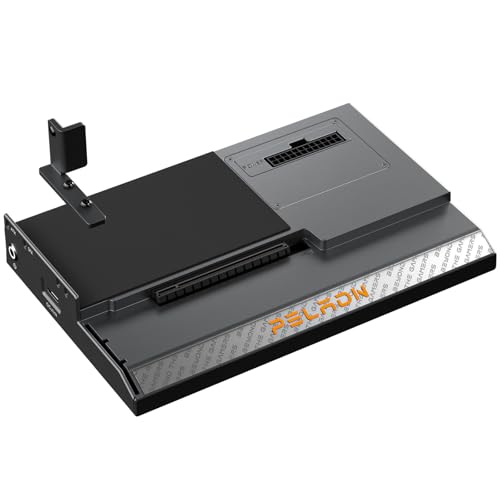
Designed for gamers and creative professionals seeking enhanced graphics performance, the PELADN S-2 External GPU Dock Station stands out with its support for ATX standard power supplies. You’ll appreciate the equipped ATX power button and the ForcePowerOn feature, complete with an LED indicator for easy monitoring. Just make certain your devices have an Oculink interface, and check your graphics card compatibility before diving in. The dock includes a randomly shipped Oculink high-speed dedicated data cable, essential for operation. This setup guarantees you get maximum performance out of your graphics card, elevating your gaming and creative experience considerably.
Best For: Gamers and creative professionals seeking enhanced graphics performance through external GPU solutions.
Pros:
- Supports ATX standard power supplies, providing flexibility and convenience.
- Equipped with an ATX power button and ForcePowerOn feature, facilitating easy operation and monitoring.
- Includes a high-speed dedicated Oculink data cable, essential for optimal performance.
Cons:
- Requires devices to have an Oculink interface, limiting compatibility with certain systems.
- Graphics card compatibility must be confirmed prior to purchase, which may require additional research.
- Randomly shipped data cable may cause uncertainty in customer experience, as it isn’t guaranteed to be uniform.
ONEXGPU eGPU Graphic Card Dock with Radeon RX 7600M XT 8GB GDDR6

Oculink’s ONEXGPU eGPU Graphic Card Dock with Radeon RX 7600M XT 8GB GDDR6 stands out for gamers and creative professionals seeking powerful graphics performance on the go. This compact device supports Thunderbolt 3/4, USB 4, or OCuLink ports, making it compatible with various laptops and handheld consoles. With a sleek aluminum design, it’s lightweight at 1.92 lbs and fits easily in your bag. The dock’s performance rivals RTX 4060 laptops, and you can adjust the GPU power for enhanced performance. Plus, it offers multiple display outputs and expansion options, ensuring your setup is versatile and future-proof.
Best For: Gamers and creative professionals seeking a portable and powerful graphics solution for laptops and handheld devices.
Pros:
- Compact and lightweight design makes it easy to transport.
- High performance comparable to RTX 4060 laptops, with adjustable GPU power for enhanced performance.
- Multiple connectivity options and display outputs for versatile setups.
Cons:
- Limited to devices with Thunderbolt 3/4, USB 4, or OCuLink ports, restricting compatibility.
- The 100W default GPU TDP may require manual adjustment for optimal performance.
- Additional setup and configuration may be needed for optimal use with different devices.
Gen4 PCIe to Oculink Adapter for External Graphics Card

If you’re looking to enhance your setup with high-speed connectivity for external graphics cards, the Gen4 PCIe to Oculink Adapter offers an ideal solution. This adapter lets you expand your PC’s capabilities by providing an additional Oculink SFF-8612 x4 interface through a PCIe slot. You can easily connect devices like NVMe SSDs or eGPUs using the SFF-8611 Cable. With support for PCIe 4.0’s impressive 256 Gbps transfer rate, it’s perfect for high-performance applications. Plus, its durable construction guarantees a secure connection, and the plug-and-play convenience means you won’t need extra drivers. Enjoy seamless performance!
Best For: Users seeking to enhance their PC’s performance and connectivity with external graphics cards or high-speed NVMe SSDs.
Pros:
- Supports PCIe 4.0, offering high data transfer rates of up to 256 Gbps.
- Durable construction with welded connector housing for a secure and reliable connection.
- Plug-and-play convenience eliminates the need for additional driver installations.
Cons:
- Limited to Oculink SFF-8612 x4 interface, which may not be compatible with all devices.
- Requires SFF-8611 cable for connection, which may need to be purchased separately.
- Potential compatibility issues with certain operating systems or hardware configurations.
RIITOP OCuLink eGPU Dock for PCIe 4.0 Graphics Cards

For gamers and creative professionals seeking to boost their graphics performance, the RIITOP OCuLink eGPU Dock is a game-changer. This dock supports PCIe 4.0 graphics cards, enhancing your thin laptops and gaming rigs with powerful NVIDIA RTX 50 Series and AMD RX 7000 Series GPUs. Installation is straightforward: fit your graphics card, secure the power supply, and connect the necessary cables. Just remember, the OCuLink interface isn’t hot-pluggable, so always turn off the power first. Compatible with Windows, Linux, and Mac OS, this dock elevates your gaming and creative workloads, delivering impressive graphics and seamless performance.
Best For: Gamers and creative professionals looking to enhance graphics performance in thin laptops and gaming rigs.
Pros:
- Supports PCIe 4.0 graphics cards, providing high-speed performance for demanding applications.
- Compatible with multiple operating systems including Windows, Linux, and Mac OS, making it versatile for different users.
- Easy installation process with included components for securing graphics cards and power supplies.
Cons:
- OCuLink interface does not support hot-plugging, requiring users to power off the device before connecting or disconnecting.
- Limited Mac OS compatibility as it only supports AMD graphics cards and does not support NVIDIA.
- Graphics card and power supply are not included, requiring additional purchases for complete setup.
PCIe 4.0 x4 External GPU Riser Card for Mini PC

Designed with Mini PC enthusiasts in mind, the PCIe 4.0 x4 External GPU Riser Card offers unparalleled connectivity and performance. This riser card is compatible with OCuLink eGPUs and supports both SFF-8612 and SFF-8611 devices, while also converting to SFF-8639 U.2 SSDs. You’ll enjoy a full PCIe 4.0 x4 bandwidth of 64 Gbps, with backward compatibility for older PCIe standards. Plus, it’s incredibly easy to use—just plug it in and get started without needing any drivers. Whether you’re on macOS, Linux, or Windows, this riser card takes your Mini PC gaming experience to the next level.
Best For: Mini PC users seeking to enhance their gaming and graphic performance with external GPU support.
Pros:
- Delivers full PCIe 4.0 x4 bandwidth for optimal performance in gaming and graphics-intensive applications.
- Plug and play functionality allows for easy setup without the need for additional drivers.
- Compatible with multiple operating systems including macOS, Linux, and Windows, ensuring broad usability.
Cons:
- Limited to Mini PC applications, which may not suit users with traditional desktop setups.
- Requires specific OCuLink devices for full functionality, potentially limiting compatibility with other GPUs.
- Performance may vary depending on the external GPU and system configuration used.
External GPU Dock Station for OcuLink Interface Graphics
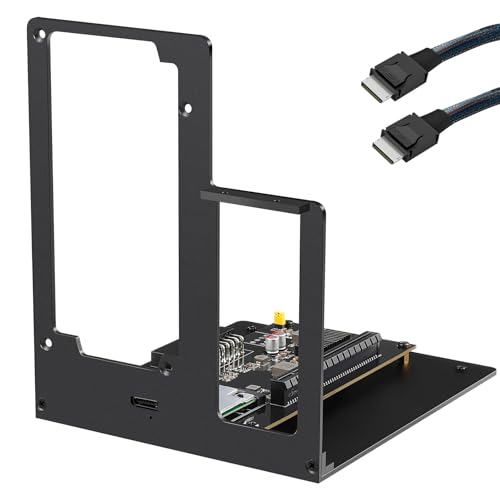
The OcuLink External GPU Dock Station is perfect for users seeking a powerful graphics upgrade for their OcuLink interface devices, such as laptops and mini PCs. This dock supports data transfer rates up to 64Gbps, maximizing your gaming experience. It’s designed specifically for OcuLink 4i uplink and PCIEx16 downlink. Remember, it requires an ATX power supply (not included) tailored to your PCIe card’s needs. Follow the connection instructions carefully: no hot plugging allowed, so connect everything before powering on. The package includes the dock, a cable, a user manual, and a screw bag, ensuring you have what you need to get started.
Best For: Users looking to enhance their OcuLink interface devices with a high-performance external GPU solution.
Pros:
- High Data Transfer Rates: Supports data transfer speeds up to 64Gbps for an improved gaming experience.
- Tailored Design: Specifically designed for OcuLink 4i uplink and PCIEx16 downlink, ensuring compatibility and performance.
- Comprehensive Package: Includes necessary items like a cable, user manual, and screw bag for easy setup.
Cons:
- Power Supply Not Included: Requires a separate ATX power supply, which may add to overall costs.
- No Hot Plugging: Must connect all cables before powering on, limiting convenience during setup.
- Fixed Locking Interface: Requires pressing a switch to unlock, which may be cumbersome for some users.
JMT M.2 M-Key to PCIe 4.0X4 External Graphics Card Stand Bracket

Optimized for gamers and professionals seeking to boost their laptop or handheld device’s performance, the JMT M.2 M-Key to PCIe 4.0X4 External Graphics Card Stand Bracket provides seamless compatibility with Oculink/M.2 NVMe setups. This bracket supports a wide range of PCIe devices, including GPUs, network cards, and capture cards, making it a versatile choice for expansion. It requires a minimum 500W power supply and connects using an Oculink extension cable (not included). Designed for external GPU setups, it’s perfect for enhancing gaming or professional applications, giving you the power you need right at your fingertips.
Best For: Gamers and professionals looking to enhance the performance of their laptop or handheld devices through external GPU options.
Pros:
- Supports a wide range of PCIe devices, including GPUs, network, sound, and capture cards.
- Optimized for high-performance setups with a minimum power supply requirement of 500W.
- Ideal for users seeking to expand their device’s capabilities without needing a full desktop setup.
Cons:
- Oculink extension cable is not included, requiring an additional purchase.
- Does not support built-in power supply, limiting the size of compatible graphics cards.
- Designed specifically for devices with Oculink or M.2 NVMe ports, which may not be available on all laptops.
Factors to Consider When Choosing Oculink External GPU Boxes
When choosing an Oculink external GPU box, you need to take into account several key factors. Make certain the box is compatible with your graphics card and meets your power supply requirements. Additionally, think about connectivity options, performance, and design to guarantee it fits your needs.
Compatibility With Graphics Cards
Choosing an Oculink external GPU box requires careful consideration of compatibility with your graphics card, especially since not all models are created equal. Make certain to verify that your specific graphics card, like the NVIDIA RTX 4090 or AMD RX 7900 XTX, is supported, as some models have size and power limitations. Check that your GPU’s PCIe version aligns with the PCIe 4.0 standards of the Oculink interface for ideal performance. Additionally, not all Oculink docks support hot plugging, so you’ll need to power off your computer when connecting or disconnecting. Finally, confirm the external GPU box can accommodate the physical dimensions of your graphics card, particularly if you’re using larger models that might exceed standard sizes.
Power Supply Requirements
After confirming your graphics card’s compatibility, the next step is to contemplate power supply requirements for your Oculink external GPU box. Most boxes need ATX or SFX standard power supplies to guarantee your graphics card runs smoothly. Typically, a minimum wattage of around 500W is recommended for peak performance, but this varies depending on your specific GPU. Make certain the power supply matches your card’s requirements to avoid underperformance or potential damage. Some Oculink docks have a power button with an LED indicator, letting you manage power easily. Finally, double-check that all power supply cables, such as the 8-pin and 24-pin connectors, are securely connected to prevent any power issues during operation.
Connectivity Options Available
Several key connectivity options exist to contemplate when selecting an Oculink external GPU box. Most models use the Oculink 4i interface, which provides a PCIe 4.0 x4 uplink capable of high-speed data transfer rates up to 64Gbps. You’ll also find many docks featuring a PCIe x16 downlink, guaranteeing compatibility with a variety of graphics cards without sacrificing performance. Remember, the Oculink interface doesn’t support hot plugging, so you must power off devices before connecting or disconnecting to avoid damage. Additionally, look for connectors with fixed locking mechanisms to secure your connections and reduce accidental disconnections. Finally, verify compatibility with ATX or SFX power supplies, as these aren’t typically included with the dock.
Performance and Speed
When it comes to performance and speed in Oculink external GPU boxes, understanding key factors is essential for maximizing your setup. Oculink interfaces support PCIe 4.0, offering data transfer rates up to 64Gbps, greatly boosting performance. The fixed locking mechanism guarantees a secure connection, reducing data loss during high-speed transfers. With Oculink, you can connect multiple graphics cards without the length restrictions of traditional interfaces, enhancing your gaming experience further. Compatibility with both ATX and SFX power supplies also provides flexibility in power management, optimizing GPU performance. Finally, Oculink’s full-coverage shielding minimizes interference, guaranteeing stable data transmission even in demanding applications. Choose wisely to release the full potential of your gaming rig!
Design and Portability
Maximizing performance isn’t the only consideration for Oculink external GPU boxes; design and portability play significant roles too. Look for a detachable design on both ends of the eGPU dock, which enhances portability and storage when not in use. Pay attention to the thickness and flexibility of the cable; ultra-thin cables help prevent port damage while maintaining performance. A flat cable architecture with full-coverage shielding minimizes interference during data transmission. Additionally, consider the overall size and weight of the dock; lighter and more compact designs are easier to transport. Finally, verify the dock’s design allows easy access to power and connection ports, making setup and disassembly quick and convenient for your gaming needs.
Installation and Setup Ease
Choosing an Oculink external GPU box demands careful consideration of installation and setup ease. First, ascertain the dock is compatible with your device‘s Oculink port, as not all devices support this interface. Remember, you’ll need to power off your machine before connecting or disconnecting any cables since Oculink doesn’t support hot plugging. Look for docks that come with detailed user manuals and installation guides to make the setup process smoother. Additionally, check if the dock includes mounting brackets and support pillars to securely fasten the graphics card and power supply. Finally, verify the power supply compatibility and requirements, as some docks may have specific configurations needed for peak performance.