Finding the right Thunderbolt 4 dock for dual 4K monitors can make a laptop feel like a full desktop setup. The best options balance stable 40Gbps connectivity, enough video outputs, and the charging power your system actually needs.
Below, we focus on docks that are practical for real workstations, whether you need plug-and-play simplicity, broad compatibility, or extra ports for a busier desk.
Best 9 Thunderbolt 4 Dock for Dual 4K Monitors Picks for 2026
Best for Mixed Windows/Mac Fleets
StarTech.com Thunderbolt 4 Dock

- Dual 4K 60Hz on supported MacBooks
- Up to four 4K 60Hz displays on Windows
- 98W charging with driverless setup
Best For: Mixed-device teams and power users who need dependable dual 4K support across Mac and Windows.
Best for Multi-Display Workstations
Dell Pro Thunderbolt 4 Smart Dock SD25TB4

- Supports up to four 4K displays for flexible multi-monitor setups.
- Up to 130W charging helps keep compatible laptops powered.
- Thunderbolt 4, HDMI 2.1, DP 1.4, and 2.5GbE cover serious desk setups.
Best For: Professionals and IT-managed offices that need dual 4K support with enterprise features and expansion room.
Best for Mac Pro/Max Dual-Display
UGREEN Revodok Max 208 TB4 Dock

- Dual 4K@60Hz support for Mac Pro/Max and Windows
- Three Thunderbolt 4 ports plus three 10Gbps USB-A ports
- 85W charging with included 140W GaN power adapter
Best For: MacBook Pro and Max owners who want dual 4K output, charging, and broad Thunderbolt expansion.
Best for Mac Dual-Screen Expansion
WAVLINK Dual 4K DisplayLink Dock

- Dual 4K@60Hz support with HDMI and DisplayPort options
- DisplayLink enables extended dual displays on many Macs
- 100W charging plus USB, Ethernet, and audio ports
Best For: Mac and Windows users who need a DisplayLink dock for dual 4K monitors.
Best for Multi-Monitor Flexibility
Thunderbolt 4 Dock with DisplayLink

- Dual 4K@60Hz support on compatible systems
- 21-in-1 port selection for a full desktop setup
- Up to 90W charging plus broad OS compatibility
Best For: People who want a versatile dock for dual 4K monitors and possible multi-display expansion.
Best for Dual HDMI + Fast Ethernet
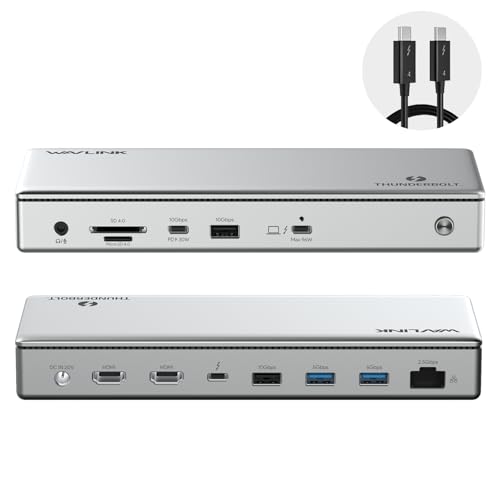
- Dual 4K 60Hz HDMI on Windows
- Up to 96W laptop charging
- 2.5G Ethernet plus SD/MicroSD
Best For: Windows and compatible Mac users who want dual displays, charging, and faster wired networking.
Best for Mac DisplayLink Workarounds

- 2x 4K 60Hz via HDMI or DisplayPort
- Bypasses single-display limits on Apple Silicon Macs
- Includes 100W charging, Ethernet, and card readers
Best For: MacBook users who need dual 4K monitor support on M1/M2/M3/M4/M5 or Neo systems.
Best for Triple-Display Power
WAVLINK DisplayLink Triple 4K Dock

- Triple 4K@60Hz display support
- Up to 100W laptop charging
- 6 USB ports plus Ethernet and audio
Best For: People who want a feature-rich dock for multi-monitor productivity and broad laptop compatibility.
Best for Mixed Windows/Mac Fleets – StarTech.com Thunderbolt 4 Dock
If you need a thunderbolt 4 dock for dual 4k monitors that can also handle heavier multi-display Windows setups, this StarTech.com model is built for flexibility. It supports dual 4K 60Hz displays on compatible MacBooks, and up to four 4K 60Hz monitors on supported Windows laptops, all while delivering strong 98W charging.
Best For: Mixed-device offices, creators, and power users who want a reliable Thunderbolt 4 dock that works across Windows and Mac without extra drivers.
Pros:
- Dual 4K 60Hz output on supported MacBook Air and Pro models
- Quad 4K 60Hz support on compatible Windows laptops
- 98W laptop charging with a fully specced power adapter
- Driverless USB4/Thunderbolt compatibility across major platforms
Cons:
- Mac base M-series chips only support one external display
- Best monitor counts depend on laptop GPU/DSC support
- Higher-end feature set comes at a premium price
As a thunderbolt 4 dock for dual 4k monitors, this StarTech option stands out more for cross-platform reliability than flashy extras. It makes the most sense if you want one dock that can scale from a dual-monitor Mac setup to a more demanding Windows workstation.
Best for Multi-Display Workstations – Dell Pro Thunderbolt 4 Smart Dock SD25TB4
If you need a thunderbolt 4 dock for dual 4k monitors that can also scale beyond the basics, the Dell Pro Thunderbolt 4 Smart Dock SD25TB4 is built for demanding desk setups. It combines strong display support, 130W charging, and business-focused management features in a compact dock that suits hybrid offices and creator workflows.
Best For: Professionals who want a high-connectivity Thunderbolt 4 dock for dual 4K displays with room to expand, plus remote management and enterprise security.
Pros:
- Supports up to four 4K displays, making dual 4K setups easy and leaving room to grow.
- Delivers up to 130W charging for Dell systems, helping reduce cable clutter.
- Includes Thunderbolt 4, dual DP 1.4, HDMI 2.1, and 2.5GbE for flexible connectivity.
- Remote management and security features are a strong fit for IT-managed environments.
Cons:
- More dock than many casual home users need.
- Best features are most relevant in Dell or business-managed setups.
For buyers comparing a thunderbolt 4 dock for dual 4k monitors, this model stands out because it does more than just power two screens—it adds enterprise controls, fast networking, and expansion headroom. That makes it a smart pick if you want a dock that can support today’s display setup and tomorrow’s workstation upgrades.
Best for Mac Pro/Max Dual-Display – UGREEN Revodok Max 208 TB4 Dock
If you want a thunderbolt 4 dock for dual 4k monitors with strong Mac support, the UGREEN Revodok Max 208 is a compelling pick. It combines three Thunderbolt 4 ports, three 10Gbps USB-A ports, gigabit Ethernet, and included 85W laptop charging, so it can serve as both a display hub and a clean desktop expansion station.
Best For: MacBook Pro and Max users who need dual 4K@60Hz output, fast ports, and one-cable charging from a Thunderbolt 4 dock.
Pros:
- Supports dual 4K@60Hz on Mac Pro/Max and Windows systems
- Three Thunderbolt 4 ports plus three USB-A 3.2 ports for flexible expansion
- Includes a 140W GaN charger and delivers up to 85W laptop charging
- Gigabit Ethernet adds reliable wired networking for work setups
Cons:
- Basic M-chip MacBooks are limited to a single external display
- Needs the included power adapter connected to operate properly
- Not compatible with Mac mini 2018 Intel
For buyers focused on a thunderbolt 4 dock for dual 4k monitors, this model stands out for its Mac Pro/Max compatibility and practical port mix. It is especially attractive if you want a dock that can handle displays, peripherals, networking, and charging without extra adapters.
Best for Mac & Windows Flexibility – Dell WD22TB4 180W Thunderbolt 4 Dock
If you need a thunderbolt 4 dock for dual 4k monitors that works across Windows, macOS, and Chrome OS, the Dell WD22TB4 is a strong all-around option. It combines 40Gbps Thunderbolt 4 connectivity, 180W adapter support, and a broad mix of video and USB ports for a clean single-cable setup.
Best For: Hybrid laptop users who want broad OS support, strong power delivery, and flexible monitor output options.
Pros:
- Supports dual- and triple-monitor setups with DisplayPort, HDMI, and Thunderbolt 4 outputs
- Up to 130W power delivery to compatible laptops through a single cable
- Works with Windows, Ubuntu, Chrome OS, and Thunderbolt-enabled Macs
Cons:
- macOS dual-monitor support may require DisplayLink in some setups
- Not the simplest plug-and-play choice if you need guaranteed dual 4K on every Mac
For buyers comparing a thunderbolt 4 dock for dual 4k monitors, this Dell dock stands out for compatibility and port variety more than raw simplicity. It is a practical pick if you want one dock that can handle office peripherals, wired networking, and multiple displays without feeling limited.
Best for Mac Dual-Screen Expansion – WAVLINK Dual 4K DisplayLink Dock
If you need a thunderbolt 4 dock for dual 4k monitors that can also add a second extended display to many Mac laptops, this WAVLINK station is built for flexibility. It supports dual 4K@60Hz output, offers a wide mix of HDMI and DisplayPort connections, and includes enough USB and Ethernet ports to replace a busy desk hub.
Best For: Mac and Windows users who want a DisplayLink dock for dual 4K monitors, especially on laptops with limited native display support.
Pros:
- Drives two 4K@60Hz displays with multiple HDMI and DisplayPort combinations
- DisplayLink support helps M1/M2/M3/M4 Macs run dual extended screens
- 100W power delivery keeps compatible laptops charged through the dock
- Good port mix for peripherals, wired networking, and audio
Cons:
- DisplayLink driver installation is required
- Not ideal if you want a plug-and-play dock with no software setup
- HDCP is not supported
For buyers shopping a thunderbolt 4 dock for dual 4k monitors, this model stands out more for compatibility than simplicity. It is a strong pick if you need dual-screen expansion across Mac and Windows systems and can accept the driver-based setup.
Best for Multi-Monitor Flexibility – Thunderbolt 4 Dock with DisplayLink
If you need a thunderbolt 4 dock for dual 4k monitors that can also stretch into more ambitious workstation setups, this 21-in-1 model stands out for its DisplayLink support, 40Gbps bandwidth, and broad Mac, Windows, and ChromeOS compatibility. It’s a practical pick when you want strong display output without giving up charging and port variety.
Best For: Users who want a flexible dock for dual 4K displays now, with room to scale to triple or even quad-monitor workflows.
Pros:
- Supports dual 4K@60Hz on compatible Macs and high-resolution multi-display setups on Windows
- 21-in-1 layout gives you plenty of ports for peripherals, storage, and wired networking
- Up to 90W laptop charging helps reduce cable clutter on the desk
- DisplayLink support makes it more versatile for complex monitor configurations
Cons:
- Performance and monitor support depend heavily on laptop compatibility
- Not ideal for older Intel systems that fall outside the recommended generation range
- Charging tops out below what some power-hungry laptops require
This is a strong choice if you want a thunderbolt 4 dock for dual 4k monitors and also value expansion headroom for future workstation upgrades. It’s especially appealing for users who need one dock to handle displays, charging, and everyday accessories in a single setup.
Best for Dual HDMI + Fast Ethernet – WAVLINK Thunderbolt 4 Dock
If you want a thunderbolt 4 dock for dual 4k monitors that also adds fast wired networking and plenty of ports, this WAVLINK model hits a strong balance of speed and practicality. It supports dual 4K at 60Hz over HDMI on Windows, can handle a single 8K display, and includes 100W charging plus 2.5G Ethernet for a cleaner desktop setup.
Best For: Windows and compatible Mac users who need a driverless Thunderbolt 4 dock for dual displays, charging, and high-speed networking.
Pros:
- Dual 4K 60Hz HDMI output on Windows, with single 8K support for higher-end display setups
- Up to 96W host charging from the included 160W power adapter
- 2.5G Ethernet and SD/MicroSD V4.0 help speed up file transfers and wired networking
- Thunderbolt 4 certified with true 40 Gbps upstream/downstream ports
Cons:
- Mac dual-monitor support is more limited and depends on the chip and display routing
- Uses HDMI for the main dual-monitor setup, so some users may need adapters for other monitor inputs
- More than enough for most users, but it may be overkill if you only need basic USB expansion
This is a well-rounded thunderbolt 4 dock for dual 4k monitors if you care about reliable display output, charging, and networking in one box. It is especially appealing for people who want a driverless setup without giving up speed or port variety.
Best for Mac DisplayLink Workarounds – Plugable Dual 4K USB-C Dock
If you need a thunderbolt 4 dock for dual 4k monitors on a Mac that only supports one external display, this Plugable dock is built for that exact problem. It uses DisplayLink to drive two 4K screens at 60Hz while also adding Ethernet, card readers, USB ports, and 100W charging for a cleaner desk setup.
Best For: MacBook Air and MacBook Pro users on M1/M2/M3/M4/M5 or Neo systems who want dual 4K monitor support without replacing their laptop.
Pros:
- Drives two 4K 60Hz monitors over HDMI, DisplayPort, or a mix of both
- Helps bypass single-display limits on many Apple Silicon Macs
- Includes 100W charging plus useful extras like Ethernet and card readers
- Works across macOS, Windows, and ChromeOS on supported USB-C/USB4 systems
Cons:
- Requires DisplayLink driver installation
- HDCP is not supported
- Not a pure plug-and-play pick for users who want zero software setup
For Mac users who need a reliable thunderbolt 4 dock for dual 4k monitors, this is less about flashy extras and more about solving a real workflow limitation. It’s a smart fit for office, hybrid, and home setups where dual displays matter more than native Mac display output.
Best for Triple-Display Power – WAVLINK DisplayLink Triple 4K Dock
If you need a thunderbolt 4 dock for dual 4k monitors with extra flexibility, this WAVLINK DisplayLink dock is built for more than the basics. It supports triple 4K@60Hz output, delivers up to 100W host charging, and adds a wide range of ports for a clean, high-productivity desk setup.
Best For: Users who want a high-output dock for multi-monitor workstations, especially MacBook and Windows setups that need DisplayLink support.
Pros:
- Supports up to three 4K@60Hz displays for demanding productivity setups
- 100W laptop charging from a 160W power adapter helps reduce cable clutter
- Includes 6 USB 10Gbps ports, gigabit Ethernet, and audio for full desktop expansion
- Works across Thunderbolt 3/4 laptops plus broad Windows and macOS support
Cons:
- Requires DisplayLink drivers, so setup is less plug-and-play than native docks
- HDMI Alt Mode output depends on the host laptop supporting video over USB-C
- Not compatible with iPadOS or Unix systems
For buyers comparing a thunderbolt 4 dock for dual 4k monitors, this model stands out because it goes beyond dual-screen support and adds serious port density. It is a strong choice if you value display flexibility and workstation expansion over a simpler native dock.
How We Picked the Best Thunderbolt 4 Dock for Dual 4K Monitors
We prioritized docks that can reliably handle a Thunderbolt 4 Dock for Dual 4K Monitors setup without forcing awkward compromises. That means strong port selection, proven dual-display support, enough power delivery for typical laptops, and compatibility across Mac, Windows, and USB-C systems where possible.
We also weighed whether a dock is truly Thunderbolt 4 certified or uses DisplayLink for added display flexibility. That distinction matters because some laptops, especially certain Macs and lighter ultrabooks, need the right dock architecture to drive dual 4K displays smoothly.
Quick Comparison
If you want the cleanest setup, choose a Thunderbolt 4 dock with native dual-display support and at least 90W of charging. If you need broader monitor compatibility or more than two displays, DisplayLink models can be the better fit. For Mac users, verify your chip and OS support before buying, since display limitations can vary by model.
Key Buying Factors for a Thunderbolt 4 Dock for Dual 4K Monitors
Video Output Type
Look for DisplayPort, HDMI, or both. Dual 4K at 60Hz is ideal for productivity, but the exact output combination should match your monitors. If your monitors only accept HDMI, a dock with native HDMI outputs can save you from relying on adapters.
Display Support and Refresh Rate
Not every dock handles dual 4K the same way. Some support two 4K displays natively, while others use DisplayLink to extend beyond standard Thunderbolt limits. Check whether the dock supports 4K at 60Hz on both screens, since that is usually the sweet spot for text clarity and smooth motion.
Power Delivery
Charging output matters more than many buyers expect. A thin-and-light laptop may be fine with 85W, but workstation-class or larger laptops may benefit from 100W, 130W, or more. If you connect multiple peripherals and charge the laptop at the same time, choose extra headroom.
Ports and Expansion
Ethernet, USB-A, USB-C, audio, SD card slots, and downstream Thunderbolt ports can all improve desk workflow. If you regularly connect storage, webcams, headsets, and wired networking, a more expanded dock is usually worth the extra size and cost.
Mac and Windows Compatibility
Compatibility is especially important for a Thunderbolt 4 Dock for Dual 4K Monitors. Windows systems tend to offer broader multi-monitor support, while Mac support may depend on M-series chip behavior and the dock’s video technology. Confirm whether your laptop needs native Thunderbolt display handling or DisplayLink software.
Who Should Buy Which Thunderbolt 4 Dock for Dual 4K Monitors?
Choose a native Thunderbolt 4 dock if you want the cleanest, most reliable setup and your laptop supports dual 4K output without extra software. Choose a DisplayLink dock if you need more monitor flexibility, mixed output options, or compatibility with a wider range of laptops.
If you are a Mac user, look closely at model support before purchase. If you are a Windows user with multiple peripherals and a dual-monitor desk, prioritize port count, charging power, and Ethernet speed so the dock becomes a true single-cable hub.
In short, the best dock is the one that matches your laptop’s display limits, your monitor inputs, and the amount of power your daily workflow demands.