If you want a smoother digital art workflow, drawing tablets with shortcut keys for PC can save time on every sketch, edit, and brush change.
From compact pen tablets to full-laminated pen displays, the best options in 2026 balance pressure sensitivity, shortcut placement, screen quality, and comfort.
Best 10 Drawing Tablets with Shortcut Keys for PC Picks for 2026
Pen Display Starter Pick

- 13.3-inch laminated screen with 123% sRGB
- 8 shortcut keys plus red dial control
- Battery-free pen with 16,384 pressure levels
Best For: Beginners who want a screen tablet with shortcut controls
Budget Non-Screen Option

- 4 ExpressKeys for shortcut control
- Battery-free pen with EMR technology
- Works with Windows, Mac, Android, and Chromebook
Best For: Students and beginners who want a compact shortcut tablet
Color-Accurate Upgrade

- 8 shortcut keys and a red dial for quick control
- X3 Pro stylus with 16K pressure levels
- 99% sRGB laminated AG display with stand included
Best For: Artists who want a color-accurate screen tablet with shortcuts
Pro Shortcut Tablet
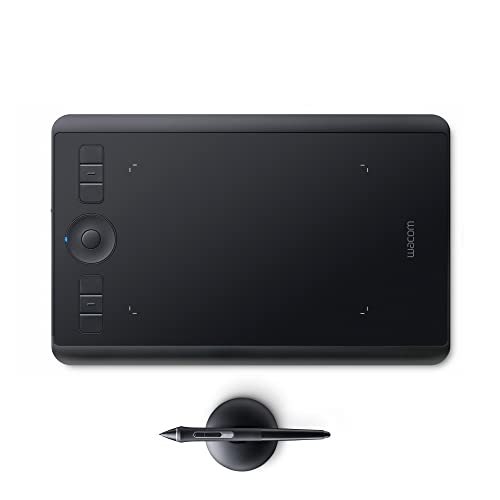
- 6 ExpressKeys plus Touch Ring and gestures
- Pro Pen 2 with tilt recognition and 8,192 levels
- Bluetooth or USB connection for Mac and Windows
Best For: Professionals who want a premium non-screen shortcut tablet
Beginner-Friendly Shortcut Tablet

- 8 customizable hotkeys
- 16,384 pressure levels
- Battery-free stylus and USB-C support
Best For: Beginners who want a simple shortcut-key tablet for PC
Display Tablet With Workflow Controls

- 15.6-inch laminated display
- 6 shortcut keys plus touch bar
- Battery-free pen with tilt support
Best For: Artists who want a connected pen display with shortcut controls
Pro Shortcut Tablet System

- 40 programmable Quick Key functions
- OLED display for key assignments
- Two battery-free pens included
Best For: Professionals who need deep shortcut customization
Premium Pen Display Pick
UGEE UE16 15.4" Drawing Tablet

- 15.4-inch full-laminated display
- 8+1 shortcut controls with wheel
- 143% sRGB and 16K pressure sensitivity
Best For: Artists and students needing a color-rich pen display with shortcut keys
Compact Screen Tablet Value
GAOMON PD1161 11.6" Pen Display

- 11.6-inch full HD IPS screen
- 8 programmable keys plus 2 pen buttons
- Battery-free stylus with tilt support
Best For: Beginners and hobbyists who want a compact shortcut-key pen display
Shortcut-Key Pen Tablet Favorite
HUION Inspiroy H1060P 10x6.25" Tablet

- 12 press keys and 16 soft keys
- Large 10 x 6.25-inch working area
- Battery-free stylus with tilt support
Best For: Artists wanting a non-screen tablet with lots of customizable controls
Pen Display Starter Pick – XPPen Artist13.3 Pro
If you’re shopping for drawing tablets with shortcut keys for pc, the XPPen Artist 13.3 Pro is a strong pen-display option for artists who want a built-in screen and a streamlined control layout. It pairs an 8-key shortcut setup with a red dial, so common actions like zooming, brush changes, and canvas rotation stay close at hand while you work.
Best For: Beginners and hobbyists who want an affordable-feeling screen tablet with easy shortcuts for Windows, Mac, or Android-compatible workflows.
Pros:
- 8 customizable shortcut keys plus a red dial for quicker workflow control
- Fully laminated 13.3-inch FHD display helps reduce parallax and glare
- Battery-free pen with 16,384 pressure levels and 60° tilt support
- Includes an adjustable stand and supports major creative software
Cons:
- Must be connected to a computer or laptop to use
- Shortcuts are more limited than larger pro-grade tablet setups
This model makes sense if you want a compact pen display with practical controls and a color-rich screen. The shortcut keys and dial are the main workflow benefits, while the laminated panel and pen specs add value for drawing, animation, and general digital art.
Budget Non-Screen Option – Wacom Intuos Small
The Wacom Intuos Small is a practical choice if you want drawing tablets with shortcut keys for pc but prefer a simple, wired tablet instead of a screen display. Its compact size, battery-free pen, and 4 ExpressKeys make it easy to set up for drawing, photo editing, or document markup.
Best For: Students, teachers, and beginners who want a portable wired tablet for everyday creative work.
Pros:
- 4 ExpressKeys provide quick shortcut access
- Battery-free pen uses Wacom EMR technology for a pen-on-paper feel
- Works with Windows, Mac, Android, and Chromebook
- Includes software access and online training after registration
Cons:
- No built-in display, so you draw on the tablet while watching the screen
- Small active area may feel limiting for some users
This is the most straightforward option in the group if you want dependable shortcut keys without extra display complexity. It is best suited to users who value portability, broad compatibility, and a low-fuss setup more than a screen-based workflow.
Color-Accurate Upgrade – XPPen Artist13.3 Pro V2
The XPPen Artist 13.3 Pro V2 is a compelling pick for drawing tablets with shortcut keys for pc if you want a screen tablet with more polished controls and a sharper pen response. It combines 8 customizable keys with a red dial and an X3 Pro stylus, making it a strong fit for artists who want faster access to brush size, zoom, and navigation.
Best For: Beginners and intermediate artists who want a 13.3-inch pen display with upgraded shortcuts and strong color accuracy.
Pros:
- 8 customizable shortcut keys plus a quick-control red dial
- X3 Pro stylus offers 16K pressure levels and faster response
- Full-laminated AG screen with 99% sRGB and reduced glare
- Includes an adjustable stand for better posture during long sessions
Cons:
- Requires connection to a computer or laptop; it is not standalone
- Windows-only for some display adjustments like brightness and color temperature
This version stands out for users who care about both shortcut efficiency and screen quality. The improved pen performance, color gamut, and beginner-friendly setup guidance make it a balanced upgrade for creative work on PC or compatible systems.
Pro Shortcut Tablet – Wacom Intuos Pro Small
The Wacom Intuos Pro Small is built for users who want drawing tablets with shortcut keys for pc and prefer a compact, professional non-screen workflow. It combines 6 ExpressKeys, a Touch Ring, touch gestures, and the Pro Pen 2 to give you multiple ways to speed up creative tasks on Mac or Windows PC.
Best For: Creative professionals and serious hobbyists who want a premium shortcut-rich tablet without a display.
Pros:
- 6 ExpressKeys, touch gestures, and a Touch Ring for flexible shortcut control
- Pro Pen 2 includes tilt recognition and 8,192 pressure levels
- Bluetooth and USB connectivity work with Mac and Windows PC
- Compact design is easy to fit on smaller desks
Cons:
- No built-in screen, so it uses a traditional tablet workflow
- Smaller surface may feel less spacious for some artists
This model is the most feature-rich shortcut tablet here for users who do not need a display. If you want strong pen performance, multiple control options, and wireless convenience, it is a polished choice for productive digital art work.
Beginner-Friendly Shortcut Tablet – XP-Pen Deco 01 V3
If you’re looking for drawing tablets with shortcut keys for PC, the XP-Pen Deco 01 V3 is a practical beginner pick. It pairs an 8-key layout with a large 10 x 6.25-inch active area and a battery-free stylus, making it easy to learn digital drawing without extra charging or complicated setup.
Best For: Beginners, students, and artists who want an affordable shortcut-key tablet for PC and other devices.
Pros:
- 8 customizable hotkeys for both right- and left-handed users
- 16,384 pressure levels and 60-degree tilt support for smoother strokes
- Battery-free stylus means no charging is needed
- USB-C to USB-C connectivity plus adapters for easy setup
Cons:
- No built-in display, so you draw on the tablet while looking at your screen
- Best suited to beginners rather than users needing a pro-level control surface
The Deco 01 V3 focuses on ease of use, portability, and shortcut convenience. For PC users who want a straightforward pen tablet with helpful express keys, it covers the essentials well.
Display Tablet With Workflow Controls – HUION Kamvas Pro 16
The HUION Kamvas Pro 16 is a strong option among drawing tablets with shortcut keys for PC if you want an integrated screen. Its 15.6-inch fully laminated display, 6 express keys, and touch bar are built to speed up common tasks like zooming, brush changes, and saving time while you draw.
Best For: Artists who want a pen display with shortcut controls for a connected PC workflow.
Pros:
- 15.6-inch full-laminated screen with anti-glare glass
- 6 customizable shortcut keys plus a touch bar
- Battery-free pen with 60-degree tilt recognition
- Works with Windows, Mac, and Linux
Cons:
- Must be connected to a computer or laptop to work
- Fewer express keys than some shortcut-focused tablets
As a pen display, the Kamvas Pro 16 is geared toward artists who want to see their work directly on the tablet. The shortcut keys and touch bar add useful control without making the setup feel cluttered.
Pro Shortcut Tablet System – XENCELABS Wireless Pen Tablet
For users shopping drawing tablets with shortcut keys for PC, the XENCELABS Wireless Pen Tablet stands out with a more advanced control system. It includes 5 sets of 8 Quick Keys for 40 programmable functions per application, plus an OLED display that shows each assignment at a glance, which is especially useful for organized workflows.
Best For: Professionals and serious creatives who want extensive shortcut customization on a pen tablet.
Pros:
- 40 programmable shortcut functions through 5 sets of 8 Quick Keys
- OLED display makes key assignments easy to check
- Two battery-free pens included, both with 8192 pressure levels and tilt recognition
- Wireless design and ergonomic palm rest support longer work sessions
Cons:
- More complex than a basic beginner tablet
- No built-in display, so it’s not a pen screen monitor
The XENCELABS tablet is built for efficiency and customization rather than simplicity. If you want a PC-compatible pen tablet with a deep shortcut system and a polished ergonomic design, this is the most workflow-oriented option here.
Premium Pen Display Pick – UGEE UE16 15.4" Drawing Tablet
If you want drawing tablets with shortcut keys for pc that also give you an on-screen drawing experience, the UGEE UE16 is built for color-focused creative work. Its 15.4-inch full-laminated display, 143% sRGB coverage, and 8+1 hot keys make it a practical fit for illustration, design, teaching, and editing on Windows, Mac, Android, Chrome OS, or Linux.
Best For: Artists and students who want a large screen pen display with strong color range and lots of quick-access controls.
Pros:
- 15.4-inch full-laminated screen with anti-glare glass for direct drawing
- 8 physical shortcut keys plus a wheel for faster workflow changes
- 16K pressure sensitivity and 60° tilt support for responsive pen control
- Wide compatibility with major desktop and mobile operating systems
Cons:
- Requires connection to a computer or compatible device to work
- 3-in-1 cable is packed separately, so setup needs an extra check
The UE16 stands out when shortcut keys and color accuracy matter together. It is a strong choice for users who want a larger pen display with efficient controls instead of a basic pen tablet.
Compact Screen Tablet Value – GAOMON PD1161 11.6" Pen Display
The GAOMON PD1161 is a solid option if you are comparing drawing tablets with shortcut keys for pc and want a compact screen model. Its 11.6-inch full HD IPS display, matte film, battery-free stylus, and 8 programmable side keys are aimed at artists who need a straightforward pen display for sketching, design, editing, and note-taking on a computer.
Best For: Beginners and hobbyists who want an affordable pen display with customizable shortcuts.
Pros:
- 11.6-inch full HD IPS screen with matte film for a paper-like feel
- 8 programmable press keys plus 2 pen buttons for quick access
- Battery-free stylus with 8192 levels of pressure sensitivity and tilt
- Works with Windows and Mac, plus many creative and productivity apps
Cons:
- Not a standalone tablet; it must be connected to a laptop or PC
- May need extra adapters depending on your computer ports
- Requires sufficient power from the connected device or adapter
For a smaller display tablet, the PD1161 covers the essentials well: shortcut keys, pen control, and dependable compatibility. It makes sense for users who want on-screen drawing without moving up to a larger, pricier display.
Shortcut-Key Pen Tablet Favorite – HUION Inspiroy H1060P 10×6.25" Tablet
For buyers searching for drawing tablets with shortcut keys for pc without paying for a screen display, the HUION Inspiroy H1060P offers a large active area and plenty of controls. Its 10 x 6.25-inch workspace, 12 programmable press keys, and 16 programmable soft keys are designed to speed up common tasks like zooming, scrolling, and erasing while you draw on a computer or Android device.
Best For: Artists who want a roomy non-screen tablet with many customizable shortcut controls.
Pros:
- 12 programmable press keys plus 16 programmable soft keys
- Battery-free stylus with 8192 pressure levels and 60° tilt support
- 10 x 6.25-inch working area for comfortable drawing space
- Supports Windows, Mac, Android, and Ubuntu-compatible workflows
Cons:
- No built-in display, so you draw on the tablet while looking at your screen
- Mac connection requires a USB adapter
- Ubuntu support has specific Xorg requirements
The H1060P is the most control-heavy option here, making it especially appealing if shortcut keys are a top priority. It is a practical workhorse for artists who prefer a classic pen tablet setup with a generous drawing area.
How We Picked the Best Drawing Tablets with Shortcut Keys for PC
We focused on Drawing Tablets with Shortcut Keys for PC that offer a practical mix of performance, ergonomics, and value. Priority went to models with reliable pen tracking, useful shortcut layouts, strong compatibility, and features that reduce friction for long creative sessions.
We also considered screen and non-screen options, because the right choice depends on whether you prefer direct pen-on-display drawing or a separate tablet area for desktop work.
Quick Comparison
In general, pen tablets are lighter, more portable, and usually cheaper, while screen tablets provide a more natural drawing experience and can speed up workflow for illustrators, designers, and note-takers. Shortcut keys matter most if you use frequent commands like undo, zoom, brush size, pan, or switch tools.
Key Buying Factors for Drawing Tablets with Shortcut Keys for PC
Shortcut Layout
Look for enough programmable keys to cover your most-used actions without forcing awkward hand movement. Some artists prefer a few large, easy-to-find buttons; others want more hotkeys or an additional touch bar or dial for precision control.
Pen Performance
Pressure sensitivity, tilt support, and pen lag are more important than raw spec sheets alone. A battery-free stylus is usually better for long sessions because it feels lighter and avoids charging downtime.
Display or No Display
If you want maximum comfort and portability, a pen tablet is often the better value. If you want a direct drawing surface and faster visual feedback, a screen tablet may be worth the extra cost and desk space.
Size and Workspace
Smaller tablets suit limited desks and travel, while larger active areas can feel more natural for broad arm movements. Make sure the tablet size fits both your monitor setup and your drawing style.
PC Compatibility
Check driver support and confirm the tablet works smoothly with your operating system and creative software. For Drawing Tablets with Shortcut Keys for PC, good driver customization is essential because it lets you tailor hotkeys to your workflow.
Who Should Buy Which Drawing Tablets with Shortcut Keys for PC?
Choose a compact pen tablet if you are a beginner, need portability, or want the lowest-cost path into digital art. Choose a screen tablet if you already draw regularly and want a more intuitive pen-on-display experience. Choose a premium shortcut-key model if you work in Photoshop, Clip Studio Paint, Illustrator, Blender, or similar apps and rely on repetitive commands throughout the day.
If speed and workflow matter more than basic input, prioritize the combination of shortcut keys, pen quality, and driver flexibility over flashy extras.