A good ultrawide monitor can make video timelines, audio tracks, color panels, and reference windows easier to manage without the cost of a professional mastering display. The models in this roundup cover practical 34-inch options with QHD or WFHD resolution, USB-C features, built-in speakers, and high refresh rates.
Our selections prioritize the features that matter most for editing on a budget: usable screen space, sharpness, color coverage, connectivity, viewing comfort, and overall value. Use the guide below to narrow the list to the monitor that best fits your workflow.
Best 10 Budget Ultrawide Editing Monitors Picks for 2026
Smart Multitasker

- 34-inch curved QHD ultrawide
- Up to 99% sRGB with HDR10
- webOS, AirPlay 2, HDMI, and USB
Best For: Home-office editing and streaming
High-Refresh Value

- 3440x1440 curved display
- 100% sRGB coverage
- 240Hz refresh and 1ms response
Best For: Editing and gaming crossover setups
Office Editing Balance

- 34-inch Ultra-WQHD resolution
- PBP/PIP for two-source workflows
- Eye-care features and 100Hz refresh
Best For: Multitasking and dual-source editing
Ergonomic IPS Pick
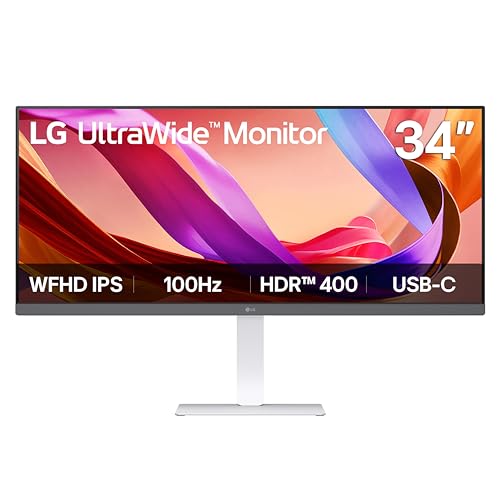
- 34-inch IPS ultrawide display
- Up to 99% sRGB and HDR400
- USB-C plus height-adjustable stand
Best For: Laptop-based editing and comfortable desk setups
Best Gaming-Editing Hybrid
KOORUI 34-Inch 200Hz Ultrawide

- 3440×1440 VA display with 1000R curve
- DCI-P3 95%, HDR 400, and 400-nit brightness
- 200Hz DisplayPort refresh rate plus PIP/PBP
Best For: Editors who also game and need a fast, wide display
Best for Office Editing
Philips 34-Inch USB-C Ultrawide

- 3440×1440 curved VA workspace
- USB-C docking with up to 65W power delivery
- Built-in 5MP webcam, mic, speakers, and USB hub
Best For: USB-C laptop users and remote-work editing setups
Best Gaming Value

- 3440×1440 resolution with a 1000R curve
- 165Hz refresh rate and 1ms MPRT response
- FreeSync Premium and HDR10 support
Best For: Gamers who also need a wide editing and multitasking workspace
Best Color Coverage

- 3440×1440 IPS display with 120% sRGB coverage
- 100Hz refresh rate with AMD FreeSync
- Two HDMI and two DisplayPort inputs
Best For: Editing and multitasking with wide viewing angles
Best Balanced Option

- 3440×1440 curved display with up to 99% sRGB
- 120Hz refresh rate and 5ms response time
- LG Switch offers up to 11 split-screen layouts
Best For: Mixed productivity, media, and editing workflows
Best Simple Pick

- 3440×1440 display with 99% sRGB coverage
- Up to 165Hz refresh and 1ms MPRT
- Two HDMI and two DisplayPort connections
Best For: Editing, gaming, and fluid multitasking
Smart Multitasker – LG 34SR60QC-W
For budget ultrawide editing monitors, the LG 34SR60QC-W offers a practical balance of workspace, resolution, and smart features. Its 34-inch curved QHD panel provides 3440×1440 detail, a 21:9 layout, and up to 99% sRGB coverage for multitasking and multimedia work.
Best For: Editors and home-office users who want a spacious ultrawide with built-in streaming features.
Pros:
- QHD 3440×1440 resolution gives editing timelines and multiple windows more room.
- Up to 99% sRGB coverage and HDR10 support suit general photo and video work.
- Built-in webOS, AirPlay 2, two HDMI ports, and three USB ports add flexibility.
Cons:
- The 100Hz refresh rate is smooth but less gaming-focused than faster alternatives.
- The VA panel may be less viewing-angle consistent than an IPS display.
This is a well-rounded choice when productivity and entertainment matter as much as editing. Its smart-monitor functionality is particularly useful for a desk that doubles as a streaming setup.
High-Refresh Value – Sceptre C345B-QU240T
Among budget ultrawide editing monitors, the Sceptre C345B-QU240T stands out for combining a 3440×1440 resolution with an unusually fast 240Hz refresh rate. Its 100% sRGB specification and 1ms response time make it suited to users who edit, play, and want especially fluid motion.
Best For: Hybrid creative and gaming setups where motion performance is a priority.
Pros:
- 3440×1440 ultrawide resolution supports broad timelines and side-by-side applications.
- 100% sRGB coverage is useful for general creative and multimedia tasks.
- 240Hz refresh rate, 1ms response time, Adaptive Sync, and multiple inputs benefit gaming.
Cons:
- The supplied notes do not identify the panel as IPS or provide HDR support.
- Its gaming-oriented specifications may be unnecessary for editing-only workflows.
This Sceptre is compelling if one monitor must handle both editing and fast-paced gaming. For color-critical work, compare its stated color coverage with monitors offering more detailed color-management specifications.
Office Editing Balance – Samsung ViewFinity S50GC
The Samsung ViewFinity S50GC is a sensible option among budget ultrawide editing monitors for users who value workspace and eye-comfort features. Its 34-inch Ultra-WQHD screen runs at 100Hz, while HDR10, FreeSync, and picture-by-picture support help it serve both work and entertainment needs.
Best For: Multitaskers who need a wide editing workspace with dual-source viewing.
Pros:
- 3440×1440 resolution and a 21:9 aspect ratio provide useful horizontal workspace.
- PBP and PIP allow two connected sources to be viewed together.
- Ambient brightness adjustment, Eye Saver Mode, and Flicker Free features support long sessions.
Cons:
- The listed 72% color gamut is less expansive than the 99% or 100% coverage on some alternatives.
- Its 100Hz refresh rate is aimed more at productivity than high-refresh gaming.
The S50GC makes the most sense for editing workflows built around multiple windows or devices. Its broad screen and office-friendly comfort features are stronger selling points than color-gamut breadth.
Ergonomic IPS Pick – LG 34U530A-W
For shoppers comparing budget ultrawide editing monitors, the LG 34U530A-W prioritizes an IPS viewing experience, practical ergonomics, and laptop-friendly connectivity. Its 34-inch 2560×1080 panel offers a wide 21:9 workspace, up to 99% sRGB coverage, HDR400, and a height-, tilt-, and swivel-adjustable stand.
Best For: Desk-based editors who want an adjustable stand and USB-C connectivity.
Pros:
- IPS technology and 178-degree viewing angles help maintain consistent image visibility.
- Up to 99% sRGB coverage and DisplayHDR 400 support everyday creative work.
- USB-C, DisplayPort, HDMI, built-in speakers, and an adjustable stand improve usability.
Cons:
- 2560×1080 resolution provides less vertical and fine-detail workspace than QHD models.
- The listed connectivity includes only one USB port.
This LG is a strong practical choice for laptop users and long work sessions, especially when stand adjustability matters. Choose a higher-resolution model if detailed 1440p editing space is more important than ergonomics and USB-C convenience.
Best Gaming-Editing Hybrid – KOORUI 34-Inch 200Hz Ultrawide
The KOORUI 34E6UC is a strong budget ultrawide editing monitors option for shoppers who want a wide 3440×1440 workspace without giving up high-refresh-rate gaming. Its 34-inch 1000R VA display combines a 95% DCI-P3 gamut, HDR 400, and 400-nit brightness with a 200Hz refresh rate through DisplayPort.
Best For: Editors who also game and want a fast, immersive ultrawide with wide-gamut color coverage.
Pros:
- 3440×1440 resolution provides room for timelines and multitasking.
- DCI-P3 95%, 125% sRGB, HDR 400, and 400-nit brightness support vivid visuals.
- Picture-in-picture and picture-by-picture modes are useful for multiple sources or workflows.
- Adjustable stand and VESA 75×75mm compatibility offer flexible positioning.
Cons:
- The 1000R curve may not suit every editing desk or viewing preference.
- The headline 200Hz refresh rate requires DisplayPort; HDMI supports up to 120Hz.
- Its gaming-focused features may be more than a productivity-only editor needs.
This KOORUI stands out when motion performance matters alongside editing space. It is a particularly versatile pick for mixed gaming and creative setups, though users focused strictly on color-critical work should still calibrate the display for their workflow.
Best for Office Editing – Philips 34-Inch USB-C Ultrawide
The Philips 34E1C5600HE is a practical choice among budget ultrawide editing monitors for laptop-based workflows. Its 3440×1440 curved VA panel offers a spacious canvas, while USB-C docking, 65W power delivery, a webcam, microphone, speakers, and a USB hub reduce desktop clutter.
Best For: Remote workers, office users, and editors who connect a USB-C laptop and value built-in conferencing tools.
Pros:
- 3440×1440 UltraWide QHD resolution supports side-by-side windows and editing timelines.
- USB-C carries data, video, and up to 65W of laptop power through one cable.
- Built-in 5MP Windows Hello webcam, noise-canceling microphone, and speakers suit video calls.
- sRGB coverage of 123.24% and NTSC coverage of 99.25% support a broad color range.
Cons:
- The 100Hz refresh rate is less suited to high-refresh gaming than the gaming-oriented alternatives.
- The glossy finish may reflect surrounding light.
- Its integrated office features may be unnecessary for a desktop-only editing setup.
The Philips is the most workflow-focused option here. Its single-cable USB-C setup and integrated communication hardware make it especially convenient for hybrid work, while the ultrawide resolution provides useful space for photo, video, and general productivity tasks.
Best Gaming Value – Samsung Odyssey G5 34-Inch
The Samsung Odyssey G5 is worth considering for shoppers comparing budget ultrawide editing monitors who prioritize gaming smoothness and a large timeline-friendly workspace. It pairs 3440×1440 resolution with a 1000R VA curve, 165Hz refresh rate, 1ms MPRT response time, HDR10, and FreeSync Premium.
Best For: Gamers who want an ultrawide display that can also handle general editing and multitasking.
Pros:
- 3440×1440 resolution offers a wide dual-monitor-style workspace.
- 165Hz refresh rate and 1ms MPRT support smooth motion.
- 1000R curvature creates an immersive viewing experience.
- FreeSync Premium and HDR10 add gaming and image-enhancement features.
Cons:
- The listed 250-cd/m² brightness is modest for bright rooms and HDR work.
- Its supplied color-gamut specification is less expansive than the KOORUI or Philips options.
- The product is primarily positioned for gaming rather than color-focused editing.
The Odyssey G5 makes the most sense when gaming is the priority and editing is a secondary use. Its refresh rate and adaptive sync are compelling for play, while the 34-inch WQHD canvas remains useful for timelines, documents, and side-by-side applications.
Best Color Coverage – CRUA 34-Inch IPS Ultrawide
For shoppers comparing budget ultrawide editing monitors, the CRUA combines a spacious 3440×1440 canvas with an IPS panel, wide color coverage, and a comfortable curved design. It is a practical choice for photo and video editing, multitasking, and general desktop work.
Best For: Editors who prioritize IPS viewing consistency, broad color coverage, and a bright ultrawide workspace.
Pros:
- 34-inch 3440×1440 resolution provides room for timelines and side-by-side windows.
- IPS panel offers 178-degree viewing angles, 120% sRGB, and 92% DCI-P3 coverage.
- 100Hz refresh rate, AMD FreeSync, and built-in speakers add everyday versatility.
- Includes two HDMI 2.0 ports, two DisplayPort 1.4 ports, and 100×100mm wall-mount support.
Cons:
- The 3800R curve is gentler and less immersive than some more strongly curved displays.
- Its 1000:1 contrast ratio may provide less depth in dark scenes than a VA alternative.
The CRUA is a well-rounded budget editing monitor when color coverage and consistent viewing angles matter more than maximum refresh rate. Its connectivity and speakers also make it easy to use as a central home-office or creative workstation display.
Best Balanced Option – LG 34-Inch UltraWide WQHD
The LG 34U60ZB-B is a sensible pick among budget ultrawide editing monitors for buyers who want a clean 34-inch workspace, HDR10 support, and smooth 120Hz motion. Its VA panel and productivity-focused software suit mixed editing, office, media, and entertainment use.
Best For: Users seeking a balanced ultrawide for productivity, media, and occasional editing.
Pros:
- 3440×1440 resolution and a 21:9 format support multiple applications at once.
- Up to 99% sRGB coverage and HDR10 support help deliver balanced color and tonal transitions.
- 120Hz refresh rate with a 5ms response time keeps scrolling and motion smooth.
- LG Switch supports desktop controls and split-screen layouts of up to 11 configurations.
Cons:
- Its 250 cd/m² brightness is more modest than brighter alternatives.
- Only one HDMI port is listed, limiting connectivity compared with some competing models.
The LG stands out as a practical all-purpose option, especially for buyers who value software conveniences, height adjustment, and a space-saving stand. Its VA panel and HDR10 support add contrast-oriented versatility, while the 120Hz refresh rate keeps everyday use fluid.
Best Simple Pick – Sceptre 34-Inch Curved WQHD
For budget ultrawide editing monitors that also handle fast motion, the Sceptre C345B-QUT168 offers a 3440×1440 canvas, 99% sRGB coverage, and refresh rates up to 165Hz according to the supplied specifications. It is especially appealing for editors who also game or want very fluid navigation.
Best For: Buyers who want an editing-capable ultrawide with high refresh performance and gaming features.
Pros:
- 34-inch 3440×1440 resolution provides detailed workspace for editing and multitasking.
- 99% sRGB coverage supports color-conscious everyday creative work.
- 165Hz refresh rate, 1ms MPRT, and AMD FreeSync Premium target smooth motion.
- Includes two HDMI ports, two DisplayPort ports, built-in speakers, and a blue-light filter.
Cons:
- The supplied details identify an LED/VA configuration but do not specify brightness.
- The 1ms figure is listed as MPRT, so it should not be treated as a general-purpose editing color specification.
- The LED back-cover lighting is decorative rather than an editing-focused feature.
The Sceptre is the strongest fit here for users splitting time between creative work and gaming. Its high refresh rate and fast MPRT response complement the ultrawide resolution, while 99% sRGB coverage keeps it relevant for budget-conscious editing setups.
How We Picked the Best Budget Ultrawide Editing Monitors
We compared these displays by looking beyond refresh-rate claims. For editing, we prioritized ultrawide resolution, panel type, stated color coverage, HDR support, connection options, screen curvature, and everyday usability. We also considered features that can reduce desk clutter, including USB-C connectivity, built-in speakers, webcams, microphones, and USB hubs.
Specifications can vary by input, operating system, and factory settings, so professional color-critical work should still include calibration and a review of the monitor’s color-management support.
Quick Comparison
| What matters | Best fit |
|---|---|
| Sharpest workspace | 3440 × 1440 QHD or UWQHD models |
| Lower-cost productivity | 2560 × 1080 WFHD models |
| One-cable laptop setup | Models with USB-C and docking features |
| Smoother motion | 100Hz to 240Hz displays |
| Meetings and remote work | Displays with an integrated webcam and microphone |
Key Buying Factors for Budget Ultrawide Editing Monitors
Resolution and Screen Size
A 34-inch 3440 × 1440 monitor gives you more horizontal room while keeping text and interface elements relatively sharp. It is usually the strongest choice for video editing, photo work, and multitasking. A 2560 × 1080 model costs less and can work well for basic timelines, office work, and streaming, but it offers less vertical detail and may look softer at close range.
Color and Panel Behavior
Look for IPS when consistent viewing angles and predictable color are priorities. VA panels can provide deeper contrast, which is useful for dark scenes, but may show more smearing in fast-moving content. A stated sRGB percentage is helpful, though it does not replace independent testing or calibration. HDR10 and DisplayHDR support can improve compatible content, but budget HDR performance is rarely equivalent to a dedicated high-brightness HDR monitor.
Connections, Comfort, and Desk Fit
Check whether you need HDMI, DisplayPort, USB-C video, charging, or a built-in hub. Confirm the USB-C power-delivery rating before expecting a single-cable laptop setup. Curved screens can make a 21:9 panel easier to view, while VESA support helps with arm mounting. Also verify stand adjustment, depth, speaker quality, and the monitor’s required desk width.
Who Should Buy Which Budget Ultrawide Editing Monitors?
Choose a 3440 × 1440 model if editing is your main priority and you want room for a full timeline plus panels. Choose the WFHD LG option when price, simpler hardware requirements, or general productivity matter more than maximum detail. A USB-C docking model is best for laptop users who want fewer cables. Displays with 100Hz or higher refresh rates suit editors who also game or value smoother scrolling, while webcam-equipped options are convenient for hybrid work. Finally, prioritize accurate color and calibration potential for photo, design, or client-facing video work; prioritize contrast and high refresh rate when entertainment and gaming share the same desk.