If you’re a MacBook Air user looking to elevate your setup in 2025, choosing the right Thunderbolt 4 dock is essential. With options boasting features like dual 4K display support and 100W charging, the choices can be overwhelming. Each dock has unique strengths that can enhance your productivity and connectivity. Let’s explore the top contenders and find the perfect match for your needs.
Plugable Thunderbolt 4 Dock for M4 MacBook Air & Pro
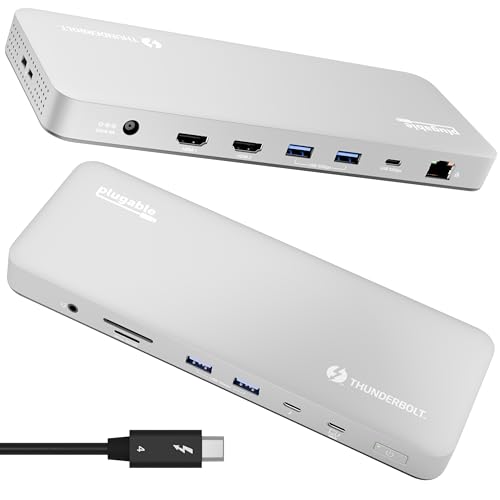
If you’re a user of the M4 MacBook Air or Pro, the Plugable Thunderbolt 4 Dock is a top choice for enhancing your setup. This 13-in-1 docking station offers full compatibility, letting you connect multiple devices effortlessly. With dual 4K HDMI outputs and data transfer speeds up to 40Gbps, it boosts your productivity. You’ll appreciate the 100W host charging and premium aluminum design that guarantees durability. Plus, its plug-and-play functionality means you can start using it right away. With lifetime support from experts, you’re not just investing in a dock; you’re enhancing your entire computing experience.
Best For: Users of the M4 MacBook Air or Pro who need a versatile and high-performance docking solution for multiple devices.
Pros:
- Plug-and-play functionality allows for immediate use without the need for driver downloads.
- Dual 4K HDMI outputs support high-resolution displays at 60Hz, enhancing productivity and multitasking.
- Premium aluminum build ensures durability while generating minimal heat during operation.
Cons:
- Limited to Gigabit Ethernet, lacking support for faster 2.5Gb Ethernet connections.
- Not designed for ultra-high refresh gaming monitors, with no support for 4K at 120Hz.
- HDMI cables are not included, requiring separate purchase for dual monitor setup.
Plugable Thunderbolt 4 Dock with 100W Charging (TBT4-UD5)
The Plugable Thunderbolt 4 Dock with 100W Charging (TBT4-UD5) is a standout choice for professionals and creatives who demand high performance and versatility from their tech. With 13 high-performance ports, it supports dual 4K 60Hz HDMI displays or a single 8K display, making multitasking seamless. You’ll enjoy ultra-fast 40Gbps speeds and reliable Ethernet with a built-in 1 Gbps port. It’s compatible with various laptops, including the MacBook Pro, but keep in mind it doesn’t support dual monitors for BASE M1, M2, or M3 chips. Overall, it’s a durable dock that enhances your setup efficiently.
Best For: Professionals and creatives seeking a high-performance docking solution with versatile connectivity options for multitasking.
Pros:
- Supports dual 4K 60Hz HDMI displays or a single 8K display for enhanced productivity.
- Offers ultra-fast 40Gbps speeds and reliable Ethernet connectivity for seamless performance.
- Durable design with multiple USB-A and USB-C ports, allowing for extensive peripheral support.
Cons:
- Not compatible with BASE M1, M2, or M3 chips for dual monitor support.
- Some users report intermittent disconnections during use.
- Front-mounted Thunderbolt port design may lead to a cluttered setup compared to rear placements.
Anker USB C Hub for MacBook (7-in-2)

Designed specifically for MacBook users, the Anker USB C Hub (7-in-2) offers a seamless way to expand connectivity options without cluttering your workspace. It transforms your two USB-C ports into a versatile hub featuring a multi-function USB-C port, USB-C data port, two USB-A ports, an HDMI port, an SD card slot, and a microSD card slot. With charging power up to 100W and data transfer speeds reaching 40 Gb/s, it guarantees peak performance. Plus, you can enjoy 4K@60Hz video output. Compatible with MacBook Pro 13 Inch and MacBook Air M1/M2, it’s the perfect addition for your setup.
Best For: MacBook users seeking to enhance their connectivity options with a compact and efficient hub.
Pros:
- Versatile Port Options: Expands two USB-C ports into multiple ports including HDMI, USB-A, and card slots for enhanced connectivity.
- High Performance: Offers up to 100W charging power and data transfer speeds of up to 40 Gb/s, ensuring excellent performance for various tasks.
- 4K Video Support: Supports 4K@60Hz video output, providing high-quality media display for presentations or entertainment.
Cons:
- Limited Dual Display Support: M1 and M2 MacBooks do not support dual external displays, limiting multi-monitor capabilities.
- Compatibility Restrictions: Primarily designed for MacBooks, which may limit usability with other devices.
- Clutter Potential: Although it reduces port clutter, having multiple connections may still lead to a crowded workspace.
Satechi Thunderbolt 4 Dock with 100W Charging and Dual Monitor HDMI

For users seeking a powerful and versatile docking solution, the Satechi Thunderbolt 4 Dock stands out with its impressive 100W charging capability and support for dual monitors. It features dual HDMI ports, allowing 4K@60Hz display output and compatibility with multiple devices, including your MacBook Air. You’ll benefit from 40Gbps data transfer speeds and two USB-A 3.2 ports, perfect for connecting peripherals. Plus, the stable Ethernet connection guarantees speedy internet access. Weighing just 1.08 pounds and backed by a 2-year warranty, this dock caters to multitaskers and creative professionals alike, making it a solid choice for your setup.
Best For: Multitaskers and creative professionals looking for a reliable docking solution with dual monitor support and high-speed connectivity.
Pros:
- Supports dual monitor setups with 4K@60Hz display output, ideal for enhanced productivity.
- High-speed data transfer capabilities of up to 40Gbps and multiple USB-A 3.2 ports for versatile peripheral connections.
- Stable Ethernet connection ensures fast internet access, perfect for demanding tasks.
Cons:
- Requires installation of DisplayLink Drivers for multi-display functionality, which may be an inconvenience for some users.
- Some users reported slower performance with certain SSDs, potentially affecting data transfer efficiency.
- Cable management design criticized, which may hinder organization in workspace setups.
Amazon Basics Thunderbolt4/USB4 Pro Docking Station
If you’re looking for a reliable and versatile docking solution for your non-M1/M2 MacBook, the Amazon Basics Thunderbolt4/USB4 Pro Docking Station stands out with its robust connectivity options. Weighing just 2.15 pounds, this sleek black dock features two Thunderbolt 4 USB-C ports, an HDMI 2.1 port, three USB A 3.1 ports, and an RJ45 Ethernet port. You’ll enjoy dual 4K@60Hz display support, while power delivery reaches up to 96W. Users appreciate its excellent plug-and-play functionality, though some experienced minor connectivity issues. Overall, it’s a cost-effective choice for expanding your setup without breaking the bank.
Best For: Users with non-M1/M2 MacBooks or compatible Windows laptops seeking a reliable and versatile docking solution with multiple connectivity options.
Pros:
- Excellent plug-and-play functionality with a variety of ports for multiple device connections.
- Dual 4K@60Hz display support and HDMI 2.1 for high-resolution displays.
- Cost-effective alternative to pricier brands without compromising on performance.
Cons:
- Some users report minor connectivity issues with specific laptop models.
- Limited functionality with Thunderbolt 3 laptops compared to Thunderbolt 4.
- Potential audio output problems and monitor connectivity issues after sleep mode.
Plugable 16-in-1 Thunderbolt 4 Dock for M4 MacBook Air/Pro

The Plugable 16-in-1 Thunderbolt 4 Dock is an ideal choice for MacBook Air and Pro users who demand high-performance connectivity and versatility. With support for dual 4K 60Hz displays, it easily enhances your multitasking capabilities. The dock features seven USB ports, dual HDMI, dual DisplayPort, and a 2.5Gbps Ethernet port, ensuring you stay connected to all your peripherals. Plus, it delivers 100W Power Delivery for reliable laptop charging. Users appreciate its plug-and-play functionality, seamless compatibility with various operating systems, and responsive customer support. Overall, it’s a top pick for anyone needing a robust docking solution.
Best For: Users of M4 MacBook Air and Pro who require high-performance connectivity and support for multiple peripherals.
Pros:
- Supports dual 4K 60Hz displays, enhancing multitasking capabilities.
- Offers a wide range of connectivity options with seven USB ports and various video outputs.
- Reliable customer support with quick response times and effective solutions.
Cons:
- Some users suggest the need for additional USB-C ports for greater flexibility.
- Initial setup issues reported by a few users, although resolved with support.
- Cable management options could be improved for a tidier workspace.
MOKiN Thunderbolt 4 Dock – 16 Ports Laptop Docking Station
Equipped with 16 ports, the MOKiN Thunderbolt 4 Dock is perfect for creative professionals and power users who demand extensive connectivity options for their MacBook Air. It supports dual 4K 60Hz displays for Intel and M1 Pro/Max, M2 Pro/Max, M3 Pro/Max models, while offering 40Gbps transfer speeds. With a robust 150W DC power supply, you can charge devices quickly. While it excels in versatility, some users have reported hiccups with monitor recognition and compatibility, especially with older hardware. Overall, this dock delivers solid performance and is a reliable choice for those needing thorough connectivity solutions.
Best For: Creative professionals and power users who require extensive connectivity options and high-performance displays for their MacBook Air.
Pros:
- Supports dual 4K 60Hz displays for high-resolution multitasking.
- Thunderbolt 4 certification allows for 40Gbps transfer speeds and versatile connectivity.
- Robust 150W power supply enables quick charging of devices.
Cons:
- Compatibility issues may arise with older monitors or specific cable types.
- Users with base M1/M2 chips can only utilize mirrored displays, limiting functionality.
- Some reports of monitor recognition problems and disconnections during startup.
UGREEN Thunderbolt 4 Dock Revodok Max 213 (13-in-1 Docking Station)

For users seeking a versatile and high-performance docking solution for their MacBook Air in 2025, the UGREEN Thunderbolt 4 Dock Revodok Max 213 stands out with its impressive 40Gbps data transfer speed. This 13-in-1 docking station features dual 4K@60Hz or single 8K@30Hz display support, ensuring stunning visuals. You’ll enjoy 90W charging capability, powered by a 180W GaN adapter, while the robust build provides durability. With multiple ports, including two Thunderbolt 4 and a 2.5GbE Ethernet, it’s a reliable choice. Just be mindful of HDMI compatibility to get the best performance from your setup.
Best For: Users looking for a high-performance docking station that supports multiple displays and fast data transfer for their MacBook Air in 2025.
Pros:
- Ultra-fast 40Gbps data transfer speed enhances productivity.
- Supports dual 4K@60Hz or single 8K@30Hz displays for stunning visuals.
- Sturdy metal casing and a robust build ensure durability.
Cons:
- Some users may experience HDMI compatibility issues.
- Full-function USB-C devices only support a single display.
- Not compatible with Intel Mac mini 2018.
WAVLINK Thunderbolt 4 Docking Station
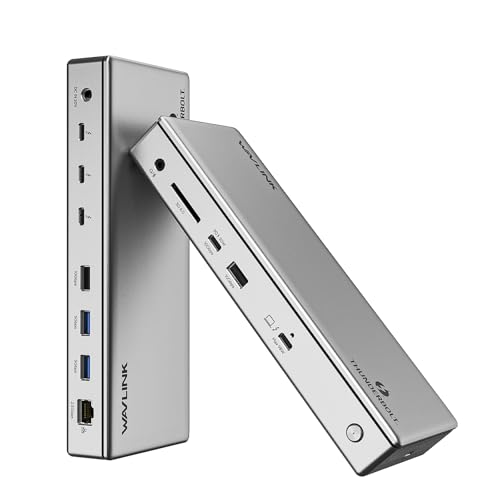
Ideal for professionals and creatives using the MacBook Air, the WAVLINK Thunderbolt 4 Docking Station stands out with its impressive support for dual 4K displays at 60Hz (though Apple’s M1/M2 chips limit this to a single monitor). With four Thunderbolt 4 ports, you’ll enjoy blazing-fast data transfer rates of up to 40Gbps. It also features multiple USB-A and USB-C ports, a 2.5G Ethernet connection, and an SD card slot. Weighing 3.58 pounds, it’s portable yet powerful, delivering up to 98W charging for your laptop. Users rate it 4.5 stars, making it a reliable choice for your setup.
Best For: Professionals and creatives using MacBook Air or similar devices who need high-speed connectivity and multiple display options.
Pros:
- Supports dual 4K@60Hz displays (limited to single monitor on Apple M1/M2 chips).
- Offers blazing-fast data transfer rates of up to 40Gbps via Thunderbolt 4 ports.
- Provides up to 98W charging capability for laptops, enhancing portability and convenience.
Cons:
- Some users report issues with SSD drive ejections during sleep mode.
- Power delivery may not support high-demand laptops adequately.
- Customer service feedback varies, with instances of unresponsive support.
Thunderbolt Docking Station for MacBook Pro/Air (19 in 1, 4K@60Hz)
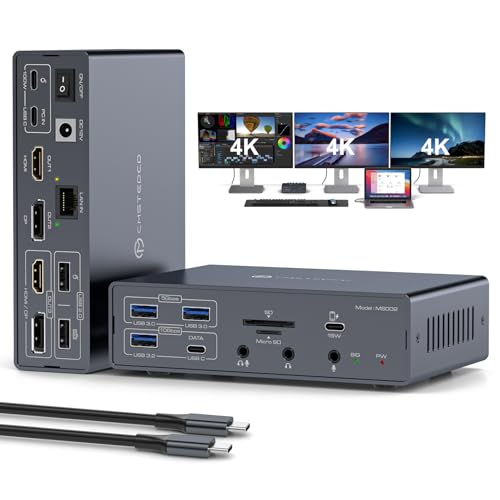
With its impressive 19-in-1 design, the Thunderbolt Docking Station for MacBook Pro and Air is perfect for professionals seeking to maximize productivity. You can connect up to three 4K@60Hz displays, guaranteeing stunning visuals for any task. Enjoy high-speed data transfer with multiple USB ports and direct access to SD and Micro SD slots. The Gigabit LAN keeps your internet connection stable, while the 100W Power Delivery input guarantees your devices stay charged. Plus, it’s compatible with both macOS and Windows, making it a versatile addition to your setup. Plug and play functionality means you’re ready to work in no time!
Best For: Professionals and creatives who need to enhance their productivity with multiple high-resolution displays and robust connectivity options.
Pros:
- Supports up to three 4K@60Hz displays for stunning visuals.
- High-speed data transfer with multiple USB ports and direct SD/Micro SD access.
- Compatible with both macOS and Windows, offering plug-and-play functionality.
Cons:
- Requires specific drivers for MST and SST modes.
- 100W PD power adapter sold separately.
- May be overkill for casual users with minimal connectivity needs.
Factors to Consider When Choosing a Macbook Air Thunderbolt 4 Dock
When you’re choosing a Thunderbolt 4 dock for your MacBook Air, consider the types and number of ports it offers to guarantee it meets your needs. Multi-monitor support, charging power delivery, and data transfer speeds are also essential factors to weigh. Finally, don’t overlook the build quality and design, as these elements can impact your overall experience.
Port Availability and Types
Choosing a Thunderbolt 4 dock for your MacBook Air involves considering the variety of ports it offers, as this directly impacts your ability to connect multiple devices efficiently. Look for docks that include Thunderbolt 4, USB-C, USB-A, HDMI, and card readers to accommodate different peripherals. The number of USB ports matters too; aim for at least four USB-A ports and additional USB-C options to guarantee flexibility. If you value stable internet access, a high-speed Ethernet port, ideally 2.5GbE or Gigabit, is essential. Finally, check that the dock provides sufficient power delivery, around 100W, so you can charge your MacBook Air while powering all your connected devices seamlessly.
Multi-Monitor Support Options
If you want to enhance your productivity with a MacBook Air, considering multi-monitor support is vital. Depending on your MacBook model, your options will vary. The M4 Macs can drive dual 4K displays at 60Hz, while base M1 and M2 models are limited to a single external display. Make certain the Thunderbolt 4 dock you choose supports the advanced configurations you need, whether it’s a single 8K monitor or multiple 4K displays. Also, be aware that some docks might require specific software for peak performance. It’s important to check the dock’s total bandwidth capability to guarantee it can handle several high-resolution displays simultaneously without compromising performance or resolution.
Charging Power Delivery Capability
Having a Thunderbolt 4 dock that supports multiple monitors is just one part of enhancing your MacBook Air experience; charging capability is equally important. When you’re selecting a dock, pay close attention to its charging power delivery capability, which typically ranges from 90W to 100W. Docks with 100W delivery are ideal for higher-performance MacBook models, guaranteeing you can tackle demanding tasks without worrying about power loss. Always verify that the dock’s power delivery meets or exceeds your laptop’s requirements to avoid disconnections during heavy usage. Many docks provide charging through a dedicated USB-C port, allowing you to use other ports simultaneously for data transfer and displays. Finally, check compatibility with your specific MacBook model to assure peak charging performance.
Build Quality and Design
When selecting a Thunderbolt 4 dock for your MacBook Air, build quality and design are essential factors that can enhance your user experience. Look for docks with aluminum-clad designs, as they offer durability and effective heat management. The size and weight also matter; a dock typically ranges from 7 to 12 inches in length and weighs between 2 to 4 pounds, impacting portability and desk space. Verify that all ports are easily accessible, as this will streamline your connectivity with multiple devices. High-quality docks generate warmth rather than heat, preventing performance issues. Finally, consider aesthetics—sleek profiles and modern finishes can complement your workspace, making your setup not just functional, but visually appealing as well.
Data Transfer Speed Performance
Data transfer speed performance is essential for maximizing the efficiency of your MacBook Air setup. Thunderbolt 4 docks typically offer data transfer speeds of up to 40Gbps, far surpassing traditional USB connections. This enhanced speed greatly boosts workflow efficiency, especially for demanding tasks like video editing and large data backups. Many docks support multiple high-speed USB ports, including USB-A and USB-C, giving you flexibility without sacrificing speed. With dual display setups running at 4K@60Hz, you can enjoy high-quality visuals alongside rapid data transfers. Plus, the ability to daisy-chain multiple Thunderbolt devices allows you to leverage substantial bandwidth while maintaining ideal speeds across connected devices, ensuring your setup remains powerful and efficient.
Compatibility With Devices
Choosing the right Thunderbolt 4 dock for your MacBook Air involves several compatibility factors that can greatly impact your experience. First, make certain the dock works with your Mac’s M1, M2, M3, or M4 chip, as some docks may limit external display support for base models. Look for docks that explicitly state compatibility with macOS since this can vary by version and model. If you plan to use dual 4K displays at 60Hz, verify the dock supports this feature. Additionally, check for backward compatibility with Thunderbolt 3 and USB-C devices to accommodate older peripherals. Finally, consider the number and types of ports available, as this will influence your ability to connect multiple devices without extra adapters.
Heat Management Features
Selecting a Thunderbolt 4 dock for your MacBook Air means considering not just compatibility but also heat management features. Effective heat management is vital, as prolonged operation can lead to overheating, which affects performance and longevity. Look for docks designed to generate minimal heat; they should feel warm rather than hot during use.
Aluminum-clad designs are ideal, as they enhance heat dissipation compared to plastic alternatives. Some docks even come with built-in mechanisms to monitor and regulate temperature, ensuring stable performance under heavy workloads. It’s important to check the dock’s heat generation specifications, as excessive heat can hinder data transfer rates and charging efficiency. Prioritizing these features will help you maintain a reliable and efficient setup.
Warranty and Support Services
When investing in a Thunderbolt 4 dock for your MacBook Air, it’s important to assess the warranty and support services offered by the manufacturer. Warranty policies can vary, with some providing limited coverage of one to two years against defects. Consider docks with lifetime customer support to boost your confidence in your purchase. Effective customer support is vital, especially during troubleshooting and setup, so look for brands known for responsive assistance. Also, check the availability of customer service in your region, as this can impact response times. Reading customer reviews can offer valuable insights into warranty reliability and the effectiveness of support services, helping you make an informed decision for your setup.