If you want to enhance your MacBook setup, choosing the right Thunderbolt 4 dock can make all the difference. With various options available, each offering unique features and capabilities, it’s crucial to find one that suits your needs. From seamless dual display support to rapid data transfers, the right dock can transform your workspace. Let’s explore some of the top picks that could elevate your MacBook experience.
Plugable Thunderbolt 4 Dock for M4 MacBook Air & Pro
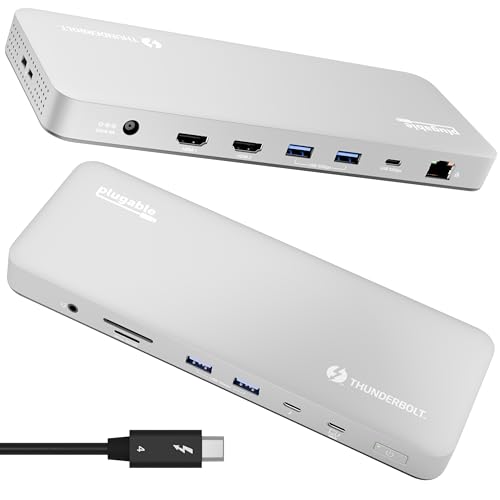
If you’re using an M4 MacBook Air or Pro, the Plugable Thunderbolt 4 Dock is an ideal choice for expanding your connectivity options. This 13-in-1 docking station supports dual 4K displays at 60Hz and offers a variety of ports, including Thunderbolt 4, USB-A, and an SD/microSD card reader. You’ll appreciate its 100W charging capability and fast data transfers up to 40Gbps. The aluminum design adds durability while keeping heat generation minimal. With plug-and-play functionality and lifetime support, you can easily enhance your setup without hassle. It’s a reliable solution, boasting a 4.8-star rating from users.
Best For: Users of M4 MacBook Air or Pro looking for a versatile docking station to enhance connectivity and productivity.
Pros:
- Supports dual 4K displays at 60Hz, making it ideal for multitasking and high-resolution work.
- 100W charging capability allows for efficient power delivery to your MacBook while using the dock.
- Plug-and-play functionality means no complicated setup or driver installations are needed.
Cons:
- Limited to Gigabit Ethernet, which may not meet the needs of users requiring faster network speeds.
- Not designed for ultra-high refresh gaming monitors, lacking support for 4K@120Hz.
- Does not include HDMI cables, which are necessary for a dual monitor setup.
Amazon Basics Thunderbolt4/USB4 Pro Docking Station
The Amazon Basics Thunderbolt4/USB4 Pro Docking Station is an ideal choice for non-M1/M2 MacBook users seeking robust connectivity and performance. With dimensions of 7.86 x 2.95 x 1.23 inches and a weight of 2.15 pounds, it’s compact yet powerful. You’ll enjoy dual 4K@60Hz display support via Thunderbolt 4 and an HDMI 2.1 port for up to 8K@30Hz. Plus, it offers multiple ports, including 2x Thunderbolt 4 USB-C, 3x USB A 3.1, and an RJ45 Ethernet port supporting 2.5Gbps. Users praise its plug-and-play functionality and reliability, making it a cost-effective solution for enhancing your setup.
Best For: Users of non-M1/M2 MacBooks and Windows 10 or later laptops looking for a versatile and cost-effective docking station.
Pros:
- Excellent dual 4K display support via Thunderbolt 4 and HDMI 2.1.
- Plug-and-play functionality with a variety of devices, ensuring easy setup.
- Compact design with multiple connectivity options, including high-speed Ethernet.
Cons:
- Limited compatibility with certain laptops, like Lenovo Yoga 7i, causing connectivity issues.
- Potential audio output problems and display issues after sleep mode for some users.
- Performance may be affected when multiple high-bandwidth devices are connected simultaneously.
Plugable Thunderbolt 4 Dock with 100W Charging (TBT4-UD5)
For professionals and creatives seeking a powerful docking solution, the Plugable Thunderbolt 4 Dock (TBT4-UD5) stands out with its impressive 100W charging capability. This dock features 13 high-performance ports, allowing you to connect dual 4K 60Hz HDMI displays or a single 8K display seamlessly. With ultra-fast 40Gbps speeds and multiple USB-A and USB-C ports, you’ll experience rapid file transfers and reliable connectivity. Its durable design guarantees minimal overheating, while the built-in 1 Gbps Ethernet port assures stable internet access. Overall, it’s a solid choice for enhancing your MacBook setup and boosting productivity.
Best For: Professionals and creatives who require a high-performance docking solution with multiple display options and rapid connectivity.
Pros:
- Offers 100W charging and supports dual 4K 60Hz or a single 8K display for enhanced multitasking.
- Delivers ultra-fast 40Gbps data transfer speeds and has multiple USB ports for connecting various devices.
- Features a built-in 1 Gbps Ethernet port for stable internet connectivity and minimal overheating during use.
Cons:
- Some users report intermittent disconnections and setup difficulties with monitor assignments.
- The front-mounted Thunderbolt port design may not be preferred by those seeking a cleaner setup.
- Not compatible with BASE M1, M2, M3 chips for dual monitor support, limiting its usability for some users.
CalDigit TS4 Thunderbolt 4 Dock

Designed with power users in mind, the CalDigit TS4 Thunderbolt 4 Dock is perfect for creatives and professionals who need robust connectivity and high performance. With 18 ports, including three Thunderbolt 4 ports, you can connect multiple devices effortlessly. It delivers 98W charging, ensuring your laptop stays powered while you work. You’ll enjoy stunning visuals with support for single 8K or dual 6K displays. Plus, the 2.5GbE port offers lightning-fast internet. Setup is a breeze, transforming your laptop into a full desktop experience with just one cable. Users appreciate its performance, making it a top choice for Macbook setups.
Best For: The CalDigit TS4 Thunderbolt 4 Dock is best for power users, creatives, and professionals who require extensive connectivity and high performance for their devices.
Pros:
- High Connectivity: Offers 18 ports including three Thunderbolt 4 ports for versatile device connections.
- Impressive Display Support: Capable of supporting single 8K or dual 6K displays, ideal for graphic-intensive tasks.
- Convenient Power Delivery: Provides 98W charging, allowing laptops to stay powered while connecting multiple devices with a single cable.
Cons:
- Warm Temperatures: Some users report the dock can operate at warm temperatures during extensive use.
- Ethernet Connection Issues: Users have experienced problems with the ethernet connection upon waking the device.
- Limited USB Ports: Feedback suggests a desire for more USB ports instead of the included card readers.
UGREEN Thunderbolt 4 Dock Revodok Max 213 (13-in-1 Docking Station)

Featuring a robust 13-in-1 design, the UGREEN Thunderbolt 4 Dock Revodok Max 213 is ideal for users seeking seamless connectivity and high-performance capabilities for their MacBooks and other devices. With ultra-fast 40Gbps data transfer and support for dual 4K@60Hz or single 8K@30Hz displays, it enhances your multitasking experience. You’ll appreciate the 90W charging capability through its 180W GaN power adapter, keeping your laptop powered without extra chargers. Plus, its sturdy metal casing guarantees durability. Just be mindful of HDMI compatibility issues, as it primarily supports DisplayPort connections for peak performance.
Best For: Users seeking a high-performance docking solution for seamless connectivity and multitasking with MacBooks and other compatible devices.
Pros:
- Ultra-fast data transfer at 40Gbps for efficient file management.
- Supports dual 4K monitors or a single 8K display, enhancing multitasking capabilities.
- Durable metal casing ensures longevity and reliability.
Cons:
- Potential HDMI compatibility issues may require specific adapters for optimal performance.
- Primarily supports DisplayPort connections, limiting options for some users.
- Limited compatibility with certain devices, such as Intel Mac mini 2018.
Plugable 16-in-1 Thunderbolt 4 Dock

The Plugable 16-in-1 Thunderbolt 4 Dock stands out as an ideal choice for MacBook users who need robust connectivity options. Supporting dual 4K 60Hz displays, this dock features seven USB ports, dual HDMI, dual DisplayPort, and a 2.5Gbps Ethernet port, all while delivering 100W charging. Its plug-and-play functionality makes dual monitor setups seamless, perfect for multitasking and content creation. Users appreciate its universal compatibility across macOS and Windows, reporting smooth operation with multiple peripherals. With responsive customer support and positive reviews, the Plugable Dock is a reliable choice for enhancing your MacBook setup.
Best For: MacBook users seeking a versatile docking solution with extensive connectivity options for multitasking and content creation.
Pros:
- Supports dual 4K 60Hz displays, enhancing productivity for professionals and creatives.
- Plug-and-play functionality allows for easy setup without the need for additional software or drivers.
- Responsive customer support ensures effective solutions and enhances user satisfaction.
Cons:
- Some users suggest a need for additional USB-C ports to accommodate more devices.
- Limited cable management options could lead to a cluttered workspace.
- Initial compatibility issues reported by a few users, although mostly resolved with support.
Anker USB C Hub for MacBook (7-in-2 with 4K HDMI)

If you’re looking to maximize your MacBook’s connectivity, the Anker USB C Hub (7-in-2 with 4K HDMI) is an excellent choice. This hub expands your two USB-C ports into a multi-function USB-C port, a USB-C data port, two USB-A ports, an HDMI port, and both SD and microSD card slots. With up to 100W charging and data transfer speeds of up to 40 Gb/s, you’ll experience seamless performance. You can even connect dual displays, though note that M1 and M2 MacBooks only support one external monitor. Designed for the latest MacBooks, it won’t obstruct your MagSafe port.
Best For: Users of MacBook Pro 13 Inch, MacBook Air M1/M2, and other compatible devices who need enhanced connectivity options.
Pros:
- Expands connectivity with multiple ports including USB-C, USB-A, HDMI, and card slots.
- High performance with data transfer speeds up to 40 Gb/s and charging power up to 100W.
- Designed for MacBooks without obstructing the MagSafe port, ensuring a sleek and functional setup.
Cons:
- Limited dual display support for M1 and M2 MacBooks, which only allow one external monitor.
- Dependency on USB-C ports, meaning users with older MacBook models may not benefit fully.
- Potential for overheating if used extensively without adequate ventilation due to high power draw.
Anker Prime TB5 Docking Station (14-in-1 Thunderbolt 5)

For MacBook users seeking a powerhouse docking solution, the Anker Prime TB5 Docking Station stands out with its impressive 120Gbps transfer speed. This 14-in-1 Thunderbolt 5 dock offers an array of ports, including dual Thunderbolt 5, USB-C, USB-A, and SD card readers, accommodating all your devices seamlessly. With the ability to transfer 150GB in just 25 seconds and support for dual 8K displays, it enhances your productivity. Plus, its advanced cooling system guarantees reliable performance without overheating. While its price might be steep, the high build quality and functionality make it a worthwhile investment for serious users.
Best For: MacBook users seeking a high-performance docking solution with extensive connectivity options and fast data transfer capabilities.
Pros:
- Seamless integration with various devices, enhancing productivity.
- Supports dual 8K displays for an immersive visual experience.
- Advanced cooling system prevents overheating during heavy use.
Cons:
- Limited SD card reader speed (UHS-I) may not meet all users’ needs.
- Only one video output at a time (HDMI or DisplayPort) restricts multi-monitor setups.
- Occasional issues with SD card functionality after the device wakes from sleep mode.
UGREEN Revodok Max 208 Thunderbolt 4 Dock 8-in-1

Looking for a powerful docking solution for your MacBook? The UGREEN Revodok Max 208 Thunderbolt 4 Dock is an impressive 8-in-1 hub that supports data transfer speeds up to 40Gbps. It lets you connect dual 4K displays at 60Hz or a single 8K display at 30Hz, making multitasking a breeze. With three Thunderbolt 4 ports, three USB A 3.2 ports, and Gigabit Ethernet, you’ve got all your connection needs covered. Plus, it delivers 85W charging through its 140W GaN charger. Users rave about its build quality and performance, though some report occasional connectivity issues.
Best For: Professionals and power users who require high-speed data transfer and support for multiple 4K or 8K displays.
Pros:
- High data transfer speeds of up to 40Gbps enable quick file transfers and smooth performance.
- Versatile display support allows for dual 4K@60Hz or single 8K@30Hz setups, enhancing multitasking capabilities.
- Robust build quality and ease of use, as reported by users, make it a reliable choice for various devices.
Cons:
- Some users experience occasional Ethernet connectivity issues, affecting network performance.
- Dual monitor functionality may not work seamlessly for all setups, leading to potential frustration.
- Support experiences vary, with some customers finding it lacking when seeking assistance.
MOKiN Thunderbolt 4 Dock – 16 Ports Laptop Docking Station
The MOKiN Thunderbolt 4 Dock stands out as an ideal choice for professionals who require extensive connectivity options and high-performance capabilities for their MacBook. With 16 ports, it supports dual 4K displays and offers impressive 40Gbps transfer speeds. You can enjoy seamless connectivity with Thunderbolt 4, USB4, and DP Alt mode devices. While it’s compatible with various models, be aware that base M1/M2 chips only allow mirrored displays. Customer reviews praise its build quality and functionality, although some users report occasional monitor recognition issues. Overall, it’s a solid choice for enhancing your workspace with robust power and connectivity.
Best For: Professionals and power users who need extensive connectivity and high-performance capabilities for their MacBook or Windows laptops.
Pros:
- Supports dual 4K displays and triple monitors for Windows, enhancing productivity.
- High transfer speeds of 40Gbps and 100W Power Delivery for efficient device charging.
- Solid build quality and positive customer feedback on functionality and ease of use.
Cons:
- Base M1/M2 chips only support mirrored displays, limiting display options.
- Some users experience monitor recognition issues and HDCP compliance problems when streaming.
- Customer support can be challenging to navigate due to occasional language barriers.
Factors to Consider When Choosing a Macbook Thunderbolt 4 Dock
When you’re choosing a Thunderbolt 4 dock for your Macbook, consider several key factors. You’ll want to look at port variety and configuration, power delivery capabilities, and display support options. Additionally, don’t forget to assess build quality and compatibility with your devices to guarantee a seamless experience.
Port Variety and Configuration
Choosing the right Thunderbolt 4 dock for your MacBook involves a careful assessment of port variety and configuration. You should look for docks that offer multiple USB-A, USB-C, Thunderbolt 4, HDMI, DisplayPort, Ethernet, and audio jacks. This variety guarantees you can connect various peripherals easily. If you’re into multitasking, opt for docks that support dual 4K displays at 60Hz or even single 8K displays. Check the data transfer speeds, as Thunderbolt 4 can deliver up to 40Gbps, making it perfect for high-bandwidth devices. Additional features like SD/microSD card readers and 2.5Gb Ethernet ports can enhance your setup’s versatility, providing an edge over standard Gigabit options.
Power Delivery Capabilities
Power delivery capabilities are a critical factor to evaluate in Thunderbolt 4 docks for your MacBook. Many docks support up to 100W or higher, ensuring your laptop stays charged during use. It’s essential to check the power delivery specifications to match your MacBook’s requirements, as some docks adapt with dynamic charging profiles. Docks offering higher wattage, like 96W or 98W, are ideal for power-intensive tasks, letting you charge while using multiple peripherals. Some even come with dedicated power adapters capable of 140W, providing extra headroom for additional devices. However, be aware that some docks might limit power output when several high-demand devices are connected. Understanding these capabilities will help you choose the right dock for your needs.
Display Support Options
Display support options are essential to evaluate for your MacBook Thunderbolt 4 dock, as they directly impact your productivity and overall experience. Start by checking how many external displays the dock can handle. For instance, some docks support dual 4K displays at 60Hz, while others may only mirror a single display for base M1/M2 models. If you’re looking for high resolution, consider docks that are compatible with 8K displays, though this feature might be specific to certain models. Also, verify the dock provides sufficient bandwidth—up to 40Gbps—for seamless video output. Finally, examine the types of video output ports available, such as HDMI or DisplayPort, as this will determine compatibility with your monitors.
Build Quality and Design
When evaluating a Thunderbolt 4 dock for your MacBook, consider the build quality and design as essential factors that can affect both durability and usability. Look for materials like aluminum, which not only resist wear but also help prevent overheating. Weighing between 1.41 and 4.29 pounds, the dock’s weight and dimensions play a role in portability and integration into your workspace. Ascertain it features effective heat management, keeping it warm but not excessively hot during operation. A well-designed dock should have strategically placed ports for easy access and better cable management. Finally, an aesthetically pleasing design with sleek finishes can enhance your workspace while minimizing clutter, making it a perfect match for your modern devices.
Compatibility With Devices
Choosing the right Thunderbolt 4 dock for your MacBook involves more than just evaluating its build quality and design; compatibility with your devices is a key factor. Start by ensuring the dock works with your specific MacBook model, especially since M1, M2, and M3 models have limited support for external displays compared to M4 models. Next, check if the dock supports Thunderbolt 4 or USB4, as some docks may not function fully with non-Thunderbolt devices. Review the operating system requirements, too; many docks thrive only on macOS 11 or later. Finally, consider compatibility with other devices, as some docks may only seamlessly integrate with Windows systems or specific brands, limiting your overall connectivity options.
Heat Management Performance
Effective heat management is essential for Thunderbolt 4 docks, especially since prolonged operation can lead to overheating and impact performance. Many docks can reach temperatures around 122°F (50°C) under full load, which is normal but signals the need for effective heat dissipation. A well-designed dock should remain warm to the touch rather than hot, guaranteeing your comfort and device safety. Look for docks with advanced cooling systems, like active cooling, to prevent overheating during intensive tasks. Additionally, consider the dock’s material; aluminum-clad options typically offer better heat management compared to plastic alternatives. By prioritizing heat management performance, you can guarantee a reliable and efficient setup that enhances your MacBook experience.