If you want a dock that can keep up with the MacBook Pro M4 Max, Thunderbolt 5 is the new sweet spot for bandwidth, display flexibility, and future-proof expansion. The right dock can simplify a multi-monitor desk, reduce cable clutter, and keep your laptop charged through a single connection.
Below, we focus on the best options for creators, power users, and hybrid work setups, with an emphasis on display support, charging headroom, and real-world connectivity.
Best 10 Thunderbolt 5 Docks for Macbook Pro M4 Max Picks for 2026
Best for Heavy-Duty Connectivity
iVANKY Thunderbolt 5 Dock with 11 Ports

- 11-port layout reduces adapter clutter
- 8K/dual-6K display support on MacBook Pro/Max
- 180W power delivery plus 2.5GbE networking
Best For: Power users who want a feature-rich Thunderbolt 5 dock for a multi-display MacBook Pro setup.
Best for Compact MacBook Expansion
Anker 7-in-2 USB-C Hub for MacBook

- 7-in-2 layout adds HDMI, USB-A, SD, and microSD
- Up to 100W pass-through charging
- Compact design avoids blocking MagSafe
Best For: MacBook users who want a portable hub for basics, not a full Thunderbolt dock.
Best for Multi-Monitor Mac Workstations

- Up to four 6K displays on Max chips
- Four downstream Thunderbolt 4 ports
- 100W charging with 2.5G Ethernet
Best For: MacBook Pro users building a multi-monitor workstation with pro-level connectivity.
Best for Multi-Display Workstations
Dell Pro TB5 Smart Dock SD25TB5

- Up to four 4K 60Hz displays
- 2x Thunderbolt 5 + DP 2.1 + HDMI 2.1
- 300W class power delivery
Best For: MacBook Pro M4 Max users building a high-connectivity, multi-monitor desk setup.
Best for Dell Ecosystems
Dell SD25TB4 Thunderbolt 4 Smart Dock
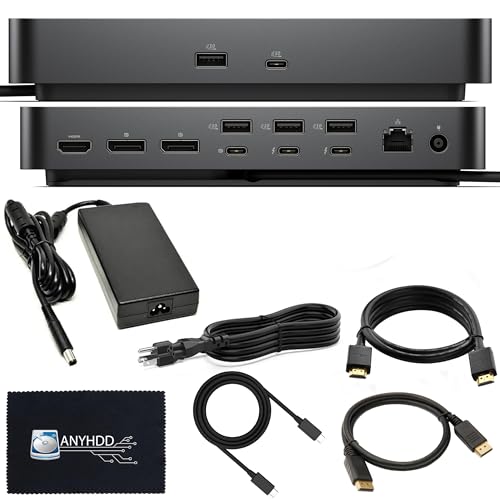
- Two Thunderbolt 4 ports for flexible expansion
- Strong port mix with HDMI, DisplayPort, USB, and Ethernet
- Includes 180W power adapter and accessories
Best For: MacBook Pro users who want a dependable Thunderbolt 4 dock with lots of ports.
Best for Driverless Setup
Plugable TB4 Dock for M4/M5 MacBook

- 100W charging for a cleaner desk setup
- Dual 4K or single 6K display support
- 6 USB ports, SD, Ethernet, and Thunderbolt
Best For: MacBook Pro M4 Max users who want a simple, driverless dock with strong everyday connectivity.
Best for Triple 6K Displays

- Triple-display support on compatible Max-chip Macs
- 3 Thunderbolt 5 ports plus 10 USB ports
- 140W PD and active cooling for heavy workloads
Best For: MacBook Pro owners who want a display-first Thunderbolt 5 dock with lots of expansion.
Best Thunderbolt 4 Hub for Multi-Display Macs

- Three TB4 ports with 40Gbps expansion
- Dual 4K@60Hz support on compatible MacBook Pro models
- 85W charging plus Ethernet and 3x USB-A
Best For: MacBook Pro users who want a dependable multi-display docking station with lots of ports.
Best for Heavy-Duty Connectivity – iVANKY Thunderbolt 5 Dock with 11 Ports
If you want one of the more feature-packed thunderbolt 5 docks for macbook pro m4 max, the iVANKY FusionDock Pro 3 is built for users who need a lot of ports, strong display support, and serious wired networking. It combines 11 ports, 180W power delivery, and 2.5GbE in a single dock, making it a practical desktop hub for demanding Mac workflows.
Best For: MacBook Pro owners who want a high-port-count Thunderbolt 5 dock for a multi-display, wired-peripheral setup.
Pros:
- Thunderbolt 5 bandwidth with up to 120Gbps performance claims
- Supports single 8K or dual 6K@60Hz on MacBook Pro/Max series
- 180W power delivery and 2.5GbE for a more complete desk setup
- 11 total ports help reduce the need for extra adapters
Cons:
- Overkill if you only need a basic monitor-and-charging dock
- Premium feature set likely comes with a higher price tag
For power users comparing thunderbolt 5 docks for macbook pro m4 max, this iVANKY dock stands out for its mix of display support, fast networking, and generous I/O. It makes the most sense when you want a single docking station to handle creative work, peripherals, and dual-screen productivity.
Best for Compact MacBook Expansion – Anker 7-in-2 USB-C Hub for MacBook
If you want a slim, travel-friendly add-on rather than a full desktop dock, this Anker hub is a practical option to consider alongside thunderbolt 5 docks for macbook pro m4 max. It gives newer MacBooks a useful mix of HDMI, USB-A, SD/microSD, and a multi-function USB-C port without blocking MagSafe.
Best For: MacBook users who want a compact, everyday hub for display output, data transfers, and memory card access.
Pros:
- 7-in-2 design adds HDMI, USB-A, SD, and microSD in a very small footprint
- Supports 4K at 60Hz on HDMI and up to 5K through the USB-C multifunction port
- Up to 100W charging pass-through helps keep a MacBook powered while connected
- Built to fit newer MacBook layouts without covering the MagSafe port
Cons:
- Not a full Thunderbolt dock, so it lacks the expansion and bandwidth of premium options
- Only one external display path is useful on many Apple silicon MacBooks, depending on model
- Not compatible with MacBook Neo
This is a strong pick if you mainly need a compact hub for essentials, but shoppers comparing thunderbolt 5 docks for macbook pro m4 max should treat it as a lighter, more portable alternative rather than a high-end workstation dock.
Best for 120Gbps Throughput – UGREEN Revodok Maxidok Thunderbolt 5 Dock
If you want one of the faster thunderbolt 5 docks for macbook pro m4 max, this UGREEN Revodok Maxidok is built around bandwidth and display flexibility. It combines Thunderbolt 5 expansion with practical ports for everyday peripherals, so it suits users who need a dock that can keep up with creative work, coding, and multi-monitor setups.
Best For: Power users who want Thunderbolt 5 speed, strong display output, and enough ports for a MacBook Pro desk setup.
Pros:
- 120Gbps Thunderbolt 5 connectivity with 2 downstream TBT5 ports
- Supports single 8K, dual 6K@60Hz, or triple 4K@120Hz displays
- Includes 10-in-1 essentials like USB-A, Ethernet, and SD/TF card slots
- 140W total power with up to 100W charging for demanding laptops
Cons:
- More dock than casual users likely need
- Display flexibility depends on your laptop and monitor setup
- No built-in USB-C front charging port for quick plug-ins
For shoppers comparing thunderbolt 5 docks for macbook pro m4 max, this model stands out for speed, multi-display support, and a well-rounded port mix. It is a strong fit if you want a future-ready dock that can handle heavy workloads without feeling basic.
Best for Multi-Monitor Mac Workstations – iVANKY FusionDock Max 1
If you’re comparing thunderbolt 5 docks for macbook pro m4 max and want the strongest display expansion options, the iVANKY FusionDock Max 1 is built around heavy-duty multi-monitor setups. It’s a Mac-only Thunderbolt 4 dock, but its dual-upstream design and unusually high display support make it a compelling pick for creators who need a true desktop-grade hub for a MacBook Pro.
Best For: MacBook Pro users who want maximum external display support, fast storage connections, and a dock tuned for pro workflows.
Pros:
- Drives up to four 6K displays on Max chips or dual 6K on Pro chips
- Four downstream Thunderbolt 4 ports for fast SSDs and daisy-chaining
- 100W charging plus 2.5Gb Ethernet for a cleaner workstation setup
- SD 4.0, optical audio, and dual 3.5mm ports cover creator-friendly needs
Cons:
- Not a true Thunderbolt 5 dock, despite targeting high-end Mac users
- Only works with M-series Macs, not Windows or Intel-based machines
- Overkill if you only need a simple single-monitor dock
For buyers narrowing down thunderbolt 5 docks for macbook pro m4 max, this dock stands out less for raw next-gen speed and more for its unusually strong monitor support and Mac-specific optimization. If your priority is a multi-display creative or trading setup, it’s one of the most capable Thunderbolt 4 alternatives you can buy.
Best for Multi-Display Workstations – Dell Pro TB5 Smart Dock SD25TB5
If you want one of the more expansion-friendly thunderbolt 5 docks for macbook pro m4 max, the Dell Pro Thunderbolt 5 Smart Dock SD25TB5 is built around serious desk setups. It combines Thunderbolt 5 connectivity, lots of USB-A and USB-C ports, and display outputs for users who want to run multiple external monitors while keeping peripherals on one cable.
Best For: MacBook Pro M4 Max owners who want a high-port-count dock for multi-monitor productivity and a clean single-cable setup.
Pros:
- Supports up to four 4K 60Hz displays for expansive desktop setups
- Includes 2x Thunderbolt 5 ports plus DP 2.1, HDMI 2.1, and multiple USB ports
- 300W class power delivery helps support demanding workstation gear
- Modular design makes future upgrades easier than many fixed docks
Cons:
- More dock than casual users likely need
- Mac users may not need the full multi-display capacity depending on workflow
- Large feature set can make it pricier than simpler Thunderbolt docks
This is a strong fit if you need a desktop hub that can handle displays, charging, and peripherals without feeling constrained. Among thunderbolt 5 docks for macbook pro m4 max, it stands out for users who care more about expansion and monitor flexibility than portability or minimalism.
Best Dual-Monitor Value – PULWTOP MacBook Pro Dock for Dual 4K
If you want a practical, no-fuss hub instead of a pricey entry in the thunderbolt 5 docks for macbook pro m4 max conversation, this PULWTOP dock covers the essentials well: dual 4K@60Hz HDMI output, 10Gbps USB ports, SD/TF, Ethernet, and 100W PD charging.
Best For: MacBook Pro and MacBook Air users who need a compact dual-monitor dock with strong everyday connectivity.
Pros:
- Drives two 4K@60Hz displays for MacBook Pro M-series models with supported chip configurations.
- Offers a useful mix of fast USB-A/USB-C ports, SD/TF card slots, and Gigabit Ethernet.
- 100W PD input with up to 95W output helps keep your MacBook charged while docked.
Cons:
- Not compatible with base M1/M2/M3 MacBook chips for dual display.
- Power adapter is not included, and a 65W+ adapter is required.
- USB-C data ports do not support video output or charging.
For buyers comparing thunderbolt 5 docks for macbook pro m4 max, this is a more affordable, feature-packed dual-display dock rather than a top-end Thunderbolt solution, making it a smart pick if your priority is everyday productivity and clean desk connectivity.
Best for Dell Ecosystems – Dell SD25TB4 Thunderbolt 4 Smart Dock
If you want a well-equipped USB-C dock that can still hold its own in a search for thunderbolt 5 docks for macbook pro m4 max, the Dell SD25TB4 is a practical option for users who value reliability, broad port selection, and strong desktop expansion over bleeding-edge bandwidth.
Best For: MacBook Pro owners who need a versatile Thunderbolt 4 dock for dual displays, wired networking, and a clean one-cable setup.
Pros:
- Two Thunderbolt 4 ports plus HDMI, DisplayPort, USB-A, USB-C, and Ethernet
- 40 Gb/s Thunderbolt 4 performance for fast peripherals and docking workflows
- Includes a 180W adapter and useful accessories for a more complete setup
- Compatible with macOS, Windows, and Ubuntu
Cons:
- Not a Thunderbolt 5 dock, so it won’t match the newest top-end bandwidth
- 4K-focused display support is more practical than cutting-edge multi-monitor specs
- Designed with Dell branding and modularity, which may be more than some Mac users need
This dock makes sense if you want a dependable Thunderbolt 4 hub with strong everyday connectivity rather than chasing the newest spec sheet. For buyers comparing thunderbolt 5 docks for macbook pro m4 max, it’s a sensible fallback when port variety, accessory bundle, and workstation stability matter more than raw next-gen speed.
Best for Driverless Setup – Plugable TB4 Dock for M4/M5 MacBook
If you want a straightforward expansion dock while shopping for thunderbolt 5 docks for macbook pro m4 max, this Plugable Thunderbolt 4 option is worth a look. It focuses on practical Mac compatibility, 100W charging, and easy plug-and-play use, with enough ports to handle a tidy dual-monitor workstation or a higher-resolution single display.
Best For: MacBook Pro M4 Max users who want a driverless, easy-to-use dock with solid port selection and reliable everyday display support.
Pros:
- 100W host charging helps reduce cable clutter on the desk
- Supports dual 4K displays or a single 6K display
- Includes 6 USB ports, SD card reader, Ethernet, and Thunderbolt connectivity
- Thunderbolt certified and designed for simple, driverless setup
Cons:
- It is Thunderbolt 4, not a native Thunderbolt 5 dock
- Display and port needs may be overkill if you only need a basic USB hub
For Mac users who value compatibility and convenience over chasing the newest spec, this dock is a strong practical pick. It is especially appealing if you are comparing thunderbolt 5 docks for macbook pro m4 max and want a dependable setup that still covers charging, displays, and everyday peripherals well.
Best for Triple 6K Displays – iVANKY FusionDock Max 2
If you need one of the more display-heavy thunderbolt 5 docks for macbook pro m4 max, the iVANKY FusionDock Max 2 stands out with triple-monitor support on compatible Max Macs, fast 120Gbps Thunderbolt 5 connectivity, and a strong port selection for a desk setup that does a lot at once.
Best For: MacBook Pro users who want triple external displays, high-speed expansion, and a dock built for demanding creative workflows.
Pros:
- Supports triple extended displays on M1/M2/M3/M4 Max Macs, including up to dual 6K@60Hz plus one 4K@60Hz
- Three Thunderbolt 5 ports and 10 USB ports give you plenty of room for storage, accessories, and peripherals
- 140W power delivery helps keep a MacBook Pro charged under heavy use
- Built-in cooling fan and copper-based heat design aim to maintain performance during long sessions
Cons:
- Not compatible with Windows or Chrome laptops
- Only works with one Mac and cannot switch between multiple Macs
- Triple-display support is limited to Max-chip Macs; Pro and base chips get fewer active displays
This is a strong pick if your priority is maximum monitor support and a fully loaded expansion dock, but buyers should double-check compatibility before choosing it among thunderbolt 5 docks for macbook pro m4 max.
Best Thunderbolt 4 Hub for Multi-Display Macs – UGREEN Revodok Max 208
If you’re comparing thunderbolt 5 docks for macbook pro m4 max and want a proven alternative with strong port density, this UGREEN Thunderbolt 4 dock is worth a look. It gives MacBook Pro M4 Max users a clean way to add multiple displays, fast storage, and wired networking from a single hub, though it stops short of true Thunderbolt 5 bandwidth.
Best For: MacBook Pro users who want a reliable multi-port Thunderbolt dock for dual displays, Ethernet, and everyday pro workflows.
Pros:
- Three Thunderbolt 4 ports provide flexible expansion and up to 40Gbps connectivity.
- Supports dual 4K@60Hz on compatible MacBook Pro Pro/Max models, or a single 8K display on Windows.
- Includes 85W laptop charging, gigabit Ethernet, and three 10Gbps USB-A ports.
- Comes with a 140W GaN charger, so power delivery is built into the package.
Cons:
- It is Thunderbolt 4, not Thunderbolt 5, so it won’t match the newest top-end docks.
- Mac display support is more limited than Windows, especially on non-Pro/Max chips.
This is a practical dock for buyers who value stability and expansion over cutting-edge specs. If your shortlist of thunderbolt 5 docks for macbook pro m4 max includes more affordable or more established options, this UGREEN model fills the “trusted TB4 workhorse” slot well.
How We Picked These Thunderbolt 5 Docks for Macbook Pro M4 Max
We prioritized docks that make sense for the MacBook Pro M4 Max: strong host charging, reliable external display support, fast downstream USB performance, and enough ports to replace a busy desktop setup. For Thunderbolt 5 Docks for Macbook Pro M4 Max, the most important factor is not just speed on paper, but whether the dock can handle your monitor layout, storage devices, network needs, and accessories without forcing compromises.
We also favored models with clear specs, broad compatibility, and power delivery that is appropriate for demanding Mac workflows. Some options in this roundup are Thunderbolt 5; others are Thunderbolt 4 or high-end USB-C docks for buyers who may not need every premium feature.
Quick Comparison
Choose Thunderbolt 5 if you want the most headroom for multiple high-resolution displays, high-bandwidth peripherals, and a longer upgrade path. Thunderbolt 4 docks remain a smart value choice for many MacBook Pro M4 Max users, especially if your setup is mostly dual monitors, a few SSDs, Ethernet, and accessories. USB-C hubs are best for lighter desk use and travel-friendly expansion.
Key Buying Factors for Thunderbolt 5 Docks for Macbook Pro M4 Max
Display Support
Check whether the dock supports your exact monitor setup: single 8K, dual 6K, or triple-display workflows. Mac display behavior can vary by chip, cable, and dock implementation, so look for explicit Mac compatibility rather than generic monitor claims.
Charging Power
Make sure the dock delivers enough power for the MacBook Pro M4 Max and leaves room for sustained workloads. Higher-wattage docks are preferable if you regularly edit video, run large builds, or keep many peripherals attached.
Port Mix
Think beyond video output. A good dock should include the USB-A and USB-C ports, SD or microSD if you need them, Ethernet for stable networking, and audio if your setup depends on it. The best docks minimize adapters and hub chaining.
Bandwidth and Workflow
Thunderbolt 5 can help when you are moving large files, using fast external storage, or driving a complex desktop setup. If your work is lighter, Thunderbolt 4 may be enough and can save money without sacrificing everyday usability.
Who Should Buy Which Thunderbolt 5 Docks for Macbook Pro M4 Max?
Buy a Thunderbolt 5 dock if you want the most future-ready option, use high-resolution or multi-monitor setups, or need a centerpiece dock for a serious workstation. Choose a Thunderbolt 4 dock if you want proven Mac compatibility and strong value for everyday pro use. Pick a USB-C hub if you travel often, use one monitor, and only need basic expansion.
In short, the best dock depends on your desk, not just your laptop. Match the dock to your displays, charging needs, and peripherals, and you will get a setup that feels faster, cleaner, and easier to live with.