If you’re looking to upgrade your workspace, investing in a USB-C docking station for your external drives is a smart move. These versatile devices simplify connectivity and improve data transfer speeds, catering to both casual and professional users. With a range of options available, from multi-port hubs to dual-bay stations, you can find the perfect fit for your needs. Let’s explore the top choices that can truly enhance your productivity and organization.
SABRENT USB-C Hard Drive Docking Station (DS-UC1B)

If you’re looking for a reliable and user-friendly solution for connecting external drives, the SABRENT USB-C Hard Drive Docking Station (DS-UC1B) is an excellent choice. This docking station supports both 2.5” and 3.5” SATA SSDs and HDDs, making it versatile for your storage needs. With a lightning-fast 10Gbps connection, it’s plug-and-play, requiring no drivers. Plus, its tool-less design allows for quick drive insertion and removal. You can easily protect your drives with the retractable dust cover. The included USB-A and USB-C cables guarantee compatibility with various devices, making it a convenient addition to your workspace.
Best For: Users seeking a versatile and efficient docking station for connecting multiple SATA SSDs and HDDs.
Pros:
- High-speed connection with 10Gbps (USB 3.2 Gen 2×1) for optimal data transfer rates.
- Tool-less design allows for quick and easy drive insertion and removal, enhancing user convenience.
- Includes multiple cables (USB-A and USB-C) for compatibility with a variety of devices.
Cons:
- Limited to SATA drives only, which may not suit users with other types of drive interfaces.
- Requires a power adapter for 3.5” HDDs, which may add to cable clutter.
- No built-in data redundancy or backup solutions, necessitating separate backup strategies.
SABRENT USB-C Lay Flat Docking Station for NVMe and SATA SSD/HDD

The SABRENT USB-C Lay Flat Docking Station is an ideal choice for tech enthusiasts and professionals who need a reliable solution for managing external drives. This docking station supports M.2 PCIe NVMe SSDs and 2.5”/3.5” SATA drives, allowing you to transfer data at speeds up to 10Gbps. With tool-free installation and smart cloning features, swapping drives is a breeze. While its aluminum design is sturdy, be mindful of its external power requirement and potential overheating during heavy use. Overall, it’s a versatile and efficient addition to enhance your workspace and streamline your data management.
Best For: The SABRENT USB-C Lay Flat Docking Station is best for tech enthusiasts and professionals seeking a versatile and high-speed solution for managing external SSD and HDD drives.
Pros:
- High-speed data transfer capabilities of up to 10Gbps.
- Tool-free installation and easy drive swapping with a secure hinged lid.
- Compatible with multiple operating systems, enhancing versatility.
Cons:
- Requires an external power source, which may be cumbersome for some users.
- Potential overheating issues during prolonged use.
- Size and weight may be greater compared to other docking solutions.
LIONWEI 13 in 1 USB C Docking Station

For professionals and gamers who need extensive connectivity, the LIONWEI 13 in 1 USB C Docking Station stands out with its impressive array of ports. With dual 4K HDMI and DisplayPort, you can easily set up multiple displays. The USB-C ports support rapid data transfer and power delivery, ensuring your devices stay charged. Weighing just 4.9 ounces, it’s portable yet sturdy, making it perfect for any workspace. While some users report minor issues, like wireless mouse lag, the overall performance and customer support make it a great choice. Experience enhanced productivity with this versatile docking station today!
Best For: Professionals and gamers seeking extensive connectivity options and efficient performance in their workspaces.
Pros:
- Multiple display options with dual 4K HDMI and DisplayPort support.
- Fast data transfer and power delivery through USB-C ports.
- Sturdy and portable design, making it ideal for various work environments.
Cons:
- Some users experience wireless mouse lag during use.
- Short connection cable may limit placement options.
- Reports of tight USB ports and issues with HDMI and Ethernet performance.
WAVLINK USB 3.0 and USB C Dual-Bay External Hard Drive Docking Station
![WAVLINK USB 3.0 and USB C to SATA Dual-Bay External Hard Drive Docking Station for 2.5/3.5 Inch HDD/SSD with UASP (6Gbps), Support Offline Clone/Duplicator Function [16TB X2 ]-Black](https://m.media-amazon.com/images/I/31dgMm3OLfL._SL500_.jpg)
Designed for users who need a versatile and efficient storage solution, the WAVLINK USB 3.0 and USB C Dual-Bay External Hard Drive Docking Station stands out with its ability to support both 2.5 and 3.5-inch SATA HDDs and SSDs. You’ll enjoy impressive transfer speeds of up to 6Gbps with UASP and a hassle-free, tool-free installation process. The offline cloning function allows you to duplicate drives without a computer, while the automatic sleep mode saves energy after 30 minutes. With a maximum capacity of 16TB, this docking station is perfect for expanding your storage needs while keeping your workspace organized.
Best For: Users looking for a reliable and efficient external hard drive docking station that supports both HDDs and SSDs for easy storage expansion and drive cloning.
Pros:
- Supports both 2.5 and 3.5-inch SATA HDDs and SSDs, accommodating various storage needs.
- High transfer speeds of up to 6Gbps with UASP technology for fast data transfer.
- Tool-free installation and offline cloning function make it user-friendly and convenient.
Cons:
- Initial units may have issues, requiring potential replacement for optimal performance.
- Users may encounter complications with BIOS settings after cloning, necessitating additional troubleshooting.
- Some feedback indicates minimal packaging, which could be a concern for sensitive electronics during shipping.
ORICO Hard Drive Docking Station for SSD and HDD
Looking for a reliable and versatile solution for connecting your SSDs and HDDs? The ORICO Hard Drive Docking Station is your answer. It supports both 2.5” and 3.5” SATA drives, boasting a capacity of up to 22TB. With a high-speed transfer rate of 5Gbps, you’ll enjoy fast data access. Its compact design and tool-free installation make it portable and user-friendly. Plus, the auto sleep feature saves energy. Compatible with various systems, it’s perfect for any setup. Users praise its performance and build quality, making it a top choice in hard drive docking stations.
Best For: Users seeking a reliable and versatile docking station for both SSDs and HDDs with support for multiple systems.
Pros:
- Supports up to 22TB capacity and both 2.5” and 3.5” SATA drives.
- High-speed transfer rate of 5Gbps for efficient data access.
- Compact and portable design with tool-free installation for user convenience.
Cons:
- Some users report issues with loud beeping during power on/off and connection changes.
- Performance may vary, with speeds averaging around 250MB/s in general use.
- Limited warranty details available through the manufacturer.
FIDECO USB 3.2 Gen 1 Hard Drive Docking Station
The FIDECO USB 3.2 Gen 1 Hard Drive Docking Station is perfect for users who need a reliable solution for managing their HDDs and SSDs. It supports both 2.5 and 3.5 inch SATA I/II/III drives and features an offline cloning function, allowing you to transfer data without a computer. With a Type-C port and included USB C to USB C and USB C to USB A cables, it guarantees peak performance. Compatible with Windows, Mac OS, and Linux, it offers plug-and-play functionality. Plus, with speeds up to 5Gbps, you’ll enjoy efficient data transfers every time.
Best For: Users who require a versatile and efficient solution for managing and cloning HDDs and SSDs without needing a computer.
Pros:
- Supports both 2.5 and 3.5 inch SATA I/II/III drives, accommodating a wide range of HDDs and SSDs.
- Features offline cloning, allowing users to duplicate data without connecting to a computer.
- High-speed data transfer rates of up to 5Gbps with UASP USB 3.2 Gen 1 support, enhancing efficiency.
Cons:
- The target HDD for offline cloning must have equal or larger capacity than the source HDD, which may limit cloning options.
- Requires two separate HDDs for cloning, which may not be convenient for all users.
- While compatible with multiple operating systems, some users may still prefer dedicated software solutions for data management.
SABRENT USB 3.0 to SATA Dual Bay External Hard Drive Docking Station
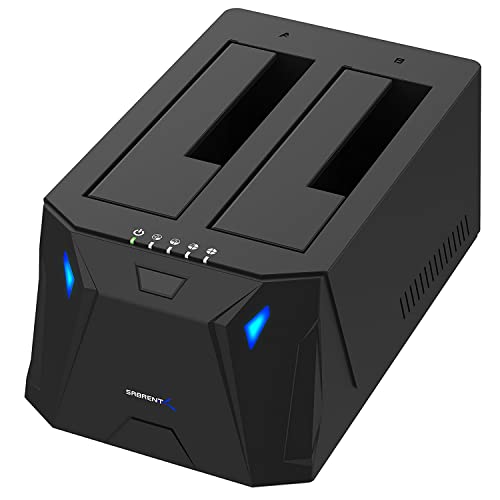
For anyone needing a reliable solution to connect multiple external drives, the SABRENT USB 3.0 to SATA Dual Bay External Hard Drive Docking Station stands out with its plug-and-play functionality and support for both 2.5 and 3.5-inch SATA hard drives or SSDs, accommodating up to 10TB of storage. You’ll appreciate the hot-swapping feature, allowing for seamless drive changes without interrupting your workflow. The offline cloning function is handy, though be cautious of potential data duplication issues. With a sturdy design and compatibility across various operating systems, it’s an affordable choice for enhancing your data management and storage capabilities.
Best For: Users seeking an efficient and cost-effective solution for managing multiple external hard drives or SSDs, particularly for data backup and cloning purposes.
Pros:
- Plug-and-play functionality with no drivers needed for easy setup.
- Supports hot-swapping of drives, allowing seamless transitions without system interruptions.
- Durable construction with compatibility across various operating systems, making it versatile for different users.
Cons:
- Cloning process can be unreliable, with potential data duplication issues reported by users.
- Drives may appear as a single disk letter post-duplication, which can lead to confusion in file management.
- Design may not adequately support slim profile drives, requiring additional support for stability.
Anker Laptop Docking Station Dual Monitor (8-in-1 USB C Hub)

Designed with versatility in mind, the Anker Laptop Docking Station Dual Monitor (8-in-1 USB C Hub) is perfect for professionals who demand high performance and connectivity. With dual HDMI ports, you can effortlessly stream or mirror content in stunning 4K. Enjoy lightning-fast data transfer through the two USB-A ports and stay connected via the 1 Gbps Ethernet hub. Plus, the 85W Power Delivery guarantees your device stays charged while you work. Compatible with various systems, including MacBook Pro and Windows laptops, this hub maximizes your workspace efficiency. Trust Anker’s proven technology to enhance your productivity today.
Best For: Professionals and creatives who require high-performance connectivity and dual monitor support for enhanced productivity.
Pros:
- 4K Dual Monitor Support: Stream or mirror content in stunning 4K resolution, enhancing visual clarity.
- Multiple Connectivity Options: Features extensive ports including dual HDMI, USB-A, Ethernet, and an SD card reader for versatile use.
- Reliable Power Delivery: Provides 85W Power Delivery to keep your devices charged while you work.
Cons:
- Limited macOS Functionality: macOS users may only see identical displays on both external monitors, limiting workspace flexibility.
- Not Compatible with Linux: The docking station does not support Linux operating systems, which may exclude some users.
- Charger Not Included: The product does not come with a charger, requiring users to purchase one separately if needed.
RSHTECH Hard Drive Docking Station (RSH-DS01C)

Looking for a versatile solution to connect multiple hard drives? The RSHTECH Hard Drive Docking Station (RSH-DS01C) is your answer. This sleek aluminum dual bay dock supports both 2.5 and 3.5-inch SATA SSDs and HDDs, accommodating up to 22TB. With a data transfer rate of up to 5Gbps and UASP support boosting it to 6Gbps, you’ll enjoy fast transfers. The 2-in-1 USB cable guarantees compatibility with various ports. Plus, its offline clone function lets you duplicate drives without a computer. Just keep in mind it doesn’t support hot swapping, so handle drives with care.
Best For: Users looking for a reliable and efficient way to connect and clone multiple hard drives simultaneously.
Pros:
- Simple setup with tool-free installation and plug-and-play functionality.
- Effective offline cloning feature allows duplication of drives without needing a computer.
- Compatible with various devices thanks to the versatile 2-in-1 USB cable.
Cons:
- Does not support hot swapping, requiring careful handling of drives.
- Some users have reported issues with drive recognition.
- Drives may run hotter compared to enclosures with built-in fans.
Baseus Docking Station Dual Monitor (Nomos Win Air, 12 in 1)
The Baseus Docking Station Dual Monitor (Nomos Win Air, 12-in-1) is perfect for professionals who need seamless multitasking across multiple screens. With dual 4K HDMI outputs and six USB ports, it enhances your workspace’s productivity. You’ll appreciate the 10Gbps data transfer for large files, making it ideal for video editing or 3D rendering. The gigabit Ethernet guarantees a stable internet connection, essential for remote work or gaming. Its compact design minimizes desk clutter, while the magnetic base keeps it securely in place. Just remember, you’ll need a separate power adapter for the 100W PD charging feature.
Best For: Professionals who require efficient multitasking with dual monitors and high-speed data transfer capabilities.
Pros:
- Versatile Connectivity: Offers dual 4K HDMI outputs and six USB ports for extensive device compatibility.
- Fast Data Transfer: Features 10Gbps data transfer speed, ideal for handling large files efficiently.
- Compact and Durable Design: Space-saving construction with a magnetic base ensures stability and organization on your desk.
Cons:
- No Included Power Adapter: Requires a separate purchase for the power adapter needed for 100W PD charging.
- Built-in Cable Limitation: The built-in cable may restrict flexibility in cable management for some users.
- Quality Control Concerns: There are occasional reports of defective units, though customer service is responsive.
Factors to Consider When Choosing a USB C Docking Station for External Drives
When choosing a USB-C docking station for your external drives, you need to contemplate several key factors. Think about compatibility with your drive types, data transfer speeds, and the variety of ports available. Don’t forget to check for offline cloning capabilities and the overall build quality to guarantee it meets your needs.
Compatibility With Drive Types
Choosing the right USB-C docking station hinges on verifying compatibility with various drive types. You’ll want to confirm that the docking station supports the specific drives you intend to use, like 2.5” or 3.5” SATA SSDs and HDDs, since compatibility can vary considerably. Look for features that accommodate different interfaces, including M.2 PCIe NVMe SSDs or SATA drives, to maximize your versatility. Also, check the maximum storage capacity; many models can handle drives up to 20TB or more, which is crucial for larger data needs. Tool-free installation is another bonus, allowing for easy swapping of drives. Finally, confirm compatibility with different operating systems to guarantee seamless operation across Windows, macOS, and Linux.
Data Transfer Speeds
Data transfer speeds play a crucial role in your experience with USB-C docking stations, especially if you frequently handle large files or backups. Look for docking stations that support USB 3.2 Gen 2, which can deliver speeds up to 10Gbps for rapid transfers. If you want even better performance, consider models that utilize UASP (USB Attached SCSI Protocol), allowing speeds up to 6Gbps by processing multiple commands simultaneously. Remember, the type of drives you use matters too—SSDs generally offer faster transfer rates than traditional HDDs. Some docking stations also provide offline cloning capabilities, facilitating speeds up to 60Mbps. Finally, confirm compatibility with the desired USB version to avoid speed reductions.
Port Availability and Types
A well-equipped USB-C docking station can greatly enhance your productivity, especially when it comes to connecting various devices and peripherals. When choosing one, verify it offers a mix of port types, including both USB-A and USB-C, so you can easily accommodate all your devices. Look for high-speed data transfer capabilities, ideally supporting USB 3.2 Gen 2 (10Gbps) for peak performance with external drives. Consider the number of USB ports available, including USB 3.0 and USB 2.0, which lets you connect multiple external drives and accessories at once. Also, check for video output ports like HDMI or DisplayPort to support dual monitor setups. These features will greatly enhance your efficiency when using external drives.
Offline Cloning Capabilities
When considering a USB-C docking station for external drives, offline cloning capabilities can be a game-changer for your backup routine. This feature allows you to duplicate data from one drive to another without needing a connected computer, making quick backups a breeze. Just remember, the target drive must be equal to or larger than the source drive for successful duplication. Cloning speeds can vary, with some stations offering rates up to 60Mbps, considerably speeding up transfers. Make sure you follow the specific steps for positioning and powering on your drives correctly. Many docking stations also include LED indicators, providing real-time feedback on the cloning process, so you can easily monitor your progress.
Build Quality and Design
Offline cloning capabilities are just one aspect of what makes a USB-C docking station effective, but build quality and design play a significant role in your overall experience. Look for durable materials like aluminum, which enhance longevity and help dissipate heat during operation. A compact, ergonomic design minimizes desk clutter and makes accessing ports easier. Features such as a non-slip base or magnetic attachments can improve stability, reducing the risk of accidental disconnections. Tool-free installation and plug-and-play functionality simplify swapping drives, saving you time and effort. Finally, proper ventilation or semi-open designs are vital to prevent overheating, especially when using high-capacity drives for extended periods. Prioritize these factors to enhance your workspace effectively.
Power Supply Requirements
Choosing the right power supply for your USB-C docking station is essential, especially if you plan to connect larger external drives like 3.5-inch HDDs. Many docking stations require an external power supply to guarantee reliable operation and prevent performance issues. Look for models that offer up to 100W power delivery (PD) to charge your laptop while powering multiple devices. Keep in mind that some stations may have a maximum power output, which can limit how many devices you can connect simultaneously, especially high-capacity drives. Consider power efficiency features like automatic sleep mode to conserve energy and extend the lifespan of your drives. A built-in power control switch adds convenience for managing power without disconnecting everything.
Heat Management Features
Power supply requirements are just one aspect of your USB-C docking station’s performance; heat management is equally important for ensuring reliability, especially with external drives. Look for designs that enhance airflow, like semi-open constructions or integrated cooling systems, to prevent overheating during prolonged use. Some docking stations also feature automatic sleep modes after inactivity, which can reduce heat generation and prolong the lifespan of your drives. Materials matter too; aluminum constructions often dissipate heat better, keeping operating temperatures in check. User feedback frequently points out overheating issues during heavy data transfers, so prioritize models with robust heat management features. Monitoring temperature is essential, as excessive heat can lead to performance degradation and potential data loss.
Ease of Use
When it comes to convenience, ease of use is an essential factor in selecting a USB-C docking station for external drives. Look for models with tool-free installation, letting you insert and remove drives without any hassle. Plug-and-play functionality is a must, allowing you to start using your drives immediately, without driver installations. Hot-swappable capabilities are also beneficial; they let you change drives without powering down, enhancing your workflow. Designs featuring clear LED indicators help you monitor drive activity, so you know when they’re in use or idle. Finally, consider stations with easy offline cloning functions, which allow you to duplicate drives without needing a computer, streamlining your data management process.