Choosing the right drawing tablet can make online teaching feel faster, clearer, and more natural. From handwriting math steps to annotating slides in real time, the best pick should be simple to use and comfortable for long lessons.
Below, we focus on tablets that balance pen accuracy, shortcut controls, and dependable PC compatibility, so you can teach with fewer interruptions and more confidence.
Best 10 Drawing Tablets for Online Teaching PC Picks for 2026
Editor Pick
Wacom Intuos Small for Teachers

- Battery-free pen with 4,096 pressure levels
- Works with Windows, Mac, Android, and Chromebook
- 4 ExpressKeys plus included software/training
Best For: Teachers who want a compact, reliable teaching tablet
Large Workspace

- Large 10 x 6 inch drawing area
- 16,384 pressure levels with passive stylus
- 8 hot keys and wide system support
Best For: Teachers and creators who want a bigger work area
Wireless Choice
XPPen Deco mini7W for Teaching
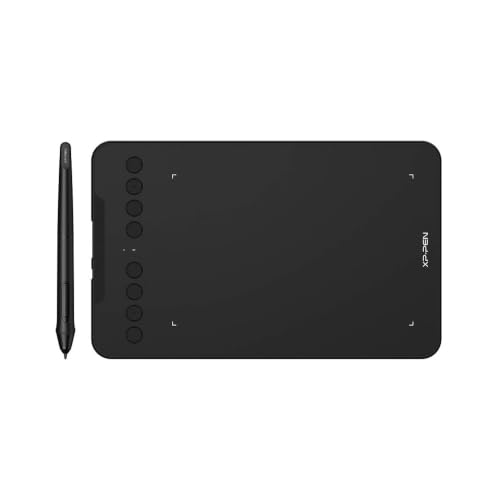
- 2.4 GHz wireless with USB receiver
- Battery-free pen with 8,192 pressure levels
- 8 shortcut keys and wide compatibility
Best For: Teachers who want wireless flexibility in a compact tablet
Shortcut Heavy

- 10 x 6.25 inch drawing area with textured surface
- Battery-free pen with 8,192 pressure levels
- 10 keys plus a programmable touch ring
Best For: Teachers and remote workers who rely on shortcut controls
Compact Teaching Pen Tablet
XPPen StarG640 6x4 Battery-Free Stylus

- Battery-free pen for uninterrupted use
- Works with Word, PowerPoint, OneNote, Zoom
- Slim 2 mm design for easy portability
Best For: Teachers and online presenters needing a compact note-taking tablet.
Shortcut-Packed Lesson Tablet
XOPPOX 10x6 Online Teaching Pad

- 10 x 6 inch active area for more workspace
- 12 customizable shortcut keys for efficiency
- Battery-free pen with 8192 pressure levels
Best For: Teachers who want a larger tablet with shortcut keys for lessons.
Beginner Teaching Tablet

- Large 10 x 6.25 inch active area
- 16,384 pressure levels with tilt support
- Eight shortcut keys for easier workflow
Best For: Beginners and teachers who need a roomy, multi-platform teaching tablet.
Compact Teaching Pad
HUION H420X for PC, Mac, Linux, Android

- Battery-free stylus with 8192 pressure levels
- Plug-and-play for notes, annotations, and teaching
- Small 4.17 x 2.6 inch active area
Best For: Teachers and remote workers who need a tiny, portable teaching tablet
Ultra-Portable Classroom Pad
XPPen G430S for Windows and Mac

- Battery-free pen with 8192 pressure levels
- Ultra-thin 2 mm body for easy portability
- Works with Zoom and Microsoft Office apps
Best For: Teachers and students who need a tiny, travel-friendly annotation tablet
Large Work Area Teaching Tablet
HUION H1060P with Shortcut Keys

- Large 10 x 6.25 inch working area
- 12 press keys plus 16 soft keys for shortcuts
- Battery-free stylus with 8192 pressure levels
Best For: Teachers and presenters who want more writing space and shortcut buttons
Editor Pick – Wacom Intuos Small for Teachers
If you want drawing tablets for online teaching pc use that feel natural and reliable, the Wacom Intuos Small is a straightforward pick. Its battery-free pen, compact wired design, and support for Windows, Mac, Android, and Chromebook make it easy to use for lesson markup, sketching, and quick annotations in class.
Best For: Teachers and students who want a compact, dependable pen tablet for everyday online teaching and digital note-taking.
Pros:
- Battery-free EMR pen with 4,096 pressure levels for a pen-on-paper feel
- Plug-and-play support for Windows, Mac, Android, and Chromebook
- 4 ExpressKeys for shortcuts during live teaching or editing
- Includes software access and Wacom online training after registration
Cons:
- Small active area may feel limiting for larger hand movements
- Wired USB-A connection only
- Best suited to basic teaching and creation rather than large-format work
For online teaching tasks, this model stands out for simplicity and trustworthy pen input. It is a solid choice if you want a compact tablet that gets out of the way and helps you teach, mark up, and present without extra setup hassles.
Large Workspace – UGEE M708 for PC Teaching
For drawing tablets for online teaching pc setups that need more room to write and demonstrate, the UGEE M708 offers a large 10 x 6 inch active area. The textured surface, 16,384-level passive stylus, and eight hot keys make it practical for explaining lessons, sketching diagrams, and working through creative assignments.
Best For: Users who want a larger tablet surface for teaching demos, drawing, and general computer-based annotation.
Pros:
- Large 10 x 6 inch active drawing area for more comfortable hand movement
- 16,384 pressure levels for fine line control
- 8 customizable hot keys for faster lesson and workflow shortcuts
- Broad compatibility with Windows, Mac, Chrome OS, Linux, and Android
Cons:
- Wired USB connection only
- Larger size takes up more desk space than compact tablets
- Driver setup is required before use
The UGEE M708 is a strong fit if you want more drawing room than a small starter tablet can offer. Its shortcut keys and wide software compatibility make it especially useful for teachers who switch between sketching, annotating, and presenting.
Wireless Choice – XPPen Deco mini7W for Teaching
If you need drawing tablets for online teaching pc use with more freedom at your desk, the XPPen Deco mini7W adds wireless convenience without losing essential pen features. It pairs 2.4 GHz wireless support with a battery-free pen, 8 custom keys, and broad compatibility for teaching, e-learning, and light creative work.
Best For: Teachers who want a compact wireless tablet for online lessons, annotation, and flexible desk setups.
Pros:
- 2.4 GHz wireless connection with included USB receiver
- Battery-free pen with 8,192 pressure levels and tilt response
- 8 customizable press keys for quicker classroom workflows
- Compatible with Windows, Mac, Android, Chrome OS, and Linux
Cons:
- Smaller 7 x 4 inch class tablet area than larger pen tablets
- Wireless use depends on the receiver and setup
- Not designed as a screen display tablet
This model is a practical option when cable-free convenience matters more than a large drawing surface. It keeps the setup light and flexible, which is useful for instructors who move between teaching spaces or want a cleaner desk.
Shortcut Heavy – GAOMON M10K for Online Work
Among drawing tablets for online teaching pc use, the GAOMON M10K stands out for its large surface and workflow tools. It combines a 10 x 6.25 inch textured area, a battery-free stylus, 10 press keys, and a touch ring, making it well suited to teaching, writing, editing, and remote work tasks.
Best For: Teachers and remote workers who want lots of shortcut controls for annotation and productivity.
Pros:
- Large 10 x 6.25 inch active area with a papery texture
- Battery-free stylus with 8,192 pressure levels
- 10 customizable keys plus a programmable touch ring
- Works with Windows, Mac, and select Android devices, including online education tools like Zoom and OneNote
Cons:
- Wired USB setup only
- Requires driver installation and proper setup
- May be more tablet than needed for very casual users
The M10K is especially appealing if you value shortcut control as much as pen input. Its touch ring and extra keys make it a good fit for instructors who annotate frequently and want to move quickly during live lessons.
Compact Teaching Pen Tablet – XPPen StarG640 6×4 Battery-Free Stylus
If you want drawing tablets for online teaching pc use, the XPPen StarG640 is a simple plug-in option that works well as a mouse replacement for notes, annotations, and handwriting in class. Its compact 6 x 4 inch active area, battery-free stylus, and support for apps like Word, PowerPoint, OneNote, and Zoom make it a practical fit for teachers and remote workers who need fast setup over advanced features.
Best For: Teachers, tutors, and remote presenters who need a compact, no-charging tablet for online lessons and document markup.
Pros:
- Battery-free stylus means no charging interruptions.
- Compatible with Microsoft Office apps, Zoom, and Chromebook devices.
- Very slim and portable at only 2 mm thick.
- Good for handwriting, signatures, and quick diagram sketching.
Cons:
- Small 6 x 4 inch active area may feel limiting for larger layouts.
- No built-in shortcut keys listed in the supplied details.
Overall, the Star G640 is a straightforward teaching tablet for users who value portability and easy note-taking more than a large drawing surface. It is especially appealing for online classes where you mainly need clear writing, marking, and simple visual explanations.
Shortcut-Packed Lesson Tablet – XOPPOX 10×6 Online Teaching Pad
For shoppers comparing drawing tablets for online teaching pc setups, this XOPPOX model stands out with a larger 10 x 6 inch active area, a battery-free pen, and 12 customizable shortcut keys. It is built for practical classroom use such as online teaching, web conferences, presentations, and office work, while also supporting creative software when you need more than basic handwriting.
Best For: Teachers and presenters who want a larger work area and shortcut keys for efficient lesson control.
Pros:
- Large 10 x 6 inch active area gives more room for writing and sketching.
- Battery-free pen with 8192 levels of pressure sensitivity.
- 12 customizable shortcut keys help speed up common tasks.
- Useful for online teaching, presentations, and Microsoft Office work.
Cons:
- Not compatible with Chromebook, iPhone, or iPad.
- Some setup and settings changes are required after installation.
This is a strong pick if you want a teaching tablet that feels more spacious and efficient than a compact starter model. The shortcut layout and broad software support make it a good fit for active lessons, screen explanations, and day-to-day productivity.
Beginner Teaching Tablet – XP-Pen Deco 01 V3 10×6.25
If you are shopping for drawing tablets for online teaching pc use and want a beginner-friendly option, the XP-Pen Deco 01 V3 is worth a look. It offers a large 10 x 6.25 inch drawing area, 16,384 levels of pressure sensitivity, and eight customizable keys, making it useful for teaching, digital notes, and simple creative work across PC, Mac, Chrome OS, Android, and Linux.
Best For: Beginners, students, and teachers who want a roomy, easy-to-use tablet for teaching and note-taking.
Pros:
- Large 10 x 6.25 inch active area gives plenty of room to write and draw.
- 16,384 pressure levels and tilt support for smoother lines and shading.
- Eight customizable shortcut keys suit both right- and left-handed users.
- Broad compatibility includes Windows, Mac, Chrome OS, Android, and Linux.
Cons:
- Android support requires version 10.0 or later.
- Some users may need to update Windows or Mac OS before use.
For teaching and beginner art work, this model balances a generous workspace with simple controls and strong device support. It is a flexible choice if you want one tablet that can handle class demos, handwriting, and basic digital art on multiple platforms.
Compact Teaching Pad – HUION H420X for PC, Mac, Linux, Android
If you want drawing tablets for online teaching pc that are easy to move, the HUION H420X is a compact, plug-and-play option for notes, annotations, and handwriting in live classes. Its battery-free stylus, 8192 pressure levels, and 300 PPS report rate help writing feel more responsive, while wide support for Zoom, Teams, Word, PowerPoint, and OneNote makes it practical for everyday teaching tasks.
Best For: Teachers, tutors, and remote workers who need a small, simple tablet for online lessons and document annotation.
Pros:
- Battery-free stylus with 8192 pressure levels and 300 PPS response
- Plug-and-play setup with no driver required for basic use
- Compatible with Windows, Mac, Linux, and Android 6.0+
- Works with Zoom, Microsoft Teams, Word, PowerPoint, and OneNote
Cons:
- Very small 4.17 x 2.6 inch active area
- Not compatible with iOS
- May feel cramped for detailed drawing work
Overall, this is a strong pick if your priority is quick handwriting, screen-free annotation, and portability rather than a large drawing surface. It fits well in a limited desk setup and is especially useful for teaching workflows.
Ultra-Portable Classroom Pad – XPPen G430S for Windows and Mac
For drawing tablets for online teaching pc use, the XPPen G430S is a very slim option designed for handwriting, signatures, and teaching with Office apps, Zoom, and XSplit. Its battery-free stylus, 8192 pressure levels, and 266 RPS report rate are aimed at smoother pen input, but the 4 x 3 inch active area is intentionally tiny, so it is best suited to quick notes and pointer-style work.
Best For: Online teachers, remote workers, and students who want a highly portable tablet for annotation and e-signatures.
Pros:
- Battery-free pen with 8192 pressure levels
- Very slim 2 mm design that is easy to carry
- Compatible with Windows and Mac systems
- Works with Word, PowerPoint, OneNote, Zoom, and XSplit
Cons:
- Small 4 x 3 inch active area may feel limiting
- Mac users may need an OTG adapter if no USB-A port is available
- Driver setup is required for normal use on Mac
This model makes the most sense if you value portability and simple teaching tasks over a larger canvas. It is a practical mouse replacement for basic classroom markup, but the size is the main tradeoff.
Large Work Area Teaching Tablet – HUION H1060P with Shortcut Keys
If you need drawing tablets for online teaching pc with more room to write, the HUION H1060P offers a larger 10 x 6.25 inch working area that is easier for lesson notes, diagrams, and on-screen explanations. It pairs a battery-free stylus with 8192 pressure levels and 60° tilt support, while the 12 programmable press keys and 16 soft keys can speed up common teaching or drawing commands.
Best For: Teachers, creators, and presenters who want a larger surface and more shortcut control for online classes.
Pros:
- Large 10 x 6.25 inch active area for more comfortable writing
- 12 programmable press keys plus 16 soft keys
- Battery-free stylus with 8192 pressure levels and 60° tilt support
- Compatible with Windows, Mac, Android, and Ubuntu Linux
Cons:
- Larger and heavier than compact teaching tablets
- Mac connection requires a USB adapter
- Not compatible with iPhone or iPad
For teaching workflows that benefit from a bigger writing space, this tablet is the most capable of the three. The extra shortcuts also make it a strong choice when you want faster control during lessons or live demos.
How We Picked the Best Drawing Tablets for Online Teaching PC
For Drawing Tablets for Online Teaching PC, the most useful models are the ones that make live explanation easier rather than more complicated. We prioritized tablet size, pressure sensitivity, shortcut access, pen reliability, and compatibility with common Windows and Mac teaching setups. We also looked for options that suit both cramped desk spaces and broader whiteboard-style lesson workflows.
Quick Comparison
Smaller tablets are usually better for portability, simple annotation, and limited desk space. Larger active areas are better if you write a lot, sketch diagrams, or want more room for natural hand movement. Models with more hot keys or a touch ring can speed up repetitive actions like undo, erase, zoom, and screen switching during class.
Key Buying Factors for Drawing Tablets for Online Teaching PC
Active Area and Writing Style
A compact tablet can be enough for marking up worksheets or circling answers, while a 10×6-inch class is often more comfortable for extended note-taking and drawing diagrams. If you write large or teach subjects that depend on visual explanation, a bigger surface is usually easier to control.
Pen Performance
Look for a battery-free stylus and solid pressure sensitivity. While pressure levels matter less for ordinary teaching than for art, a responsive pen still improves handwriting quality and helps the tablet feel more natural during fast explanations.
Shortcut Controls
Express keys, hot keys, and touch rings can save a lot of time in live lessons. They help you switch tools, undo mistakes, zoom in on details, or navigate between apps without breaking your teaching flow.
Connectivity and Compatibility
Most Drawing Tablets for Online Teaching PC work best over wired USB because it is stable and low maintenance. If you teach from multiple devices or move around often, wireless support can be convenient, but wired setups are typically the most dependable for class.
Who Should Buy Which Drawing Tablets for Online Teaching PC?
If you want the simplest, most affordable setup for highlighting, signing, and annotating, a smaller tablet is usually the best fit. If you teach math, science, or design-style subjects and need more room to write, a medium or large tablet will feel more natural. If speed matters most, choose a model with generous shortcut buttons and a comfortable pen grip so you can keep your focus on the lesson, not the interface.
In short, the best choice depends on how much you write, how often you use shortcuts, and whether you prefer a compact or spacious work area. Pick the tablet that fits your teaching style, and your live lessons should feel smoother right away.