Premium USB video adapters make it easier to add monitors when your computer lacks the right ports or has limited native display support. The best option depends on your operating system, required resolution, USB connection, and the number of screens you want to run.
We selected 10 adapters spanning USB-A and USB-C connectivity, HDMI, DisplayPort, DVI, and VGA output, including single-display and multi-monitor models for home offices, business workstations, and specialized setups.
Best 10 Premium USB Video Adapters Picks for 2026
Versatile Presentation Pick
Belkin Multiport Video Adapter

- HDMI, VGA, DisplayPort, and DVI outputs
- Tethered USB-C plug-and-play connection
- Compact design with two-year warranty
Best For: Mixed-display workstations and presentations
High-Resolution Expansion Pick
Cable Matters USB to DisplayPort Adapter
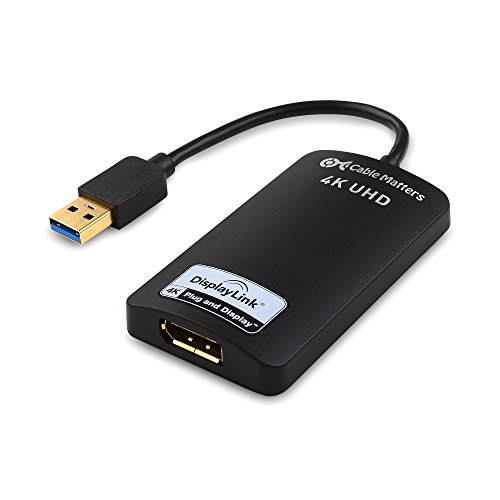
- Up to 4K at 30Hz over USB 3.0
- Supports extended and mirrored displays
- Bus-powered with DisplayLink software
Best For: Adding one DisplayPort monitor
Windows Office Pick
StarTech USB-A to HDMI Converter

- 1080p at 60Hz with HDMI audio
- Compact USB bus-powered design
- Supports Windows Intel, AMD, and ARM systems
Best For: Adding one HDMI monitor to a Windows PC
Cross-Platform Value Pick
CableCreation USB 3.0 to HDMI Adapter

- Supports Windows, macOS, ChromeOS, and Linux
- Mirror or extend an HDMI display
- Up to 1440p with DisplayLink support
Best For: Cross-platform USB-A to HDMI connections
Premium Windows Dual-Display Pick
StarTech USB-A Dual HDMI Adapter

- Adds two HDMI monitors from one USB-A 3.0 connection
- Supports 4K 30Hz plus 1080p 60Hz
- Windows-only design with driver installation required
Best For: Windows workstations needing two additional HDMI displays
Most Versatile Legacy-Display Option
Plugable USB 2.0 Video Adapter

- Supports DVI, HDMI, and VGA connections
- Adds up to six 1080p displays on compatible PCs
- Broad Windows, macOS, and ChromeOS compatibility
Best For: Mixed-display offices with older DVI or VGA monitors
Best Broad-Compatibility Choice
WAVLINK USB 3.0/USB-C HDMI Adapter

- Works with USB-A, USB-C, and Thunderbolt devices
- Supports Windows, macOS, ChromeOS, Ubuntu, and Android
- Handles up to 2560x1440 at 50Hz
Best For: Mixed-platform users adding HDMI displays
Travel-Friendly Expandability
Cable Matters USB 3.0 to HDMI Adapter

- Up to 2560 × 1440 video
- Includes HDMI-to-DVI adapter
- Bus-powered and portable
Best For: Adding one external display while traveling
Quad-Screen Productivity
StarTech USB-A Quad HDMI Adapter

- Drives four HDMI displays at 1080p60
- Supports up to five total screens
- Includes window-arrangement software
Best For: Windows users building a four-monitor workstation
Flexible Dual-Output Connectivity
StarTech USB 3.0 HDMI/DVI Adapter

- Provides HDMI and DVI-I/VGA outputs
- Supports up to 2048 × 1152
- Works with several listed operating systems
Best For: Connecting mixed HDMI and legacy displays
Versatile Presentation Pick – Belkin Multiport Video Adapter
For shoppers comparing premium USB video adapters, the Belkin AVC003btBK stands out when flexibility matters. Its tethered USB-C connection provides plug-and-play compatibility with Mac and Windows laptops and supports HDMI, VGA, DisplayPort, and DVI displays through one compact adapter.
Best For: Workstations, classrooms, and on-the-go presentations involving different display types.
Pros:
- Offers HDMI, VGA, DisplayPort, and DVI outputs.
- Uses a dedicated tethered USB-C cable for convenient connection.
- Compact construction is easy to carry.
- Backed by a two-year manufacturer warranty.
Cons:
- Requires a USB-C host device.
- Does not include a power plug.
The Belkin is a strong choice if you regularly move between modern and legacy displays. Its broad port selection is more useful for mixed presentation environments than for buyers who need only one output.
High-Resolution Expansion Pick – Cable Matters USB to DisplayPort Adapter
This Cable Matters adapter is one of the more capable premium USB video adapters for adding a DisplayPort monitor to a computer with an available USB-A port. With compatible hardware and a USB 3.0 connection, it supports up to 3840 × 2160 at 30Hz and can extend or mirror the desktop.
Best For: Windows or supported macOS users who want one additional DisplayPort monitor and 4K output.
Pros:
- Supports resolutions up to 3840 × 2160 at 30Hz.
- Supports extended and mirrored display modes.
- Bus-powered, so no external power supply is required.
- Can transmit audio over DisplayPort when the system supports it.
Cons:
- DisplayLink software installation is required.
- A DisplayPort cable is sold separately.
- Each adapter connects one monitor, and MST daisy-chaining is not supported.
Choose this model when DisplayPort and higher resolution are priorities. Before buying, confirm operating-system support, install the required DisplayLink software, and account for the separate display cable.
Windows Office Pick – StarTech USB-A to HDMI Converter
For Windows users seeking premium USB video adapters for an additional office display, the StarTech USB32HDES offers a straightforward USB-A-to-HDMI connection. It delivers up to 1920×1200 or 1080p at 60Hz, along with two-channel audio through HDMI, in a compact bus-powered design.
Best For: Windows office or home-work setups that need one additional HDMI monitor.
Pros:
- Supports 1080p video at 60Hz.
- Provides two-channel audio through HDMI.
- Compact and powered directly through USB.
- Works with Windows X86, X64, and ARM platforms, including Snapdragon X Copilot+ PCs.
Cons:
- Windows-only; macOS, ChromeOS, and Linux are not supported.
- Administrator rights are required to install drivers.
- Provides one HDMI output.
This is a practical, focused option for a Windows workstation rather than a cross-platform travel kit. Its driver requirement and operating-system limitation should be checked before purchase, but 60Hz HDMI output suits everyday productivity setups.
Cross-Platform Value Pick – CableCreation USB 3.0 to HDMI Adapter
The CableCreation CD0599 is a flexible choice among premium USB video adapters when broad platform support is important. Its DisplayLink-based USB 3.0 connection sends video and audio to an HDMI monitor, projector, or TV and supports mirrored or extended desktop modes.
Best For: Users connecting USB-A computers to HDMI displays across Windows, macOS, ChromeOS, and Linux environments.
Pros:
- Supports Windows, macOS, ChromeOS, and Linux.
- Offers mirror and extend display modes.
- Supports up to 1920×1080 and up to 2560×1440 when the target device supports it.
- Includes two-year warranty coverage and lifetime technical support.
Cons:
- Driver installation is required, including a macOS DisplayLink driver.
- Compatibility may require updating macOS to a later version.
- Uses USB-A and provides HDMI output only.
This adapter makes sense for mixed-device households and offices that need a simple HDMI connection from USB-A. Its broad compatibility is useful, but buyers should plan for DisplayLink software and verify their operating system before setup.
Premium Windows Dual-Display Pick – StarTech USB-A Dual HDMI Adapter
For Windows users building a premium USB video adapters setup, the StarTech USB32HD2 offers a straightforward way to add two HDMI monitors from one USB-A 3.0 connection. It supports one 4K display at 30Hz alongside a second 1080p display at 60Hz, making it well suited to office and home-workstation use.
Best For: Windows productivity workstations that need two additional HDMI displays.
Pros:
- Supports one 4K 30Hz display and one 1080p 60Hz display.
- Works with Windows X86, X64, and ARM platforms, including Snapdragon X Copilot+ PCs.
- Provides HDMI audio, HDCP 1.4, and a 3-year support commitment noted for IT professionals.
Cons:
- Only compatible with Windows; macOS, ChromeOS, and Linux are not supported.
- Administrator rights are required to install the drivers.
- The 4K output is limited to 30Hz.
This is a strong premium USB video adapters choice when dual HDMI output and Windows compatibility are the priorities. Confirm your system allows driver installation and that 30Hz 4K meets your needs before buying.
Most Versatile Legacy-Display Option – Plugable USB 2.0 Video Adapter
The Plugable UGA-165 is a flexible option among premium USB video adapters for users who need DVI, VGA, or HDMI connectivity. Its DisplayLink design supports up to 1920×1080 output and can be combined with additional adapters for expanded multi-monitor workspaces.
Best For: Mixed-display setups using Windows, macOS, or ChromeOS computers.
Pros:
- Includes DVI output with adapters for HDMI and VGA connections.
- Supports up to six additional 1080p displays on compatible systems, with up to four on macOS.
- Works with a broad range of Windows, macOS, and ChromeOS versions.
- Compact design requires no external power adapter.
Cons:
- Uses USB 2.0 rather than USB 3.0.
- Maximum listed resolution is 1920×1080 per display.
- A USB-C-to-USB-A adapter is required for USB-C computers and is sold separately.
Choose the UGA-165 when connection flexibility matters more than high-resolution output. The included DVI-to-HDMI and DVI-to-VGA adapters make it practical for offices with older monitors.
Best Broad-Compatibility Choice – WAVLINK USB 3.0/USB-C HDMI Adapter
The WAVLINK USB 3.0/USB-C HDMI adapter is a versatile premium USB video adapters option for extending or mirroring a display across Windows, macOS, ChromeOS, Ubuntu, and supported Android devices. It supports up to 2560×1440 at 50Hz or 2048×1152 at 60Hz and can scale to multiple monitors with one adapter per display.
Best For: Mixed-platform users who want a flexible HDMI adapter for work and multitasking.
Pros:
- Connects through USB-A, USB-C, Thunderbolt 3/4/5, or USB 4 devices.
- Supports Windows, macOS, ChromeOS, Ubuntu, and Android OTG systems.
- Can support up to six additional monitors on PCs, with one adapter required per monitor.
- Includes microphone input and earphone output plus an 18-month limited warranty.
Cons:
- DisplayLink driver installation is required.
- Maximum listed resolution is 2560×1440 at 50Hz.
- One adapter is needed for each additional monitor.
This WAVLINK model stands out for broad device support and connection flexibility. It is a practical choice for users switching between operating systems, provided they are comfortable installing DisplayLink drivers.
Travel-Friendly Expandability – Cable Matters USB 3.0 to HDMI Adapter
For shoppers seeking premium USB video adapters for a single extra screen, this Cable Matters model uses USB 3.0 to connect an HDTV, monitor, or projector through HDMI. It supports resolutions up to 2560 × 1440, is bus-powered, and includes an HDMI-to-DVI adapter for added display flexibility.
Best For: Laptop users who need a portable adapter for one additional HDMI or DVI display.
Pros:
- Supports video up to 2560 × 1440, including 1080p.
- Compact, portable design suited to travel and presentations.
- Bus-powered, with no external power supply required.
- Supports additional adapters for multiple monitors.
Cons:
- Windows compatibility is listed for Windows 10, 8.1, 7, Vista, and XP; other operating systems are not specified.
- Provides one primary HDMI output, with DVI connectivity through the included adapter.
This is a practical premium USB video adapter for adding a single high-resolution display without installing an internal graphics card. Its portability and included DVI option make it especially useful for mobile workstations and presentations.
Quad-Screen Productivity – StarTech USB-A Quad HDMI Adapter
This StarTech model stands out among premium USB video adapters for Windows users who need a four-monitor setup. Its USB 3.0 connection drives up to four HDMI displays at 1080p60, while included software helps arrange windows across a larger workspace.
Best For: Windows workstations and home offices requiring up to four additional HDMI monitors.
Pros:
- Adds up to four extended HDMI displays at 1080p60.
- Can support five total displays when including the laptop screen.
- Includes multi-monitor software for arranging, splitting, and scaling windows.
- USB bus-powered and equipped with a 3.3-foot attached USB-A cable.
Cons:
- Compatible only with Windows; macOS, ChromeOS, and Linux are not supported.
- Administrator rights are required to install the drivers.
- All displays share replicated two-channel HDMI audio from one source.
Choose this adapter when expanding screen real estate is more important than broad operating-system compatibility. It is purpose-built for Windows multi-monitor productivity, with four HDMI outputs and useful window-management software.
Flexible Dual-Output Connectivity – StarTech USB 3.0 HDMI/DVI Adapter
Among premium USB video adapters, this StarTech dual-head model is a versatile choice for adding two different display connections. It provides one DVI-I/VGA connection and one HDMI output, supports resolutions up to 2048 × 1152, and works with several Windows, macOS, Ubuntu, and Chrome OS versions listed by the manufacturer.
Best For: Users who need simultaneous HDMI and DVI-I/VGA connectivity from one USB 3.0 adapter.
Pros:
- Offers both HDMI and DVI-I/VGA display connections.
- Supports 1080p and 1920 × 1200 video, with a maximum listed resolution of 2048 × 1152.
- Compatible with multiple Windows versions, select macOS releases, Ubuntu, and Chrome OS.
- Supports 5.1 surround sound audio.
Cons:
- Optimal performance requires USB 3.0, although USB 2.0 is supported.
- Operating-system support varies by version and should be checked before purchase.
- The DVI-I/VGA output may require the appropriate display connection or cable.
This adapter is a strong fit for mixed-display environments where HDMI and legacy DVI-I/VGA equipment must work together. Its broad listed compatibility and dual-output design offer more connection flexibility than a single-port adapter.
How We Picked These Premium USB Video Adapters
We focused on adapters from established accessory brands and compared the factors that most affect real-world use: output type, maximum resolution and refresh rate, USB bandwidth, operating-system support, driver requirements, monitor capacity, and installation complexity. The selection includes basic adapters for adding one screen, DisplayLink-based models for broader compatibility, and multi-output units designed for demanding productivity setups.
Compatibility matters more than headline resolution. Some products require Windows drivers, while macOS support may be limited or unavailable. Check the manufacturer’s current requirements before buying, particularly if you use a Mac, Chromebook, Linux system, or a managed business computer.
Quick Comparison
| Best For | Look For | Key Trade-Off |
|---|---|---|
| One extra office monitor | USB 3.0 to HDMI or DisplayPort | Usually limited to one output |
| Modern high-resolution displays | 4K support and DisplayPort or HDMI output | May need a faster USB port and current drivers |
| Several monitors | Dual- or quad-output DisplayLink adapter | Higher software and bandwidth demands |
| Older monitors or projectors | VGA, DVI, or multi-standard output | Lower resolution or fewer modern features |
| Mixed computers and displays | USB-C or multi-format adapter | More expensive and potentially less compact |
Key Buying Factors for Premium USB Video Adapters
Connection and Output Type
Match the adapter’s host connector to your computer. USB-A models are useful for older desktops and laptops, while USB-C models can be more convenient on newer systems. Then choose HDMI, DisplayPort, DVI, or VGA according to your monitor. A multi-format adapter offers flexibility, but a direct connection is often simpler and more reliable.
Resolution, Refresh Rate, and Bandwidth
For office work, 1080p at 60Hz is generally sufficient. Choose a 4K-capable adapter for sharper text and larger workspaces, but verify whether 4K is supported at 30Hz or 60Hz. USB 3.0 is strongly preferred for high-resolution video; USB 2.0 models are better suited to basic documents and less demanding displays.
Operating-System and Driver Support
Many USB display adapters rely on DisplayLink or another software driver. Confirm support for your exact Windows or macOS version and check whether administrative access is needed for installation. Driver-based adapters can work well for productivity, but they are not ideal for latency-sensitive gaming or professional video editing.
Number of Displays
Single-output adapters are typically easier to install and troubleshoot. Dual- and quad-monitor models are more efficient when desk space and USB ports are limited, but they place greater demands on system resources and may have operating-system restrictions.
Who Should Buy Which Premium USB Video Adapters?
- Choose a single HDMI adapter if you simply need one additional 1080p monitor, television, or projector.
- Choose a DisplayPort model for a monitor that supports DisplayPort natively or for a high-resolution desktop setup.
- Choose a multi-format adapter when you regularly connect to different monitors, meeting-room projectors, or legacy displays.
- Choose a dual- or quad-HDMI adapter if your priority is expanding a Windows workstation across several screens.
- Choose a USB-C-compatible model for a newer laptop, but verify whether the computer’s USB-C port supports video; USB-C data support alone is not enough.
For the best results, connect the adapter directly to the computer rather than through an unpowered hub, keep display drivers updated, and confirm your laptop can support the total number of external screens.