USB video adapters make it possible to add HDMI monitors, projectors, or TVs when your computer lacks the right video port. The right model can turn a laptop into a more productive multi-screen workstation without replacing the computer.
This roundup compares 10 USB video adapters, including single-display, dual-monitor, DisplayLink, USB-A, and USB-C options. Pay close attention to operating-system support, resolution, refresh rate, and whether you need an extended or mirrored desktop.
Best 10 USB Video Adapters Picks for 2026
Best for Multi-Monitor Expansion
WAVLINK USB 3.0/USB-C to HDMI Adapter

- Supports up to six additional PC monitors
- Offers extended or mirrored display modes
- Works with USB-A, USB-C, and Thunderbolt devices
Best For: Large productivity workstations
Best Simple 1080p Add-On
j5create USB to HDMI Display Adapter

- Adds an HDMI display without an internal video card
- Supports output up to 1080p
- Hot-swappable connection avoids rebooting
Best For: Basic office multitasking
Best for Dual HDMI Displays
Plugable USB-C/USB 3.0 Dual HDMI Adapter
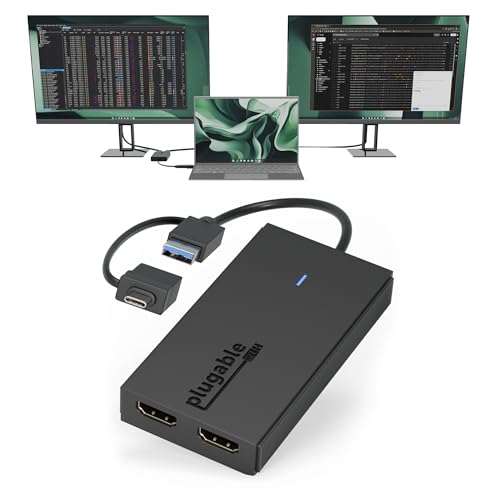
- Drives two HDMI monitors from one connection
- Supports dual 1080p at 60Hz
- Includes lifetime support and a two-year warranty
Best For: Dual-screen office productivity
Best for Older Windows PCs

- Supports HDMI output up to 1080p over USB 3.0
- Includes an onboard driver for installation
- Works with Windows XP through Windows 10
Best For: Legacy Windows display setups
Professional Dual-Display Choice
StarTech USB-A Dual HDMI Adapter

- Adds two HDMI monitors over USB-A
- Supports 4K 30Hz plus 1080p 60Hz
- Designed for Windows productivity setups
Best For: Windows workstations needing dual external displays
Simple Full-HD Setup

- 1080p at 60Hz over USB 3.0
- Supports Windows and macOS
- Mirror or extend one HDMI display
Best For: Portable single-display setups
Dual 4K Productivity
WAVLINK USB to Dual HDMI Adapter

- Drives two 4K displays at 60Hz
- USB-C and USB-A compatible cable
- Built for Windows, macOS, and ChromeOS
Best For: Dual-monitor office workstations
Best for Multi-Monitor Expansion – WAVLINK USB 3.0/USB-C to HDMI Adapter
Among USB video adapters, the WAVLINK stands out for users who want to add several displays across compatible Windows, macOS, ChromeOS, Ubuntu, or Android setups. It supports USB-A, USB-C, and Thunderbolt connections, but DisplayLink driver installation is required.
Best For: Expanding a compatible workstation with up to six additional monitors on PCs.
Pros:
- Supports mirror or extended displays at up to 2048×1152 at 60Hz or 2560×1440 at 50Hz.
- Can support up to six additional monitors on PCs, with one adapter per monitor.
- Includes microphone input and earphone output, plus USB-A and USB-C connectivity.
- Works with many current Windows, Mac, ChromeOS, Ubuntu, and Android configurations.
Cons:
- DisplayLink drivers must be installed before use.
- Compatibility and maximum monitor count depend on the operating system and computer.
This is a versatile choice for productivity-focused multi-display setups, especially when you need more than one external monitor. Check the operating-system requirements and driver policy on your computer before buying.
Best Simple 1080p Add-On – j5create USB to HDMI Display Adapter
This j5create model is one of the more straightforward USB video adapters for adding an HDMI monitor without installing an internal graphics card. After the driver is installed, its hot-swappable USB connection lets you add or remove a display without rebooting.
Best For: Everyday office multitasking with an additional monitor, projector, or HDTV.
Pros:
- Adds an extra display without requiring an internal video card.
- Supports up to 1080p output for compatible displays.
- Hot-swappable USB connection allows monitors to be added or removed without rebooting.
- Useful for spreadsheets, email, web browsing, accounting, editing, and other multitasking workflows.
Cons:
- Requires driver installation.
- The supplied notes do not specify operating-system compatibility.
For a basic second-screen setup, this adapter focuses on practical productivity rather than a long list of advanced features. Confirm the required driver and your computer’s compatibility before placing an order.
Best for Dual HDMI Displays – Plugable USB-C/USB 3.0 Dual HDMI Adapter
The Plugable is a dual-output option for USB video adapters, connecting two HDMI monitors through one USB-C or USB 3.0 port. It is aimed at office productivity and supports extended or mirrored 1080p displays, though driver installation is required and protected streaming content is not supported.
Best For: Windows, macOS, or ChromeOS users who need two external HDMI screens for everyday work.
Pros:
- Connects two HDMI displays through one USB-C or USB 3.0 connection.
- Supports extended or mirrored output at up to 1920×1080 at 60Hz per display.
- Compatible with USB-C, USB 3.0, USB4, and Thunderbolt 3, 4, and 5 ports on supported systems.
- Includes lifetime support and a two-year limited parts-and-labor warranty.
Cons:
- Requires Silicon Motion drivers; macOS users must manually install InstantView.
- Does not support HDCP-protected content from major streaming services.
- Not recommended for gaming, 4K workflows, or graphics-intensive creative work.
This is a strong fit for spreadsheets, documents, communication apps, and other multi-window tasks. It is less suitable when high-resolution media playback or demanding graphics performance is a priority.
Best for Older Windows PCs – AKWOR USB 3.0 to HDMI Adapter
The AKWOR is a budget-oriented choice among USB video adapters for connecting a Windows computer to an HDMI monitor, HDTV, or projector. It supports up to 1080p through USB 3.0, but it is limited to older Windows versions and requires driver installation.
Best For: Windows XP through Windows 10 systems that need a basic HDMI display connection.
Pros:
- Connects a USB-equipped computer to an HDMI monitor, HDTV, or projector.
- Supports up to 1920×1080 resolution with compatible USB 3.0 and display hardware.
- Includes an onboard driver that appears as a USB flash drive for installation.
- Aluminum-alloy construction is described as wear- and corrosion-resistant.
Cons:
- Windows 11 is not supported.
- USB 2.0 connections may be limited to 800×600 output.
- Display modes vary by Windows version: XP supports extend only, while Windows 7/8/8.1 support mirror only.
This adapter makes the most sense for maintaining an older Windows computer or adding a simple display to a legacy setup. Buyers with Windows 11, macOS, or ChromeOS systems should choose a model with explicitly stated support instead.
Budget 1080p Pick – USB to HDMI Adapter
If you need one of the simpler USB video adapters for adding an HDMI display, this USB 3.0/2.0 model supports mirror and extended desktop modes. It can deliver up to 1080p at 60Hz through USB 3.0, while USB 2.0 use is better suited to 720p.
Best For: Windows or Mac users who want an affordable adapter for a monitor, HDTV, projector, presentations, video calls, or basic multi-screen work.
Pros:
- Supports up to 1080p at 60Hz over USB 3.0.
- Offers both extended and mirrored display modes.
- Compatible with several Windows versions and Mac OS.
- Compact, lightweight design is convenient for travel.
Cons:
- Linux, Vista, Chrome, and Firestick are not supported.
- Requires driver installation and a restart.
- USB 2.0 use is recommended at 720p to help avoid latency or screen shaking.
This is a practical entry-level choice when 1080p output is sufficient. Check your operating system and available USB port before buying, especially if you need a driver-free or Linux-compatible solution.
Professional Dual-Display Choice – StarTech USB-A Dual HDMI Adapter
For Windows workstations that need two additional HDMI screens, this StarTech USB video adapter provides dual outputs from one USB-A connection. It supports one display at up to 4K 30Hz and a second at 1080p 60Hz, making it suited to productivity-focused desk setups.
Best For: Windows office users, remote workers, and IT-managed workstations that need two extended HDMI monitors and professional support coverage.
Pros:
- Adds up to two HDMI monitors through one USB-A connection.
- Supports 4K at 30Hz on one output and 1080p at 60Hz on the other.
- Works with Windows Intel, AMD, and Snapdragon X platforms.
- Includes multi-lingual technical assistance and a limited warranty.
Cons:
- Windows-only; macOS, ChromeOS, and Linux are not supported.
- Administrator rights are required to install the drivers.
- The 4K output is limited to 30Hz.
This is the more capable pick for a Windows dual-monitor setup, particularly where brand support matters. Its platform restrictions and driver requirements make it less suitable for mixed-device environments.
Best USB-C 4K Option – USB-C to HDMI Adapter
This compact USB-C video adapter is designed for devices with video-capable USB-C or Thunderbolt 3/4 ports. It provides up to 4K at 60Hz without driver installation and includes a 3.3-foot USB-C video cable, making it a convenient choice for compatible laptops, phones, tablets, and handhelds.
Best For: Users with a USB-C or Thunderbolt device that supports DisplayPort Alt Mode and want a portable 4K display connection to an HDMI monitor, TV, or projector.
Pros:
- Supports 4K at 60Hz, HDR, 3D, and Dolby Atmos.
- Plug-and-play operation requires no driver installation.
- Compatible with many recent Apple, Samsung, Windows, and gaming devices.
- Includes a 3.3-foot USB-C 3.1 video cable.
Cons:
- One-way operation supports USB-C source to HDMI display only.
- Requires a compatible USB-C video-out or Thunderbolt port.
- Should not be used with hubs, KVMs, docks, or switches.
This is a strong fit when you need high-refresh 4K output from a compatible USB-C source in a small package. Confirm that your device supports video output and use the included or an appropriately rated USB-C cable.
Simple Full-HD Setup – Reborn USB to HDMI Adapter
If you need a straightforward USB video adapter for adding an HDMI display to a Windows or Mac computer, the Reborn USB to HDMI Adapter supports up to 1080p at 60Hz over USB 3.0. It requires a one-time driver installation and supports mirrored or extended desktop modes.
Best For: Laptop users who need a compact USB-A-to-HDMI connection for work, presentations, or everyday multimedia.
Pros:
- Supports 1920×1080 output at 60Hz with USB 3.0.
- Works with Windows 7/8/10/11 and macOS.
- Supports both mirrored and extended display modes.
- Compact, durable design with a stated two-year warranty.
Cons:
- Driver installation is required before use.
- Not usable in BIOS mode.
- USB 2.0 or unsupported receiving devices may limit output to 800×600 or fail to work.
This is a practical pick when 1080p is sufficient and you want a portable adapter for a single HDMI display. Be sure to follow the installation instructions and remove conflicting USB display drivers if necessary.
Flexible 1080p Expansion – KUPOISHE USB to HDMI Adapter
The KUPOISHE USB to HDMI Adapter is a basic USB video adapter for connecting a computer to an HDMI monitor, TV, or projector. It supports 1920×1080 through either USB 3.0 or USB 2.0 and can mirror or extend the desktop after its driver is installed.
Best For: Desktop and laptop users who want an affordable way to add an HDMI screen for office work, presentations, or general viewing.
Pros:
- Supports up to 1920×1080 resolution through USB 3.0 or USB 2.0.
- Can mirror or extend the computer desktop.
- Compatible with HDMI monitors, TVs, and projectors.
- Supports hot-plugging after driver installation.
Cons:
- Requires driver installation before use.
- The supplied notes specify compatibility with Windows 8/10/11 and Mac systems, rather than a broader operating-system range.
- Designed around a single HDMI output.
Choose this adapter if you need simple 1080p HDMI expansion and value the included return and warranty coverage. It is best suited to routine productivity and presentation tasks rather than a multi-output workstation.
Dual 4K Productivity – WAVLINK USB to Dual HDMI Adapter
For a more capable USB video adapter setup, the WAVLINK DisplayLink adapter adds two extended HDMI displays from one USB-C, Thunderbolt, USB4, or USB-A 3.0 connection. It supports dual 4K at 60Hz, but requires DisplayLink software and is aimed at productivity rather than gaming or graphics-intensive work.
Best For: Windows, macOS, and compatible Chromebook users building a dual-monitor office or productivity workstation.
Pros:
- Supports two simultaneous 4K displays at 60Hz.
- Hybrid cable works with USB-C, USB-A, Thunderbolt 3/4, and USB4 ports.
- Adds extended screens to supported M1–M5 Macs and MacBook Neo models.
- Includes a 12-month warranty, extended registration coverage, and lifetime technical support.
Cons:
- DisplayLink driver installation is required.
- Not recommended for gaming, graphics-intensive, or design work.
- Does not support HDCP-protected content from services such as Netflix or Hulu.
- Does not support iOS, Linux, or Unix.
This is the strongest option here for expanding a compatible computer into a dual-4K productivity setup. Its broad port support is useful, but the driver dependency and content restrictions should be checked before purchase.
How We Picked the Best USB Video Adapters
We focused on adapters that offer a practical way to connect computers to HDMI displays, with attention to compatibility, output quality, monitor support, connection type, and setup requirements. The selection includes simple 1080p adapters for everyday use, dual-HDMI models for productivity, and higher-bandwidth USB-C options aimed at 4K displays.
We also separated true USB display adapters from basic USB-C-to-HDMI converters. USB display adapters typically rely on DisplayLink or another driver-based technology, while a USB-C video converter may require a compatible USB-C port with DisplayPort Alt Mode. That distinction is important because the ports can look similar but work differently.
Quick Comparison
- Best for a single 1080p monitor: A USB 3.0-to-HDMI adapter is usually sufficient for office work, web browsing, and presentations.
- Best for two monitors: Choose a dual-HDMI DisplayLink adapter and confirm your operating system supports the required software.
- Best for 4K: Look for explicit 4K resolution and refresh-rate specifications, such as 4K at 60Hz where supported.
- Best for broad flexibility: A USB-A and USB-C model can work with more laptops, but verify the included cables and port requirements.
Key Buying Factors for USB Video Adapters
Connection and Compatibility
Check whether your computer has USB-A, USB-C, or both. USB-A video adapters commonly need a driver and are not interchangeable with passive USB-C video cables. For USB-C adapters, confirm that the source port supports video output if the product is a direct USB-C-to-HDMI converter.
Resolution and Refresh Rate
1080p at 60Hz is adequate for most documents, email, and streaming. A 4K adapter provides sharper text and more workspace, but performance depends on the computer, adapter chipset, cable, and display. A stated 4K maximum may also apply only at a specific refresh rate.
Extended Versus Mirrored Displays
Mirroring shows the same image on multiple screens, while extending creates separate desktop space. If you need independent monitors, confirm that the adapter and operating system support extended mode. Some inexpensive splitters only duplicate a signal.
Drivers, Power, and Performance
DisplayLink models generally require software installation and may use additional CPU resources. They are well suited to office productivity but are not the first choice for high-frame-rate gaming. Consider driver availability, computer security restrictions, and whether the adapter needs external power.
Who Should Buy Which USB Video Adapters?
Choose a compact single-output model for presentations, a home office, or adding one HDMI monitor to a laptop. Select a dual-output DisplayLink adapter if you regularly work across two external screens and want an extended desktop. Pick a 4K-capable model for detailed spreadsheets, design work, or large monitors, but verify refresh-rate and operating-system limits first.
Windows users generally have the widest selection, while Mac users should check macOS support and display-count limitations carefully. If your laptop already supports video through USB-C, a direct USB-C-to-HDMI adapter may be simpler; if it does not, a driver-based USB video adapter is usually the more flexible solution.