The right USB video adapter can add a monitor, projector, or legacy display without replacing your laptop or desktop. However, compatibility, refresh rate, operating-system support, and driver requirements vary considerably between models.
We compared 10 professional USB video adapters across display output, resolution, connection type, multi-monitor support, and practical workplace use so you can choose the best fit for your setup.
Best 10 Professional USB Video Adapters Picks for 2026
Best Multi-Monitor Adapter

- Supports up to six added PC monitors
- Works with USB-A, USB-C, and Thunderbolt devices
- Requires DisplayLink driver installation
Best For: Multi-monitor office workstations
Best Windows Office Pick
StarTech USB-A to HDMI Converter

- Supports 1080p at 60Hz
- Compact and bus-powered
- Windows-only with driver installation required
Best For: Single-monitor Windows workstations
Best for Capture and Streaming

- Captures up to 1080p at 60FPS
- Supports USB 3.0 and USB-C connections
- Requires capture software; not a display adapter
Best For: Streaming, recording, and live video capture
Best Legacy VGA Option
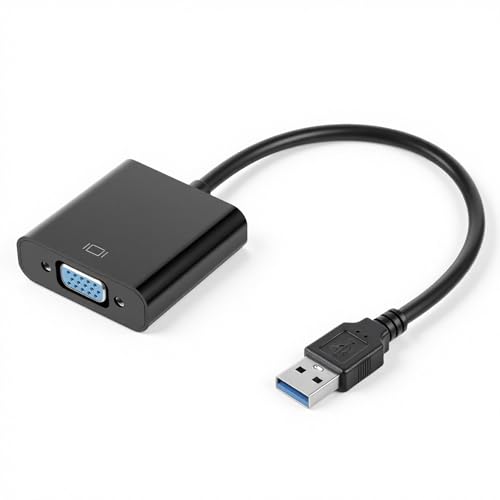
- Supports VGA displays up to 1920x1080
- Can extend or mirror a desktop
- Limited to Windows 7, 8, and Vista
Best For: Legacy VGA monitors and projectors
Best for Dual 4K/HDMI Workstations

- Adds two HDMI monitors over USB-A 3.0
- Supports 4K 30Hz plus 1080p 60Hz
- Includes professional support and warranty coverage
Best For: Windows dual-monitor office workstations
Best for Older Windows PCs

- Outputs up to 1080p over USB 3.0
- Works with HDMI monitors, TVs, and projectors
- Metallic body and driver included on the adapter
Best For: Basic HDMI output from supported legacy Windows PCs
Best Overall
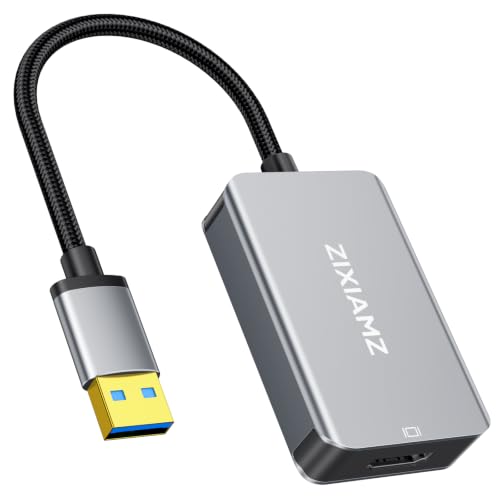
- 1080p at 60Hz with 3D support
- Mirror or extend displays
- Braided cable and two-year warranty
Best For: Presentations, conferencing, and everyday external-display use
Best Compact Pick
Reborn 1080p USB to HDMI Adapter

- 1080p at 60Hz with USB 3.0
- Compact and supports extended mode
- Two-year limited warranty
Best For: Portable laptop-to-HDMI display setups
Best Multi-Monitor Adapter – WAVLINK USB 3.0/USB-C to HDMI
For users comparing professional USB video adapters for expanded workspaces, the WAVLINK adapter offers USB-A or USB-C connectivity and DisplayLink support for mirroring or extending a display. It supports up to 2048×1152 at 60Hz or 2560×1440 at 50Hz, with one adapter required per added monitor.
Best For: Windows, Mac, ChromeOS, Ubuntu, or compatible Android users building multi-monitor workstations.
Pros:
- Supports up to six additional monitors on PCs.
- Works with USB 3.0, USB-C, Thunderbolt 3/4/5, and USB 4 devices.
- Includes external microphone input and earphone output.
- Backed by an 18-month limited warranty.
Cons:
- DisplayLink driver installation is required.
- Each additional monitor needs its own adapter.
- Maximum resolution varies by display mode.
This is the most flexible option here for a professional desk that needs several extended displays, provided you are comfortable installing the required driver.
Best Windows Office Pick – StarTech USB-A to HDMI Converter
The StarTech USB-A to HDMI converter is a focused choice among professional USB video adapters for adding one HDMI display to a Windows laptop or desktop. It delivers up to 1920×1200 or 1080p at 60Hz and uses USB bus power, so no separate power supply is needed.
Best For: Windows workstations, home offices, and users who need one compact extended display adapter.
Pros:
- Supports 1080p video at 60Hz and two-channel HDMI audio.
- Compact, lightweight, and USB bus-powered.
- Works with Windows X86, X64, and ARM platforms, including Snapdragon X Copilot+ PCs.
- Includes a two-year limited warranty.
Cons:
- Only compatible with Windows.
- Administrator rights are required for driver installation.
- Provides one USB-A-to-HDMI connection.
Choose this model when Windows compatibility and a portable, single-display setup matter more than support for macOS or multiple operating systems.
Best for Capture and Streaming – Guermok 4K HDMI Capture Card
Although it is not a direct monitor adapter, the Guermok capture card belongs in a professional USB video adapters comparison for recording, streaming, and video meetings. It accepts HDMI input up to 4K at 30Hz and outputs up to 2K at 30Hz or 1080p at 60Hz over USB 3.0 or USB-C.
Best For: Streamers, presenters, gamers, and creators capturing HDMI video into recording or streaming software.
Pros:
- Supports 1080p capture at 60 frames per second.
- Works with Windows, macOS, Linux, Android, OBS, VLC, and other listed platforms or software.
- Plug-and-play design requires no additional drivers or external power.
- Compact aluminum-alloy construction helps with portability and heat dissipation.
Cons:
- For capture use only; it is not intended to cast directly to a monitor or TV.
- Capture software is required.
- HDMI-to-USB transmission is one-way and can introduce millisecond-level latency.
This is the right tool for moving HDMI camera, console, or other source content into a computer—not for adding a conventional desktop display.
Best Legacy VGA Option – USB to VGA Monitor Adapter
For older classroom, conference, or home setups, this USB-to-VGA converter provides a straightforward choice among professional USB video adapters. It connects a USB-equipped Windows computer to a VGA monitor, projector, or TV and supports output up to 1920×1080 when used with USB 3.0.
Best For: Windows 7, Windows 8, and Vista systems using VGA displays or projectors.
Pros:
- Supports extended or mirrored displays.
- Offers up to 1920×1080 output.
- Useful for monitors, projectors, and TVs with VGA input.
- USB 3.0 provides fast and stable signal transmission.
Cons:
- Operating-system support is limited to Windows 7, Windows 8, and Vista.
- Uses VGA rather than HDMI or another digital display connection.
- No warranty is specified in the supplied details.
This adapter makes sense primarily when existing equipment requires VGA and the connected computer runs one of the listed legacy Windows systems.
Best for Dual 4K/HDMI Workstations – Windows Dual HDMI Adapter
For Windows users building a professional multi-monitor setup, this StarTech adapter adds two HDMI displays through one USB-A 3.0 connection. It supports one 4K display at 30Hz alongside a 1080p display at 60Hz, making it a strong choice among professional USB video adapters for office or work-from-home productivity.
Best For: Windows workstations that need two external HDMI monitors and dependable IT-oriented support.
Pros:
- Supports two HDMI displays, including 4K at 30Hz and 1080p at 60Hz.
- Works with Windows 7, 8/8.1, 10, and 11 on Intel, AMD, and Snapdragon X platforms.
- Provides HDMI audio, HDCP 1.4 support, and a three-year warranty with lifetime technical assistance.
Cons:
- Windows-only; macOS, ChromeOS, and Linux are not supported.
- Administrator rights are required for driver installation.
- One display is limited to 4K at 30Hz rather than 60Hz.
This is the most workstation-focused option in the group, especially when dual-display output and 4K support matter. Confirm that your computer runs a supported Windows version and that you have installation permissions before buying.
Best for Flexible Everyday Use – USB 3.0/2.0 to HDMI Adapter
This compact Luxentis adapter connects a computer to an HDMI monitor, HDTV, or projector and supports both mirrored and extended desktop modes. Its 1080p output over USB 3.0 makes it a practical budget-friendly option for everyday professional USB video adapters, presentations, video calls, and multitasking.
Best For: Users who need a portable single-HDMI adapter with Windows and macOS compatibility.
Pros:
- Supports up to 1080p at 60Hz through USB 3.0.
- Offers extend and mirror modes for multitasking or larger-screen viewing.
- Works with Windows XP through Windows 11 and Mac OS.
Cons:
- USB 2.0 connections are recommended at 720p for smoother performance.
- Linux, Windows Vista, ChromeOS, and Firestick are not supported.
- Driver installation and a computer restart are required.
Choose this model when portability, broad Windows support, and Mac compatibility are more important than 4K output. For the clearest results, use a USB 3.0 port and plan for the included driver installation.
Best for Older Windows PCs – AKWOR USB to HDMI Adapter
The AKWOR USB 3.0 to HDMI adapter is designed for connecting a Windows computer to an HDMI monitor, television, or projector at up to 1080p. It can suit older systems and basic display expansion, but buyers should pay close attention to its operating-system-specific limitations when comparing professional USB video adapters.
Best For: Users with supported Windows XP through 10 computers who need a basic 1080p HDMI connection.
Pros:
- Supports up to 1920×1080 output over USB 3.0.
- Connects computers to HDMI monitors, HDTVs, projectors, and televisions.
- Uses a compact aluminum-alloy body with a matte metallic finish.
Cons:
- Windows 11 is not supported, and macOS, Linux, and ChromeOS compatibility is not listed.
- Display modes vary by Windows version; Windows XP supports extend mode, while Windows 7/8/8.1 support mirror mode.
- USB 2.0 or an incompatible display may reduce output to 800×600.
This adapter is best considered for legacy Windows systems rather than current mixed-platform offices. Verify your Windows version, desired display mode, and USB port capability before purchasing.
Best Overall – 1080p USB 3.0 to HDMI Adapter
For shoppers comparing professional USB video adapters, this USB-A to HDMI model offers 1080p at 60Hz, support for mirrored or extended displays, and compatibility with Windows 7/8/10/11 and macOS. It requires a one-time driver installation before later plug-and-play use.
Best For: Office presentations, video conferencing, online learning, and home entertainment with an HDMI monitor, projector, or TV.
Pros:
- Outputs stable 1080p at 60Hz and supports 3D content.
- Supports both mirrored and extended display modes.
- Braided cable and gold-plated connectors are designed for frequent use.
- Includes a two-year manufacturer warranty.
Cons:
- Requires driver installation for first-time use.
- One-way output only; it cannot send HDMI input into the computer.
- Requires a compatible USB 3.0 port and supported operating system.
This is a well-rounded choice when dependable Full HD output and a durable cable matter more than a driver-free setup.
Best Warranty – USB HDMI Adapter for Multiple Displays
This KUPOISHE adapter is a practical option among professional USB video adapters for connecting a computer to an HDMI television, monitor, or projector. It supports 1920×1080 through USB 3.0 or USB 2.0 and can mirror or expand the desktop after driver installation.
Best For: Desktop users who want an additional HDMI display for productivity, presentations, or media viewing.
Pros:
- Supports 1920×1080 resolution through USB 3.0 or USB 2.0.
- Can synchronize displays or extend the desktop.
- Supports hot-plugging after the driver is installed.
- Includes stated 12-month returns and a 36-month warranty.
Cons:
- Driver installation is required before use.
- The supplied details identify a single HDMI port.
- The listing provides fewer operating-system specifics than some competing models.
Its USB 2.0 compatibility and lengthy stated warranty make it appealing for basic multi-display setups, provided the required driver installation is acceptable.
Best Compact Pick – Reborn 1080p USB to HDMI Adapter
The Reborn adapter is a compact choice for professional USB video adapters when you need Full HD output from a Windows or macOS computer. It supports 1080p at 60Hz with USB 3.0, while USB 2.0 or unsupported receiving devices may limit output to 800×600.
Best For: Laptop users who need a portable adapter for HDMI displays and occasional mirrored or extended-screen work.
Pros:
- Provides 1920×1080 output at 60Hz with USB 3.0.
- Supports both mirror and extended display modes.
- Compact design is convenient for carrying.
- Includes a two-year limited warranty and 24/7 after-sales service.
Cons:
- Requires driver installation and cannot be used in BIOS mode.
- Existing conflicting USB display drivers may need to be removed.
- USB 2.0 or unsupported receiving devices can reduce output to 800×600.
This model suits mobile setups, but its driver requirements and USB 2.0 limitations should be checked before relying on it for a presentation or workstation.
How We Picked These Professional USB Video Adapters
We focused on the specifications that matter in real work environments: supported operating systems, USB-A or USB-C connectivity, maximum resolution and refresh rate, display-output type, driver requirements, and multi-monitor capability. We also considered whether each adapter is better suited to office productivity, presentations, legacy equipment, or basic video capture.
Product listings can change, so confirm the manufacturer’s current specifications before buying. A USB display adapter is not automatically interchangeable with a video capture card: capture devices send HDMI video into a computer, while display adapters send your computer’s desktop to an external screen.
Quick Comparison
| Best For | Look For | Important Check |
|---|---|---|
| One additional monitor | USB 3.0 and 1080p support | Operating-system compatibility |
| Dual displays | Dual HDMI output or multi-adapter support | Combined resolution limits |
| High-resolution screens | 4K output and DisplayLink support | Refresh rate at 4K |
| Older monitors or projectors | VGA output | Maximum analog resolution |
| Recording or streaming | HDMI-to-USB capture hardware | Input resolution and frame rate |
Key Buying Factors for Professional USB Video Adapters
Connection and Bandwidth
USB 3.0 generally provides a better experience than USB 2.0 for high-resolution desktop output, especially when moving windows, displaying video, or driving more than one screen. USB-C models may be more convenient, but the connector alone does not guarantee video output or high performance.
Resolution and Refresh Rate
Check the complete specification rather than relying on a “4K” label. Some adapters support 4K at 30Hz, while 1080p models may deliver a smoother 60Hz experience. For office work, 1080p at 60Hz is often sufficient; large spreadsheets, detailed creative work, and modern monitors may benefit from higher resolution.
Drivers and Operating-System Support
Many USB display adapters require a driver, and some work only with Windows. Confirm support for your exact Windows or macOS version, especially on managed business computers where installing drivers may require administrator access. Also check whether the adapter supports sleep, hot-plugging, and multiple units on one computer.
Outputs and Audio
Choose HDMI for modern monitors, televisions, and projectors, or VGA when connecting older equipment. HDMI adapters may carry digital audio, but audio behavior can depend on the operating system and selected playback device.
Who Should Buy Which Professional USB Video Adapters?
Choose a single-output 1080p adapter for adding one everyday monitor or projector to a laptop. A dual-HDMI model is the more practical choice for a two-screen workstation, provided your computer and operating system support the advertised configuration. For larger deployments, a DisplayLink-based adapter with broad multi-monitor support can offer greater flexibility, but it depends more heavily on drivers and USB bandwidth.
Select a VGA adapter only when legacy hardware makes it necessary. If your goal is recording a camera, console, or another HDMI source, choose a dedicated capture card instead of a display adapter. Finally, verify ports, drivers, resolution, refresh rate, and return coverage before ordering—these checks prevent most compatibility surprises.