A reliable video adapter can turn a laptop into a more capable home-office workstation, whether you need one external monitor, two displays, or a simple way to connect older equipment.
This roundup compares 10 options across USB-A adapters, USB-C hubs, docking stations, direct HDMI cables, and video capture devices. Pay close attention to operating-system support, resolution, refresh rate, and the ports your computer actually provides.
Best 10 USB Video Adapters for Home Offices Picks for 2026
Windows Workstation Pick

- 1080p at 60Hz
- Compact USB bus-powered design
- Windows-only compatibility
Best For: Adding one HDMI monitor to a Windows home-office setup
All-in-One Office Hub

- 4K HDMI at 30Hz
- 100W USB-C PD pass-through
- USB, SD, and TF card slots
Best For: USB-C laptops needing display, charging, and peripheral expansion
Dual-Monitor Windows Pick

- Connects up to two HDMI displays
- 4K 30Hz plus 1080p 60Hz
- Windows-only driver-based setup
Best For: Windows home offices needing a two-monitor workstation
Analog Media Digitizer

- Captures VHS and other analog sources
- Up to 720p video capture
- Windows and Mac compatible
Best For: Digitizing tapes and RCA or S-Video footage
Best All-in-One Hub
6-in-1 ACASIS USB-C HDMI Adapter
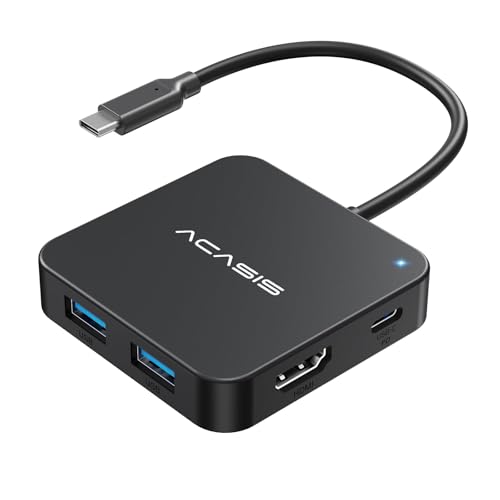
- 4K 60Hz HDMI output
- USB-A, USB-C data, and 100W PD
- One-monitor expansion
Best For: Modern USB-C laptops needing display, data, and charging in one hub
Best Simple 4K Cable

- 4K 60Hz support
- Plug-and-play design
- Six-foot braided cable
Best For: Direct USB-C laptop-to-HDMI monitor connections
Best for Older Windows PCs

- Up to 1080p HDMI output
- Supports Windows XP through 10
- Driver included on adapter
Best For: Legacy Windows computers needing one HDMI display connection
Best Multi-Monitor Dock
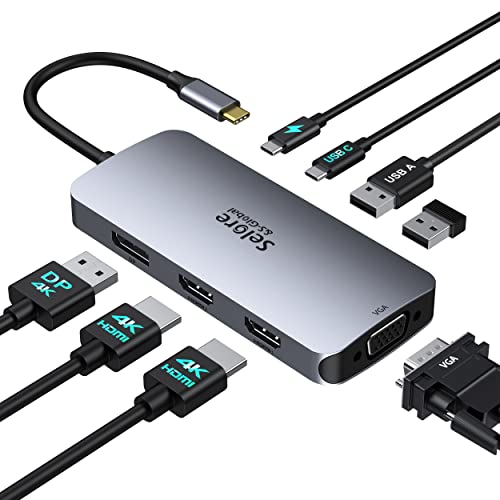
- Supports dual HDMI, DisplayPort, and VGA outputs
- Up to 100W USB-C Power Delivery
- Requires a video-capable USB-C or Thunderbolt port
Best For: Windows multi-monitor home office setups
Best Simple Display Adapter
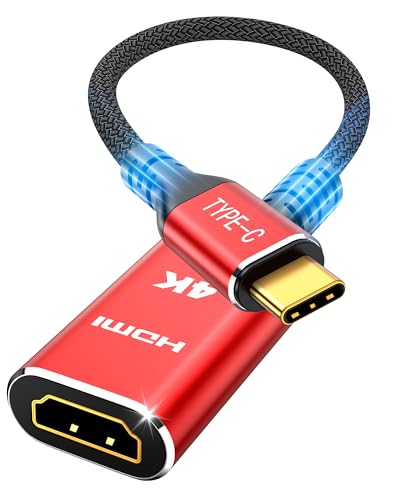
- Supports up to 4K at 60Hz
- Plug-and-play single-HDMI connection
- Durable, flexible nylon design
Best For: One-monitor laptop, phone, or presentation setups
Best for Streaming and Meetings

- Accepts 4K 60Hz HDMI input
- Captures HDMI video and audio over USB
- Works with OBS and multiple operating systems
Best For: Streaming, teaching, recording, and video conferencing
Windows Workstation Pick – Single HDMI Display Adapter
If you need a straightforward way to add one monitor, this StarTech adapter is a practical choice among USB video adapters for home offices. It connects through USB-A and supports up to 1920×1200 or 1080p at 60Hz, with HDMI audio support.
Best For: Windows users who want one additional HDMI display for a home-office workstation.
Pros:
- Supports 1080p at 60Hz and up to 1920×1200.
- Compact, lightweight, and USB bus-powered.
- Works with Windows X86, X64, and ARM platforms.
Cons:
- Windows-only; it does not support macOS, ChromeOS, or Linux.
- Driver installation requires administrator rights.
- Uses USB-A rather than USB-C.
This is a focused single-display solution rather than a multifunction hub. Confirm your computer runs Windows and that you have the necessary permissions before buying.
All-in-One Office Hub – 7-in-1 USB-C Workstation Hub
This Hiearcool hub combines display output, charging, data ports, and card readers in one compact accessory. For home offices using USB-C laptops, it is a versatile option among USB video adapters for home offices, with 4K HDMI output at 30Hz.
Best For: USB-C laptop users who need HDMI, peripheral connectivity, card readers, and pass-through charging.
Pros:
- Provides 4K HDMI output at 30Hz.
- Supports up to 100W USB-C PD pass-through charging.
- Includes USB 3.0, SD, and TF card slots.
- Compact aluminum design supports travel and daily use.
Cons:
- HDMI output is limited to 30Hz at 4K.
- Requires a compatible USB-C device.
- It has two USB ports, so connectivity is limited for larger setups.
Choose this model when display expansion is only part of your needs. Its combination of HDMI, charging, storage-card access, and USB connectivity can reduce desk clutter, especially with a USB-C laptop.
Dual-Monitor Windows Pick – USB-A Dual HDMI Adapter
For a Windows home office with two external displays, this StarTech adapter provides two HDMI outputs from one USB-A connection. It supports one display at 4K 30Hz and another at 1080p 60Hz, making it a productivity-focused choice among USB video adapters for home offices.
Best For: Windows users building a two-monitor workstation from a laptop or desktop with USB-A.
Pros:
- Supports up to two extended HDMI monitors.
- Offers one 4K 30Hz output and one 1080p 60Hz output.
- Includes two-channel HDMI audio support and HDCP 1.4.
- Backed by a three-year support offering for IT professionals.
Cons:
- Windows-only; macOS, ChromeOS, and Linux are not supported.
- Administrator rights are required for driver installation.
- The 4K output is limited to 30Hz.
This adapter is well suited to desk-based multitasking, provided your computer runs a supported Windows version. Check the available USB-A port and your monitors’ HDMI inputs before ordering.
Analog Media Digitizer – RCA and S-Video Capture Card
This capture device serves a different home-office need: converting analog video and audio from VHS, VCRs, Hi8, DV tapes, camcorders, and similar sources to a computer. It is a useful specialized entry among USB video adapters for home offices, though it is designed for capture rather than connecting a computer to an external monitor.
Best For: Digitizing older tapes and RCA or S-Video footage on Windows or Mac computers.
Pros:
- Accepts RCA composite and S-Video sources.
- Captures video at up to 720p and includes audio capture.
- Works with Windows and Mac OS without external power.
- Supports NTSC and PAL formats.
Cons:
- Requires separate acquisition software, such as OBS Studio, PotPlayer, or QuickTime Player.
- It is intended for analog capture, not monitor output.
- Performance depends on the source device and capture software.
If your goal is preserving home videos, this is more appropriate than a display adapter. Plan to supply your own RCA or S-Video source equipment and configure compatible capture software.
Best All-in-One Hub – 6-in-1 ACASIS USB-C HDMI Adapter
For home offices that need more than a single display connection, the ACASIS is a versatile choice among USB video adapters for home offices. It combines one HDMI output with USB-A, USB-C data, and 100W USB-C Power Delivery, while supporting up to 4K at 60Hz. Your computer’s USB-C port must support video output through USB4 or Thunderbolt 3/4.
Best For: Laptop users who want one compact hub for an external monitor, peripherals, fast file transfers, and charging.
Pros:
- Supports HDMI output up to 4K at 60Hz.
- Includes three USB-A 3.1 ports and one USB-C 3.1 data port with speeds up to 10Gbps.
- Provides up to 100W USB-C Power Delivery while other ports are in use.
- Portable six-in-one design for compatible laptops and tablets.
Cons:
- Has only one HDMI port and supports one external monitor.
- The host USB-C port must support video output.
- The USB-C port marked 10Gbps is for data only, not video or charging.
This is the most feature-rich option here for a modern USB-C home-office setup, especially when desk space and port expansion matter. Confirm your laptop’s port capabilities before buying.
Best Simple 4K Cable – WARRKY USB-C to HDMI Cable
If your home-office laptop already has the ports you need, the WARRKY offers a straightforward alternative to bulkier USB video adapters for home offices. This six-foot USB-C-to-HDMI cable supports 4K at 60Hz, works without drivers, and can mirror or extend a compatible device to a monitor, TV, or projector.
Best For: Users who need a direct, dependable connection from a video-capable USB-C device to one HDMI display.
Pros:
- Supports 4K at 60Hz, with backward compatibility for 1440p and 1080p modes.
- Plug-and-play operation requires no drivers.
- Six-foot length provides useful flexibility around a desk.
- Nylon braiding, an aluminum housing, and thicker copper wire are designed for durability and reduced signal loss.
Cons:
- It provides one HDMI connection and no extra USB ports or charging.
- Requires a USB-C port with DP Alt Mode or Thunderbolt 3/4 video output.
- Compatibility depends on the specific device and its supported display modes.
Choose this cable when simplicity is the priority. It is less suitable if you also need to connect USB peripherals or charge your laptop through the same accessory.
Best for Older Windows PCs – AKWOR USB 3.0 to HDMI Adapter
The AKWOR takes a different approach from newer USB-C video adapters for home offices by converting a standard USB 3.0 connection to HDMI. It supports up to 1080p output for a monitor, HDTV, or projector, but requires driver installation and is intended for Windows XP through Windows 10 rather than Windows 11.
Best For: Windows XP, 7, 8, 8.1, or 10 computers that lack a convenient HDMI output and need a single additional display connection.
Pros:
- Connects a computer’s USB 3.0 port to an HDMI display.
- Supports up to 1920×1080 resolution with compatible USB and display hardware.
- Includes driver files on the adapter to simplify installation.
- Aluminum-alloy housing is designed for wear and corrosion resistance.
Cons:
- Requires driver installation and a computer restart.
- Windows 11 is not supported according to the supplied specifications.
- USB 2.0 connections or unsupported displays may limit output to 800×600.
This adapter can extend the life of an older Windows home-office computer, but its operating-system limitations make it a poor fit for current Windows 11 systems or most modern USB-C laptops.
Best Multi-Monitor Dock – Selore USB-C Docking Station
For home offices that need several displays and extra connectivity, this Selore docking station is one of the more versatile USB video adapters for home offices. It supports dual HDMI, DisplayPort, and VGA outputs, while also adding USB ports and up to 100W USB-C Power Delivery.
Best For: Windows users building a multi-monitor workstation from a compatible full-featured USB-C or Thunderbolt 3/4 laptop.
Pros:
- Supports multiple display outputs, including dual HDMI, DisplayPort, and VGA.
- Offers up to 4K output on supported connections and up to 100W PD charging.
- Includes three USB 2.0 ports for peripherals and compact aluminum construction.
Cons:
- Requires a full-featured USB-C, Thunderbolt 3/4, or USB4 port with video support.
- MacBook extended-display functionality is limited; connected screens may mirror the same content.
- USB ports transfer data at up to 480Mbps, which is slower than USB 3.x.
This is a capable desktop hub when display expansion and charging matter more than high-speed peripheral transfers. Check your laptop’s USB-C capabilities and operating-system limitations before buying, especially for Mac use.
Best Simple Display Adapter – Highwings USB-C to HDMI
If you only need to connect one external screen, the Highwings adapter keeps things straightforward. Among USB video adapters for home offices, this USB-C-to-HDMI model offers plug-and-play setup and supports up to 4K at 60Hz with compatible devices and displays.
Best For: Connecting a compatible USB-C or Thunderbolt 3/4 laptop or phone to one HDMI monitor, TV, or projector.
Pros:
- Supports up to 4K at 60Hz and up to 18Gbps transmission.
- Plug-and-play design requires no installation.
- Flexible nylon construction, gold-plated ports, and a stated 25,000-flex durability rating.
Cons:
- Provides one HDMI connection only and does not add charging or USB ports.
- Requires a USB-C port that supports video output or Thunderbolt 3/4.
- Actual display quality depends on the host device, cable, and monitor.
This is a practical choice for a single-monitor home-office setup or occasional presentations. It is easier to use than a full dock, but verify USB-C video compatibility before ordering.
Best for Streaming and Meetings – VIXLW HDMI Capture Card
The VIXLW capture card serves a different role from a standard display adapter: it brings HDMI video and audio into a computer over USB. For home offices handling webinars, teaching, streaming, or video conferences, it can function as a budget-friendly capture solution.
Best For: Capturing a camera, console, or other HDMI source for OBS, online meetings, recording, and live broadcasts.
Pros:
- Accepts 4K at 60Hz video input and outputs up to 1080p at 30Hz.
- Captures video and audio with low-latency HDMI connectivity.
- Plug-and-play design works with Windows, macOS, Linux, and Android systems listed by the manufacturer.
Cons:
- It captures HDMI sources rather than directly driving an external monitor.
- Maximum listed output resolution is 1080p at 30Hz.
- Compatibility and performance can vary by operating system, software, and source device.
Choose this model when your home-office workflow involves bringing HDMI footage into a computer, not simply extending your desktop. Its OBS support and included USB cable make it useful for meetings, courses, and streaming.
How We Picked the Best USB Video Adapters for Home Offices
We selected products covering the most common home-office setups rather than treating every USB video device as interchangeable. The lineup includes USB-A-to-HDMI adapters for computers without native video output, USB-C hubs and docks for newer laptops, direct USB-C-to-HDMI connections, and capture cards for bringing HDMI or analog video into a computer.
Our comparisons focus on connection type, supported resolution and refresh rate, display capacity, operating-system compatibility, bandwidth, included ports, and practical setup requirements. Driver support matters especially for USB-A display adapters, while USB-C products must support video output through the laptop’s USB-C port—not merely charging or data transfer.
Quick Comparison
- For one Windows monitor: Choose a USB-A-to-HDMI adapter when your laptop lacks a usable video port.
- For MacBook connectivity: A USB-C hub or direct USB-C-to-HDMI adapter can add display output along with charging and peripheral ports.
- For two or more monitors: Consider a dual-HDMI adapter or USB-C docking station, but verify operating-system and display-mode limitations.
- For the sharpest motion: Look for 4K at 60Hz; 4K at 30Hz is workable for documents but less fluid.
- For recording video: Use a capture card, not a display adapter. Capture devices send video into the computer rather than driving an external monitor.
Key Buying Factors for USB Video Adapters for Home Offices
Connection and Compatibility
Start with the ports on both devices. USB-A display adapters commonly require Windows drivers and may not work with macOS or ChromeOS. USB-C adapters are more flexible, but the host port needs DisplayPort Alt Mode or Thunderbolt support. Check the manufacturer’s compatibility list before buying.
Resolution, Refresh Rate, and Display Count
1080p is sufficient for everyday documents and video calls, while 4K provides more workspace and sharper text. A 60Hz refresh rate generally feels smoother than 30Hz. For multiple displays, confirm whether the adapter supports independent extended desktops or only mirroring, and whether your computer’s graphics hardware can handle the requested setup.
Power, Ports, and Installation
Hubs and docks may add USB ports, Ethernet, memory-card slots, and pass-through charging. These extras are useful when a thin laptop has limited connectivity, but they can increase cable clutter and cost. Driver-based adapters may need software installation and can use system resources, so they are best suited to office productivity rather than demanding graphics work.
Who Should Buy Which USB Video Adapters for Home Offices?
Choose a USB-A HDMI adapter if you use a Windows laptop with available USB 3.0 ports and need a straightforward second screen. Choose a USB-C hub if you want display output plus charging and accessories from one compact device. Choose a docking station for a permanent desk setup with multiple monitors and several peripherals. Choose a direct USB-C-to-HDMI cable for the simplest single-monitor connection when your laptop natively supports video over USB-C. Finally, choose a capture card only when your goal is recording, streaming, teaching, or digitizing external video—not extending your desktop.