Choosing your first USB video adapter can be confusing because similar-looking devices may serve completely different purposes. Some add an HDMI or VGA display to a computer, while others capture video from a camera, VCR, or game system.
This roundup focuses on practical options for beginners, with attention to compatibility, resolution, connection type, setup requirements, and the difference between display adapters and video-capture hardware.
Best 10 USB Video Adapters for Beginners Picks for 2026
Reliable Windows Pick

- 1080p at 60Hz with HDMI audio
- Supports Windows X86, X64, and ARM
- Compact, bus-powered design
Best For: Windows workstation users adding one HDMI monitor
Analog Memory Saver
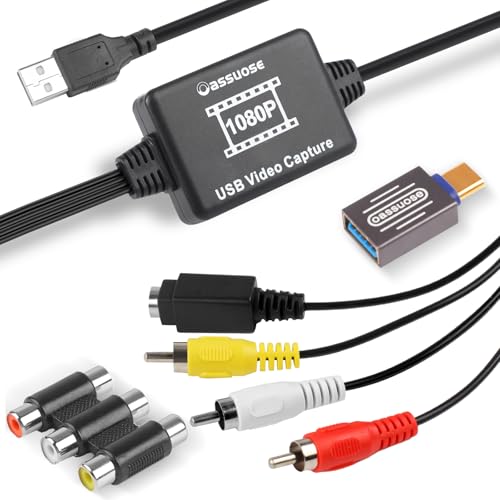
- Converts RCA or S-Video to digital video
- Supports USB-A and USB-C
- Works with Windows and Mac
Best For: Digitizing VHS, DVD, camcorder, and other analog footage
Compact Dual-Mode Adapter

- Works with Windows and macOS
- Supports mirror and extended modes
- Up to 1080p at 60Hz under stated conditions
Best For: Portable Windows or Mac display expansion
Best for VHS Digitizing

- Captures RCA and S-Video sources at up to 720p
- Transfers VHS, Hi8, Mini DV, and DVD footage
- Includes automatic drivers and audio capture
Best For: Digitizing family tapes and analog video collections
Best for HDMI Streaming

- Accepts up to 4K HDMI input
- Outputs 1080p video at up to 60fps
- Includes USB-A and USB-C interfaces
Best For: Streaming games or recording HDMI cameras and consoles
Best Dual-Monitor Adapter

- HDMI and VGA outputs
- Up to 1080p at 60Hz via USB 3.0
- Compact for travel and presentations
Best For: Adding a monitor or projector to a compatible laptop
Best Heavy-Duty Pick

- Converts analog video to USB
- Supports RCA and S-Video sources
- No external power required
Best For: Transferring VHS and camcorder footage to a computer
Best Plug-and-Play Tape Converter

- Converts VHS and other analog media
- RCA and S-Video compatibility
- Automatic driver installation
Best For: Digitizing mixed tape collections at home
Reliable Windows Pick – StarTech USB-A to HDMI
For beginners choosing USB video adapters for beginners, this StarTech model is a straightforward option for adding one HDMI display to a Windows laptop or desktop. It supports up to 1920×1200 or 1080p at 60Hz, but requires driver installation and administrator access.
Best For: Windows users who want a compact adapter for extending a workstation display.
Pros:
- Supports 1080p video at 60Hz and two-channel HDMI audio.
- Works with Windows X86, X64, and ARM platforms, including Snapdragon X Copilot+ PCs.
- Compact, lightweight, and USB bus-powered with no separate power supply.
Cons:
- Not compatible with macOS, ChromeOS, or Linux.
- Driver installation requires administrator rights.
- Provides one HDMI output rather than multiple display connections.
This is a good beginner-friendly choice when you have a Windows computer, an available USB-A port, and permission to install drivers. Its clear limitations make compatibility checking especially important before purchase.
Flexible Multi-OS Option – USB 3.0 to HDMI Adapter
This USB video adapter for beginners connects a computer to an HDMI monitor, HDTV, or projector and supports mirror or extended display modes. It works with Windows and macOS, though the supplied notes exclude Linux, Vista, Chrome, and Firestick devices.
Best For: Beginners who need an affordable adapter for Windows or Mac display expansion and occasional travel.
Pros:
- Supports up to 1080p at 60Hz when used with USB 3.0.
- Offers both mirror and extend modes for multitasking or larger-screen viewing.
- Lightweight and portable, with an included driver stored on the device.
Cons:
- USB 2.0 use is recommended at up to 720p and may have more limitations.
- Not supported on Linux, Windows Vista, Chrome, or Firestick.
- Driver installation may be blocked by antivirus software.
Its Windows-and-Mac support makes this a versatile starting point, provided your computer has USB-A and you are comfortable installing the included driver. For the best stated resolution, use a USB 3.0 port.
Analog Memory Saver – Oassuose VHS Capture Card
Unlike standard display adapters, this USB video adapter for beginners captures analog video from VHS players, VCRs, DVD devices, camcorders, and similar sources. It converts RCA or S-Video input to digital video for saving on a Windows PC or Mac, with capture software required.
Best For: Beginners digitizing family VHS tapes, camcorder footage, or other RCA/S-Video recordings.
Pros:
- Accepts RCA and S-Video video sources with synchronized audio.
- Supports USB-A and USB-C computer connections.
- Works with Windows and Mac and supports NTSC, PAL, and image adjustments.
Cons:
- Requires separate capture software such as OBS Studio, PotPlayer, or QuickTime Player.
- It is designed for recording analog sources, not connecting a computer to an HDMI display.
- Capture output is specified as up to 1080p at 30fps.
This is the right kind of adapter for preserving older recordings, but it should not be confused with a USB-to-HDMI monitor adapter. Plan on installing or opening compatible capture software before starting a transfer.
Compact Dual-Mode Adapter – Reborn USB to HDMI
For beginners comparing USB video adapters for beginners, the Reborn USB-to-HDMI adapter provides mirror and extended display modes for Windows and macOS computers. It requires a driver, supports 1080p at 60Hz under the stated conditions, and uses USB-A with an HDMI display connection.
Best For: Windows or Mac users who need a portable adapter for everyday mirrored or extended-screen use.
Pros:
- Supports Windows 7/8/10/11 and macOS.
- Offers mirror and extended display modes.
- Compact construction and a stated two-year warranty.
Cons:
- Driver installation is required and the adapter cannot be used in BIOS mode.
- USB 2.0 or unsupported receiving devices may limit output to 800×600.
- Other USB display drivers may need to be removed to prevent conflicts.
This model can suit a mixed Windows-and-Mac household, but beginners should install the supplied driver before relying on it. Check that the computer and receiving display meet the USB and resolution requirements for the expected result.
Best for VHS Digitizing – RCA-to-USB Video Capture Card
For beginners looking for USB video adapters for beginners, this RCA-to-USB capture card provides a straightforward way to transfer footage from VHS, VCR, Hi8, Mini DV, DVD players, and compatible camcorders to a Windows PC or Mac. It supports 720p capture, automatic driver installation, and audio capture without a separate sound card.
Best For: Digitizing family tapes and other analog video collections.
Pros:
- Works with RCA or S-Video sources, including VHS, VCR, Hi8, Mini DV, and DVD devices.
- Supports 720p USB output and simultaneous audio capture.
- Requires no external power, with automatic driver installation.
- Supports NTSC/PAL and includes controls for brightness, contrast, hue, and saturation.
Cons:
- Requires separate capture software such as OBS Studio, PotPlayer, or QuickTime Player.
- Listed compatibility is limited to Windows Vista and Mac OS rather than a broad range of specific versions.
This is a practical beginner option when the goal is preserving analog recordings rather than connecting a modern HDMI source. The included guide and USB extension cable may also make initial setup easier.
Best for Extra Displays – USB-to-HDMI Monitor Adapter
This USB-to-HDMI adapter is a beginner-friendly choice among USB video adapters for beginners who want to connect a computer to an HDMI monitor, TV, or projector. It supports USB 3.0 and USB 2.0 connections, offers up to 1920 x 1080 resolution, and can mirror or extend the desktop after the required driver is installed.
Best For: Adding an HDMI display to a compatible Windows computer.
Pros:
- Connects a PC to an HDMI monitor, TV, or projector.
- Supports up to 1920 x 1080 resolution through USB 3.0 or USB 2.0.
- Can mirror or extend the desktop for additional workspace.
- Supports hot-plugging and includes stated return and warranty coverage.
Cons:
- Requires driver installation before use.
- The supplied notes identify Windows 11, 10, and 8 compatibility, so Mac support is not established here.
For a simple secondary-screen setup, this adapter covers the essential connection and display functions. Confirm your computer’s operating-system compatibility and install the driver before relying on it for a multi-monitor workspace.
Best for HDMI Streaming – 4K HDMI-to-USB Capture Card
Beginners comparing USB video adapters for beginners for streaming or recording can use this HDMI-to-USB capture card with cameras, game consoles, smartphones, and other HDMI sources. It accepts up to 4K input and outputs up to 1080p at 60 frames per second, with USB-A and USB-C interfaces for connection to compatible computers and mobile devices.
Best For: Live streaming, game capture, and HDMI video recording.
Pros:
- Supports up to 3840 x 2160 at 30Hz input and 1080p at 60fps output.
- Provides both USB-A and USB-C connection options.
- Designed for real-time preview and low-latency streaming.
- Works with Windows, Android, MacOS, and Linux and supports software such as OBS and VLC.
Cons:
- It is unidirectional, converting HDMI sources to USB or USB-C displays only.
- Capture and streaming require separate software, and OBS may need to be restarted after audio setup.
- It requires a device with a USB 3.0 interface.
This is the most capable choice here for modern HDMI sources and streaming workflows. Its dual-interface design is useful for newer laptops and mobile devices, but beginners should plan on configuring capture software before recording or broadcasting.
Best Dual-Monitor Adapter – USB 3.0 to HDMI/VGA Adapter
For beginners comparing USB video adapters for beginners, this AKWOR model is a practical choice for adding external displays to a Windows or compatible Mac computer. It offers HDMI and VGA outputs, supports up to 1920×1080 at 60Hz through USB 3.0, and can connect two monitors, though both outputs mirror the same content when used simultaneously.
Best For: Laptop users who need HDMI or VGA connectivity for monitors, projectors, or presentations.
Pros:
- Provides both HDMI and VGA outputs.
- Supports up to 1080p at 60Hz through a USB 3.0 port.
- Compact design is convenient for travel and presentations.
Cons:
- Requires driver installation rather than being fully plug and play.
- Using HDMI and VGA together displays the same content on both monitors.
- USB 2.0 use limits resolution to 800×600.
This adapter is appealing if you need flexible display connections in a small package. Check your operating system and USB port first, since compatibility and display modes vary by system.
Best Heavy-Duty Pick – RCA to USB Video Capture Card
If you are new to USB video adapters for beginners, this capture card provides a straightforward way to transfer footage from VHS, VCR, Hi8, DV, or other RCA-equipped devices to a computer. It converts analog composite video to up to 720p USB output and captures audio without requiring an external sound card.
Best For: Beginners digitizing tapes and other analog home videos on Windows or Mac computers.
Pros:
- Supports RCA and S-Video sources.
- Works with VHS, VCR, Hi8, DV, camcorders, and DVD devices.
- Needs no external power and automatically installs its driver when connected.
- Supports NTSC and PAL signals with basic image controls.
Cons:
- Requires separate acquisition software such as OBS Studio, PotPlayer, or QuickTime Player.
- Output is limited to 720p.
This is a beginner-friendly option for preserving older recordings, provided you have compatible RCA or S-Video equipment and are comfortable using capture software.
Best Plug-and-Play Tape Converter – USB VHS Capture Card
For beginners seeking USB video adapters for beginners, this RCA-to-USB converter focuses on transferring older recordings to a computer without an external power supply. It supports common sources such as VHS, VCR, Hi8, Mini DV, DVD, and camcorders, with analog video converted to 720p USB output.
Best For: Home users who want to digitize a variety of analog tapes using Windows Vista or Mac OS.
Pros:
- Works with RCA and S-Video devices.
- Captures both video and audio without a separate sound card.
- Automatically installs its driver after connection.
- Supports NTSC/PAL and image adjustments such as brightness and contrast.
Cons:
- Requires separate capture software, including OBS Studio, PotPlayer, or QuickTime Player.
- Analog conversion is limited to 720p USB output.
Its broad source compatibility makes it useful for a mixed collection of tapes and players. Beginners should follow the included guide and confirm that their computer and capture software are supported.
How We Picked the Best USB Video Adapters for Beginners
We grouped the selected products by their intended job rather than treating every USB adapter as interchangeable. Display adapters are evaluated for monitor connectivity, supported resolution, refresh rate, operating-system compatibility, and whether they require a driver. Capture cards are considered separately because they send video into recording or streaming software instead of simply extending your desktop.
We also looked for useful connection choices, including USB-A, USB-C, HDMI, VGA, RCA, and composite inputs. Product claims such as 1080p output, 4K input, and 60Hz operation should always be checked against the computer, display, cables, and software used with the adapter.
Quick Comparison
- For adding an HDMI monitor: Choose a USB 3.0-to-HDMI display adapter with an explicit Windows or macOS compatibility listing.
- For two displays: Look for a multi-monitor model and confirm that your computer supports the required number of adapters.
- For VGA and HDMI setups: A dual-output adapter may suit older projectors or monitors, but its outputs and maximum resolution can vary.
- For VHS and camcorder tapes: Select an RCA-to-USB capture device, not a display adapter.
- For HDMI recording or streaming: Use an HDMI-to-USB capture card and verify input resolution, frame rate, and audio support.
Key Buying Factors for USB Video Adapters for Beginners
Adapter Type and Direction
Check the signal direction before buying. USB-to-HDMI and USB-to-VGA adapters generally output a computer screen to an external display. RCA-to-USB and HDMI-to-USB capture cards bring video into a computer for recording, streaming, or conversion. An adapter designed for one purpose usually cannot replace the other.
Ports, Resolution, and Refresh Rate
Match the ports on both ends and confirm the advertised resolution at the refresh rate you need. A product may support 1080p at 60Hz for display output but capture at a lower frame rate. Likewise, “4K input” does not necessarily mean 4K recording or 4K output.
Operating-System and Driver Support
Windows compatibility is common, but support can differ across Windows versions, macOS releases, and USB-C systems. Some display adapters need a driver, and driver availability may affect use on managed work computers. Check whether your laptop has USB-A, USB-C, or requires an adapter.
Power, Audio, and Software
Most basic adapters draw power from USB, while some setups may need additional power or a powered hub. For capture devices, confirm how audio travels and whether the unit works with your preferred recording application. Test with a short cable path first to simplify troubleshooting.
Who Should Buy Which USB Video Adapters for Beginners?
Office and home users who need another screen should choose a USB-to-HDMI model with clear driver and operating-system support. Users with older projectors or monitors may benefit from a USB-to-VGA/HDMI adapter. Families preserving tapes should choose an RCA-to-USB capture card with the correct composite cables. Streamers and presenters should look for an HDMI capture card with the required input resolution, frame rate, and software compatibility.