A good Mac mini dock puts everyday ports within reach and can add SSD storage without cluttering your desk. But similar-looking stands differ substantially in display support, drive compatibility, and connection speed.
These 10 options cover compact hubs, storage-focused stands, and higher-bandwidth docks. Use the buying guide below to match their features to your Mac mini and the devices you actually use.
Best 10 Mac Mini Docking Station Picks for 2026
Flexible Storage Pick

- NVMe or SATA M.2 storage up to 8TB
- 4K/60Hz HDMI and 10Gbps USB-A/C
- Extra USB-C power advised for drives
Best For: Flexible SSD expansion with HDMI
Easy Power Access

- Accessible bottom-mounted power button
- NVMe/SATA SSD support up to 8TB
- Two 10Gbps USB-A ports and 4K/60Hz HDMI
Best For: Convenient power access and SSD expansion
Front-Port Minimalist

- Front USB-A ports and UHS-II SD reader
- NVMe SSD enclosure supports up to 4TB
- No HDMI; SSD compatibility restrictions
Best For: Accessible USB-A and fast SD card transfers
High-Refresh Display Pick

- HDMI output specified up to 4K/144Hz
- NVMe/SATA M.2 enclosure supports up to 8TB
- 20W adapter included for power stability
Best For: High-refresh HDMI and broad port expansion
Best for Easy Setup

- DisplayPort: up to 4K/144Hz on M4 or 4K/240Hz on M4 Pro
- NVMe enclosure supports up to 8TB; SSD sold separately
- 10Gbps USB, SD/TF, audio, and power-button lever
Best For: High-refresh DisplayPort output with single-drive expansion
Two-Drive Storage Pick
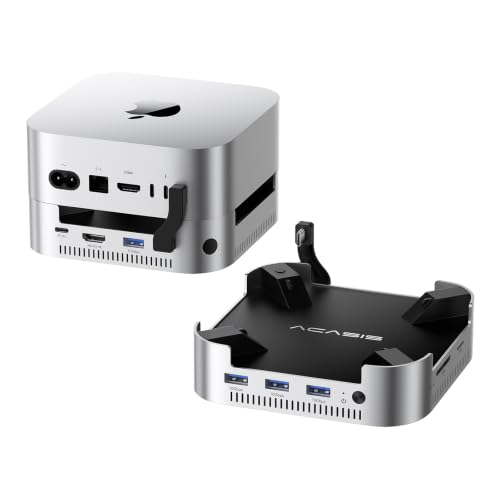
- Two NVMe bays; up to 16TB in RAID 0 mode
- 4K/60Hz HDMI and 10Gbps USB-A ports
- 65W adapter included; dual cooling fans
Best For: Two-drive Mac mini storage expansion with HDMI
USB Connectivity Pick

- Seven listed USB-A/USB-C data ports
- NVMe enclosure supports up to 8TB; SSD not included
- SD/TF reader, short cable, and power-button lever
Best For: USB-heavy desks needing single-drive NVMe expansion
Best for Multiple Displays

- DisplayPort up to 4K/144Hz plus HDMI up to 4K/60Hz
- NVMe enclosure supports drives up to 8TB
- USB, card-reader, and audio expansion
Best For: Multi-display desks needing expandable NVMe storage
Best for Fast Card Transfers

- Two 10Gbps USB-A and two 10Gbps USB-C ports
- SD/TF 4.0 readers and 4K/144Hz HDMI
- NVMe or SATA M.2 storage up to 8TB
Best For: Creators transferring card and external-drive files
Best for High-Capacity Storage

- Dual NVMe slots support up to 16TB combined
- Up to 80Gbps on M4 Pro; 40Gbps on M4
- 2.5G Ethernet and SD 4.0 reader
Best For: M4 Pro workflows needing large local SSD capacity
Flexible Storage Pick – RayCue 10-in-1 Mac mini Dock
This mac mini docking station combines an aluminum stand, an M.2 SSD enclosure, and a useful mix of display and peripheral ports. It accepts both NVMe and SATA drives in common M.2 sizes, with support for capacities up to 8TB.
Best For: Mac mini owners who want flexible SSD compatibility and an HDMI output in one stand.
Pros:
- Supports NVMe and SATA M.2 SSDs up to 8TB.
- Offers 4K at 60Hz HDMI, 10Gbps USB-A and USB-C data ports, plus SD/TF and audio.
- Aluminum stand provides a tidy place for the Mac mini.
Cons:
- Its single HDMI port supports only one external monitor through the dock.
- The rear USB-C charging port should be connected for adequate power when using a drive.
The broad storage and port selection makes this a versatile option; just account for its drive-power requirement and single HDMI connection.
Easy Power Access – Stouchi Mac mini Dock Stand
This mac mini docking station puts an accessible power button, an SSD enclosure, and everyday connections beneath the computer. Its vented stand and secure-fit design are especially useful if you want a neater setup without lifting the Mac mini to turn it on.
Best For: Buyers prioritizing convenient power access alongside storage and peripheral expansion.
Pros:
- Bottom-mounted power button makes startup easier to reach.
- Supports NVMe or SATA M.2 SSDs up to 8TB; SSD is not included.
- Includes two 10Gbps USB-A ports, 4K at 60Hz HDMI, SD/TF readers, and audio.
- Vented design, locking mechanism, and non-slip pads help with airflow and fit.
Cons:
- Two of the four USB-A ports are USB 2.0, better suited to basic peripherals than fast storage.
- The SD/TF readers are specified at 170Mb/s.
Choose the Stouchi if reaching the Mac mini’s power control is a daily annoyance; its faster USB-A pair and SSD bay handle the heavier storage tasks.
Front-Port Minimalist – Satechi Mac mini Hub & Stand
This mac mini docking station keeps expansion focused: front-facing USB-A ports, a UHS-II SD reader, and a built-in NVMe enclosure in a compact aluminum stand. A dedicated power button and ventilation complete the setup without adding an extensive port array.
Best For: Mac mini users who mainly need accessible USB-A, fast SD card access, and integrated NVMe storage.
Pros:
- Supports up to 4TB of NVMe storage with up to 10Gbps transfers.
- Two USB-A ports reach up to 10Gbps; the UHS-II SD reader is rated up to 312MB/s.
- Aluminum construction, bottom vents, and a dedicated power button suit a streamlined desk setup.
Cons:
- No HDMI output is listed among its expansion ports.
- The SSD is not included, and drives with heatsinks or double-sided SSDs are incompatible.
- Its USB-A ports have device and charging restrictions; use only one bus-powered device at a time.
The Satechi is a good fit when card transfers and a clean front-panel layout matter more than display expansion or maximum SSD capacity.
High-Refresh Display Pick – iVANKY 13-in-1 Mac mini Dock
This mac mini docking station stands out for its specified 4K at 144Hz HDMI output and wide assortment of connections. Alongside USB-A, USB-C, card readers, and audio ports, its M.2 enclosure supports NVMe or SATA SSDs up to 8TB.
Best For: Mac mini users seeking high-refresh HDMI output and plenty of peripheral connections in one dock.
Pros:
- HDMI output is specified for up to 4K at 144Hz.
- Includes 10Gbps USB-A and USB-C ports, additional USB ports, SD/TF readers, and two audio ports.
- Supports NVMe and SATA M.2 SSDs up to 8TB.
- Includes a 20W power adapter to help maintain power stability with multiple demanding devices.
Cons:
- SSD is not included.
- Actual transfer speeds can fall when multiple ports are used simultaneously.
- Some high-refresh monitors may require Game Mode or Signal Enhancement Mode.
Consider the iVANKY if display refresh rate and port variety top your list. Check your monitor’s settings and allow for shared-bandwidth slowdowns during heavy simultaneous use.
Best for Easy Setup – UGREEN Mac mini DP Dock
This mac mini docking station is a practical choice if you want DisplayPort output, front-of-desk connections, and room for an NVMe SSD in one stand. Its DP port supports up to 4K at 144Hz with a Mac mini M4 or 4K at 240Hz with an M4 Pro.
Best For: Mac mini users who want high-refresh DisplayPort output alongside expandable storage.
Pros:
- Supports an M.2 NVMe SSD up to 8TB, with 2230 through 2280 sizes accommodated.
- Includes 10Gbps USB-A/USB-C data connections, SD/TF slots, and audio.
- A power-button lever makes the Mac mini easier to turn on while docked.
Cons:
- SSD is not included.
- Advertised maximum DP refresh rate depends on the Mac mini model.
Pick this one for its DisplayPort flexibility; if adding the most storage is your priority, a two-drive dock may be a better fit.
Two-Drive Storage Pick – ACASIS Mac mini Dock
If storage capacity drives your search for a mac mini docking station, this ACASIS model offers two NVMe bays with up to 16TB total capacity in RAID 0 mode. It also adds 4K at 60Hz HDMI, USB-A ports, and SD/TF readers for a fuller workstation setup.
Best For: Mac mini users who need two SSD bays and a powered dock with HDMI output.
Pros:
- Two NVMe bays support up to 16TB in RAID 0 mode, according to the supplied specifications.
- Includes a 65W power adapter for the dock, plus an installation cable and accessories.
- Aluminum housing, side vents, and dual automatic fans help manage heat.
Cons:
- HDMI output tops out at 4K at 60Hz.
- The supplied instructions warn against inserting or removing SSDs while powered on.
- Fans add a potential noise source; the supplied figure is approximately 52dB.
Its main advantage is two-drive capacity rather than high-refresh video. Choose it if the extra SSD bay and included power supply matter more to you than a faster display output.
USB Connectivity Pick – UGREEN Mac mini Dock & Stand
This mac mini docking station focuses on everyday peripheral access: its listed connections include three 10Gbps USB-A ports, two 5Gbps USB-A ports, two 10Gbps USB-C ports, and an SD/TF reader. A built-in NVMe enclosure adds storage expansion without a separate drive case.
Best For: Mac mini setups that need numerous USB data ports, card slots, and one NVMe bay.
Pros:
- Offers seven listed USB data ports across USB-A and USB-C.
- Supports M.2 NVMe SSDs in 2230, 2242, 2260, and 2280 sizes, up to 8TB.
- Includes a short 4cm cable, anti-slip pads, and a power-button lever.
Cons:
- SSD is not included.
- An external power adapter is recommended for multi-device setups.
Choose this stand when USB access and a tidy footprint are the priorities. The supplied feature list does not specify a display-output capability, so check that separately if your dock must connect a monitor.
Best for Multiple Displays – 4URPC 13-in-1 Mac mini Dock
This mac mini docking station combines a stand, USB expansion, card readers, video outputs, and an M.2 NVMe enclosure in one compact setup. Its DisplayPort and HDMI connections are the main draw if you want more screen options alongside accessible desktop ports.
Best For: Mac mini users who want dual dock-connected displays and expandable local storage.
Pros:
- DisplayPort supports up to 4K at 144Hz; HDMI supports up to 4K at 60Hz.
- M.2 NVMe enclosure supports 2230 through 2280 drives up to 8TB.
- Includes USB-A, USB-C, SD/microSD, and 3.5mm audio connections.
Cons:
- SSD is not included, and the enclosure does not support SATA SSDs.
- Its USB-C expansion port is USB 2.0.
Choose this dock for its combination of video outputs and storage in a Mac mini-sized stand. For a third display, you would use one of the Mac mini’s own video connections.
Best for Fast Card Transfers – IVANKY 13-in-1 Mac mini Dock
This mac mini docking station puts faster everyday connections within reach: two 10Gbps USB-A ports, two 10Gbps USB-C ports, and SD/TF 4.0 readers. It also adds HDMI video output and an M.2 SSD enclosure for a more consolidated workspace.
Best For: Creators who regularly move files from memory cards and external drives.
Pros:
- Four 10Gbps USB data ports and SD/TF 4.0 card readers.
- HDMI supports up to 4K at 144Hz.
- M.2 enclosure supports NVMe and SATA drives up to 8TB.
- Includes a 20W power adapter for more stable operation with multiple peripherals.
Cons:
- SSD must be purchased separately.
- Offers one HDMI output rather than separate HDMI and DisplayPort outputs.
The IVANKY is the stronger fit when card-reader and USB transfer capability matter more than having two video outputs on the dock. Its included adapter is also useful for a setup with several connected accessories.
Best for High-Capacity Storage – BEELINK EX Mate Mini A Dock
This mac mini docking station prioritizes storage and high-bandwidth connectivity. Its two M.2 NVMe slots support up to 16TB combined, while the USB-C connection is rated up to 80Gbps with a Mac mini M4 Pro or 40Gbps with an M4.
Best For: Mac mini M4 Pro users managing large local media libraries or project files.
Pros:
- Two M.2 2280 NVMe slots support up to 8TB each.
- Includes 2.5G Ethernet, an SD 4.0 reader, and two USB-A 3.0 ports.
- Built-in fan, heat sink, and vents help cool installed SSDs.
Cons:
- SSDs are not included, and the slots are limited to the 2280 form factor.
- No HDMI or DisplayPort output is listed.
- Peripherals drawing more than 15W require an external PD adapter.
Pick this model for substantial internal-to-the-dock storage expansion rather than monitor connections. The advertised 80Gbps link is specific to the M4 Pro; the standard M4 is rated at 40Gbps.
How We Picked the Best Mac Mini Docking Station
We focused on practical differences across the 10 selected products: available ports, display outputs, SSD bays, advertised connection speeds, and how each dock fits around a Mac mini. We also considered whether a dock is better suited to a tidy everyday setup, frequent file transfers, or a more demanding peripheral load. Product names and claimed specifications are a starting point, not proof of real-world performance; confirm the current listing and your Mac mini model before ordering.
Quick Comparison
For a straightforward stand with added storage, start with the Satechi, Stouchi, RayCue, 4URPC, or UGREEN dock-and-stand models, then compare their exact ports and supported SSD types. If storage capacity is the priority, the ACASIS two-bay dock and the Thunderbolt 5 dual-M.2 option offer room for two drives, but their interfaces and host requirements differ. The IVANKY 13-in-1 models are worth examining when you need many accessible connections; the UGREEN DisplayPort hub and display-focused IVANKY model deserve a closer look for monitor setups. Check the specific variant before choosing: similar names can hide different port layouts.
Key Buying Factors for a Mac Mini Docking Station
Mac Compatibility and Physical Fit
Match the dock to your Mac mini’s exact generation and port configuration. Some listings mention newer model names; verify support against the manufacturer’s specifications rather than assuming that a familiar-looking chassis guarantees a fit. Check that the dock does not obstruct ventilation, the power button, or cables you need to reach.
Displays and Bandwidth
A dock’s advertised 4K resolution or 144Hz refresh rate does not automatically mean your Mac can drive every connected monitor at that setting. Your Mac mini’s display limits, the dock’s connection to the host, cable specifications, and the monitor’s inputs all matter. Also check whether an advertised video port extends your desktop or merely duplicates an existing display. If you use several fast drives and high-resolution monitors, pay particular attention to how those devices share bandwidth.
SSD Bays and Everyday Ports
Confirm whether the enclosure takes NVMe drives, SATA drives, or both; an M.2 slot alone does not establish compatibility. Check supported drive lengths and capacities, whether an SSD is included, and whether sustained transfers may require additional cooling. For daily convenience, count the USB-A, USB-C, card-reader, and audio connections you actually need—and check their speeds, not just their shapes. A USB-C port may be intended for data rather than charging or video.
Who Should Buy Which Mac Mini Docking Station?
Choose a simple dock-and-stand if your main goals are easier port access and one extra SSD. Look at a two-bay option if you regularly juggle large media libraries or want separate working and backup drives; keep another backup outside the dock. Prioritize an IVANKY 13-in-1 model or another port-rich hub if peripherals are your biggest frustration. For demanding displays or fast external storage, compare the host connection and verified Mac compatibility first—paying for an 80Gbps or high-refresh-rate label is worthwhile only if your setup can use it.