As you look to enhance your workstation setup in 2025, the right docking station can make all the difference. With advanced features like multiple ports, high power delivery, and support for multiple monitors, these devices are designed for efficiency and productivity. But not all docking stations are created equal. Let’s explore the top options that could transform your workspace and boost your performance.
Anker 13-in-1 USB-C Laptop Docking Station

If you’re a professional or gamer needing a versatile docking solution, the Anker 13-in-1 USB-C Laptop Docking Station is an ideal choice. With 85W laptop charging and multiple ports, it keeps your devices powered and connected. You’ll appreciate its three USB-A ports, dual HDMI outputs, and a DisplayPort that support simultaneous media streaming to three 1080p monitors. Setup is a breeze, thanks to its plug-and-play functionality. While it excels in ease of use, be mindful of compatibility limitations with macOS. Overall, it’s a solid option for enhancing your workstation and decluttering your desk space.
Best For: Professionals and gamers seeking a versatile docking solution that supports multiple devices and monitors.
Pros:
- Extensive Port Options: Features 13 ports including USB-A, HDMI, DisplayPort, and SD/microSD card slots for versatile connectivity.
- High-Speed Charging: Offers 85W laptop charging and 18W Power Delivery for mobile devices, ensuring devices stay powered.
- Easy Setup: Plug-and-play functionality allows for quick and simple installation without the need for drivers.
Cons:
- Compatibility Issues: Limited support for macOS and iPadOS, which may affect multi-monitor setups for Mac users.
- Mixed Reliability: Some users report durability concerns with port failures and connectivity issues after extended use.
- Flickering Issues: Users have noted occasional flickering and resolution problems when using dual monitors.
Baseus Spacemate 11 in 1 Docking Station for Windows

The Baseus Spacemate 11 in 1 Docking Station is perfect for Windows users who demand versatility and high performance. With dual HDMI and DisplayPort connectors, you can effortlessly connect multiple monitors for stunning 4K displays. The 10Gbps USB ports guarantee lightning-fast data transfers, letting you move large files in seconds. Its compact design, complete with a magnetic base and built-in LED status screen, keeps your workspace organized. Plus, the 100W power input supports robust charging, making it a reliable choice for laptops. Recognized by top media outlets, this docking station is a must-have for any serious workstation setup.
Best For: Windows users seeking a versatile and high-performance docking station for multi-monitor setups and rapid data transfer.
Pros:
- Supports triple display with 4K resolution for enhanced productivity and multitasking.
- 10Gbps data transfer speed enables quick file transfers, making it ideal for professionals handling large files.
- Compact and sleek design with a magnetic base and built-in LED screen keeps your workspace organized.
Cons:
- Limited compatibility with MacOS systems, which can only extend one display with connected monitors.
- Charger not included in the package, requiring an additional purchase for optimal performance.
- Potential overheating if used continuously at full load without adequate ventilation.
Plugable USB 3.0 and USB-C Universal Laptop Docking Station with HDMI Ports

For professionals working from home or in an office, the Plugable USB 3.0 and USB-C Universal Laptop Docking Station stands out with its dual HDMI ports that support high-definition resolutions up to 1920×1200. Weighing just 11.7 ounces, it’s highly portable and offers a range of connectivity options, including two USB 3.0 ports, a Gigabit Ethernet port, and an audio jack. While it’s perfect for productivity tasks, it’s not designed for gaming or HDCP content playback. Setup is simple, especially on Windows, but be aware that macOS users will need to install a driver for peak performance.
Best For: Professionals seeking a reliable docking station to enhance productivity with dual monitor setups while working from home or in an office environment.
Pros:
- Easy setup with plug-and-play functionality for Windows users.
- Compact and portable design, weighing only 11.7 ounces.
- Multiple connectivity options, including dual HDMI, USB 3.0, and Gigabit Ethernet ports.
Cons:
- Not suitable for gaming or playback of HDCP-protected content.
- macOS users may experience issues requiring driver installation.
- Some users report lag with wireless peripherals and challenges in multi-monitor configurations.
HP USB-C Dock G5 11-in-1 Adapter for Laptops and PCs
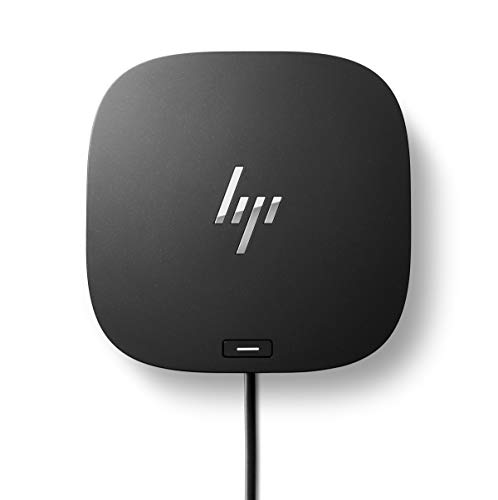
Designed for those who need seamless connectivity, the HP USB-C Dock G5 11-in-1 Adapter is perfect for users of USB-C and Thunderbolt-enabled laptops and PCs. With its compact 5 x 5-inch design, this dock helps reclaim desk space while offering a single-cable solution to connect multiple accessories and up to three displays. It supports charging, data transfers, and networking with advanced features like Wake-on LAN for enhanced management. Compatible with various operating systems including Chrome OS and MacOS, this versatile dock has received a solid 4.2-star rating from users, making it a reliable choice for your workstation setup.
Best For: Users of USB-C and Thunderbolt-enabled laptops and PCs seeking a compact and efficient docking solution.
Pros:
- Compact design helps save desk space while providing multiple connection options.
- Supports up to three displays for enhanced multitasking and productivity.
- Advanced network manageability features like Wake-on LAN for secure remote management.
Cons:
- Limited to USB-C compatible devices, which may exclude older laptops and PCs.
- Weight of 1.65 pounds may be slightly heavier than other portable docking options.
- Potential compatibility issues with non-HP devices, despite general support for various brands.
Plugable USB-C Triple Monitor Docking Station (UD-ULTCDL)

If you’re looking to maximize your workspace with multiple monitors, the Plugable USB-C Triple Monitor Docking Station (UD-ULTCDL) is an excellent choice. This 13-in-1 docking station supports three displays, enabling a main screen up to 4K @ 30Hz and secondary screens at 1920×1200 @ 60Hz. With four USB 3.0 ports, a Gigabit Ethernet port, and audio connections, it covers all your connectivity needs. Plus, it charges your laptop with 100W while providing 20W for other devices. Weighing just 14.1 ounces, it’s a compact powerhouse, backed by a 2-year warranty and lifetime support.
Best For: Users needing an efficient solution for multiple monitors and extensive connectivity in Mac, Windows, or Chrome environments.
Pros:
- Triple monitor support allows for an expansive workspace with high-resolution displays.
- 100W laptop charging ensures your device stays powered during intensive use.
- Compact and lightweight design makes it easy to transport and fit into various setups.
Cons:
- Requires DisplayLink drivers for Mac compatibility, which may complicate setup for some users.
- HDCP not supported, limiting the ability to stream protected content on multiple displays.
- May not support all USB-C devices for charging, leading to potential compatibility issues.
Plugable USB C Triple Display Docking Station with Laptop Charging

The Plugable USB C Triple Display Docking Station with Laptop Charging is an ideal choice for professionals and creatives who rely on multiple screens for enhanced productivity. With its 12-in-1 expansion, you can connect up to three HDMI monitors, achieving 4K at 30Hz on one and 1080p at 60Hz on two others. This dock supports Thunderbolt, USB4, and USB-C devices, making it versatile across platforms like Windows, macOS, and ChromeOS. Plus, it delivers up to 100W of power for efficient laptop charging. Enjoy the convenience of exceptional performance and robust support for your multitasking needs.
Best For: Professionals and creatives who require multiple displays for enhanced productivity.
Pros:
- Supports up to three HDMI monitors, enabling expansive multitasking capabilities.
- Provides 100W Power Delivery for efficient laptop charging, keeping your device powered throughout the day.
- Compatible with various operating systems, including Windows, macOS, and ChromeOS, offering versatility across devices.
Cons:
- Not supported with Linux, limiting compatibility for users on that platform.
- HDCP is not supported, which may restrict playback of certain protected content.
- Requires driver installation for macOS users, which could be a hurdle for some.
Plugable Universal Laptop Docking Station (UD-3900)

For those seeking a reliable and budget-friendly option, the Plugable Universal Laptop Docking Station (UD-3900) stands out as an excellent choice. Compatible with Windows, macOS, and ChromeOS, it features two HDMI ports, six USB ports, and Gigabit Ethernet, making it versatile for web and productivity tasks. Weighing just 13 ounces, it’s easy to integrate into your workspace. Setup is a breeze with plug-and-play functionality for Windows, while macOS requires manual driver installation. Though it doesn’t charge your laptop or support 4K, its 4.5-star rating and lifetime support make it a smart investment for enhancing your workstation.
Best For: Those looking for an affordable docking station that enhances productivity with multiple USB and HDMI connections without the need for extensive setup.
Pros:
- Plug-and-play functionality for Windows users, making setup quick and easy.
- Versatile connectivity with two HDMI ports and multiple USB ports, ideal for web and productivity applications.
- Lifetime support from a North American-based team and a strong customer rating of 4.5 out of 5 stars.
Cons:
- Does not charge the host laptop, which may be a drawback for some users.
- Limited display support, with no 4K capability and maximum resolution of 2560×1440 at 50Hz.
- Manual driver installation required for macOS, which may deter some users.
Anker Prime Docking Station, 14-Port with 160W Max Output

Designed for tech-savvy professionals and multitaskers, the Anker Prime Docking Station offers an impressive 14-in-1 connectivity solution that enhances your workspace. With a powerful 160W output, it can charge up to four devices simultaneously, thanks to its three USB-C ports and one USB-A port. You’ll enjoy fast data transfers at speeds up to 10Gbps through its five USB 3.0 ports. Plus, dual HDMI ports allow you to connect two displays, supporting resolutions up to 2K@60Hz. Compact and lightweight, this docking station is perfect for optimizing your setup while maintaining a sleek appearance.
Best For: Tech-savvy professionals and multitaskers seeking a versatile docking station for charging and data transfer.
Pros:
- 14-in-1 connectivity allows for multiple device connections and enhanced productivity.
- Powerful 160W output enables simultaneous charging of up to four devices.
- Fast data transfer speeds of up to 10Gbps through five USB 3.0 ports.
Cons:
- Limited display support for macOS, as external displays will mirror each other.
- Does not support 5120*1440 monitor resolutions.
- Weight of 2.81 pounds may be less portable compared to lighter alternatives.
TobenONE DisplayLink Docking Station Triple Monitor with 120W Power Adapter
Equipped with a robust 120W power adapter, the TobenONE DisplayLink Docking Station is perfect for professionals who rely on multiple monitors for enhanced productivity. It supports triple 4K displays with 18 ports, including 3x HDMI and 3x DP, simplifying your connectivity needs. Compatible with various operating systems, it guarantees seamless performance for both Mac and Windows users. You’ll enjoy fast data transfer speeds up to 10Gbps across multiple devices. Installation is straightforward with the necessary DisplayLink drivers. Users rave about its build quality and reliable performance, making it an excellent choice for anyone needing a powerful multi-monitor setup.
Best For: Professionals and users needing a powerful multi-monitor setup, particularly those using MacBook laptops.
Pros:
- Supports triple 4K displays with multiple HDMI and DP outputs for enhanced productivity.
- Fast data transfer speeds of up to 10Gbps, allowing seamless connectivity for various devices.
- Reliable performance and solid build quality, ensuring a robust solution for both Mac and Windows users.
Cons:
- Requires DisplayLink drivers for setup, which may not be as convenient as plug-and-play options.
- Some users reported insufficient power for specific laptop models, such as Dell Latitude.
- Not suitable for streaming services like Hulu and Netflix, limiting its versatility for entertainment use.
GIQ USB C Hub Docking Station with Dual HDMI and VGA Adapter

The GIQ USB-C Hub Docking Station stands out as an ideal solution for professionals who need seamless connectivity across multiple devices. It supports dual displays via HDMI and VGA, perfect for your MacBook M1 or Dell XPS. With three USB 3.0 ports, a Gigabit Ethernet connection, and TF/micro SD card readers, it enhances your productivity. Its slim, lightweight design makes it easy to carry, measuring just 2 x 2 x 0.59 inches. Setup is straightforward, and you’ll find solid performance without needing complicated installations. Rated 4.3 stars, it’s a trusted choice for multi-display setups.
Best For: Professionals and students who require seamless connectivity and multi-display setups for enhanced productivity.
Pros:
- Supports dual displays via HDMI and VGA, making it versatile for various devices.
- Slim and lightweight design, perfect for travel and portability.
- Easy plug-and-play setup with solid performance and no complicated installations required.
Cons:
- USB-C port is for power only and does not charge laptops.
- Some limitations on resolution and refresh rate when using triple display.
- USB port placement may not be ideal for all users.
Factors to Consider When Choosing Docking Stations for PC
When choosing a docking station for your PC, you’ll want to take into account several important factors. Think about port availability, display support, and whether it can deliver enough power for your devices. Also, keep compatibility and size in mind to guarantee it fits your workspace and meets your needs.
Port Availability and Types
Choosing the right docking station hinges on understanding the port availability and types it offers. You’ll want to take into account the number of ports like USB-C, USB-A, HDMI, and Ethernet to guarantee compatibility with all your devices. Look for USB-C ports that support high data transfer speeds of up to 10 Gbps, while USB-A ports typically offer 5 Gbps. Power delivery is essential too; some stations provide between 18W to 100W, allowing you to charge your laptop and peripherals simultaneously. Additionally, check for extra features like SD/microSD card slots and audio jacks, as these can greatly enhance your workstation’s functionality. Ultimately, the right combination of ports will streamline your workflow and improve connectivity.
Display Support and Resolution
Understanding display support and resolution is essential for maximizing your setup’s potential. When choosing a docking station, consider how many display outputs it offers. Some support dual or triple displays, while others only allow one external monitor. Pay close attention to the maximum resolution, as options range from 1080p to 4K, enhancing visual clarity for demanding tasks like video editing or gaming. Confirm compatibility with your device’s operating system since some docking stations may limit display capabilities on macOS or specific hardware. Look for models that use DisplayLink technology, which can expand monitor connections, especially for Apple M1 and M2 Macs. Finally, check the refresh rate for smooth motion, aiming for 60Hz or higher for peak performance.
Power Delivery and Charging
While you might focus on display capabilities, power delivery and charging are equally essential when selecting a docking station for your PC. The power delivery capabilities can vary greatly; some stations provide up to 100W for charging laptops, while others might offer less or none at all. Look for additional USB-C ports that support 18W or higher for efficiently charging mobile devices. It’s important to check the total power output, as some models can charge multiple devices simultaneously, while others can only power the host laptop. Docking stations with 160W or more can handle multiple charges without sacrificing performance. Finally, verify the docking station meets USB-C Power Delivery standards to match your devices’ specific charging needs.
Compatibility With Devices
Many users overlook compatibility when selecting a docking station for their PC, but it’s an essential factor that can greatly impact your setup. First, confirm the docking station supports your laptop’s operating system, as some models may only work with Windows or have limitations with macOS and iPadOS. You should also check if it requires driver installation, especially for macOS users who may need DisplayLink drivers. Additionally, verify the charging capabilities; not all stations provide power delivery for your laptop. Look for docks that support specific video output standards like DisplayPort Alt Mode for USB-C to enable multiple monitor setups. Finally, consider the range of ports available to meet your connectivity needs for peripherals and network access.
Size and Design Considerations
When choosing a docking station for your PC, size and design play an essential role in how well it fits into your workspace and lifestyle. Docking stations come in various dimensions; compact models, for instance, measure around 4.95 x 3.49 inches, making them perfect for small desks. If you’re on the go, look for lighter options weighing about 11.7 ounces for easy transport. A vertical design can also help save desk space by minimizing the footprint compared to traditional models. Many feature a single-cable solution that simplifies connecting multiple peripherals, reducing clutter. Finally, consider build quality and materials, like aluminum finishes, as they affect durability and aesthetics, ensuring your docking station lasts in a professional environment.
Data Transfer Speeds
Choosing the right docking station involves more than just size and design; data transfer speeds are a key factor that can considerably impact your productivity. USB-C ports typically offer speeds up to 10 Gbps, while USB-A ports max out at 5 Gbps. If you opt for a docking station with USB 3.2 Gen 2 technology, you can transfer a 20GB file in just 20 seconds. Remember, compatibility with your operating system matters too; some docks might need drivers for peak performance. Additionally, consider the number and type of ports available—more high-speed USB ports mean better data transfer efficiency when connecting multiple devices. Finally, a Gigabit Ethernet port can provide fast internet speeds of up to 1000 Mbps, enhancing your overall setup.