If you’re an artist looking to enhance your digital workflow, finding the right graphics tablet is essential. With so many options available, it’s easy to feel overwhelmed by the choices. From compact designs to advanced pressure sensitivity, each tablet offers distinct advantages tailored to your needs. Let’s explore the top picks that can elevate your creativity and efficiency, ensuring you find the perfect tool for your artistic journey.
HUION Inspiroy H1060P Graphics Drawing Tablet

The HUION Inspiroy H1060P Graphics Drawing Tablet is an excellent choice for both professional and aspiring artists thanks to its impressive 8192 levels of pressure sensitivity. With a working area of 10 x 6.25 inches, it offers ample space for your creativity. Weighing just 1.69 pounds, it’s easy to transport. You’ll appreciate the customizable 12 programmable press keys and 16 soft keys, allowing quick access to your favorite functions. Its symmetrical design works well for both right and left-handed users. Compatible with most design software and various operating systems, this tablet enhances your artistic experience without breaking the bank.
Best For: Professional artists, beginners, and hobbyists seeking a versatile and user-friendly drawing tablet.
Pros:
- 8192 levels of pressure sensitivity for precise and detailed artwork.
- Customizable shortcut keys enhance productivity by providing quick access to essential functions.
- Lightweight and portable design makes it easy to carry and use anywhere.
Cons:
- Requires a USB adapter for Mac connection, adding to the setup complexity.
- Cursor issues reported with certain Samsung Galaxy S series phones.
- Not compatible with iPhone/iPad, limiting mobile use for some users.
XPPen Deco 01 V3 Drawing Tablet

For aspiring artists looking to elevate their digital drawing experience, the XPPen Deco 01 V3 Drawing Tablet stands out with its impressive 16,384 levels of pressure sensitivity. Weighing just 2.2 pounds and measuring 13.82 x 8.54 inches, it’s lightweight and portable, making it perfect for on-the-go creativity. The battery-free stylus guarantees you can draw without interruptions, while tilt support enhances your shading control. With eight customizable hotkeys, you can streamline your workflow. Compatible with major software and multiple operating systems, this tablet is designed to help you develop your skills effortlessly while enjoying a smooth drawing experience.
Best For: Aspiring artists and beginners looking for an affordable, user-friendly drawing tablet to enhance their digital art skills.
Pros:
- High Pressure Sensitivity: Offers 16,384 levels of pressure sensitivity for precise control and detailed artwork.
- Lightweight and Portable: At only 2.2 pounds and 8 mm thin, it’s easy to carry for drawing on the go.
- Customizable Hotkeys: Eight customizable shortcuts allow for a more efficient and ergonomic workflow.
Cons:
- Limited Drawing Area: The drawing area of 10 x 6.25 inches may feel restrictive for some artists used to larger surfaces.
- Software Compatibility: While compatible with major software, some niche applications may not be fully supported.
- No Built-in Display: Unlike some tablets, it does not have a built-in screen, which may be a drawback for artists who prefer direct visual feedback while drawing.
HUION Inspiroy H640P Drawing Tablet (6×4 inch)

With its compact 6×4 inch design and 8192 levels of pen pressure sensitivity, the HUION Inspiroy H640P Drawing Tablet is perfect for artists and beginners alike. Weighing just 1.41 lbs and only 0.3 inches thick, it’s easy to carry around. The battery-free PW100 stylus guarantees you’ll never run out of power while sketching. With six customizable hotkeys, you can streamline your workflow efficiently. It’s compatible with major operating systems, including Mac, Windows, Linux, and Android, making it versatile for various applications like Photoshop and OneNote. Enjoy a natural drawing experience that enhances your creative process!
Best For: Artists and beginners looking for a compact and versatile drawing tablet that enhances their creative process.
Pros:
- 8192 levels of pen pressure sensitivity allow for precise and detailed artwork.
- Lightweight and portable design makes it easy to carry and use anywhere.
- Customizable hotkeys streamline workflow for increased efficiency during creative tasks.
Cons:
- Limited drawing area (6×4 inch) may not suit those who prefer larger canvases.
- Initial setup may require driver installation, which can be cumbersome for some users.
- Battery-free stylus may feel different to those accustomed to traditional stylus designs.
XPPen StarG640 Digital Graphic Tablet (6×4 Inch)

If you’re a budding artist or a student venturing into digital creativity, the XPPen StarG640 Digital Graphic Tablet is an excellent choice. Its compact 6×4 inch size makes it easy to transport, weighing just 6 ounces. The battery-free PN01 stylus offers 8192 levels of pressure sensitivity, allowing for detailed artwork without interruptions. It’s compatible with Windows, Mac, and Chromebooks, making it versatile for various tasks like digital drawing, teaching, and photo editing. Although some users note comfort issues with the stylus, its ease of use and responsive design make it a fantastic tool for anyone starting their digital art journey.
Best For: Budding artists and students looking for a portable and versatile digital drawing tablet.
Pros:
- Easy to transport with a compact and lightweight design.
- Offers 8192 levels of pressure sensitivity for detailed artwork.
- Compatible with multiple operating systems, including Windows, Mac, and Chromebooks.
Cons:
- Some users report discomfort with the stylus compared to other models.
- Occasional connection issues and lag, particularly with Bluetooth.
- Concerns about durability reported by some users.
UGEE M708 Graphics Drawing Tablet

The UGEE M708 Graphics Drawing Tablet stands out for its impressive 8192 levels of pressure sensitivity, making it an ideal choice for both professional artists and beginners who want to explore their creative potential. With a spacious 10 x 6 inch active area, you’ll enjoy a smooth drawing experience on its papery texture surface. The no-lag performance allows for precise sketching, while the 8 customizable hotkeys streamline your workflow. Plus, it’s compatible with various operating systems and creative software, ensuring versatility. Whether you’re right or left-handed, this tablet caters to your needs and comes with a 12-month warranty for peace of mind.
Best For: The UGEE M708 Graphics Drawing Tablet is best for professional artists, beginners, and hobbyists looking for a versatile and responsive drawing experience.
Pros:
- 8192 levels of pressure sensitivity for varied line weight and opacity.
- 8 customizable hotkeys for efficient workflow and easy access to shortcuts.
- Compatible with multiple operating systems and creative software, enhancing versatility.
Cons:
- May require a learning curve for those new to drawing tablets.
- Some users may prefer larger active areas for more expansive projects.
- Limited physical buttons compared to some higher-end models, which might not suit all users.
XOPPOX Graphics Drawing Tablet (10 x 6 Inch)

For artists seeking a reliable and versatile drawing tablet, the XOPPOX Graphics Drawing Tablet stands out with its impressive 8192 levels of pressure sensitivity. Measuring 10 x 6 inches, it offers a spacious active area perfect for detailed work. You’ll appreciate the battery-free pen and 20 replacement nibs, ensuring you’re always ready to create. With 12 customizable shortcut keys, productivity is just a click away. It’s compatible with major software and multiple operating systems, though there are some issues on Android. Overall, its sturdy design makes it suitable for both beginners and experienced artists alike.
Best For: Artists and designers looking for a reliable drawing tablet with advanced pressure sensitivity and customizable features.
Pros:
- Sturdy design suitable for heavy usage, making it ideal for both beginners and professionals.
- Impressive 8192 levels of pressure sensitivity for detailed and nuanced artwork.
- Includes 12 customizable shortcut keys for enhanced productivity and workflow.
Cons:
- Compatibility issues with Android devices may limit usability for some users.
- Some reports of software glitches that could hinder user experience.
- Customer service challenges noted by users can lead to difficulties in resolving issues.
HUION KAMVAS Pro 16 Graphics Drawing Tablet
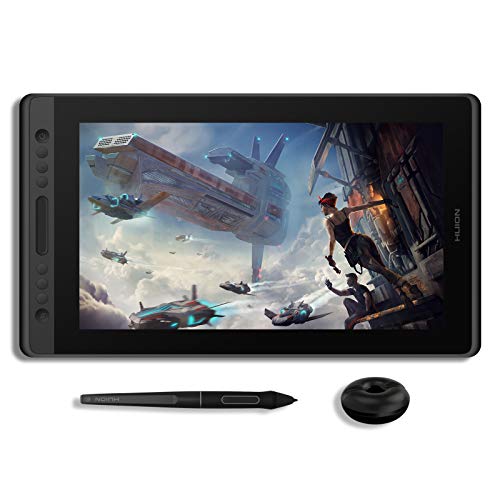
With its impressive 15.6-inch full-laminated HD screen and 8192 levels of pen pressure sensitivity, the HUION KAMVAS Pro 16 Graphics Drawing Tablet stands out as an ideal choice for digital artists seeking precision and vibrancy in their work. You’ll enjoy a smooth drawing experience thanks to its 266PPS report rate, while the customizable express keys enhance your workflow. The tablet’s 120% sRGB color gamut guarantees your creations are vivid and lifelike. Although some users report driver issues, responsive customer support and quick delivery make it a worthwhile investment for your creative endeavors. This tablet truly improves your artistic journey.
Best For: Digital artists and creative professionals seeking a high-quality drawing tablet with vibrant display and customizable features.
Pros:
- High precision with 8192 levels of pen pressure sensitivity and minimal lag due to a 266PPS report rate.
- Vivid colors provided by a 120% sRGB color gamut, enhancing the quality of artwork.
- Customizable express keys improve workflow efficiency for various tasks like zooming and brush adjustments.
Cons:
- Driver stability issues reported by users, requiring administrative access for optimal performance.
- Limited pressure sensitivity adjustment, which may not meet all users’ preferences.
- Compatibility concerns with certain software, particularly with tilt functionality and pointer accuracy at screen edges.
GAOMON M10K Drawing Tablet (10×6 inch)

Designed for budding artists, the GAOMON M10K Drawing Tablet offers a spacious 10 x 6.25-inch drawing area that feels remarkably natural thanks to its papery texture surface. Weighing just 1.53 pounds, it’s portable and easy to set up via USB. The battery-free stylus boasts 8192 levels of pressure sensitivity, ensuring your strokes are as precise as your creativity. With ten customizable hotkeys and a touch ring for quick adjustments, you’ll streamline your workflow. Compatible with major software like Photoshop and Windows or Mac systems, the GAOMON M10K is perfect for anyone looking to elevate their digital art.
Best For: Beginner artists seeking an intuitive and portable drawing experience with robust features to enhance their creativity.
Pros:
- Battery-free stylus with 8192 levels of pressure sensitivity for precise control.
- Customizable hotkeys and a touch ring for quick access to shortcuts and adjustments.
- Compatible with major creative software on both Windows and Mac systems.
Cons:
- Requires driver installation which may complicate setup for some users.
- Limited compatibility with certain Android devices.
- The size may be too small for advanced artists who prefer larger drawing areas.
GAOMON PD1161 Drawing Tablet with Screen

The GAOMON PD1161 Drawing Tablet stands out for artists seeking a compact yet powerful tool, thanks to its 11.6-inch Full HD IPS display. With a battery-free pen offering 8192 levels of pressure sensitivity and tilt function, you’ll enjoy precise control in your artwork. This tablet features eight programmable shortcut keys and two pen buttons, enhancing your workflow. Weighing just 1.9 pounds, it’s portable and user-friendly. While some users find the button placement tricky and display calibration challenging, the overall performance and affordability make it a fantastic choice for budget-conscious creators looking to elevate their art.
Best For: Budget-conscious artists seeking a compact and powerful drawing tablet with a screen for versatile creative tasks.
Pros:
- Excellent pressure sensitivity with 8192 levels for precise control in artwork.
- Portable design at just 1.9 pounds, making it easy to carry and use anywhere.
- Affordable price point compared to higher-end brands, offering great value for performance.
Cons:
- Shortcut buttons may be poorly placed, making them difficult to use, especially for left-handed users.
- Display calibration can be challenging, requiring adjustments for optimal graphics settings.
- Occasional issues with touch buttons not responding correctly or activating unintentionally.
HUION KAMVAS Pro 16 Drawing Tablet (15.6 inch Pen Display)

For artists seeking a vibrant and responsive drawing experience, the HUION KAMVAS Pro 16 stands out with its stunning 15.6-inch full-laminated display, featuring anti-glare glass that enhances your visual comfort. With an impressive 120% sRGB color gamut, you’ll enjoy true-to-life colors and sharp details. The tablet includes six customizable shortcut keys and a touch bar, streamlining your workflow for tasks like zooming and brush adjustments. Plus, the adjustable stand lets you find the perfect angle, reducing strain during long sessions. Compatible with Windows, macOS, and Linux, it’s a versatile choice for any creative professional.
Best For: The HUION KAMVAS Pro 16 is best for digital artists and creative professionals seeking an immersive drawing experience with vibrant colors and customizable features.
Pros:
- High Color Accuracy: With a 120% sRGB color gamut, it delivers true-to-life colors and sharp details.
- Customizable Workflow: Six express keys and a touch bar allow for efficient shortcuts and streamlined operations.
- Ergonomic Design: The adjustable stand promotes comfortable usage by reducing strain on the neck and back.
Cons:
- Not Standalone: Requires connection to a computer or laptop to function, limiting portability.
- Weight: At 2.98 pounds, it may be less portable compared to lighter drawing tablets.
- Limited Software Compatibility: While it works with many popular software programs, it may not support all drawing applications.
Factors to Consider When Choosing Graphics Tablets for PC Artists
When choosing a graphics tablet, you’ll want to take into account key factors that can enhance your artistic experience. Think about pressure sensitivity levels, the active drawing area, and stylus features to suit your style. Also, check compatibility with your software and the availability of customizable hotkeys for added convenience.
Pressure Sensitivity Levels
Understanding pressure sensitivity levels is essential for selecting the right graphics tablet, as they greatly impact your drawing experience. Typically ranging from 1,024 to 16,384 levels, higher sensitivity offers more nuanced line variations and better control. If you aim for detailed artwork, a tablet with at least 8,192 levels can detect subtle pressure changes, perfect for intricate shading. Many professional artists prefer tablets with a minimum of 2,048 levels, as this considerably enhances line quality and creative expression. Additionally, look for tilt functionality, which can support angles up to 60 degrees. This feature allows you to create dynamic lines and shading effects that closely mimic traditional media, elevating your digital art to new heights.
Active Drawing Area
The active drawing area of a graphics tablet is essential for your comfort and creativity as an artist. This surface, measured in inches, directly affects how you work. Larger areas, like 10 x 6.25 inches, give you more room for detailed strokes and sweeping gestures. However, if portability is your priority, a smaller area, such as 6 x 4 inches, might suit you better. Some tablets even allow you to customize the active area, adapting it to your unique style and techniques. Additionally, consider the aspect ratio; common options like 16:9 or 4:3 can influence your drawing experience. Ultimately, choose an active drawing area that aligns with your artistic preferences and the type of work you plan to create.
Stylus Features
Choosing the right stylus features can markedly enhance your drawing experience on a graphics tablet. Look for pressure sensitivity levels between 8192 and 16,384, as they allow you to create varied line weights and opacity. A battery-free stylus is ideal since it eliminates charging hassles, letting you draw uninterrupted like with a traditional pen. Tilt support, often up to 60 degrees, provides greater control for shading and mimics natural drawing techniques. Additionally, consider styluses with programmable buttons; these can be customized for quick access to your frequently used functions, boosting your workflow efficiency. Finally, opt for styluses that offer positive feedback on responsiveness and pressure sensitivity, essential for achieving detailed artwork and a more natural feel while drawing.
Compatibility With Software
When selecting a graphics tablet, compatibility with your preferred software is crucial for a seamless creative process. Make certain the tablet works with major programs like Photoshop, Illustrator, and Clip Studio Paint, which are staples for digital artists. Check that it supports your computer’s operating system—Windows (7 or later), macOS (10.12 or later), or Linux—to prevent compatibility issues. Some tablets need specific drivers for peak performance, so verify their availability and stability for your chosen software. It’s also important to look for features like pressure sensitivity and tilt functionality, as they enhance your drawing experience. Finally, confirm the tablet’s connection type—USB, USB-C, or others—to guarantee easy setup with your existing hardware.
Customizable Hotkeys
As you explore graphics tablets, don’t overlook the value of customizable hotkeys. These keys enhance your workflow efficiency by allowing you to assign frequently used functions, cutting down the time you spend maneuvering through menus. Many tablets come with 6 to 12 programmable keys, letting you create personalized shortcuts that suit your drawing style and software preferences. This feature is a game changer for both professional and beginner artists, simplifying tool and function switching while you work. Ergonomically designed hotkeys can also provide comfort during long sessions, reducing strain. Plus, with adjustable shortcut settings through tablet driver software, you can easily modify key assignments for different applications, ensuring your artistic needs are always met.
Connectivity Options
Connectivity options play an essential role in selecting the right graphics tablet for your artistic needs. First, consider the connection type; most tablets utilize USB or USB-C connections, which might necessitate adapters for some devices. Confirm the tablet’s compatibility with your operating system—whether it’s Windows, macOS, Linux, or Android—as some require specific versions to work properly. If you prefer a tidy workspace, look for tablets with wireless options like Bluetooth or Wi-Fi for a flexible setup. Also, verify if the tablet requires driver installations, as some need specific software for peak performance. Finally, think about the ease of setup; some tablets may require technical adjustments and restarts, which can affect usability.
Design and Portability
Choosing the right graphics tablet involves considering design and portability, which can greatly impact your creative process. You’ll find tablets ranging from 6×4 inches to 15.6 inches, catering to various preferences and situations. Opt for slim models, ideally under half an inch thick, as they fit easily into backpacks or laptop cases for travel. Lightweight tablets, typically weighing between 1.5 to 2.5 pounds, enhance convenience, especially for artists on the go. Look for battery-free styluses that eliminate charging hassles, allowing you to focus on your art. Additionally, compact or ergonomic designs with customizable shortcut keys can profoundly improve your workflow, ensuring a smooth and enjoyable drawing experience wherever inspiration strikes.