If you’re looking to enhance your artistic skills, selecting the right tablet can make all the difference. Wacom offers a range of options tailored to various needs and budgets, from compact models for beginners to advanced devices for seasoned professionals. Each tablet boasts unique features that can elevate your creative projects. Curious about which models stand out and why they might be the perfect fit for you? Let’s explore the top picks that can transform your digital artistry.
Wacom Intuos Small Bluetooth Graphics Drawing Tablet

The Wacom Intuos Small Bluetooth Graphics Drawing Tablet is perfect for budding artists and professionals alike, thanks to its pressure-sensitive pen that mimics the feel of drawing on paper. Weighing just 8.8 ounces and measuring 7.87 x 6.3 x 0.35 inches, it’s portable and easy to use. With Bluetooth and USB connectivity, you can use it seamlessly across multiple devices, including Chromebooks, Macs, and Windows PCs. Four customizable ExpressKeys let you personalize shortcuts for a smoother workflow. Plus, you’ll gain access to creative software and training, helping you to release your creativity like never before.
Best For: Budding artists and professionals looking for a portable, versatile drawing tablet with a natural drawing experience.
Pros:
- Pressure-sensitive pen provides a realistic drawing feel, enhancing creativity.
- Portable design makes it easy to carry and use on the go.
- Customizable ExpressKeys improve workflow by allowing personalized shortcuts.
Cons:
- Limited screen resolution compared to higher-end models.
- Battery life may require occasional charging during extended use.
- Size may not be suitable for users who prefer larger drawing surfaces.
HUION Inspiroy H1060P Graphics Drawing Tablet

For aspiring artists and seasoned professionals alike, the HUION Inspiroy H1060P Graphics Drawing Tablet stands out with its impressive 8192 levels of pressure sensitivity. Weighing just 1.69 pounds and featuring a slim design, it’s easy to transport and set up. The 10 x 6.25-inch working area offers ample space for your creative projects. With a battery-free stylus that supports ±60° tilt, you’ll enjoy a natural drawing experience. Plus, the 12 programmable press keys and 16 soft keys let you customize shortcuts for efficiency. Compatible with various operating systems and design software, this tablet is perfect for everyone from beginners to experienced artists.
Best For: The HUION Inspiroy H1060P Graphics Drawing Tablet is best for both aspiring artists and seasoned professionals seeking a versatile and efficient drawing experience.
Pros:
- High Pressure Sensitivity: 8192 levels of pressure sensitivity provide precise control and a natural drawing feel.
- Customizable Shortcuts: 12 programmable press keys and 16 soft keys enhance workflow efficiency by allowing quick access to frequently used functions.
- Lightweight and Portable: Weighing just 1.69 pounds, the tablet’s slim design makes it easy to transport and set up anywhere.
Cons:
- Limited Mobile Compatibility: Not compatible with iPhone/iPad and may have cursor issues with SAMSUNG Galaxy S series devices.
- USB Adapter Required for Mac: A USB adapter is necessary for connecting to Mac computers, which may be inconvenient for some users.
- Learning Curve for Beginners: New users may need time to familiarize themselves with customizable settings and shortcut functions.
Wacom Cintiq 16 Drawing Tablet with Pro Pen 2
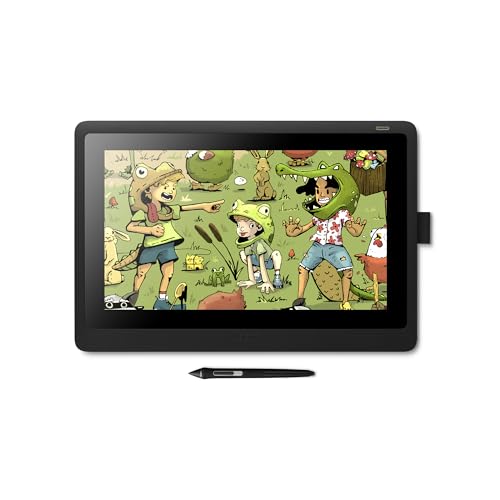
Ideal for creative hobbyists and students, the Wacom Cintiq 16 Drawing Tablet with Pro Pen 2 delivers a seamless drawing experience that feels just like traditional paper. With its 15.4-inch Full HD display, you’ll enjoy vibrant colors and sharp details. The Pro Pen 2 features 8192 levels of pressure sensitivity and tilt recognition, ensuring precision in every stroke. You’ll appreciate the relaxed parallax, which gives you full fingertip control. Compatible with both Windows and macOS, this tablet also includes essential accessories like replacement nibs and a quick start guide, making it the perfect choice for your artistic endeavors.
Best For: Creative hobbyists, enthusiasts, and students looking for a high-quality drawing tablet that mimics the feel of traditional paper.
Pros:
- Offers a natural drawing experience with relaxed parallax and fingertip control.
- High-resolution 15.4-inch Full HD display for vibrant colors and sharp details.
- Pro Pen 2 technology provides 8192 levels of pressure sensitivity and tilt recognition for precision.
Cons:
- The size may be less portable compared to smaller tablets.
- Can be more expensive than basic drawing tablets.
- May require some adjustment time for users new to digital drawing.
Wacom One Bluetooth Drawing Tablet (Medium 9.9 x 7.1)

Designed with entry-level creators in mind, the Wacom One Bluetooth Drawing Tablet (Medium 9.9 x 7.1) is perfect for anyone looking to explore digital art, photo editing, or visual communication. With an active area of 8.5 x 5.3 inches, it offers ample space to express your creativity. The included Wacom One Pen features 4096 levels of pressure sensitivity and natural tilt recognition for precise control. You can easily customize shortcut buttons for quick access to your favorite functions. Plus, it’s compatible with Windows, Mac, Chromebook, and Android devices, making it a versatile choice for any creative endeavor.
Best For: Entry-level creators looking to explore digital art, photo editing, and visual communication.
Pros:
- Supports 4096 levels of pressure sensitivity for detailed and nuanced drawing.
- Customizable shortcut buttons on the pen enhance workflow efficiency.
- Compatible with a wide range of devices, including Windows, Mac, Chromebook, and Android.
Cons:
- Limited active area (8.5 x 5.3 inches) may not suit advanced users needing larger workspace.
- Some devices may require an additional USB-A adapter for connection.
- As an entry-level tablet, it may lack advanced features found in professional models.
HUION Inspiroy H640P Drawing Tablet (6×4 inch, Battery-Free Stylus)

The HUION Inspiroy H640P Drawing Tablet stands out with its impressive 8192 levels of pen pressure sensitivity, making it perfect for artists and beginners looking to enhance their digital drawing experience. Its compact 6×4 inch size and lightweight design (1.41 lbs) make it highly portable. With a battery-free stylus, you won’t have to worry about recharging. You’ll appreciate the six customizable hotkeys, allowing you to streamline your workflow. Plus, it’s compatible with various operating systems, including Mac, Windows, Linux, and Android. Whether you’re drawing, signing documents, or taking notes, this tablet offers an intuitive alternative to traditional mouse usage.
Best For: Ideal for artists and beginners in drawing, painting, or photo editing seeking a more natural and intuitive digital experience.
Pros:
- 8192 levels of pen pressure sensitivity provide precise control for detailed artwork.
- Lightweight and portable design (1.41 lbs) makes it easy to carry for on-the-go creativity.
- Customizable hotkeys enhance workflow efficiency by allowing quick access to frequently used functions.
Cons:
- Limited active area (6×4 inches) may not be suitable for larger projects or detailed work.
- Requires installation of drivers for full functionality, which may be a hassle for some users.
- Battery-free stylus may feel different from traditional styluses, requiring some adjustment time.
XPPen StarG640 Digital Graphic Tablet (6×4 Inch)

For students and beginners venturing into digital art, the XPPen StarG640 Digital Graphic Tablet is a fantastic choice. Its compact 6×4 inch size and lightweight design make it easy to carry around. With 8192 levels of pressure sensitivity, you’ll enjoy creating detailed artwork effortlessly. The battery-free PN01 stylus guarantees uninterrupted use, while programmable buttons enhance your workflow. This tablet works seamlessly with Windows, Mac, and Chromebook, making it versatile for various tasks like online teaching and photo editing. Although some users mention comfort issues, its overall ease of use and portability have earned it solid ratings, making it a worthy investment.
Best For: The XPPen StarG640 Digital Graphic Tablet is best for students and beginners exploring digital art.
Pros:
- Compact and lightweight design for easy portability.
- 8192 levels of pressure sensitivity for detailed artwork creation.
- Battery-free stylus ensures uninterrupted use and convenience.
Cons:
- Some users report discomfort with the stylus compared to other models.
- Occasional connection issues and lag, particularly with Bluetooth.
- Durability concerns have been mentioned by a few users.
XPPen Deco 01 V3 Drawing Tablet

With an impressive 16,384 levels of pressure sensitivity, the XPPen Deco 01 V3 Drawing Tablet is perfect for both budding artists and seasoned pros seeking precision in their work. Its 10 x 6.25 inches drawing area gives you ample space to create, while the 8 customizable hotkeys streamline your workflow. At just 2.2 pounds and 8 mm thin, it’s incredibly portable. The battery-free stylus mimics a real pen, complete with tilt support for nuanced shading. Compatible with various operating systems and major software like Photoshop, this tablet makes it easy to release your creativity wherever you go.
Best For: The XPPen Deco 01 V3 Drawing Tablet is best for both beginners and experienced artists looking for a portable and precise drawing solution.
Pros:
- High Pressure Sensitivity: With 16,384 levels of pressure sensitivity, it allows for detailed and nuanced artwork.
- Portable Design: Lightweight and compact, making it easy to carry and use on the go.
- Customizable Hotkeys: Eight customizable shortcuts enhance workflow efficiency.
Cons:
- Limited Compatibility with Older Systems: May not function optimally with older operating systems prior to Windows 7 or macOS 10.13.
- Drawing Area Size: Some users may find the 10 x 6.25 inches drawing area limiting for larger projects.
- No Built-in Display: Lacks a screen, which might be a drawback for those who prefer drawing directly on the display.
Wacom Intuos Pro Medium Bluetooth Graphic Drawing Tablet (2025 Edition)

Ideal for professional graphic designers and digital artists, the Wacom Intuos Pro Medium Bluetooth Graphic Drawing Tablet (2025 Edition) boasts an impressive Wacom Pro Pen 3 that offers 8192 pressure levels and ±60° tilt recognition. Its ultra-slim design, weighing just 14.6 ounces, enhances portability while maintaining durability with a magnesium build. You’ll appreciate the larger active area and easy access to express keys, perfect for efficient workflows. With Bluetooth 5.3 connectivity and a remarkable battery life of up to 16 hours, this tablet guarantees you stay connected and productive. Experience the improved pen performance and seamless device switching today!
Best For: Professional graphic designers and digital artists who need a portable and high-performing drawing tablet.
Pros:
- Superior pen performance with 8192 pressure levels and ±60° tilt recognition for precise drawing.
- Ultra-slim and lightweight design for easy portability and convenience.
- Excellent battery life of up to 16 hours, ensuring long usage without frequent recharging.
Cons:
- Bluetooth connectivity issues reported by some Windows 11 users.
- Touch sensitivity feature has been removed, which may disappoint some users.
- Higher price point compared to older models, which may be a consideration for budget-conscious buyers.
Wacom Movink Drawing Tablet with Screen (13.3 OLED Touchscreen)

The Wacom Movink Drawing Tablet stands out as an exceptional choice for creative professionals and hobbyists alike, thanks to its vibrant 13.3-inch OLED touchscreen. Weighing less than 1 lb and measuring just 4-6.6mm thick, it’s highly portable. With a stunning 10-bit color display and a 100,000:1 contrast ratio, your artwork will shine. The Pro Pen 3 offers 8k pressure sensitivity and customizable side switches for enhanced control. Enjoy intuitive interactions with touchscreen capabilities and ExpressKeys for quick shortcuts. Plus, included accessories like replacement nibs and software trials guarantee you’re ready to create right out of the box!
Best For: Creative professionals and hobbyists seeking a portable drawing tablet with excellent color accuracy and pressure sensitivity.
Pros:
- Lightweight and portable: Weighs less than 1 lb and has a slim profile, making it easy to carry.
- High-quality display: Features a 10-bit OLED touchscreen with a contrast ratio of 100,000:1 for stunning visuals.
- Customizable controls: Pro Pen 3 includes customizable side switches and comes with extra nibs for versatility.
Cons:
- Screen size may be limiting: At 13.3 inches, it may not provide enough workspace for some users.
- Price point: May be considered expensive for casual users or beginners.
- Compatibility issues: While it supports multiple operating systems, some users may face connectivity challenges with specific devices.
HUION Drawing Tablet HS610 with Battery-Free Stylus

For artists seeking a versatile and responsive drawing experience, the HUION Drawing Tablet HS610 with its battery-free stylus stands out as a top choice. Measuring 10 x 6.25 inches, it offers a lightweight design perfect for portability. With 8192 levels of pressure sensitivity and a tilt function up to ±60°, you’ll enjoy a natural drawing feel. The tablet features customizable keys and a multifunctional touch ring, enhancing your workflow. Compatible with various operating systems and software, it easily connects to Android devices. Users rave about its build quality and responsiveness, making it ideal for digital art and online classes.
Best For: Digital artists and students looking for a portable and responsive drawing tablet for creative projects and online learning.
Pros:
- Lightweight and portable design, making it easy to carry for on-the-go artists.
- Battery-free stylus eliminates the hassle of replacements while providing a seamless drawing experience.
- High pressure sensitivity and tilt function offer a natural and precise drawing feel.
Cons:
- Some users report minor issues with software shortcuts that may affect usability.
- Limited compatibility with certain software programs compared to other brands.
- Initial configuration may be required for use on Linux systems, which could be challenging for some users.
Factors to Consider When Choosing Wacom Tablets for PC
When you’re choosing a Wacom tablet for your PC, consider factors like tablet size and weight, as they can impact portability and comfort. You’ll also want to think about pressure sensitivity levels and stylus features, as these directly affect your drawing experience. Finally, make sure the tablet’s connectivity options and software compatibility meet your specific needs.
Tablet Size and Weight
Choosing the right size and weight for your Wacom tablet can greatly enhance your drawing experience, as a larger tablet typically offers more space for intricate details and a natural feel while working. However, consider how weight affects portability; lighter tablets are easier to carry, making them ideal for artists on the go. Thicker models provide stability, while ultra-thin designs cater to those needing something more portable. Also, think about comfort during extended use; larger tablets may require more arm movement, which can become tiring. Finally, the layout and size of controls, like customizable shortcut keys, can influence your workflow. Finding the perfect balance between size and weight will ultimately improve your overall creative process.
Pressure Sensitivity Levels
Understanding pressure sensitivity levels is essential for enhancing your digital artistry experience with Wacom tablets. These levels indicate how responsive your tablet is to the varying pressure you apply with the stylus, allowing for nuanced line thickness and opacity in your artwork. Many Wacom tablets offer pressure sensitivity ranging from 4,096 to 16,384 levels, with higher numbers providing greater precision and control. Tablets boasting greater sensitivity enable you to create more detailed, expressive work, as you can seamlessly vary stroke thickness and opacity. This feature makes your drawing experience feel more natural, akin to using traditional media like pencils or brushes. Don’t forget to reflect on how well the tablet’s pressure sensitivity aligns with the software you’ll be using!
Connectivity Options Available
Connectivity is an essential factor to contemplate as you explore Wacom tablets for your PC. Many Wacom models offer multiple options, including Bluetooth for wireless use and USB cables for direct connections. If you prefer faster data transfer, look for tablets with USB-C connections, which are compatible with modern devices. Additionally, some tablets support OTG (On-The-Go) connections, letting you link directly to Android devices for extra versatility. Consider the operating systems you use, like Windows, macOS, or Chromebook, as Wacom tablets are designed for broad usability across these platforms. Certain models even come certified for specific platforms, ensuring seamless integration and functionality, making your creative workflow smoother and more efficient.
Compatibility With Software
When selecting a Wacom tablet for your PC, it’s essential to confirm compatibility with both your operating system and the creative software you intend to use. Most models support Windows, macOS, and sometimes Linux and Android, but double-check to avoid issues. Make sure the tablet works seamlessly with your preferred creative software, like Adobe Photoshop, Illustrator, or CorelDRAW, as compatibility can differ between devices. If you’re using a Chromebook, look for models with specific certifications that simplify setup. Also, consider whether the tablet’s features, such as customizable shortcuts or pressure sensitivity, are supported by your software to enhance your workflow. Finally, check for any necessary adapters for certain devices, particularly when connecting to Mac systems or older hardware.
Stylus Features and Design
Choosing the right stylus features and design can make a considerable difference in your digital art experience with a Wacom tablet. Look for a stylus with high pressure sensitivity, ideally up to 8192 levels, to achieve precise control over line thickness and shading. Opt for a battery-free design to guarantee uninterrupted use and minimal maintenance. Tilt recognition is another essential feature, allowing you to mimic traditional drawing techniques with natural variations in line width. Ergonomic designs can enhance your comfort, catering to both right and left-handed users. While customizable buttons can improve your workflow, focusing on pressure sensitivity, tilt recognition, and ergonomics will elevate your creative process considerably.
Customizable Shortcut Keys
Having the right stylus features can greatly enhance your creative process, but customizable shortcut keys also play an essential role in maximizing your efficiency with Wacom tablets. These keys allow you to assign frequently used functions or commands to easily accessible buttons, streamlining your workflow. Many Wacom tablets include multiple programmable express keys—four on Intuos models and up to twelve on others—enabling you to tailor shortcuts to your preferences. This flexibility can considerably cut down the time spent maneuvering through menus. You can even configure these keys for specific applications, making your drawing experience more intuitive. Whether you’re a professional artist or a hobbyist, customizable keys help accommodate your unique workflow, boosting your overall productivity during creative tasks.
Display Quality and Resolution
As you explore Wacom tablets for PC, display quality and resolution become essential factors that can transform your artistic experience. A higher resolution, like Full HD (1920×1080) or better, provides clearer, more detailed visuals, vital for precision in your artwork. You’ll appreciate how enhanced color accuracy allows you to see your work in true-to-life colors and sharpness. Pay attention to the contrast ratio as well; a higher ratio gives you deeper blacks and brighter whites, enhancing your creative output. Color accuracy matters, too—look for displays supporting a wide color gamut, like Adobe RGB or sRGB, ensuring on-screen colors match printed results. Finally, consider touchscreen responsiveness; lower lag times create a more natural connection between your movements and the digital canvas.
Price and Value Comparison
When considering Wacom tablets for PC, price and value play a significant role in your decision-making process. Entry-level models, like the Wacom Intuos Small Bluetooth tablet, start around $80 and offer excellent value for beginners with features like a pressure-sensitive pen. If you’re a serious artist, you might look at professional options such as the Wacom Cintiq 16, which ranges from $650 to $800, boasting advanced features like a built-in display. Additionally, many Wacom tablets include bundled software and training resources, enhancing your experience. Keep in mind the long-term investment; Wacom tablets are known for their durability and performance, often justifying a higher price point for those committed to their craft.