The best budget ultrawide productivity monitors give you more workspace for spreadsheets, documents, timelines, and side-by-side apps without the cost of a premium professional display.
We selected 10 affordable 34-inch-class monitors spanning UltraWide Full HD and WQHD resolutions, with useful features such as USB-C, high refresh rates, adaptive sync, HDR, built-in speakers, and ergonomic eye-care modes.
Best 10 Budget Ultrawide Productivity Monitors Picks for 2026
Best Balanced Workstation
Samsung ViewFinity S50GC 34-inch

- 34-inch 3440x1440 ultrawide workspace
- 100Hz refresh rate with FreeSync
- PIP/PBP and built-in eye-care features
Best For: Home offices and everyday multitasking
Best High-Refresh Value
KOORUI 34-inch 200Hz Ultrawide

- 3440x1440 curved VA display
- Up to 200Hz over DisplayPort
- PIP/PBP, HDR 400, and adjustable stand
Best For: Hybrid work and high-refresh gaming
Best Eye-Care Office Pick
Samsung ViewFinity S50GC S34C50D

- 34-inch 3440x1440 office workspace
- 100Hz refresh with FreeSync
- Ambient light sensor and Flicker Free design
Best For: Comfort-focused office multitasking
Best Productivity Refresh Upgrade

- 34-inch 3440x1440 VA display
- 120Hz refresh with Adaptive Sync
- Flicker Free and Low Blue Light features
Best For: Students and professionals wanting smoother everyday use
Premium Comfort Pick

- 3440×1440 VA display with 120Hz refresh rate
- USB-C connectivity with up to 65W power delivery
- ComfortView Plus and wide color coverage
Best For: High-resolution productivity and USB-C laptop setups
Value Curved Pick
- 34-inch curved 21:9 workspace
- 100Hz refresh rate with Adaptive Sync
- HDMI and DisplayPort connectivity
Best For: Affordable everyday multitasking and casual entertainment
Flexible IPS Pick
- 34-inch 21:9 IPS display with 100Hz refresh
- USB-C, HDMI, and DisplayPort connectivity
- Height, tilt, and swivel-adjustable stand
Best For: Ergonomic office setups and USB-C laptop workflows
Best with Extra Features
Sceptre 34-Inch Curved WQHD Monitor

- 3440 × 1440 resolution on a spacious 34-inch curved screen
- 165Hz refresh rate with 1ms MPRT response time
- Two HDMI and two DisplayPort connections
Best For: Multitasking users who also want smooth gaming performance
Best Workstation Features
LG 34-Inch UltraWide WQHD Monitor

- USB-C offers up to 65W power delivery
- Height- and tilt-adjustable ergonomic stand
- OnScreen Control and Picture-by-Picture support
Best For: Laptop-based workstations and organized multitasking
Simple Large-Screen Value
Sceptre 34-Inch Prime UWQHD Monitor

- 3440 × 1440 resolution across a 34-inch flat display
- 103% sRGB color gamut for vibrant visuals
- Built-in speakers and four video inputs
Best For: Everyday multitasking and multimedia on a simple budget setup
Best Balanced Workstation – Samsung ViewFinity S50GC 34-inch
For shoppers comparing budget ultrawide productivity monitors, the Samsung ViewFinity S50GC offers a practical mix of workspace, eye-care features, and smooth everyday performance. Its 34-inch 3440×1440 display, 21:9 format, and 100Hz refresh rate are well suited to multitasking, documents, browsing, and occasional entertainment.
Best For: Home offices and multitaskers who want a spacious, sharp ultrawide with useful input flexibility.
Pros:
- Ultra-WQHD resolution provides generous room for multiple windows.
- Ambient light sensor, Eye Saver Mode, and Flicker Free features support long work sessions.
- PIP and PBP allow two input sources to be viewed together.
- 100Hz refresh rate and FreeSync make motion smoother for video and casual gaming.
Cons:
- 300-nit brightness is suited more to typical indoor workspaces than very bright rooms.
- The 5ms response time is less gaming-focused than faster alternatives.
Choose this model when productivity is the priority and you value eye-care tools and flexible multitasking more than peak gaming specifications.
Best High-Refresh Value – KOORUI 34-inch 200Hz Ultrawide
The KOORUI 34E6UC stands out among budget ultrawide productivity monitors for combining a 3440×1440 workspace with a 200Hz DisplayPort refresh rate. Its curved VA panel, strong listed contrast, and PIP/PBP modes make it useful for both immersive gaming and keeping multiple work sources visible.
Best For: Users who want a productivity-friendly ultrawide that can also deliver high-refresh gaming performance.
Pros:
- 3440×1440 resolution and 21:9 format provide substantial desktop space.
- DisplayPort supports refresh rates up to 200Hz, while HDMI supports up to 120Hz.
- 400-nit brightness, HDR 400, and DCI-P3 95% coverage support vivid visuals.
- Height, tilt, and swivel adjustments plus VESA compatibility improve setup flexibility.
Cons:
- The 1000R curve may take adjustment for users accustomed to flat screens.
- Its gaming-oriented design may be less understated for a formal office.
This is the stronger pick when smooth motion and vivid, immersive visuals matter alongside everyday multitasking, especially if your computer can use DisplayPort.
Best Eye-Care Office Pick – Samsung ViewFinity S50GC S34C50D
If you are comparing budget ultrawide productivity monitors for a conventional office setup, this Samsung ViewFinity S50GC variant focuses on clear multitasking and comfortable extended use. The 34-inch 3440×1440 screen, 100Hz refresh rate, ambient light sensing, and slim bezels make it a capable choice for work and light creative tasks.
Best For: Office users who prioritize a clean, low-distraction display and long-session viewing comfort.
Pros:
- Ultra-WQHD resolution gives documents, spreadsheets, and browser windows more room.
- Ambient light adjustment, Eye Saver Mode, and Flicker Free features support comfort.
- HDR10 and the listed billion-color support enhance compatible content.
- PIP and PBP support workflows involving two sources.
Cons:
- 300-nit brightness may be limiting in direct sunlight.
- 100Hz and 5ms specifications favor general use over competitive gaming.
Its strengths are practical rather than flashy: a spacious office canvas, useful source-management modes, and comfort-oriented features in a minimalist design.
Best Productivity Refresh Upgrade – MSI PRO MP341CQ E12
The MSI PRO MP341CQ E12 is a sensible option among budget ultrawide productivity monitors when you want a 34-inch UWQHD canvas without settling for a standard 60Hz experience. Its 120Hz refresh rate, adaptive sync, flicker-free design, and DisplayPort 1.4a connectivity suit both extended work sessions and smoother entertainment.
Best For: Professionals and students who want a roomy work display with a useful refresh-rate upgrade.
Pros:
- 3440×1440 resolution offers strong space for multitasking.
- 120Hz refresh rate improves perceived smoothness for work and media.
- TÜV Rheinland Flicker Free and Low Blue Light features support prolonged viewing.
- Adaptive Sync, HDMI 2.0b, DisplayPort 1.4a, and 100x100mm VESA mounting add flexibility.
Cons:
- 250-nit brightness is modest for brightly lit rooms.
- The supplied details list a tilt-adjustable stand but not height adjustment.
This MSI is a well-rounded choice for buyers who want productivity-focused ergonomics and eye-care features, with enough refresh rate for smoother gaming and video without making those the sole priority.
Premium Comfort Pick – Dell 34 S3425DW
The Dell S3425DW is a strong choice for budget ultrawide productivity monitors if you want a sharper 3440×1440 workspace, smooth 120Hz performance, and convenient USB-C connectivity. Its curved VA panel also combines high contrast with broad color coverage for work, media, and light creative use.
Best For: Multitaskers who want a high-resolution ultrawide with USB-C laptop connectivity and comfort-focused features.
Pros:
- 3440×1440 resolution provides more workspace and sharper text than 2560×1080 ultrawides.
- USB-C supports display connectivity and up to 65W power delivery through one cable.
- 120Hz refresh rate, FreeSync Premium, and a listed 0.03ms response time keep motion smooth.
- ComfortView Plus, 99% sRGB, and 95% DCI-P3 coverage suit long work sessions and color-conscious tasks.
Cons:
- The 34-inch monitor weighs 20.7 pounds, making it less convenient to reposition.
- Its 300-nit brightness and HDR readiness are more modest than a dedicated HDR display.
The S3425DW stands out when productivity depends on both resolution and easy laptop docking. It is the most capable all-around option here, especially for users willing to prioritize features over the lowest possible price.
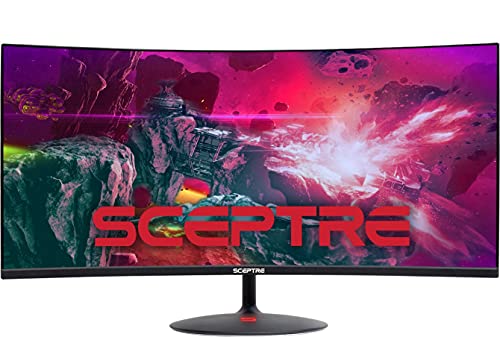
Value Curved Pick – Sceptre C345W-2560UN
The Sceptre C345W-2560UN is an affordable entry in the budget ultrawide productivity monitors category, offering a wide 34-inch 21:9 workspace with a curved design. Its 2560×1080 resolution, 100Hz refresh rate, and multiple video inputs make it practical for everyday office work and entertainment.
Best For: Budget-conscious users who want a large curved ultrawide for documents, browsing, and casual gaming.
Pros:
- 34-inch 21:9 screen gives you room to place multiple windows side by side.
- 100Hz refresh rate and Adaptive Sync provide smoother motion than a standard 60Hz display.
- 1500R curvature, blue-light shift, and flicker-free features support a more comfortable viewing experience.
- Includes HDMI and DisplayPort connectivity, built-in speakers, and a frameless design.
Cons:
- 2560×1080 resolution is less sharp than 3440×1440 alternatives at this screen size.
- The stand offers tilt adjustment but not height or swivel adjustment.
- The listed 5ms response time is less suited to demanding fast-action use than faster-rated models.
This Sceptre makes the most sense when screen width and price matter more than maximum pixel density or ergonomic adjustability. It delivers a spacious basic setup without adding premium productivity features such as USB-C.
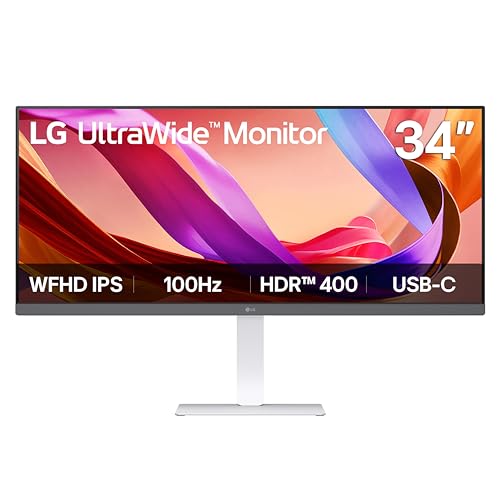
Flexible IPS Pick – LG 34U530A-W
The LG 34U530A-W is a practical option among budget ultrawide productivity monitors, pairing a 34-inch 21:9 IPS panel with a height-, tilt-, and swivel-adjustable stand. Its USB-C connection, 100Hz refresh rate, HDR400 support, and screen-splitting software make it well suited to organized daily workflows.
Best For: Office users who value IPS viewing angles, ergonomic adjustment, USB-C connectivity, and straightforward multitasking tools.
Pros:
- IPS panel with 178-degree viewing angles and up to 99% sRGB coverage delivers consistent, vibrant color.
- USB-C supports display output and data transfer for a cleaner laptop setup.
- Height, tilt, and swivel adjustments make it easier to position for long work sessions.
- DisplayHDR 400, 100Hz refresh, built-in Waves MaxxAudio speakers, and Switch app support add useful versatility.
Cons:
- 2560×1080 resolution offers less vertical detail than a 3440×1440 ultrawide.
- With one HDMI port and one USB port listed, connectivity is more limited than the Dell model.
- The 5ms response time is adequate for general use but not specifically aimed at high-speed gaming.
LG’s combination of IPS viewing consistency, an adjustable stand, and USB-C makes this a balanced productivity monitor. Choose it over the Sceptre if ergonomics and laptop-friendly connectivity are higher priorities than the lowest-cost setup.
Best with Extra Features – Sceptre 34-Inch Curved WQHD Monitor
For shoppers comparing budget ultrawide productivity monitors, this Sceptre combines a spacious 34-inch 21:9 display with sharp 3440 × 1440 resolution. Its curved VA panel, multiple video inputs, and high refresh rate make it suitable for multitasking with room for gaming and multimedia use.
Best For: Users who want a high-refresh ultrawide for spreadsheets, multitasking, gaming, and general multimedia.
Pros:
- 3440 × 1440 WQHD resolution provides detailed workspace across a 34-inch screen.
- 165Hz refresh rate and 1ms MPRT response time support smooth motion.
- Includes two HDMI ports, two DisplayPort connections, built-in speakers, and a blue-light filter.
- 99% sRGB coverage and AMD FreeSync support add versatility for creative and entertainment use.
Cons:
- At 280 cd/m², brightness is more modest than some productivity-focused displays.
- The included warranty is limited to one year.
- The stand offers tilt adjustment but no listed height adjustment.
This model is a strong value if you want a detailed ultrawide workspace without giving up gaming-friendly speed. It is less compelling for buyers who specifically need a height-adjustable stand or stronger built-in brightness.
Best Workstation Features – LG 34-Inch UltraWide WQHD Monitor
This LG is a practical choice among budget ultrawide productivity monitors, with 3440 × 1440 resolution, a height-adjustable stand, and software features designed for multitasking. USB-C connectivity with up to 65W power delivery also makes it especially useful for compatible laptop-based desks.
Best For: Office users and laptop owners who need flexible multitasking, ergonomic adjustment, and USB-C connectivity.
Pros:
- 21:9 WQHD resolution lets you arrange multiple windows on one 34-inch display.
- USB Type-C supports up to 65W power delivery for compatible laptops.
- Height and tilt adjustments make it easier to position the screen comfortably.
- OnScreen Control supports workspace splitting and Picture-by-Picture from two input sources.
Cons:
- The 100Hz refresh rate is lower than the faster Sceptre alternative.
- The 5ms response time is geared more toward productivity than fast-action gaming.
- USB-C charging and features depend on compatible devices and connections.
Choose the LG when desk ergonomics, laptop connectivity, and window management matter more than maximum refresh rate. HDR10 and up to 99% sRGB also give it useful flexibility for multimedia work.
Simple Large-Screen Value – Sceptre 34-Inch Prime UWQHD Monitor
If you want a straightforward entry in the budget ultrawide productivity monitors category, this Sceptre Prime provides a broad 34-inch flat screen with 3440 × 1440 resolution. Its 103% sRGB rating, eye-care feature, built-in speakers, and multiple inputs cover everyday work and entertainment without unnecessary complexity.
Best For: Budget-conscious users who want a large multitasking display with strong color coverage and integrated audio.
Pros:
- 34-inch 21:9 screen and 3440 × 1440 resolution provide ample room for multiple windows.
- 103% sRGB color gamut supports vibrant visuals for content and multimedia work.
- Two HDMI ports and two DisplayPort connections offer flexible device connectivity.
- Blue-Light Shift, AMD FreeSync, and built-in speakers add practical everyday features.
Cons:
- The maximum 115Hz refresh rate is lower than the other Sceptre model in this roundup.
- The flat design may be less immersive than a curved ultrawide for some users.
- No height adjustment is listed for the stand.
This is a sensible pick for office work, timelines, spreadsheets, and casual media use when color coverage and screen area are priorities. Consider another model if you specifically want a curved panel, height adjustment, or a higher refresh rate.
How We Picked the Best Budget Ultrawide Productivity Monitors
We focused on 34-inch-class ultrawide displays that offer practical value for office work, multitasking, creative projects, and general home use. Our shortlist considers resolution, panel type, refresh rate, connectivity, viewing comfort, mounting support, and overall versatility rather than gaming specifications alone.
WQHD models receive particular attention because their 3440 × 1440 resolution provides noticeably sharper text and more usable desktop space than 2560 × 1080. We also included lower-cost WFHD options for buyers who prioritize affordability or use a less powerful computer.
Quick Comparison
| What to Compare | Best for | Why it matters |
|---|---|---|
| 3440 × 1440 WQHD | Multitasking and detailed work | Sharper text and more horizontal workspace |
| 2560 × 1080 WFHD | Basic office use and value | Lower cost and easier GPU demands |
| USB-C | Laptop-based desks | Can simplify video and device connectivity |
| 100Hz or higher | Smoother scrolling and mixed use | Feels more fluid than standard 60Hz displays |
| VA or IPS | Contrast or viewing angles | VA usually has deeper blacks; IPS often offers more consistent colors |
Key Buying Factors
Resolution and Screen Size
For a 34-inch ultrawide, WQHD is generally the better productivity choice. It keeps text and interface elements crisp while letting you arrange multiple windows comfortably. WFHD models can still work well for email, documents, and browser-based tasks, but their lower pixel density is more apparent at this size.
Panel Type and Comfort
VA panels typically provide strong contrast and immersive curved viewing, while IPS panels are often preferable for consistent colors and wider viewing angles. Look for flicker reduction, low-blue-light modes, matte coatings, and a stand that supports a comfortable viewing position. A VESA mount is useful if the included stand has limited adjustment.
Connectivity and Features
Check the exact input arrangement before buying. HDMI and DisplayPort cover most desktops, while USB-C can make a major difference for laptop users—but USB-C features vary, so confirm whether it supports video, charging, or only data. Picture-by-picture and picture-in-picture modes are valuable for comparing two computers or sources.
Refresh Rate and Adaptive Sync
A 100Hz to 120Hz display can make scrolling and everyday motion feel smoother without requiring a gaming-focused monitor. FreeSync or Adaptive-Sync is helpful for reducing tearing when you also play games, though it is not essential for standard office work.
Who Should Buy Which Budget Ultrawide Productivity Monitors?
Choose a WQHD model if you regularly manage multiple windows, work with large spreadsheets, edit photos or video, or want sharper text. Choose a WFHD option if price is the priority and your workload is mostly email, documents, and web apps. Laptop users should prioritize USB-C, while users sharing two computers should look for PBP support. If you want one display for work and casual gaming, favor a model with at least 100Hz, adaptive sync, and a response time suited to your preferred games.