The best commercial-grade drawing display tablets combine accurate pen response, dependable color, sharp screens, and ergonomic controls for long creative sessions. The right choice depends on your software, workspace, portability needs, and budget.
Below, we compare 10 professional-focused pen displays and standalone drawing tablets, from large 4K studio monitors to compact and mobile options.
Best 10 Commercial-Grade Drawing Display Tablets Picks for 2026
Premium 4K Studio Pick

- 27-inch 4K, 120Hz display with 99% Adobe RGB
- 16,384-pressure-level X3 Pro stylus with tilt support
- Includes multi-touch, keyboard, stand, and two pens
Best For: Professional studio artists and designers needing a large, color-accurate canvas
Portable All-in-One Pick

- Standalone Android 15 tablet with 12GB RAM and 256GB storage
- 14-inch 3K OLED display with 100% sRGB and DCI-P3
- Battery-free Pro Pen 3 with 8,192 pressure levels
Best For: Mobile creators who want professional drawing without a separate computer
Wide-Canvas Value Pick

- 22-inch full-laminated Full HD drawing display
- 130% sRGB gamut with three selectable color spaces
- 16,384-pressure-level X3 Pro stylus
Best For: Creators wanting a roomy display and vivid color at a lower resolution
Balanced QHD Workflow Pick

- 15.8-inch 2.5K QHD display with 186 PPI
- 99% sRGB coverage and Delta E under 1.5
- Dual dials, six keys, and 16,384-pressure-level pen
Best For: Creators seeking sharp QHD detail and hands-on controls in a mid-size display
Portable Pro Power

- 3K 120Hz standalone or USB-C display
- 16K stylus with tilt and precise activation
- 8GB RAM, 256GB storage, expandable to 2TB
Best For: Mobile creators needing standalone and desktop modes
Reliable Creative Starter
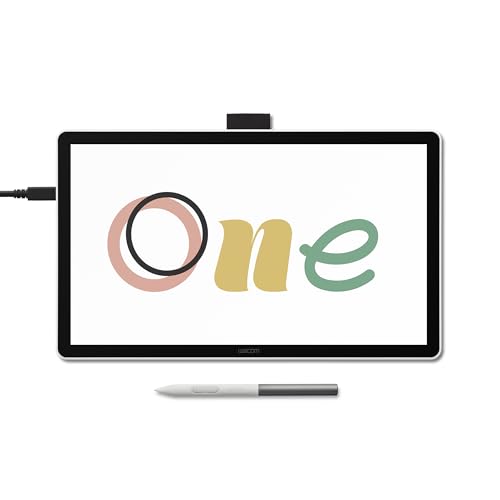
- 14-inch laminated Full HD IPS display
- 98% sRGB with anti-glare paper-like surface
- Battery-free pen and broad computer compatibility
Best For: Students and beginners using Windows, Mac, or Chromebook
Color-Critical Studio Choice
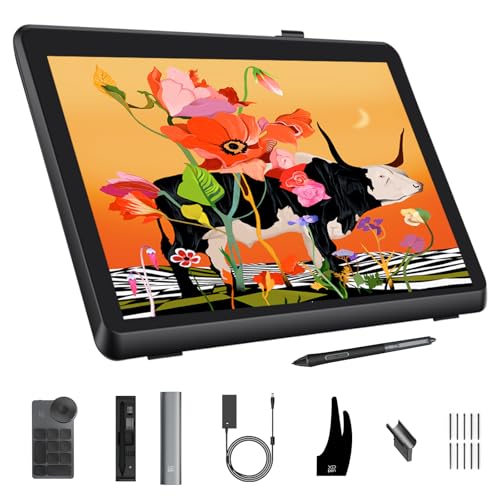
- Calman verified with Delta E below 1
- 21.5-inch 2.5K display with wide color gamut
- 16K stylus, 40-key keydial, and adjustable stand
Best For: Professional studio artists and color-sensitive designers
Wide-Gamut Workhorse
UGEE UE16 15.4-inch Drawing Display

- 143% sRGB and four color-space modes
- 16K pressure-sensitive battery-free stylus
- Eight keys and scroll-wheel controls
Best For: Artists and designers prioritizing color flexibility and broad compatibility
Dial-Control Professional

- 16K X3 Pro stylus sensitivity
- Red dial plus eight customizable keys
- Full-laminated anti-glare display
Best For: Computer-based illustrators who want hands-on workflow controls
Precision Workflow Pick
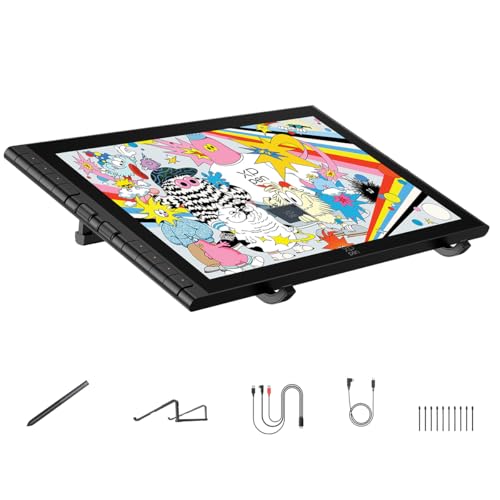
- X4 magnetic 16K stylus with low activation force
- Two scroll wheels and eight customizable keys
- OSD color management with wide-gamut coverage
Best For: Professional 2D and 3D creators needing precise controls
Premium 4K Studio Pick – XPPen Artist Pro 27 (Gen 2)
For professionals comparing commercial-grade drawing display tablets, the XPPen Artist Pro 27 (Gen 2) stands out with a large 27-inch 4K screen, 120Hz refresh rate, and Calman-certified color accuracy. Its full lamination, anti-glare coating, multi-touch controls, and included shortcut keyboard are designed for demanding creative workflows.
Best For: Professional illustrators, animators, graphic designers, photographers, 3D sculptors, and creative studios needing a large, color-accurate display.
Pros:
- 27-inch 4K display with 99% Adobe RGB coverage and Delta E under 1.
- X3 Pro stylus provides 16,384 pressure levels, tilt support, and a 0.4mm precision rating.
- Includes multi-touch controls, wireless shortcut keyboard, adjustable stand, and two pens.
- Supports Windows, macOS, Android, ChromeOS, Linux, and major creative software.
Cons:
- Its large 27-inch format is less portable than smaller pen displays.
- It is a professional desktop setup rather than a standalone mobile tablet.
The Artist Pro 27 (Gen 2) is the strongest fit when screen size, color precision, and workflow controls matter more than portability. It offers a particularly complete setup for studio-based production.
Portable All-in-One Pick – Wacom MovinkPad Pro 14
Among commercial-grade drawing display tablets, the Wacom MovinkPad Pro 14 is unusual because it works as a standalone Android creative device. Its Snapdragon processor, 12GB of RAM, OLED display, built-in storage, and battery-free Pro Pen 3 make it suitable for creating without carrying a separate computer.
Best For: Artists, designers, and photographers who want a portable standalone tablet with professional pen performance.
Pros:
- Standalone Android 15 tablet with Google Play access and included creative apps.
- 14-inch 3K OLED screen covers 100% sRGB and DCI-P3 color spaces.
- 12GB RAM, 256GB storage, and expandable microSD support.
- Battery-free Pro Pen 3 offers 8,192 pressure levels and includes replacement nibs.
Cons:
- Its 14-inch screen provides less working area than larger desktop displays.
- Windows and Mac instant pen-display mode has stated compatibility limitations, including no Windows ARM or Intel Mac support.
The MovinkPad Pro 14 is the most convenient option here for mobile work. Choose it when an integrated Android system and lightweight design are more valuable than a large desktop canvas.
Wide-Canvas Value Pick – XPPen Artist 22 Plus
The XPPen Artist 22 Plus offers a spacious working area for buyers seeking commercial-grade drawing display tablets without moving to a 4K panel. Its 22-inch full-laminated screen, wide 130% sRGB gamut, and 16,384-level stylus support give digital artists room for detailed work and multitasking.
Best For: Students, illustrators, designers, and creators who want a large screen and broad color gamut for drawing, editing, and general media use.
Pros:
- Spacious 22-inch display with a 1920×1080 resolution.
- 130% sRGB gamut, 16.7 million colors, and switchable sRGB, Adobe RGB, and DCI-P3 modes.
- X3 Pro stylus delivers 16,384 pressure levels for nuanced line control.
- Works with Windows, macOS, ChromeOS, Android, Linux, and many popular creative applications.
Cons:
- Full HD resolution is less detailed than the 2.5K and 4K alternatives in this roundup.
- It requires a connected computer or compatible device rather than operating as a standalone tablet.
The Artist 22 Plus is a practical choice when a broad, immersive canvas and flexible color modes are priorities. Its Full HD resolution keeps it better suited to buyers who value screen size over maximum pixel density.
Balanced QHD Workflow Pick – HUION Kamvas 16 (Gen 3)
The HUION Kamvas 16 (Gen 3) balances portability, sharpness, and control for buyers evaluating commercial-grade drawing display tablets. Its 2.5K QHD panel, accurate color coverage, nano-etched glass, dual dials, and customizable keys provide a focused setup for digital art and design.
Best For: Artists, designers, animators, and students who need a sharp mid-size pen display with built-in workflow controls.
Pros:
- 15.8-inch 2.5K QHD display delivers 186 PPI for a sharp view.
- Covers 99% sRGB and Rec.709 plus 90% Adobe RGB, with Delta E under 1.5.
- PenTech 4.0 stylus includes 16,384 pressure levels, tilt support, and 2g initial activation force.
- Two dials, six customizable keys, full lamination, and nano-etched anti-glare glass support efficient workflows.
Cons:
- It is not standalone and must connect to a computer, laptop, or compatible Android device.
- Connection options require the appropriate 3-in-1 or full-featured USB-C setup.
The Kamvas 16 (Gen 3) is a well-rounded option for creators who want QHD detail and physical controls without a 22- or 27-inch footprint. Its connectivity requirements should be checked before purchase.
Portable Pro Power – XPPen Magic Pro 13
For creators seeking commercial-grade drawing display tablets that can work away from the desk, the XPPen Magic Pro 13 combines a standalone Android tablet with a desktop drawing-display mode. Its 3K 120Hz screen, wide color coverage, and included 16K stylus make it suited to detailed illustration, design, and mobile workflows.
Best For: Artists who want one device for portable sketching and connected desktop production.
Pros:
- 3K resolution, adjustable refresh rates up to 120Hz, and a 3:2 canvas provide a detailed, responsive workspace.
- 16,384 pressure levels, tilt support, low activation force, and customizable stylus buttons support precise strokes.
- Works standalone or as a one-cable drawing display, with 8GB RAM, 256GB storage, and microSD expansion up to 2TB.
- 100% sRGB and 96% DCI-P3 coverage, plus cameras and bundled creative software, add versatility.
Cons:
- Its standalone Android features may be more than needed for a desk-only drawing setup.
- The supplied notes do not specify the full list of supported desktop operating systems.
The Magic Pro 13 is the most flexible option here for artists who move between locations. It offers strong display and pen specifications without requiring a separate computer for every sketching session.
Reliable Creative Starter – Wacom One 14
The Wacom One 14 is a straightforward choice among commercial-grade drawing display tablets for students, beginners, and creators who value dependable computer connectivity. Its laminated 14-inch Full HD IPS screen, anti-glare surface, and battery-free pen provide a practical setup for drawing, animation, and graphic design.
Best For: Beginners, students, and computer-based artists seeking a simple Wacom pen display.
Pros:
- 14-inch laminated Full HD display offers 98% sRGB coverage and a paper-like, anti-glare drawing surface.
- Battery-free pen supports 4,096 pressure levels and 60-degree tilt without charging.
- Compatible with Windows, macOS, and Chromebook systems, with a single USB-C connection on supported devices.
- Includes trials for Clip Studio Paint Pro, Magma, Concepts, Foxit, and Skillshare training.
Cons:
- It requires a computer and does not function as a standalone tablet.
- HDMI-based or USB-C systems without DisplayPort Alt Mode require additional adapters, cables, and power accessories.
- Its 4,096 pressure levels are lower than the pen specifications of the other listed models.
Choose the Wacom One 14 when reliability and ease of setup matter more than standalone operation or higher-end resolution. It is a sensible entry point for learning digital art on a compatible computer.
Color-Critical Studio Choice – XPPen Artist Pro 22 Gen 2
For professional artists comparing commercial-grade drawing display tablets, the XPPen Artist Pro 22 Gen 2 emphasizes large-screen detail and color consistency. Its Calman-verified panel, 2.5K resolution, 16K stylus, wireless keydial, and adjustable stand are designed for demanding illustration, photography, and graphic-design workflows.
Best For: Studio professionals who need a large, color-accurate display and efficient shortcut control.
Pros:
- Calman verification and Delta E below 1 support consistent color work, with 99% Adobe RGB, 99% sRGB, and 94% Display P3 coverage.
- 21.5-inch 2.5K display delivers 137 PPI, 178-degree viewing angles, and a spacious 16:9 workspace.
- 16K pressure sensitivity, felt nibs, tilt support, digital eraser, and ±0.4mm accuracy support controlled drawing.
- Included wireless keydial provides 40 customizable keys and a physical dial, while the stand adjusts from 15 to 88 degrees.
Cons:
- The large 21.5-inch format is less portable than a smaller display tablet.
- The optional ACS15 height-adjustable stand is not included.
- At 250 cd/m² peak brightness, it is primarily suited to controlled indoor studio environments.
The Artist Pro 22 Gen 2 is the strongest fit for color-sensitive desktop work and long studio sessions. Its large calibrated display and bundled controls can reduce reliance on separate shortcut hardware.
Wide-Gamut Workhorse – UGEE UE16 15.4-inch Drawing Display
The UGEE UE16 is a practical option among commercial-grade drawing display tablets for artists who want a large, full-laminated workspace, broad color-space support, and extensive shortcut controls. Its 16K pressure-sensitive, battery-free stylus is designed for detailed drawing and writing on a 15.4-inch FHD display.
Best For: Artists, students, and designers who need wide-gamut color options and compatibility across desktop, laptop, and select mobile devices.
Pros:
- 143% sRGB gamut with sRGB, Adobe RGB, DCI-P3, and Black & White modes.
- 16,384 pressure levels, 60-degree tilt support, and a battery-free stylus.
- Eight shortcut keys plus a scroll wheel with four preset functions.
- Works with Windows, macOS, ChromeOS, Android, and Linux.
Cons:
- The 1,920 x 1,080 resolution is modest for a 15.4-inch display.
- It requires HDMI and USB connectivity, and the 3-in-1 cable is packed separately.
The UE16 stands out for its unusually broad color-gamut claim and flexible color modes. It is a strong fit for creators who value customizable controls and cross-platform support, though users wanting a sharper display may prefer a higher-resolution model.
Dial-Control Professional – XPPen Artist 15.6 Pro V2
The XPPen Artist 15.6 Pro V2 is a focused choice among commercial-grade drawing display tablets for computer-based illustration and design. It combines a full-laminated anti-glare screen with a 16K X3 Pro stylus, eight customizable keys, and a prominent red dial for adjusting brush size, zoom, and navigation.
Best For: Illustrators and designers who work at a computer and want tactile workflow controls for long drawing sessions.
Pros:
- 16,384 pressure levels for precise, smooth line control.
- Full-laminated, anti-glare etched glass helps reduce parallax and glare.
- Red dial and eight customizable shortcut keys support efficient workflows.
- Includes a foldable stand with adjustable viewing angles.
Cons:
- It must be connected to a computer or laptop; it is not a standalone tablet.
- The listed 250 cd/m² brightness may be limiting in very bright environments.
The Artist 15.6 Pro V2 emphasizes control and ergonomics rather than portability. Its dial, shortcut keys, etched glass, and included stand make it well suited to desk-based creative work, provided your setup includes a compatible computer.
Precision Workflow Pick – XPPen Artist 16 3rd Gen
The XPPen Artist 16 3rd Gen is one of the more feature-rich commercial-grade drawing display tablets in this group. Its 15.4-inch FHD screen pairs anti-glare etched glass and near-zero-parallax lamination with an X4 magnetic 16K stylus, two scroll wheels, eight hotkeys, and an included foldable stand.
Best For: Professional illustrators, animators, and 3D creators who need precise pen response, color-profile controls, and fast access to canvas commands.
Pros:
- X4 stylus offers 16,384 pressure levels, 2g initial activation force, and 0.3mm retraction.
- AG+AF nano-etched glass reduces glare, fingerprints, and apparent parallax.
- 99% sRGB, 98% Adobe RGB, and 97% Display P3 coverage with OSD color management.
- Two scroll wheels, eight customizable keys, magnetic pen storage, and included stand.
Cons:
- The display is FHD rather than a higher-resolution panel.
- Its broad feature set may be more than casual sketchers need.
The Artist 16 3rd Gen is the strongest choice here for creators who want advanced input hardware and physical workflow controls in one setup. USB-C single-cable connectivity can simplify compatible workstations, while the included 3-in-1 cable supports older PCs.
How We Picked the Best Commercial-Grade Drawing Display Tablets
We focused on models suited to sustained illustration, animation, photo editing, graphic design, and other demanding creative work. Selection criteria included display resolution, color coverage, lamination, viewing comfort, pressure sensitivity, pen technology, shortcut controls, connectivity, operating-system support, and overall workflow flexibility.
Specifications can vary by configuration and region, so confirm included accessories, stand availability, ports, and software compatibility before buying. A larger specification number is not automatically better if the tablet lacks comfortable ergonomics or fits poorly into your setup.
Quick Comparison
| Best For | Recommended Type | What to Prioritize |
|---|---|---|
| Professional studio work | 22- or 27-inch pen display | High resolution, color accuracy, stable stand, low-latency pen |
| Animation and design | Large QHD or 4K display | Screen space, shortcut controls, calibrated color |
| Small desks and travel | 13- to 16-inch display | Portability, one-cable setup, adjustable stand |
| Untethered work | Standalone Android drawing tablet | Battery life, app support, storage, palm rejection |
| Value-focused upgrades | 15- to 16-inch pen display | Full lamination, color gamut, bundled accessories |
Key Buying Factors for Commercial-Grade Drawing Display Tablets
Screen Size and Resolution
A 22- or 27-inch screen provides generous room for timelines, panels, and detailed artwork, making it suitable for studio workflows. Smaller 13- to 16-inch models are easier to transport and can be more comfortable on compact desks. QHD is a strong middle ground, while 4K provides finer detail at larger sizes.
Color and Surface Quality
Look beyond headline gamut figures. Consistent factory calibration, accurate color modes, wide viewing angles, and an etched or anti-glare surface can matter more in daily use. Full lamination reduces the visible gap between the pen tip and cursor, improving precision.
Pen Performance and Controls
Pressure sensitivity, tilt recognition, hover distance, and tracking stability affect line quality and control. Shortcut keys, dials, and scroll wheels can speed up repetitive commands, but keyboard-heavy users may prefer a cleaner display with fewer built-in controls.
Connectivity and Ergonomics
Check whether the tablet requires HDMI, DisplayPort, USB-C, or multiple cables, and verify that your computer supports the required video signal. A height-adjustable stand, VESA compatibility, and a comfortable viewing angle are especially important for long sessions.
Who Should Buy Which Commercial-Grade Drawing Display Tablets?
- Choose a large 22- or 27-inch model if you work primarily at a desk and need maximum canvas space for animation, illustration, or design.
- Choose a 13- to 16-inch model if you split time between locations or want professional features without dedicating substantial desk space.
- Choose a standalone tablet if portability and drawing without a computer are more important than desktop software flexibility.
- Choose a color-focused display if your work involves print production, branding, photography, or other color-critical deliverables.
- Choose a control-focused model if customizable buttons, dials, and wheels can meaningfully reduce repetitive keyboard and mouse actions.