If you’re setting up dual displays with a Mac Mini, you’ll want an adapter that’s reliable, supports high resolutions, and won’t complicate your workflow. I’ll walk you through top options—USB-C hubs, Mini DisplayPort splitters, and DisplayLink solutions—so you can match features like 4K@60Hz, power delivery, and plug-and-play ease to your needs. Keep going to find the right fit for your setup.
Acer 4-in-1 USB-C Hub with Dual HDMI 4K@60Hz, 100W PD, and USB 3.0 (Dual Monitor Adapter)
If you need a compact, power-hungry solution for running two 4K monitors from a Mac mini, the Acer 4-in-1 USB‑C Hub is a strong pick — it delivers dual HDMI 4K@60Hz output, a 5Gbps USB‑A port, and up to 90W charging through its 100W PD pass‑through, so you can drive crisp displays and keep your Mac mini powered without extra dongles. You’ll get dual 4K@60Hz via HDMI 2.0 when your host supports DP Alt Mode; note Mac dual-display limits (AAA/ABB). The 5Gbps USB‑A moves large files fast, and the short 20 cm cable suits compact setups.
Best For: Professionals and power users who need a compact adapter to run two 4K@60Hz HDMI monitors while charging a laptop (or Mac mini) and transferring files at USB‑3.0 speeds.
Pros:
- Dual HDMI 4K@60Hz outputs (via HDMI 2.0 + DP Alt Mode) let you drive two crisp external monitors.
- 100W PD pass-through provides up to 90W charging to keep laptops powered during heavy use.
- Built-in USB‑A 3.0 (5Gbps) port enables fast file transfers and connects legacy peripherals.
Cons:
- Dual-display behavior on Macs is limited to specific configurations (AAA/ABB), so full flexibility may be restricted.
- Requires a 65W+ external power adapter and compatible cable to achieve maximum charging—adapter not included.
- Short 20 cm cable may limit placement and reach in some desk setups.
Mini DisplayPort to Dual HDMI Adapter (4K60Hz) for Dual Monitors

For users who need a simple, plug-and-play way to add two HDMI displays to a Mac mini or older MacBook with Mini DisplayPort, the Veecoona Mini DisplayPort to Dual HDMI Adapter delivers 4K output on a single screen and reliable mirrored dual-monitor support on macOS. You’ll get 4K@60Hz on one display or 4K@30Hz when using both in extended mode on Windows; macOS only supports mirroring. It’s a Thunderbolt 2 DP male to HDMI female splitter, requires USB 5V/1A power, and must plug directly into Mini DP (no docks or KVMs). Durable aluminum casing, 2-year warranty, and 18/7 support.
Best For: Users with Macs or older laptops that have a Mini DisplayPort who need a simple plug-and-play solution to add two HDMI displays for mirrored output (or dual extended displays on Windows), particularly Mac mini/MacBook Air/Pro owners.
Pros:
- Supports 4K@60Hz on a single display and up to 4K@30Hz when both outputs are used (on Windows), giving high-resolution capability.
- Plug-and-play design with durable aluminum casing and USB power (5V/1A) for straightforward setup and reliable thermal performance.
- Includes a 2-year warranty, 18/7 customer support, and broad OS compatibility (Windows, macOS mirroring, Linux).
Cons:
- macOS only supports mirrored displays (no extended desktop), limiting multi-monitor workflows on Macs.
- Requires direct connection to a Mini DisplayPort and won’t work through docks, hubs, or KVM switches.
- Needs USB power and a Mini DP that supports >18Gbps (may require GPU driver updates), adding potential setup steps.
Mini DisplayPort to Dual HDMI Adapter for Dual Monitor Display

One standout feature is its ability to drive two 4K@60Hz displays from a single Mini DisplayPort or Thunderbolt 2 connection, making this adapter ideal if you need crisp, high-refresh dual monitors for media, gaming, or productivity on older Mac Minis and Thunderbolt-equipped laptops. You’ll get HDR support and high frame rates like 2560×1440@120Hz or 1920×1080@120Hz, ensuring smooth visuals. It’s compatible with Mini DisplayPort/Thunderbolt 2 devices but macOS limits you to mirroring — extended mode requires Windows. Built with an aluminum shell, braided cable, and 24K gold-plated connectors, it includes USB-C power and a 24-month warranty.
Best For: power users of older Mini DisplayPort/Thunderbolt 2 Macs and Windows laptops who need crisp dual-monitor setups (including dual 4K@60Hz) for media, gaming, or productivity.
Pros:
- Drives two 4K@60Hz displays (or high-refresh 2560×1440@120Hz / 1080p@120Hz) from a single Mini DisplayPort/Thunderbolt 2 connection.
- Durable build with aluminum alloy shell, nylon-braided cable, and 24K gold-plated connectors; includes USB-C power for stable dual-4K output.
- HDR support and smooth performance for gaming and media; backed by a 24-month warranty and professional support.
Cons:
- macOS only supports mirroring on many Macs — extended desktop requires Windows.
- Requires USB-C power cable to achieve stable dual 4K@60Hz output, adding cable/port needs.
- Compatibility limited to Mini DisplayPort/Thunderbolt 2 devices (pre-2018 Macs, older Surface models); not suitable for newer USB-C/Thunderbolt 3/4-only machines without adapters.
Plugable USB-C to HDMI Adapter, Dual Monitor 4K 60Hz (DisplayLink)

Plugable’s USB-C Dual HDMI Adapter (USBC-6950M) is ideal when you need to drive two 4K 60Hz displays from a single Thunderbolt/USB-C port—especially useful if you’re using an M-series MacBook or Mac Mini that ordinarily supports only one external monitor. You’ll get two HDMI ports in a sturdy aluminum enclosure powered by DisplayLink, so you must install the DisplayLink Manager on macOS (or let Windows Update add drivers). It’s compatible with macOS 11+, Windows 10+, and ChromeOS 100+, and it’s built for reliability with lifetime North American support. Note: HDCP isn’t supported.
Best For: Power users and professionals with Thunderbolt/USB-C Macs or PCs (especially M-series MacBook/Mac Mini owners) who need to drive two 4K 60Hz external displays from a single port for multitasking and office workflows.
Pros:
- Enables dual 4K 60Hz HDMI displays from a single Thunderbolt/USB-C port, ideal for multi-app productivity.
- Broad compatibility with macOS 11+, Windows 10+, and ChromeOS 100+ (including M1–M5 and Neo Macs).
- Sturdy aluminum design and lifetime North American support for reliable long-term use.
Cons:
- Requires DisplayLink driver/DisplayLink Manager installation for full functionality (macOS/Windows).
- HDCP not supported, which can prevent playback of some protected content.
- Dependent on host USB-C/Thunderbolt bandwidth and driver support; performance may vary by system.
Anker USB-C to HDMI Adapter (4K@60Hz) for MacBook, iPad Pro, Pixelbook, XPS, Galaxy, and More

If you need a simple, reliable way to drive a 4K monitor at 60Hz from your Mac Mini, the Anker USB‑C to HDMI Adapter (Model A8312) delivers—its support for USB‑C DP Alt Mode, USB4, and Thunderbolt guarantees broad compatibility with MacBook, iPad Pro, Pixelbook, XPS, Galaxy, and other Thunderbolt‑equipped devices. You plug it in and get crisp 4K@60Hz video without drivers. The lightweight aluminum body and braided‑nylon cable keep heat down and durability up. It’s compact (1.97 x 0.85 x 0.45 in), draws 18W nominal power, and includes an 18‑month warranty plus Amazon’s 30‑day return policy for peace of mind.
Best For: Users who need a simple, reliable plug‑and‑play adapter to drive a 4K@60Hz external display from USB‑C, USB4, or Thunderbolt‑equipped laptops and tablets (MacBook, iPad Pro, XPS, Pixelbook, Galaxy, etc.).
Pros:
- Supports true 4K@60Hz output with DP Alt Mode/USB4/Thunderbolt compatibility for broad device support.
- Durable, heat‑dissipating design with aluminum housing and braided‑nylon cable.
- Compact, lightweight, plug‑and‑play operation with an 18‑month warranty and Amazon 30‑day return.
Cons:
- Single HDMI port only — no additional USB or power passthrough.
- Relies on host device supporting DP Alt Mode/Thunderbolt; older USB‑C devices may not be compatible.
- Limited power/current (18W nominal, 1A) — not suitable for powering other high‑draw accessories.
Mini DisplayPort to Dual HDMI Adapter (4K@60Hz) for Mac & Windows
![SWITCHFLUX Mini DisplayPort to Dual HDMI Adapter,4K@60Hz MST Hub | HDMI Splitter Extended Display for Dual Monitor,[Thunderbolt1/2 Compatible] for MacBook Pro/Air, iMac, Mac mini, Surface Pro](https://m.media-amazon.com/images/I/4187pO1yJPL._SL500_.jpg)
Mac and Windows users who need a simple way to drive two HDMI displays from a Mini DisplayPort will appreciate this adapter’s ability to deliver up to 4K@60Hz and lossless audio/video synchronization. You can mirror two HDMI monitors on macOS or extend them on Windows using MST, with support for dual 3840×2160@30Hz or mixed 1440p/1080p@60Hz. It’s plug-and-play—no drivers—featuring a compact aluminum body, 24K gold-plated connectors, and a nylon-braided cable for durability and heat dissipation. Compatible with older MacBooks, iMacs, Mac mini models and early Surface Pros. Includes a 30-day Amazon return policy and responsive SWITCHFLUX support.
Best For: Mac and Windows users with Mini DisplayPort-equipped laptops or desktops who need a compact, plug-and-play solution to drive two HDMI monitors for mirroring (macOS) or extended displays (Windows) at up to 4K/60Hz capabilities.
Pros:
- Supports dual HDMI output with up to 4K@60Hz source compatibility and dual 3840×2160@30Hz or mixed 1440p/1080p@60Hz display configurations.
- Plug-and-play operation with lossless audio/video sync, compact aluminum housing, 24K gold-plated connectors, and a durable nylon-braided cable.
- Broad compatibility with older MacBook, iMac, Mac mini models and early Surface Pro devices, plus a 30-day Amazon return policy and responsive SWITCHFLUX support.
Cons:
- Extension mode is limited to Windows (macOS only supports mirroring), so full dual-monitor extension won’t work on Macs.
- Compatibility is focused on older Mini DisplayPort-era devices and may not support newer USB-C/Thunderbolt-only systems without additional adapters.
- Actual performance (resolution/refresh combinations) depends on the source GPU and monitor capabilities, so mixed-resolution setups may be required.
Plugable Dual Monitor Adapter (Thunderbolt/USB-C/USB 3.0 to Dual HDMI)
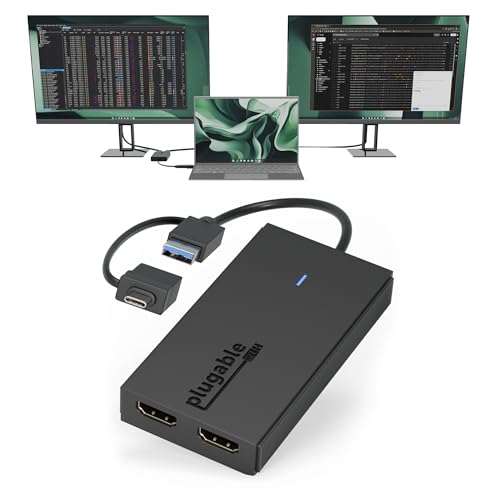
For anyone who needs reliable dual 1080p displays from a single port, the Plugable Dual Monitor Adapter is a solid pick — it lets you connect two HDMI monitors over Thunderbolt, USB‑C, or USB‑A (USB 3.0) and keeps both screens at 1920×1080 @ 60Hz. You’ll plug the hybrid 2‑in‑1 cable into USB‑C/Thunderbolt or USB‑A, install the SMI driver, then choose mirrored or extended mode. It supports macOS (including M1–M4), Windows, and ChromeOS, and scales for multiple adapters on Windows/ChromeOS. It’s compact, reliable for IT or home use, backed by two‑year warranty and lifetime support.
Best For: Anyone who needs a compact, reliable way to run two 1080p HDMI monitors from a single Thunderbolt/USB‑C/USB‑A port—especially macOS M1–M4, Windows, and ChromeOS users in home or IT deployments.
Pros:
- Supports dual 1920×1080 @ 60Hz displays over a single port (USB‑C/Thunderbolt or USB‑A) with mirrored or extended modes.
- Broad OS/device compatibility (macOS M1–M4, Windows 10/11, ChromeOS 100+) and works with multiple adapters on Windows/ChromeOS.
- Compact build, 2‑year warranty and lifetime North American support.
Cons:
- Requires installing the SMI driver (not plug‑and‑play for all systems).
- Not compatible with DisplayLink software or drivers.
- macOS supports fewer total displays per system compared with Windows/ChromeOS (max four on macOS vs up to eight on Windows/ChromeOS).
Mini DisplayPort/Thunderbolt 2 to Dual DisplayPort Adapter for Dual Monitors

This Mini DisplayPort/Thunderbolt 2 to Dual DisplayPort adapter is ideal for users who need reliable dual 4K@60Hz output from older Thunderbolt 2 or Mini DisplayPort machines—especially creatives and prosumers who want high-resolution, HDR-capable displays without upgrading their entire system. You’ll connect older MacBook Pros/Airs, iMacs, Surface devices, or PCs and drive dual 4K@60Hz, 2560×1440@120Hz, or 1920×1080@120Hz panels. macOS limits you to mirroring; Windows supports extended displays via MST. The adapter’s aluminum shell, braided cable, and 24K gold-plated connectors guarantee durability and stable signals. A USB-C power cable, 24-month warranty, and tech support round out the package.
Best For: Creatives and prosumers using older Mini DisplayPort/Thunderbolt 2 Macs, Surface devices, or PCs who need reliable dual 4K@60Hz (or high-refresh 1440/1080p) HDR-capable displays without upgrading their computer.
Pros:
- Enables dual 4K@60Hz output (or 2560×1440@120Hz, 1920×1080@120Hz) for high-resolution, high-refresh workflows.
- Sturdy build with aluminum alloy shell, nylon-braided cable, and 24K gold-plated connectors for durability and stable signal.
- Includes USB-C power cable and 24-month warranty with technical support for reliable performance and assistance.
Cons:
- macOS is limited to mirrored displays; extended desktop requires Windows with MST support.
- Requires Thunderbolt 2/Mini DisplayPort-equipped host—newer USB-C/Thunderbolt 3+ systems need adapters or are incompatible.
- Full dual 4K stability may depend on using the included power cable and compatible monitors, adding setup complexity.
Mini DisplayPort to Dual HDMI Adapter (4K60Hz) for Dual Monitors

If you need to drive two HDMI monitors from a single Mini DisplayPort or Thunderbolt 2 output, the Mini DisplayPort to Dual HDMI Adapter is ideal — it gives you 4K@60Hz support (or dual 4K@30Hz) so you can work with crisp, high‑refresh displays for presentations, editing, or multitasking. You plug into a Mini DP/Thunderbolt 2 port and get mirror (SST) or extended (MST) modes; note Mac devices only support mirroring. It’s plug‑and‑play, needs no drivers, and requires a 4K@60Hz HDMI cable plus the included USB‑C power lead. Check Mini DP 1.4 compatibility and avoid hubs.
Best For: Professionals and power users who need to connect one Mini DisplayPort/Thunderbolt 2 laptop to two HDMI monitors for presentations, multitasking, or 4K content work.
Pros:
- Supports up to 4K@60Hz (single) or dual 4K@30Hz, enabling crisp high-resolution displays for editing and presentations.
- Plug-and-play with no drivers required and includes a USB-C power lead for easy setup.
- Durable build with 24K gold-plated connectors and aluminum housing for better heat dissipation and travel resilience.
Cons:
- Mac devices (Thunderbolt 2 era) only support mirror mode, not extended displays via MST.
- Requires source support for Mini DP 1.4 and a 4K@60Hz HDMI cable; may not work with older Mini DP versions.
- Not compatible with docking stations/hubs/KVMs and cannot convert HDMI to Mini DP (one-way only).
WAVLINK HDMI Splitter USB-A/USB-C to Dual HDMI Adapter for Dual Monitors (4K@30Hz, 1080p@60Hz)

Gamers and multitaskers who need extra desktop space will appreciate the WAVLINK HDMI Splitter, which turns a single USB-A or USB-C port into two HDMI outputs supporting up to 4K@30Hz or 1080p@60Hz. You can drive mixed resolutions—like 2560×1440@60Hz plus 1920×1080@60Hz—via a USB 3.0 connection for productive multiscreen workflows. It supports Windows, macOS, and Chrome OS, with Android mirroring only; it’s not compatible with Linux or iPadOS. Drivers are required, so download them before use. Avoid using it for gaming, HDCP-protected streaming, or heavy graphics. Package includes adapter, driver card, guide, and a 24-month warranty.
Best For: users who need to add one or two extra monitors for productivity (web, office, multitasking) from a single USB-A or USB-C port without heavy gaming or DRM-protected streaming.
Pros:
- Supports mixed resolutions up to 4K@30Hz and 1080p@60Hz (e.g., 2560×1440@60Hz + 1920×1080@60Hz) for flexible multi-monitor setups.
- Works with Windows, macOS, and Chrome OS (and Android mirror mode), plus includes drivers, quick start guide, and 24-month warranty.
- Simple single-cable solution (USB 3.0) to add dual HDMI outputs for increased desktop space and productivity.
Cons:
- Requires driver installation (not plug-and-play) and is incompatible with Linux and iPadOS.
- Not suitable for gaming, heavy graphics work, or HDCP-protected streaming services (e.g., Netflix, Hulu).
- Android is limited to mirror mode only; cable length is short (12 cm) which may limit placement.
Factors to Consider When Choosing Mac Mini Dual Monitor Adapters
Before you pick an adapter, check Mac model compatibility so you know which ports and chipsets it supports. Decide between DisplayPort and HDMI, confirm the resolution and refresh rate you need, and choose single‑ vs dual‑output options based on your workflow. Also verify any driver requirements to avoid surprises during setup.
Mac Model Compatibility
Many Mac Mini models look similar but their ports and display limits vary, so you’ll want to match the adapter to your exact model and macOS version. Check your Mac Mini’s year and ports: 2010–2014 units usually use Mini DisplayPort, while 2018 and later rely on USB-C/Thunderbolt 3. Older machines may only mirror displays or cap 4K at 30Hz, whereas newer Macs often support extended desktops and 4K@60Hz. Verify the adapter’s macOS compatibility—some only enable mirroring or specific modes depending on the OS. Confirm supported resolution and refresh rate, and make sure the adapter’s power needs match your setup; some adapters require extra USB power to drive two monitors reliably. Match specs, don’t guess.
Displayport Vs HDMI
When choosing between DisplayPort and HDMI for a Mac Mini dual-monitor setup, focus on the bandwidth and feature differences that affect resolution, refresh rate, and multi-monitor support. You’ll prefer DisplayPort if you need higher bandwidth—its versions (like DP 1.4) handle up to 8K at 60Hz and can drive multiple monitors from one output using MST, making it ideal for pro work and gaming. HDMI is more common in TVs and consumer gear, carries audio and video on one cable, and stays backward compatible, so it’s convenient for general use; HDMI 2.0 handles 4K@60Hz. Also note DisplayPort’s locking connectors reduce accidental disconnects, while HDMI lacks that feature and may be less stable in some setups.
Resolution and Refresh
Choosing the right adapter means making sure it can drive the exact resolutions and refresh rates you want on both displays simultaneously—ideally 4K at 60Hz per monitor—because some adapters drop to 4K@30Hz or lower when both outputs are in use, which will show up as choppy motion in video and games or less responsive cursor movement. Check the adapter’s simultaneous-output specs so you know it won’t reduce refresh rate or resolution when driving two screens. Confirm compatibility with your Mac Mini’s Thunderbolt/Mini DisplayPort capabilities to avoid signal limits. Note that some adapters need extra power to sustain high-res dual outputs; without it you may see throttling or instability. For office work 4K@30Hz might be fine, but for editing or gaming stick to true 4K@60Hz.
Single Vs Dual Outputs
Wondering whether a single-output adapter will do or if you need a dual-output model? If you only plan to mirror one screen or run a single external display, a single-output adapter keeps things simple and usually requires less setup. But if you want true multitasking, choose a dual-output adapter to extend your desktop across two monitors or mirror as needed.
Check supported resolutions and refresh rates: some dual-output adapters handle 4K@60Hz on both displays, while others limit you to lower resolutions or refresh rates. Verify compatibility with your Mac Mini model and macOS version before buying. Also note dual-output units may need extra power or specific installation steps, which can affect setup time and reliability.
Driver Requirements
Because many dual-monitor adapters rely on additional software—especially those using DisplayLink—you’ll want to verify driver needs before you buy. Check whether an adapter is truly plug-and-play or requires manual driver installation; missing drivers can limit you to lower resolutions or prevent a second display altogether. Verify compatibility with your exact macOS version—some drivers need specific releases or security permissions. Look for clear download links, installation instructions, and active support from the manufacturer. Also verify driver update frequency and user reports about reliability on recent macOS builds. Finally, make sure your GPU drivers and system updates are current before connecting an adapter, since outdated GPU software can block proper dual-monitor functionality.
Power Delivery Needs
While picking a dual‑monitor adapter, make sure it supports Power Delivery (PD) at the wattage your Mac Mini needs—generally 65W or higher—to keep the system powered while driving two displays. You’ll want an adapter that explicitly lists PD output; many offer 100W PD, which covers most Mac Mini models and lets you run dual HDMI at high resolutions without draining the Mac. Verify PD compatibility with your specific Mac Mini, since power requirements can vary by generation. Calculate total wattage for your configuration so the adapter can handle both charging and display output. Finally, confirm whether the adapter needs an external power brick; some hubs require a higher‑wattage supply to maintain PD while driving two active ports.
Cable Length and Build
Pick a cable length that fits your setup so you don’t stress ports or force awkward routing, and choose a rugged build to avoid frequent replacements. You should measure your workspace and avoid overly long runs that can introduce signal degradation at high resolutions. Shorter, well-fitted cables reduce tension and keep connectors seated properly; longer cables add flexibility but check manufacturer limits for reliable 4K or 5K output.
Look for solid materials — aluminum housings, braided nylon jackets, and gold-plated connectors — to improve durability, heat dissipation, and conductivity. Match cable length and construction to how you use the Mac Mini: prioritize portability with compact, sturdy cables; for fixed installs, opt for slightly longer, high-quality leads that maintain signal integrity over distance.
HDCP and Streaming
If you plan to stream DRM-protected video on a Mac Mini, confirm the dual‑monitor adapter supports HDCP so you don’t hit black screens or playback errors; many adapters omit HDCP support, and that can block services like Netflix or Hulu. You should check product specs for explicit HDCP compatibility before buying. Even when an adapter claims HDCP support, your cables and displays must also be HDCP-compliant — mismatched components can still cause failures. If streaming protected content is a priority, prioritize adapters that list HDCP version (e.g., 1.4 or 2.2) and read user reports about real-world streaming. When in doubt, contact the manufacturer for confirmation to avoid incompatibility surprises during playback.