If you want a cleaner, more ergonomic Mac Studio desk, the right monitor arm makes a big difference. You’ll find options that handle ultrawide screens, heavy glass displays, and compact setups with Mac mini or Mac Studio mounts. I’ll run through the top choices for 2026 and what matters when you pick one—so you can match form and function without the usual guesswork.
HUANUO TitanLift Heavy Duty Monitor Arm for Up to 49″ Screens

If you need a beefy arm that can handle large, heavy displays, the HUANUO TitanLift is built for you — it supports up to 49″ screens and 44 lbs while offering wide articulation and a reinforced aluminum design for long-term stability. You’ll fit 17–49″ monitors with 75×75 or 100×100 VESA patterns and adjust height up to 19.6″ with 22.5″ extension. Tilt ±50°, swivel 180°, and rotate 360° for perfect alignment. The reinforced VESA head, 20% thicker arms, and 30% wider base passed rigorous cycle and load tests. Setup’s quick with one-key tension tweaks and integrated cable management.
Best For: Professionals and gamers who need a heavy-duty, highly adjustable monitor arm for large (17–49″) and heavy (up to 44 lb) displays to achieve ergonomic multi-angle setups.
Pros:
- Supports large/heavy monitors (up to 49″ and 44 lbs) with reinforced aluminum construction for long-term stability.
- Wide adjustability: tilt ±50°, swivel 180°, rotate 360°, 22.5″ extension and 19.6″ height range for precise positioning.
- Easy installation and cable management with quick 3-step setup and one-key tension adjustment.
Cons:
- Requires compatible VESA 75×75 or 100×100 mounting pattern, so some monitors may need an adapter.
- Heavier-duty build may take more desk space and a sturdy clamp or grommet mount to secure properly.
- May be overkill (cost/size) for users with small, lightweight monitors.
Modernsolid Heavy Duty Monitor Arm Desk Mount for 34-49 Inch Ultrawide Curved Monitors
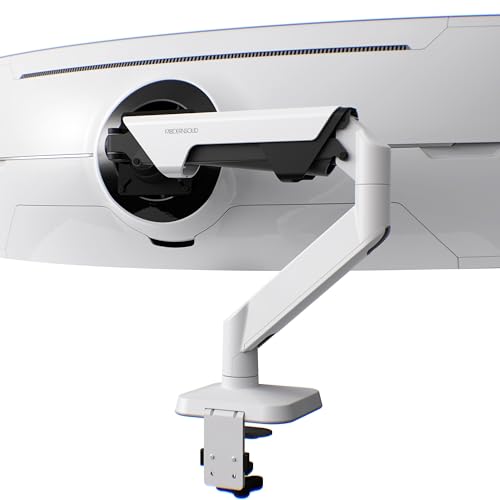
The Modernsolid heavy‑duty arm is the pick for creators who use massive ultrawide displays—think 34–49″ curved panels like the Samsung Odyssey G9—because it supports 14–38 lbs with gas‑spring ease and offers full articulation for precise positioning. You’ll get SmartFriction smooth glide plus ±55° tilt, 180° swivel and 90° rotation, so adjusting your ultrawide is effortless. The quick‑release VESA plate (75/100mm) and clamp‑on tabletop mount mean you’ll avoid drilling. Industrial‑grade aluminum survived 10,000+ motion cycles and earned a Red Dot design award. It includes a one‑year warranty, Amazon returns, and strong user ratings (4.7/5).
Best For: Creators and professionals who use large 34–49″ ultrawide curved monitors (like the Samsung Odyssey G9) and need a heavy‑duty, fully articulating desk mount for ergonomic, precise positioning.
Pros:
- Supports 14–38 lbs with gas‑spring SmartFriction for smooth, effortless adjustments.
- Full articulation (±55° tilt, 180° swivel, 90° rotation) and quick‑release VESA (75/100mm) for flexible setup and easy installation without drilling.
- Durable industrial‑grade aluminum construction (10,000+ motion cycles) with award‑winning minimalist design.
Cons:
- Limited to 34–49″ screens and may not fit smaller or larger monitors outside that range.
- One‑year warranty may be shorter than some competing heavy‑duty mounts offering longer coverage.
- Clamp‑on installation might not suit all desk thicknesses or users preferring through‑desk grommet mounting.
Ergotron LX Single Monitor Arm Desk Mount (Fits up to 34″ Monitors, 7–25 lbs, VESA 75×75/100×100)
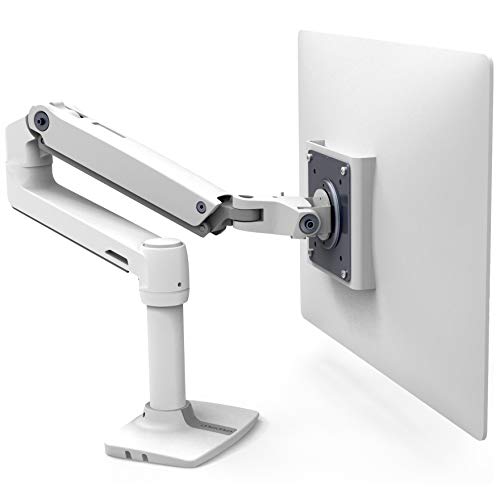
Ergotron’s LX single-arm is a great pick for Mac Studio users who need a sturdy, highly adjustable mount that fits ultrawide displays up to 34″ and 25 lbs; it raises your screen up to 17.3″ and gives you 360° rotation with 75° tilt so you’ll get comfortable, glare-free viewing without constant repositioning. You’ll appreciate the two-piece clamp (fits 0.4–2.4″ desks) and optional grommet accessory for flexible installation. Built-in cable management keeps your desk tidy, while the modular design complements a sleek setup. Tested for stability and backed by a 10-year warranty, it’s a reliable, customizable arm for work or play.
Best For: Mac Studio users and professionals who need a sturdy, highly adjustable monitor mount for ultrawide displays up to 34″ and 25 lbs to create a clean, ergonomic workspace.
Pros:
- Fits up to 34″ monitors (7–25 lbs) with VESA 75×75/100×100 compatibility, covering most ultrawide and standard displays.
- Highly adjustable — raises up to 17.3″ with 13″ of lift, 360° rotation and 75° tilt for optimal, glare-free viewing.
- Sleek, modular design with built-in cable management, multiple mounting options (two-piece clamp; optional grommet), and a 10-year warranty.
Cons:
- Not suitable for monitors heavier than 25 lbs or larger than 34″.
- Grommet mount requires purchasing a separate accessory (98-034) if your desk needs that installation style.
- Clamp fits desks 0.4–2.4″ thick, so very thin or very thick desks may need alternative solutions.
Apple Studio Display: Standard Glass, VESA Mount Adapter
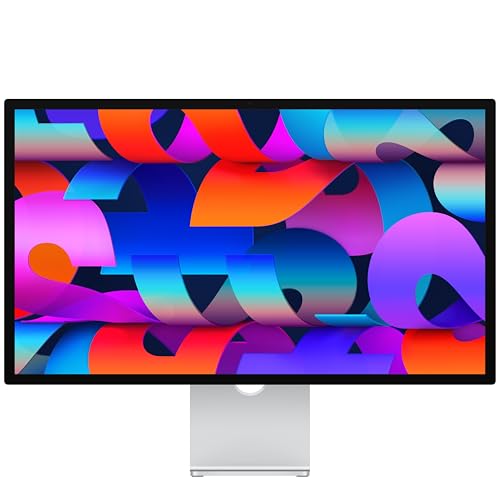
For Mac users who prize a clean, adjustable setup, the Apple Studio Display with Standard Glass and a VESA mount adapter is a standout option—its 27-inch 5K Retina panel and VESA compatibility let you pair it with nearly any high-quality monitor arm for precise positioning and ergonomic comfort. You’ll get 5120-by-2880 resolution at 218 ppi, 600 nits, P3 wide color and True Tone for accurate visuals. The 12MP Center Stage camera, studio three-mic array and six-speaker Spatial Audio make it great for calls and media. Thunderbolt 5 ports and 96W charging streamline connectivity, while optional stands and warranty support add flexibility.
Best For: Mac users who want a high-resolution, color-accurate 27-inch display with premium camera, audio, and VESA-mount flexibility for a clean, ergonomic workstation.
Pros:
- Exceptional 5K Retina image quality (5120×2880, P3, True Tone) with 600 nits for accurate, vibrant visuals.
- Built-in 12MP Center Stage camera, studio three-mic array, and six-speaker Spatial Audio for excellent video calls and media.
- Thunderbolt 5 connectivity with 96W charging and VESA mount compatibility for flexible setups and clean cable management.
Cons:
- Premium price compared with non-Apple displays offering similar specs.
- VESA mount adapter sold separately (and optional tilt/height stands add cost).
- Standard glass may be reflective for some environments; nano-texture glass is optional and costs extra.
ErGear Single Adjustable Monitor Arm for 13–34 Inch Screens

If you want a sturdy, highly adjustable arm that handles most 13–34″ flat or curved displays, ErGear’s single monitor arm is a top pick — it supports up to 19.8 lbs and offers height, reach, tilt, swivel, and full rotation to get your Mac Studio screen exactly where you need it. You’ll get 17.5″ height, 18.1″ reach, +80°/-50° tilt, ±90° swivel, and 360° rotation, plus VESA 75/100 compatibility. Tool-free VESA mounting and C-clamp or grommet installation make setup quick. Durable core survived 20,000+ cycles; cable clips tidy your desk. Two-year warranty.
Best For: Users who need a sturdy, highly adjustable monitor arm for 13–34″ flat or curved displays to achieve ergonomic screen positioning and tidy cable management.
Pros:
- Supports up to 19.8 lbs with VESA 75/100 compatibility and a durable core tested for 20,000+ adjustment cycles.
- Wide adjustability (17.5″ height, 18.1″ reach, +80°/-50° tilt, ±90° swivel, 360° rotation) for optimal ergonomic alignment.
- Easy setup with tool-free VESA mounting and choice of C-clamp or grommet installation plus upgraded cable clips.
Cons:
- Maximum weight limit (19.8 lbs) may not accommodate heavier professional monitors or multi-monitor setups.
- Clamp and grommet mounting require appropriate desk thickness and may not fit all furniture types.
- Single-arm design limits use to one monitor (not suitable for dual or triple monitor configurations).
HUANUO FlowLift Single Monitor Mount (13–32-inch) Adjustable VESA Monitor Arm with Clamp and Grommet Base

Count on the HUANUO FlowLift to be the best choice for Mac Studio users who need a compact, sturdy arm that supports smaller displays (13–32″) while offering wide adjustability—tilt from -50° to +85°, ±90° swivel, and 360° rotation—to position your screen exactly where you want it. You’ll get 39.6cm of height adjustment, VESA 75×75/100×100 compatibility, and support for 4.4–19.8 lbs. Automotive-grade parts make it 80% sturdier than rivals, passing 20,000 motion cycles for years of use. Install in about three minutes with clamp or grommet mounts; grommet fits 0.59–3.54″ tabletops.
Best For: Mac Studio users and anyone with compact workstations who need a sturdy, highly adjustable monitor arm for 13–32″ displays.
Pros:
- Supports 4.4–19.8 lbs with VESA 75×75/100×100 compatibility and 39.6 cm of smooth height adjustment.
- Wide range of motion (tilt -50° to +85°, ±90° swivel, 360° rotation) for ergonomic positioning.
- Durable build (automotive-grade parts, 20,000 motion-cycle tested) and quick 3-minute clamp or grommet installation.
Cons:
- Maximum monitor size limited to 32″, not suitable for larger screens or ultrawide displays.
- Grommet mount requires a tabletop hole and supports thickness only from 0.59–3.54″.
- Tension adjustments may be needed for optimal balance with very light or near-weight-limit monitors.
ARES WING Heavy Duty Ultrawide Monitor Arm (Gas Spring Aluminum)

You’ll appreciate the ARES WING if you run ultrawide or dual-panel setups and need rock-solid support for heavy curved screens, since it’s rated to hold up to 52.8 lbs for curved displays (66 lbs for flat) and includes a VESA adapter kit for multiple mounting patterns. You’ll get a premium aluminum-and-steel build, a gas spring tested for 20,000 cycles, and 360° adjustability that minimizes wobble. Height, tilt, swivel and rotation cover full ergonomic range, and the 22.4-inch gas arm lets you fine-tune viewing position. Integrated USB-A/C ports and cable management free desk space and simplify charging and connectivity.
Best For: Professionals and gamers using ultrawide or heavy curved monitors who need a sturdy, highly adjustable arm with integrated USB connectivity to free desk space and reduce screen wobble.
Pros:
- Supports very heavy displays (up to 52.8 lbs curved / 66 lbs flat) with a VESA adapter kit for multiple mounting patterns.
- Premium aluminum/steel construction with a gas spring tested for 20,000 cycles and 360° adjustability for stable, wobble-minimizing positioning.
- Built-in USB-A 3.0 and USB-C ports plus cable management to simplify charging and keep the workspace tidy.
Cons:
- Heavy-duty build and feature set may make it more expensive and bulkier than simpler monitor arms.
- May require careful installation and desk clamp/cutout compatibility checks for large ultrawide or dual-panel configurations.
- Very wide range of motion and weight capacity could be overkill for lightweight single monitors, adding unnecessary complexity.
VIVO Behind Monitor VESA Mount for Mac mini (Mount-MINI1)

For users who want a clutter-free desk and easy Mac mini access, the VIVO Behind Monitor VESA Mount (Mount-MINI1) tucks your Mac Mini behind a VESA-compatible monitor or onto a freestanding screen, freeing up valuable surface area while keeping ports and airflow exposed. You’ll fit 2010–2023 Mac mini models (A1347, A1993, A2330, A2348, A2686, A2816) to VESA 75×75 or 100×100 plates or install between a monitor and its stand. The optional C-clamp secures to desks 0.4”–2” thick with three clamp positions. Its open-mount design boosts ventilation and preserves unobstructed port access for cables and peripherals.
Best For: Productivity-focused Mac mini owners who want to reclaim desk space by mounting their 2010–2023 Mac mini behind a VESA-compatible monitor or onto a freestanding screen while keeping ports and airflow accessible.
Pros:
- Saves desk surface by tucking the Mac mini behind the monitor or between monitor and stand.
- Compatible with a wide range of Mac mini models and VESA 75×75/100×100 mounting options, plus an optional C-clamp for desk mounting.
- Open-mount design improves ventilation and provides easy access to ports and cables.
Cons:
- Requires a VESA-compatible monitor or additional installation steps for non-VESA displays.
- C-clamp fits desks only 0.4″–2″ thick, limiting use on very thin or very thick surfaces.
- May add complexity to setup and cable management compared with simply placing the Mac mini on the desk.
IFCASE Aluminum Under Desk Mount for Mac Studio (Black)

If you want to reclaim desk space while keeping your Mac Studio cool, the IFCASE Aluminum Under Desk Mount is a smart pick—its 3 cm bracket raises the unit for better airflow, cutting heat buildup without adding bulk. You’ll mount compatible M4, M3, M2, M1 Max and Ultra models neatly under a desk or shelf at least 3/4″ thick using the included M3.5 x 16 mm screws. The hard aluminum frame resists rust and impact, while a silicone anti-scratch pad prevents noise and marks. Installation is straightforward, and positioning your Mac Studio underneath improves aesthetics and frees valuable workspace.
Best For: Those who want to reclaim desk space and keep a Mac Studio (M4, M3, M2, M1 Max/Ultra) cool and protected by mounting it neatly under a sturdy desk or shelf.
Pros:
- Raises Mac Studio 3 cm to improve airflow and reduce overheating.
- Sturdy aluminum construction resists rust and impact for long-term protection.
- Silicone anti-scratch pad prevents noise and surface damage; included screws make installation simple.
Cons:
- Requires a desk or shelf at least 3/4″ thick, limiting placement options.
- Fixed bracket height may not suit setups needing different clearance or cable access.
- Designed specifically for Mac Studio models—may not fit other devices.
IFCASE Aluminum Desktop Mount Stand for Mac Studio and Mac mini (Silver)

The IFCASE Aluminum Desktop Mount Stand is ideal when you need a compact, sturdy riser that keeps your Mac Studio or Mac mini cool and organized. You get a machined high-grade aluminum stand in silver that aligns precisely around M1/M2 Mac mini and Mac Studio without gaps. Aircraft-grade brackets plus silicone pads lock the unit in place, prevent slips, and protect your desk from scratches. Its elevated profile boosts airflow for better cooling and longevity, while freeing desk space for a sleeker setup. It weighs 0.71 kg, includes a one-year warranty, and ships with Amazon’s 30-day return option for peace of mind.
Best For: Professionals and Mac users who want a durable, space-saving aluminum riser that enhances cooling and secures a Mac Studio or Mac mini M1/M2 on a tidy desk.
Pros:
- Precision-machined high-grade aluminum provides a clean, snug fit and premium finish.
- Elevated design improves airflow for better cooling and device longevity.
- Aircraft-grade brackets with silicone pads keep the unit stable and protect the desk from scratches.
Cons:
- Designed specifically for Mac Studio and Mac mini M1/M2, so not universal for other devices.
- Adds slight height and footprint—may not suit extremely compact or cluttered setups.
- Limited to a 1-year manufacturer warranty (may be shorter than some competitors).
Factors to Consider When Choosing Mac Studio Monitor Arms
When choosing a Mac Studio monitor arm, you’ll want to match the arm’s weight capacity to your display so it holds steady. Check VESA compatibility and the desk mounting options to make sure the arm fits your monitor and workspace. Also consider range of motion and build material quality for the ergonomics and long-term durability you need.
Weight Capacity Matching
Many users overlook how essential weight matching is, so make sure the arm you pick can comfortably handle your Mac Studio’s roughly 20.7-pound body (without its stand) plus any screen, mount adapters, or accessories. Check the arm’s listed weight capacity and confirm your combined load — Mac Studio plus monitor and peripherals — falls squarely within the supported range. Prefer arms with a buffer above your current weight to accommodate future upgrades or added accessories. Note that many arms specify ranges rather than a single number; keep your total near the middle of that range for best stability and smooth articulation. Finally, inspect mounting and joint quality; a higher-rated arm with weak hardware won’t hold a heavier setup reliably.
VESA Compatibility Requirements
After confirming your Mac Studio and monitor sit well within an arm’s weight range, check VESA compatibility to make certain the monitor will actually attach. Look for the common 75x75mm and 100x100mm hole patterns; most monitor arms list supported VESA sizes up front. Verify your monitor’s mounting holes match the arm’s specifications so installation is straightforward and secure. VESA-compatible arms let you position ultrawide and curved displays flexibly, but confirm if the arm supports nonstandard or additional configurations if your screen uses them. Remember that VESA fit doesn’t replace weight checks: a compatible pattern won’t prevent sagging if the arm’s load limit is too low. Verify both pattern and weight capacity before buying to avoid compatibility headaches.
Desk Mounting Options
Pick the mounting style that fits your desk and setup: clamp-on mounts grip the desk edge for easy, non-invasive installation, while grommet mounts use a drilled hole for a more permanent, rock-solid attachment. Choose clamps if you prefer no-drill flexibility; most accommodate desks from about 0.4 inches to over 2 inches thick. Pick grommet mounts when you need extra stability or have thicker surfaces—many support roughly 0.39 to 3.54 inches. Check whether the arm offers tool-free installation for fast setup or needs tools, since that affects convenience. Inspect integrated cable management in the mount to route and conceal power and display cables, keeping your workspace tidy. Confirm the mount’s compatibility with your desk edge profile and materials to avoid slippage or damage.
Range of Motion
When you choose a monitor arm, focus on how much movement it gives you—tilt, swivel, rotation, height, and reach each affect comfort and workflow. Look for tilt ranges around +50° to -50° so you can fine-tune vertical viewing and reduce glare. Swivel up to 180° makes sharing screens and adjusting angles effortless. Full 360° rotation is handy when you need portrait mode for coding or long documents. Aim for height adjustment approaching 19.6 inches to align the screen with your eye level and avoid neck strain. Finally, consider extended reach—about 22.5 inches lets you pull the monitor in for focus or push it back to free desk space. Balance these specs with your workspace layout.
Build Material Quality
Durability matters: you’ll want a monitor arm built from high-strength materials like aluminum alloy or automotive-grade components so it stays stable, minimizes wobble, and lasts through thousands of motion cycles. Choose arms made from industrial-grade alloys tested for endurance; they hold position reliably and resist metal fatigue. Look for silicone anti-scratch pads at contact points to protect your Mac Studio and prevent slipping during adjustments. Prefer designs that optimize airflow—certain aluminum constructions reduce heat buildup around the mount and attached devices, extending their lifespan. Inspect finish quality and fasteners: tight tolerances, corrosion-resistant coatings, and robust joints mean fewer surprises over years of use. Good material choices give you stable, long-lasting ergonomics without constant tweaking.
Cable Management Features
Good cable management keeps your Mac Studio workspace tidy and helps your monitor arm perform smoothly. You’ll want arms that organize and conceal cables to cut clutter and protect connectors from wear. Built-in cable clips secure wires along the arm and mount, preventing tangles as you swivel or tilt. Models with integrated channels or guides route cords neatly and keep ports accessible without messy loops. If you adjust monitor height or angle frequently, choose an arm with adjustable tension settings so cable slack remains managed through motion. Clean routing also improves airflow around your Mac Studio, helping cooling and consistent performance. Prioritize simple, tool-free cable paths and secure clips to maintain a streamlined, functional desk setup.
Long-Term Durability Tests
Because you’ll be adjusting your monitor dozens of times a day, pick arms proven by cycle and load testing to hold up over years of use. Look for products tested for 50,000+ cycles so pivots, gas springs, and joints won’t sag. Check load ratings—some arms support up to 66 lbs while keeping stiffness—so your Mac Studio and monitor stack stays secure. Prefer aluminum alloy and industrial-grade components; they resist wear better than cheap metals or plastics. Reinforced joints and bases are signs an arm was engineered for constant use and will retain alignment after repeated moves. Also consider whether manufacturers evaluate environmental factors like humidity and temperature to guarantee finishes and seals won’t degrade in your workspace.
Aesthetic and Finish
One or two subtle design choices can make your Mac Studio setup look intentional rather than thrown together, so pick an arm whose materials and finish complement your workspace. You want hardware that enhances a clean, modern vibe—aluminum arms deliver durability with a sleek, sophisticated look that matches Apple’s aesthetic. Favor minimalist profiles so the arm integrates into different decor styles without drawing attention. Check available colors and finishes if you’re matching monitors or furniture; a coordinated palette makes the whole desk feel curated. Built-in cable management matters as much as paint—concealed routing keeps lines tidy and prevents visual clutter. In short, choose materials, color, and cable solutions that reinforce a polished, ergonomic workspace.