If you’re looking to enhance your artistic skills, choosing the right drawing tablet can make all the difference. In 2025, several models stand out for their impressive features and user-friendly designs. From high-pressure sensitivity to customizable shortcuts, these tablets cater to every artist’s needs. But with so many options available, how do you decide which one is best for you? Let’s explore the top contenders that could elevate your creative process.
HUION Inspiroy H1060P Graphics Drawing Tablet

The HUION Inspiroy H1060P Graphics Drawing Tablet is perfect for both budding artists and seasoned professionals, thanks to its impressive 8192 levels of pressure sensitivity. Measuring 14.17 x 9.45 inches and weighing just 1.69 pounds, it’s easy to transport. You’ll enjoy a generous 10 x 6.25-inch working area, while the battery-free PW100 stylus offers tilt support. With 12 programmable press keys and 16 soft keys, customizing shortcuts becomes a breeze. Whether you’re using Windows, macOS, or Android, it supports various software like PS and AI. Its slim design suits left and right-handed users, enhancing your creative experience.
Best For: The HUION Inspiroy H1060P Graphics Drawing Tablet is best for professional artists, beginners, and hobbyists looking for a versatile and customizable drawing experience.
Pros:
- Impressive 8192 levels of pressure sensitivity for precise drawing.
- Lightweight and portable design, making it easy to carry.
- Customizable shortcut keys enhance workflow efficiency.
Cons:
- Requires a USB adapter for Mac connection, which may be inconvenient.
- Limited compatibility with iPhone/iPad and some SAMSUNG Galaxy S series devices.
- Some users may find the learning curve for programmable keys challenging.
HUION Inspiroy H640P Drawing Tablet

For aspiring artists and beginners looking to enhance their digital creations, the HUION Inspiroy H640P Drawing Tablet stands out with its impressive 8192 levels of pen pressure sensitivity. This compact 6×4 inch tablet, weighing just 1.41 lbs and measuring only 0.3 inches thick, is perfect for portability. Its battery-free stylus allows for uninterrupted creativity, while six customizable hotkeys streamline your workflow. Compatible with Mac, Windows, Linux, and Android, it suits various users, including left-handed ones. Whether you’re signing documents or diving into creative software like Photoshop, this tablet offers a natural, intuitive drawing experience that elevates your artistry.
Best For: Aspiring artists and beginners in drawing, painting, or photo editing who want a portable and intuitive digital drawing experience.
Pros:
- Offers 8192 levels of pen pressure sensitivity for precise and detailed artwork.
- Lightweight and compact design makes it easy to carry and use anywhere.
- Customizable hotkeys enhance workflow efficiency for various creative applications.
Cons:
- Limited active area of 6×4 inches may not be sufficient for larger projects.
- May require installation of drivers for full functionality on some operating systems.
- Battery-free stylus might need replacement if damaged, though it eliminates the need for charging.
Wacom Intuos Small Bluetooth Graphics Drawing Tablet (Pistachio)

Ideal for artists and designers seeking portability, the Wacom Intuos Small Bluetooth Graphics Drawing Tablet in Pistachio offers a lightweight design and wireless connectivity. Weighing just 8.8 ounces, it’s perfect for on-the-go creativity. The pressure-sensitive pen mimics a natural drawing experience, while customizable ExpressKeys let you personalize your workflow. Compatible with Chromebook, Mac OS, Android, and Windows, you can easily connect via Bluetooth or USB. With a resolution of 4096 levels, every stroke is captured with precision. Plus, enjoy access to creative software and training upon registration, making it a great choice for aspiring and experienced creators alike.
Best For: Artists and designers looking for a lightweight and portable drawing tablet with versatile connectivity options.
Pros:
- Pressure-sensitive pen provides a natural drawing experience, enhancing creativity.
- Customizable ExpressKeys allow for personalized shortcuts, improving workflow efficiency.
- Wireless connectivity via Bluetooth offers convenience for on-the-go use.
Cons:
- Small size may not be suitable for those who prefer larger drawing surfaces.
- Limited USB port options with only one available (USB 2.0).
- Battery life may vary depending on usage, requiring occasional recharging.
XPPen StarG640 Digital Graphic Tablet (6×4 Inch)

Looking for an affordable and portable drawing tablet? The XPPen StarG640 is a fantastic choice at just 6 ounces and 6×4 inches. With 8192 levels of pressure sensitivity, it’s perfect for digital drawing, sketching, and online teaching. Its battery-free PN01 stylus guarantees uninterrupted use, while programmable buttons let you customize your workflow. You’ll love its compatibility with Windows, Mac, and Chromebooks. Users rate it 4.3 out of 5 stars, praising its ease of use and portability. Just keep in mind some might find the stylus less comfortable than others. Overall, it’s a great tool for beginners and students alike!
Best For: Beginners and students looking for an affordable and portable drawing tablet for digital art and online teaching.
Pros:
- Lightweight and portable design makes it easy to carry for on-the-go use.
- 8192 levels of pressure sensitivity provide excellent detail and responsiveness for drawing and sketching.
- Battery-free stylus ensures uninterrupted use without the need for charging.
Cons:
- Some users report discomfort with stylus ergonomics compared to other models.
- Occasional connection issues and lag during use, especially with Bluetooth.
- Concerns about durability may affect long-term use.
XPPen Deco 01 V3 Drawing Tablet

The XPPen Deco 01 V3 Drawing Tablet stands out as a fantastic choice for budding artists and professionals alike, thanks to its impressive 16,384 levels of pressure sensitivity. With a spacious drawing area of 10 x 6.25 inches, you can create intricate designs effortlessly. The tablet’s lightweight design makes it portable, fitting easily into your backpack. Plus, with eight customizable hotkeys, you’ll enjoy ergonomic use tailored to your workflow. The battery-free stylus and tilt support enhance your drawing experience, allowing for better line control. Compatible with major software and devices, this tablet truly reveals your creative potential.
Best For: The XPPen Deco 01 V3 Drawing Tablet is best for beginner and professional artists looking for a portable and highly sensitive drawing tool.
Pros:
- High pressure sensitivity with 16,384 levels allows for detailed and precise artwork.
- Lightweight and compact design makes it easy to carry for on-the-go drawing.
- Customizable hotkeys enhance workflow efficiency, tailoring the tablet to individual preferences.
Cons:
- Limited compatibility with some older software versions may restrict use.
- No built-in display, which could be a drawback for users preferring a screen.
- May require additional setup for optimal performance on certain devices.
GAOMON PD1161 Drawing Tablet with Screen

For artists moving from smaller devices, the GAOMON PD1161 Drawing Tablet with Screen offers an impressive 11.6-inch Full HD IPS display that enhances your drawing experience. You’ll appreciate the battery-free stylus with 8192 levels of pressure sensitivity, allowing for precise control and natural strokes. With 8 programmable shortcut keys, you can customize your workflow for efficiency. The matte film reduces glare, mimicking the feel of traditional sketching. While it’s compatible with Windows and Mac, setup requires installing drivers from GAOMON’s website. Despite minor concerns about button placement, the overall performance and affordability make it a fantastic choice for budding artists.
Best For: The GAOMON PD1161 Drawing Tablet is best for budget-conscious artists seeking a versatile and responsive drawing experience with a larger screen.
Pros:
- Excellent pressure sensitivity and responsiveness with the battery-free stylus.
- Large 11.6-inch display ideal for artists transitioning from smaller devices.
- Affordable price point compared to higher-end drawing tablets.
Cons:
- Shortcut buttons may be poorly placed and difficult to use for left-handed users.
- Display matching can be challenging, requiring adjustments in graphics settings.
- Occasional issues with touch buttons not responding correctly or activating unintentionally.
GAOMON S620 Drawing Tablet
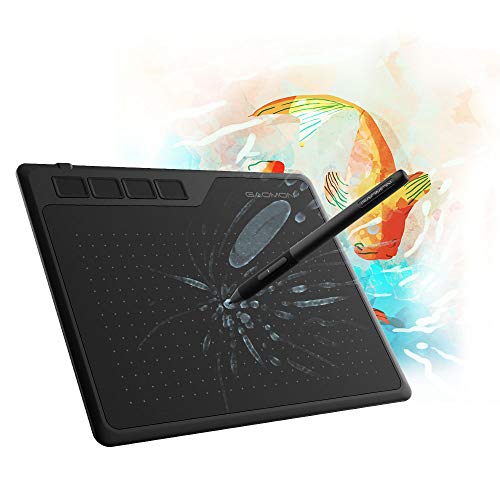
With its compact 6.5 x 4-inch size and versatile features, the GAOMON S620 Drawing Tablet is perfect for both beginners and seasoned professionals who value portability. This tablet boasts an 8192-level pressure-sensitive pen, allowing you precise control over your strokes. You’ll appreciate the four customizable express keys, enhancing your workflow as you create digital art, graphics, or animations. Its battery-free pen means no charging hassles, and the lightweight design fits easily in your laptop bag. Plus, it’s compatible with major art programs, making it an ideal choice for sketching, signing documents, or even enhancing your gaming experience.
Best For: The GAOMON S620 Drawing Tablet is best for beginners and professionals seeking a portable and efficient tool for digital art, graphics design, and document annotation.
Pros:
- 8192 levels of pen pressure provide precise control for detailed artwork.
- Lightweight and portable design makes it easy to carry and use on-the-go.
- Compatible with major art programs like Adobe Photoshop and Illustrator, enhancing versatility.
Cons:
- Not compatible with iPad or iPhone, limiting use on certain devices.
- Small drawing area (6.5 x 4 inches) may not suit users who prefer larger workspaces.
- Requires installation of drivers, which may be a hurdle for some users.
UGEE M708 Graphics Drawing Tablet

Ideal for both professional artists and hobbyists, the UGEE M708 Graphics Drawing Tablet offers a generous 10 x 6 inch active drawing space that enhances your creative workflow. You’ll enjoy a smooth drawing experience with its papery texture surface and no-lag sketching. With 8192 levels of pressure sensitivity, you can achieve varied line weights and opacities effortlessly. The tablet features 8 customizable hotkeys for shortcuts, and its USB to USB-C connectivity makes it easy to connect to various devices. It’s compatible with multiple operating systems and creative software, ensuring versatile use for your artistic endeavors. Plus, it comes with a 12-month warranty!
Best For: Professional artists, hobbyists, and newcomers looking for a versatile graphics drawing tablet with an expansive active drawing area.
Pros:
- 8192 levels of pressure sensitivity allow for precise control over line weight and opacity.
- Customizable hotkeys enhance workflow efficiency by providing quick access to frequently used functions.
- Wide compatibility with various operating systems and creative software makes it suitable for a diverse range of users.
Cons:
- The initial learning curve may be challenging for complete beginners unfamiliar with drawing tablets.
- Limited built-in storage for saving drawings directly on the tablet.
- Some users may prefer a more textured surface for added tactile feedback during drawing.
HUION Kamvas 13 Drawing Tablet (Gen 3)

The HUION Kamvas 13 Drawing Tablet (Gen 3) is perfect for artists seeking a compact yet powerful drawing solution. Its 13.3-inch fully laminated screen features anti-sparkle glass, reducing glare while enhancing accuracy. With exceptional color accuracy—99% sRGB and Avg. ΔE<1.5—you’ll see your creations come to life. The advanced PenTech 4.0 technology provides 16,384 levels of pressure sensitivity for a fluid drawing experience. Plus, 5 programmable shortcut keys and dual dial buttons streamline your workflow. Compatible with various operating systems, it even includes an adjustable stand for peak comfort. Release your creativity with this remarkable drawing tablet!
Best For: Artists and designers looking for a compact yet feature-rich drawing tablet with high color accuracy and pressure sensitivity.
Pros:
- Exceptional Color Accuracy: 99% sRGB coverage and Avg. ΔE<1.5 ensure vibrant and true-to-life colors.
- Advanced Pen Technology: 16,384 levels of pressure sensitivity provide a natural and fluid drawing experience.
- Workflow Optimization: Includes 5 programmable shortcut keys and dual dial buttons for enhanced productivity.
Cons:
- Limited Screen Size: At 13.3 inches, it may not be suitable for artists who prefer larger workspaces.
- Requires USB-C Compatibility: Users with older devices may need adapters to connect.
- Adjustable Stand Not Built-in: The included stand adds extra components to manage for portability.
PicassoTab X Drawing Tablet (10 Inch)

For budding digital artists and those new to graphic design, the PicassoTab X Drawing Tablet (10 Inch) stands out as an excellent choice. With its standalone design, you won’t need a computer; just grab it and start creating. The 10-inch IPS HD screen delivers vibrant visuals, while the MediaTek Quad-core processor guarantees smooth multitasking. It comes pre-installed with drawing and animation apps, plus 64GB of storage for all your creative needs. You’ll also appreciate the included tablet case, drawing glove, and screen protector, enhancing your experience without extra cost. With a solid 4.0 rating, it’s perfect for beginners!
Best For: Beginner digital graphic artists and those looking for a portable drawing solution.
Pros:
- Pre-installed apps for drawing, animation, and note-taking enhance usability right out of the box.
- IPS HD screen provides vibrant visuals for a better drawing experience.
- Includes bonus items such as a tablet case and drawing glove, adding value to the purchase.
Cons:
- Limited screen size may not be ideal for detailed artwork compared to larger tablets.
- Weight of 3.19 pounds might be slightly heavy for prolonged portability.
- Quad-core processor may not handle more complex applications as efficiently as higher-end models.
Factors to Consider When Choosing Drawing Tablets for PC
When choosing a drawing tablet for your PC, you’ll want to contemplate several key factors. Think about pressure sensitivity levels, software compatibility, and how portable the device is for your needs. Don’t forget to evaluate stylus features and customizable shortcut keys to enhance your creative workflow.
Pressure Sensitivity Levels
Choosing a drawing tablet for your PC involves considering several key factors, and pressure sensitivity levels play an essential role in this decision. Typically, you’ll find pressure sensitivity ranging from 4096 to 16384 levels. A common sweet spot is 8192 levels, which balances responsiveness and affordability. Higher pressure sensitivity allows you to create varied line weights and opacities, closely mimicking traditional drawing tools. If you’re looking for more versatility, some tablets offer tilt support, enabling you to adjust line thickness and shading based on the stylus angle. The effective use of these capabilities can greatly enhance your drawing experience, especially for detailed artwork and professional applications. So, choose wisely to release your creativity!
Compatibility With Software
Finding the right drawing tablet means ensuring it plays well with your favorite software. First, check its compatibility with your operating system, whether that’s Windows 7 or later, macOS 10.12 or later, or even Linux distributions like Ubuntu. Next, confirm that the tablet supports major creative applications like Adobe Photoshop and Illustrator to fully maximize its functionality. Look for driver support that allows you to customize shortcut settings to fit your workflow seamlessly. If you plan to use Android apps, check if it’s compatible with mobile devices too. Finally, consider the tablet’s pressure sensitivity levels; higher levels, like 8192 or 16384, give you better control and integration with digital art software, enhancing your creative experience.
Size and Portability
Considering size and portability is essential for artists who often work on the go. Compact models, like the XPPen StarG640 at 6×4 inches, are highly portable, while larger tablets, such as the HUION Inspiroy H1060P at 14.17 x 9.45 inches, offer more drawing space but can be cumbersome. Thinner options, like the Wacom Intuos Small at just 0.35 inches thick, slip easily into your laptop bag. Weight matters too; lighter tablets, like the XPPen StarG640 at 6 ounces, are perfect for travel, while heavier models like the GAOMON PD1161 at 1.9 pounds can weigh you down. Look for features like battery-free styluses and slim profiles to enhance convenience, whether you’re at a coffee shop or your home studio.
Stylus Features and Performance
When selecting a drawing tablet for PC, the stylus features and performance can greatly impact your creative process. Look for tablets that offer high pressure sensitivity, ideally 8192 levels or more, to achieve nuanced control over line thickness and opacity. A battery-free stylus enhances convenience, allowing you to draw for hours without interruptions. Tilt support is essential for versatile shading techniques, giving you improved control at different angles. Pay attention to the stylus’s responsiveness; a high report rate, like 266 PPS, minimizes lag, ensuring a smooth drawing experience. Finally, consider styluses with programmable buttons, which can streamline your workflow by allowing quick access to essential functions during your artistic endeavors.
Customizable Shortcut Keys
Customizable shortcut keys can greatly enhance your workflow efficiency, as they let you assign frequently used functions to specific buttons. Many drawing tablets offer a variety of programmable keys, with some models boasting 12 or more express keys tailored to your preferences. You can even customize shortcuts for different applications, making it easy to set up keys specific to software like Adobe Photoshop or CorelDRAW. This customization considerably reduces the time you spend maneuvering through menus, allowing you to focus on your creative work and boost productivity. Plus, the ergonomic placement of these keys accommodates both right and left-handed users, ensuring a comfortable and accessible drawing experience, no matter your dominant hand.
Display Quality Considerations
Choosing a drawing tablet for PC involves several crucial display quality considerations that can impact your artistic experience. First, think about the display size; options like 10.3 inches or 13.3 inches can greatly affect your workspace and drawing comfort. Next, pay attention to color accuracy—look for tablets with Avg. ΔE<1.5 and 99% sRGB coverage to guarantee the colors you see closely match reality. A fully laminated screen minimizes parallax and glare, enhancing your drawing precision. Additionally, prioritize resolution; higher resolution screens offer sharper images and more detail. Finally, consider anti-glare coatings to reduce reflections, allowing for improved visibility during your creative process. Each of these factors plays a crucial role in elevating your digital artwork.
Connectivity Options Available
Several connectivity options are available for drawing tablets, and understanding them is key to enhancing your PC experience. Most tablets come with USB, USB-C, and Bluetooth options. USB connections offer reliable data transfer and charging, while USB-C is gaining popularity for its faster speeds and reversible design. Bluetooth enables wireless use, giving you more freedom while creating, but keep in mind it may introduce some latency. Additionally, some tablets might require adapters for connection to specific devices, especially Macs or older computers, which can impact your experience. Make certain to check the tablet’s compatibility with your operating system, whether it’s Windows, macOS, or Linux, to guarantee a smooth workflow.
Price and Warranty Options
When considering a drawing tablet for your PC, price and warranty options play a significant role in your decision-making process. Tablets can range from around $50 for basic models to over $500 for high-end choices. It’s essential to evaluate the warranty options, as many manufacturers offer a standard one-year warranty, with some providing extended coverage or hassle-free returns. Reliable customer support can also make a difference, so look for feedback on warranty claims and service experiences. Don’t forget to factor in additional costs, like replacement stylus tips or accessories, which can impact your overall investment. By weighing these aspects, you can find a drawing tablet that fits both your budget and needs.