A dependable dock can turn a laptop into a more capable workstation, adding multiple displays, wired networking, storage access, and everyday peripherals through one connection.
This roundup compares 10 USB docking stations for professionals across USB-C and USB 3.0 designs, display configurations, port selection, charging support, and compatibility considerations.
Best 10 USB Docking Stations for Professionals Picks for 2026
Versatile Dual-Display Workhorse

- Dual HDMI up to 1920x1200 at 60Hz
- Six USB ports plus Ethernet and audio
- Hybrid USB-C and USB 3.0 connectivity
Best For: Office productivity desks needing two HD monitors
Premium Triple-Display Hub

- Dual 4K HDMI plus 4K DisplayPort
- 100W Power Delivery and 5Gbps USB
- Includes Ethernet, SD/TF, and AUX
Best For: USB-C creators and professionals with multi-display setups
Flexible Multi-Video Adapter

- Dual HDMI, DisplayPort, and VGA outputs
- Up to 87W safe laptop charging output
- Supports compatible USB-C and Thunderbolt hosts
Best For: Windows workstations using mixed display types
Fleet-Friendly Dual-HDMI Dock

- Dual HDMI up to 1920x1200
- Includes USB-C and USB-A host cables
- Ten ports for office peripherals and networking
Best For: Mixed-device business fleets and IT-managed workstations
Maximum Expansion
TobenONE 18-in-1 Triple-Display Dock
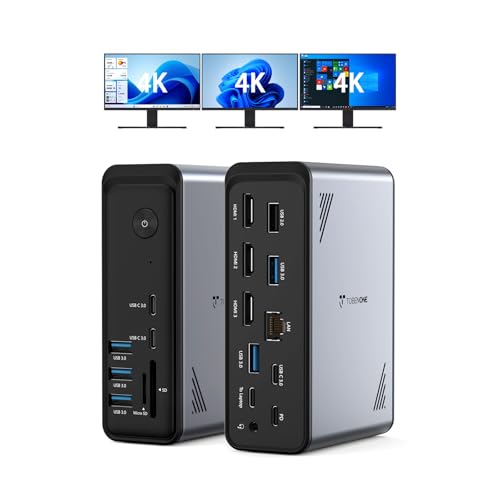
- 18 ports with nine USB connections
- Triple 4K HDMI output at up to 60Hz
- Up to 100W PD; power adapter not included
Best For: Windows and ChromeOS professionals needing extensive ports and three displays
Flexible Dual-System Choice
LIONWEI 13-in-1 Dual-Monitor Dock

- Dual HDMI plus DisplayPort outputs
- Up to 10Gbps data and 100W PD input
- Compact design with Ethernet and audio
Best For: Windows professionals and Mac users needing broad peripheral connectivity
Complete Powered Workstation
Acer 13-in-1 Triple-Display Dock

- 110W adapter included with up to 100W laptop power
- Two HDMI plus DisplayPort for Windows triple displays
- Simultaneous SD and microSD support
Best For: Windows professionals wanting a ready-to-use, triple-display workstation
Compact Connectivity Pick

- Dual HDMI for mirrored or extended displays
- 5Gbps USB, Gigabit Ethernet, and card readers
- Compact design for travel and mobile workstations
Best For: Traveling professionals who need extra ports and dual-display HDMI support
Feature-Rich Workstation Choice

- Three-display support with HDMI and DisplayPort outputs
- 100W USB-C laptop charging and Gigabit Ethernet
- Includes USB, audio, SD, microSD, and screen-off controls
Best For: Compatible Windows laptops used with multiple monitors at a fixed workstation
Flexible Multi-Monitor Pick

- Two HDMI and two DisplayPort outputs for mixed monitor setups
- 14 ports with USB, Ethernet, card readers, and audio support
- Up to 100W USB-C PD charging plus screen-off button
Best For: Professionals combining HDMI and DisplayPort monitors at one desk
Versatile Dual-Display Workhorse – Plugable UD-3900
For professionals building a straightforward workstation, this USB docking station for professionals adds dual HDMI, Gigabit Ethernet, audio, and six USB ports through one host connection. It is best suited to productivity and web-based work rather than high-resolution media or gaming.
Best For: Windows, macOS, or ChromeOS users who need two HD monitors and broad peripheral connectivity without laptop charging.
Pros:
- Supports two HDMI displays up to 1920×1200 at 60Hz.
- Includes Gigabit Ethernet, headphone and microphone jacks, and six USB ports.
- Uses a hybrid USB 3.0 and USB-C host cable for flexible compatibility.
- Includes two-year coverage and lifetime support.
Cons:
- Does not charge the connected laptop.
- Requires DisplayLink driver installation on macOS.
- Does not support 4K, gaming, DisplayPort connections, or HDCP-protected streaming.
The UD-3900 is a practical choice when dependable office connectivity matters more than video-heavy features. Its port selection and support coverage make it particularly suitable for standardized productivity desks.
Premium Triple-Display Hub – Wozoyo 11-in-1 USB-C Dock
The Wozoyo 11-in-1 is a feature-rich option for professionals who want display expansion, fast peripherals, wired networking, and card access in one compact USB docking station. Its 100W Power Delivery support also helps reduce cable clutter on compatible devices.
Best For: Creators and multitasking professionals who need HDMI, DisplayPort, Ethernet, SD/TF card access, and laptop charging in a compact desk setup.
Pros:
- Combines dual 4K HDMI, 4K DisplayPort, Ethernet, SD/TF readers, AUX, and USB connectivity.
- Supports up to 100W Power Delivery for charging compatible laptops and devices.
- USB ports support data transfers up to 5Gbps.
- Supports Windows triple-monitor extension; includes a two-year warranty.
Cons:
- macOS mirrors external displays rather than supporting independent triple-display extension.
- Compatibility depends on the host device and its supported USB-C or Thunderbolt features.
With its broad port mix and high-resolution display support, this dock is aimed at modern USB-C workstations. Confirm your computer’s display behavior before buying, especially if independent multi-monitor extension on macOS is essential.
Flexible Multi-Video Adapter – HoDo USB-C 8-in-1 Dock
This HoDo USB-C dock targets professionals who need several video outputs from a compatible laptop, including HDMI, DisplayPort, and VGA. It also provides 100W input support, although the required power adapter is not included.
Best For: Windows laptop users with a full-featured USB-C or Thunderbolt port who need flexible dual-, triple-, or legacy VGA display options.
Pros:
- Offers two HDMI outputs, DisplayPort, and VGA for flexible display configurations.
- Supports up to 100W input and up to 87W safe laptop output with a suitable charger.
- Works with compatible Thunderbolt 3/4 and USB-C ports supporting DisplayPort Alternate Mode.
- USB 2.0 ports are suitable for keyboards, mice, and other basic peripherals.
Cons:
- Power adapter is not included.
- VGA use limits all displays to 1080p.
- macOS mirrors external monitors, and USB-C ports without video support are incompatible.
This dock is useful when a professional workstation must accommodate different monitor standards. Its compatibility requirements are significant, so verify DP Alt Mode and the laptop’s charging support before purchase.
Fleet-Friendly Dual-HDMI Dock – Plugable UD-3900Z
The Plugable UD-3900Z is designed for organizations standardizing dual-monitor desks across Windows, macOS, and ChromeOS laptops. It combines two HDMI outputs, USB connectivity, Ethernet, and audio while including both USB-C and USB-A host cables.
Best For: IT-managed office deployments and professionals who need consistent dual-HD monitor connectivity across mixed laptop fleets.
Pros:
- Supports two HDMI displays up to 1920×1200 from one USB connection.
- Includes USB-C and USB-A host cables for newer and older laptops.
- Provides two 5Gbps USB ports, four USB 2.0 ports, Gigabit Ethernet, and audio.
- Offers lifetime technical support and a compatibility guarantee.
Cons:
- Does not charge laptops.
- macOS requires DisplayLink software installation.
- Not suitable for gaming, full-screen video playback, DisplayPort monitors, or HDCP-protected content.
The UD-3900Z makes the most sense when predictable office deployment and broad host compatibility are priorities. Its included cables and support resources can simplify workstation rollouts, provided the intended use is productivity-focused.
Maximum Expansion – TobenONE 18-in-1 Triple-Display Dock
For professionals comparing USB docking stations for professionals, the TobenONE stands out when maximum connectivity and multi-monitor support matter. It combines 18 ports, three HDMI outputs, nine USB ports, card readers, Ethernet, audio, and up to 100W laptop charging in one workstation hub.
Best For: Windows and ChromeOS users building a busy triple-monitor office, design, or work-from-home setup.
Pros:
- Supports dual or triple 4K displays at up to 60Hz through three HDMI ports.
- Offers nine USB ports for peripherals, storage, and other accessories.
- Provides SD/microSD readers, Gigabit Ethernet, audio, and up to 100W PD charging.
- Compatible with many full-featured USB-C, USB4, and Thunderbolt 3/4 Windows and ChromeOS laptops.
Cons:
- Power adapter is not included; stable operation requires an additional power supply over 65W.
- Designed primarily for Windows and ChromeOS, so operating-system compatibility should be checked carefully.
This is the connectivity-first choice for users who want to replace a collection of adapters with one extensive dock. Its main trade-off is the need to supply your own charger.
Flexible Dual-System Choice – LIONWEI 13-in-1 Dual-Monitor Dock
The LIONWEI is a versatile option among USB docking stations for professionals who need dual-monitor connectivity, fast data transfer, and broad computer compatibility. It includes dual HDMI, DisplayPort, eight USB ports, Gigabit Ethernet, audio, and 100W PD input in a compact 13-in-1 design.
Best For: Windows laptop users wanting triple-display capability, or Mac users who need one extended external display plus additional peripherals.
Pros:
- Offers dual 4K HDMI outputs plus DisplayPort, with Windows MST/SST support.
- Includes USB-C and USB-A ports with data speeds up to 10Gbps on supported connections.
- Supports 100W PD input, delivering up to 87W to the laptop after the dock’s power use.
- Adds Gigabit Ethernet and a combined 3.5mm audio/microphone jack.
Cons:
- On macOS, extended mode is limited to one external monitor.
- The 100W input does not translate to 100W of laptop charging because the dock uses 13W.
This dock balances display flexibility and everyday office connectivity well, especially for Windows users. Mac owners should treat its single-extended-monitor limitation as a deciding factor.
Complete Powered Workstation – Acer 13-in-1 Triple-Display Dock
The Acer 13-in-1 is a strong fit for professionals seeking USB docking stations for professionals with included power hardware and a polished desk setup. It combines two HDMI ports, DisplayPort, USB-C and USB-A connectivity, Ethernet, audio, simultaneous SD and microSD support, and a 110W adapter.
Best For: Windows professionals who want a powered triple-display workstation with card readers and a security-lock option.
Pros:
- Includes a 110W power adapter and can deliver up to 100W to a connected laptop.
- Supports three independent displays on compatible Windows systems through two HDMI ports and DisplayPort.
- Provides SD and microSD read/write access simultaneously.
- Aluminum construction is designed for heat dissipation, and an integrated security slot supports cable-lock use.
Cons:
- Triple 4K output on Windows requires a compatible GPU and Display Stream Compression, and is listed at up to 30Hz.
- macOS supports mirroring across multiple displays rather than extended desktop mode.
The included charger makes this a more complete out-of-box solution than docks that require a separate power supply. Its display capabilities are strongest on compatible Windows hardware, while Mac users face significant display-mode restrictions.
Compact Connectivity Pick – Slim Dual-HDMI USB Dock
For professionals seeking USB docking stations for professionals that stay compact, this Giq dock combines dual HDMI display support with everyday workstation essentials. It adds three USB 3.0 ports, Gigabit Ethernet, SD and microSD readers, and HDMI mirroring or extending in a lightweight aluminum-and-plastic enclosure.
Best For: Travelers and home-office users who need dual-display connectivity, wired networking, and card readers without laptop charging.
Pros:
- Supports HDMI mirroring or extending, including up to 4K at 30Hz or Full HD 1080p.
- Provides 5Gbps USB 3.0 data transfer, Gigabit Ethernet, and SD/microSD card slots.
- Compact 3.6-ounce design works with Windows, macOS, Chrome OS, Ubuntu, and Android systems listed by the manufacturer.
Cons:
- The USB-C port is for powering the dock and does not charge the laptop.
- SD and microSD cards cannot be used simultaneously.
- Display connectivity uses HDMI rather than DisplayPort.
This is a practical compact hub for professionals who prioritize ports and portability. Its main limitation is the lack of laptop charging, so confirm that your setup can power the computer separately.
Feature-Rich Workstation Choice – 15-in-1 Triple-Display Dock
This 15-in-1 model is one of the more fully equipped USB docking stations for professionals, with two HDMI ports, DisplayPort, 100W USB-C Power Delivery, fast USB ports, wired networking, audio, and card readers. It is designed for compatible USB-C or Thunderbolt systems with DisplayPort functionality.
Best For: Windows professionals building a multi-monitor desk setup who want laptop charging and a broad mix of office, networking, and media ports.
Pros:
- Supports up to three displays on compatible Windows systems, with HDMI up to 4K at 60Hz and DisplayPort up to 8K at 30Hz when used singly.
- Includes a 100W USB-C PD port, three USB 3.0 ports, two USB 2.0 ports, Gigabit Ethernet, and 3.5mm audio/mic.
- Screen-off button and compatibility/working indicator lamps add practical desk-use features.
Cons:
- It is not compatible with laptops that have only an HDMI port, even if other requirements appear to be met.
- Multi-display resolution and behavior depend on the laptop, operating system, and connection configuration.
- The supplied notes specify Windows multi-display support, so macOS users should verify monitor compatibility before buying.
For a permanent professional workstation, this dock offers the most complete port selection of the group. Check for USB-C or Thunderbolt support with Power Delivery and DisplayPort Alt Mode before relying on its multi-monitor features.
Flexible Multi-Monitor Pick – MOKiN 14-in-1 Dock
The MOKiN UC0554 is a strong choice among USB docking stations for professionals who need display flexibility. Its 14-in-1 layout combines two HDMI ports, two DisplayPort ports, USB-A and USB-C connectivity, Gigabit Ethernet, card readers, and up to 100W USB-C charging.
Best For: Professionals who want to mix HDMI and DisplayPort monitors while keeping networking, peripherals, storage cards, and laptop charging on one dock.
Pros:
- Supports flexible monitor combinations such as two HDMI plus DisplayPort or two DisplayPort plus HDMI on compatible systems.
- Offers a broad 14-port selection, including two USB-C 3.0 ports, USB-A 3.0, two USB-A 2.0 ports, Ethernet, and SD/microSD readers.
- Provides up to 100W USB-C PD charging and includes a screen lock/off button for privacy.
Cons:
- Multi-monitor support requires a compatible laptop and operating system; the supplied notes do not specify detailed per-output resolutions.
- USB 2.0 ports are better suited to lower-speed peripherals than demanding storage devices.
- The product listing describes laptop compatibility broadly, so users should verify their computer’s USB-C display and Power Delivery support.
This dock stands out when your monitors use mixed connection types. It is especially useful for a flexible office setup, but compatibility checks remain important because display output depends on the host laptop’s USB-C capabilities.
How We Picked the Best USB Docking Stations for Professionals
We focused on docks that address common professional workflows: connecting one or more external monitors, transferring files, using wired Ethernet, charging a compatible laptop, and keeping keyboards, cameras, drives, and other accessories connected. The selection includes universal USB 3.0 DisplayLink models, USB-C hubs with expanded I/O, and higher-port-count docks designed for multi-monitor desks.
We also considered display resolution and refresh-rate claims, the number and type of USB ports, network connectivity, memory-card access, power delivery, operating-system compatibility, and the practical trade-offs between a compact hub and a full desktop dock. A dock’s advertised capabilities can depend on the host laptop, installed drivers, cable, and monitor arrangement, so verify those details before buying.
Quick Comparison
For a simple dual-monitor setup, look at the Plugable dual-HDMI options, the USB 3.0 DisplayLink dock, or a compact USB-C model with HDMI and DisplayPort. Buyers who need more flexibility should consider the 11-in-1, 13-in-1, or 18-in-1 designs, particularly when Ethernet, SD/TF card readers, audio, and several USB devices must remain connected.
For demanding displays, prioritize products explicitly listing 4K support and check whether the stated resolution applies to one display or multiple displays simultaneously. Triple-monitor docks can be useful for finance, design, development, and data-heavy workflows, but they may require a compatible USB-C video mode, DisplayLink software, or specific operating-system support.
Key Buying Factors for USB Docking Stations for Professionals
Host Compatibility and Video Technology
Confirm your laptop’s ports and operating system first. USB-C does not automatically mean native video output or laptop charging. DisplayLink docks can add displays through USB 3.0, but commonly require software and may behave differently with protected video, gaming, or high-frame-rate work.
Monitor Support
Count the outputs and identify their standards: HDMI, DisplayPort, or both. Check the maximum resolution, refresh rate, and number of screens supported at the same time. If you use a Mac, pay especially close attention to native external-display limitations and DisplayLink requirements.
Power Delivery and Connectivity
For a one-cable desk, choose a dock with enough USB-C Power Delivery for your laptop. Also check whether the package includes a power adapter. Gigabit Ethernet is valuable for stable video calls and large transfers, while USB 5Gbps ports are preferable for external SSDs and other fast accessories.
Port Layout and Reliability
Front-facing ports are convenient for temporary devices; rear ports help keep a permanent setup tidy. Consider heat management, cable length, warranty coverage, and driver support—not just the total port count.
Who Should Buy Which USB Docking Stations for Professionals?
Choose a USB 3.0 DisplayLink dock if you need broad compatibility or dual displays from a laptop with limited video outputs. Choose a USB-C dock with Power Delivery if you want charging and a cleaner single-cable setup. Select a high-port-count 13-in-1 or 18-in-1 model for a permanent workstation with several peripherals, card readers, and multiple monitors. If your priority is straightforward dual-screen productivity, a simpler dock may be more reliable and easier to manage than an oversized hub.