A Mac Studio has plenty of built-in connectivity, but a dock can put frequently used ports within reach and add storage or display connections where your setup needs them.
The right choice depends on your Mac Studio model, your monitors, and whether you want a compact stand-style hub or a full Thunderbolt dock. Here’s how to narrow down the nine options.
Best 9 Mac Studio Docking Stations Picks for 2026
High-Bandwidth Pick
Anker Prime Thunderbolt 5 Dock

- Up to 120Gbps Thunderbolt 5 bandwidth
- Two downstream Thunderbolt 5 ports
- Card readers, 2.5Gbps Ethernet, active cooling
Best For: High-bandwidth peripheral expansion, subject to Mac Studio compatibility checks
Storage-Ready Pick
Satechi Thunderbolt 5 CubeDock

- Built-in M.2 NVMe enclosure; SSD sold separately
- Up to 6000MB/s specified storage speed
- 2.5Gb Ethernet and UHS-II card readers
Best For: Mac Studio desks needing integrated NVMe storage and port expansion
Charging-Focused Pick
Anker Prime 14-in-1 USB-C Dock

- Up to 160W total charging output
- USB data speeds up to 10Gbps
- Dual HDMI mirrors displays on macOS
Best For: Charging multiple devices when mirrored macOS displays suffice
Best Front-Access Stand
Satechi Mac Studio Hub & SSD Enclosure

- Front-facing USB and card readers
- One NVMe or SATA SSD slot
- Ventilated aluminum Mac Studio stand
Best For: Mac Studio owners adding accessible ports and one SSD
Best Dual-SSD Storage Stand
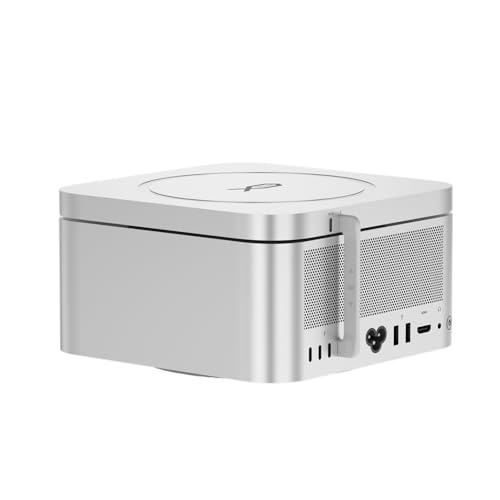
- Two M.2 2280 NVMe slots
- Up to 16TB stated capacity
- External-power option via PD 3.0
Best For: Storage-heavy Mac Studio workflows needing two SSDs
Best Portable Connectivity Hub

- HDMI, Ethernet, USB-A, and card readers
- Compact 3.2-ounce design
- macOS dual HDMI outputs mirror
Best For: Portable connectivity with a confirmed compatible USB-C computer
Triple-4K Pick

- Up to three independent 4K@60Hz displays on compatible Macs
- HDMI/DisplayPort choices plus 10Gbps USB
- Driver required; power adapter not included
Best For: Driver-based three-monitor Mac setups
Powered Desktop Pick

- 135W power adapter included
- 10Gbps USB-C, Ethernet, and card readers
- macOS external displays mirror, not independently extend
Best For: Powered Mac peripheral connectivity
Portable Hub Pick

- Lightweight hub with HDMI, DisplayPort, and Ethernet
- 10Gbps USB connections and up to 100W PD input
- macOS extends only one monitor through the hub
Best For: Compact Mac connectivity with one extended display
High-Bandwidth Pick – Anker Prime Thunderbolt 5 Dock
Among mac studio docking stations, this Anker Prime is worth considering if Thunderbolt 5 bandwidth and a broad port selection matter most. Its 14 connections include two downstream Thunderbolt 5 ports, USB-C and USB-A, card readers, 2.5Gbps Ethernet, audio, and an HDMI 2.1 or DisplayPort 2.1 output.
Best For: Mac Studio users seeking a high-bandwidth dock with fast external connections and built-in cooling.
Pros:
- Thunderbolt 5 connection with up to 120Gbps maximum transfer bandwidth.
- Two downstream Thunderbolt 5 ports plus SD and TF readers and 2.5Gbps Ethernet.
- Active cooling is designed to maintain performance under load.
Cons:
- The supplied compatibility list names MacBooks and Windows laptops, not Mac Studio specifically.
- Its dual-8K display claim is specified for Thunderbolt 5 Windows laptops, not macOS.
This is a strong port-expansion candidate, but confirm Mac Studio compatibility and your intended display arrangement before buying; the advertised 140W host charging is less relevant to a desktop Mac.
Storage-Ready Pick – Satechi Thunderbolt 5 CubeDock
The Satechi CubeDock stands out among mac studio docking stations by combining Thunderbolt 5 expansion with a built-in M.2 NVMe enclosure. Mac Studio models appear in its compatibility list, and the dock adds 2.5Gb Ethernet, UHS-II SD and microSD readers, and 10Gbps USB-C and USB-A connectivity.
Best For: Mac Studio setups that need dock-based NVMe storage alongside everyday ports.
Pros:
- Built-in enclosure supports up to 8TB of M.2 NVMe storage; the drive is purchased separately.
- Specified NVMe speeds reach up to 6000MB/s.
- Includes 2.5Gb Ethernet, UHS-II card readers, and active cooling.
Cons:
- No SSD is included.
- The cooling fan is specified at 20–40 dB(A), so it may be audible.
- The listed dual-6K macOS display capability is tied to M3/M4/M5 systems; verify your exact Mac Studio configuration.
Choose this cube primarily for its integrated storage and connectivity. Its 140W host charging is a laptop-oriented benefit rather than a reason to pair it with a desktop Mac.
Charging-Focused Pick – Anker Prime 14-in-1 USB-C Dock
This Anker Prime offers plenty of USB connectivity, but it is a more conditional choice among mac studio docking stations. Its 14-in-1 design emphasizes 160W total charging output, ports with data speeds up to 10Gbps, and two HDMI connections.
Best For: A desk with several devices to charge where mirrored external displays are acceptable on macOS.
Pros:
- Up to 160W total output can charge as many as four connected devices.
- Offers USB data connections rated up to 10Gbps.
- Includes dual HDMI outputs plus audio and Ethernet connections.
Cons:
- On macOS, the two external HDMI displays show identical content rather than separate extended desktops.
- The supplied compatibility information names MacBook and iMac, not Mac Studio specifically.
- It does not support a 5120 × 1440 monitor.
Consider it for charging and general port consolidation, not for creating two independent external displays on a Mac. Verify Mac Studio compatibility before purchasing.
Best Front-Access Stand – Satechi Mac Studio Hub & SSD Enclosure
Among mac studio docking stations, this Satechi stand is a practical choice if you want frequently used ports within reach and room to add an SSD. Its aluminum base is designed to fit Mac Studio, with vents to help maintain airflow.
Best For: Mac Studio owners who want front-facing connections and a single-drive storage upgrade.
Pros:
- Front access to 10Gbps USB-C, three USB-A ports, card readers, and a headphone jack.
- Accepts compatible M.2 NVMe or SATA SSDs in 2242, 2260, or 2280 sizes, with transfer speeds up to 10Gbps.
- Ventilated aluminum stand is built for Mac Studio models listed by Satechi.
Cons:
- SSD is not included; drives with pre-installed heatsinks are not supported.
- USB-A ports have device restrictions, and only one bus-powered device should be connected at a time.
Pick this for convenient everyday access rather than maximum storage throughput. Check your SSD’s size and heatsink before buying.
Best Dual-SSD Storage Stand – Mate Studio Stand-A
If storage capacity matters more than a broad port selection, the Mate Studio Stand-A takes a different approach to mac studio docking stations. Its two M.2 2280 slots support up to 16TB total, and the USB-C connection offers claimed sequential reads up to 3600MB/s with suitable SSDs.
Best For: Mac Studio users building a large external SSD workspace for video, CAD, or other storage-heavy projects.
Pros:
- Two M.2 2280 slots support up to 8TB per drive.
- Supports PCIe 3.0, 4.0, and 5.0 NVMe SSDs; stated speed depends on the drive and system.
- Ventilated aluminum chassis includes a PD 3.0 port for external power to demanding drives.
Cons:
- Focused on SSD expansion rather than the card readers, display outputs, and multiple accessory ports found on general-purpose docks.
- Advertised read speed requires suitable SSDs and can vary by system.
This is the storage-first pick: weigh its dual-drive capacity against your need for other connections before choosing it as your Mac Studio stand.
Best Portable Connectivity Hub – Anker 8-in-1 USB-C Hub
The Anker 8-in-1 is a compact connectivity option to consider while shopping for mac studio docking stations, but it is marketed for USB-C laptops and MacBook/iMac rather than specifically for Mac Studio. Check compatibility with your setup before relying on its display or charging features.
Best For: Buyers who want a portable USB-C hub with Ethernet, card readers, and HDMI for a confirmed compatible computer.
Pros:
- Includes two HDMI ports, Ethernet, two USB-A data ports, and SD/microSD readers.
- Supports one HDMI display at up to 4K/60Hz or two at up to 4K/30Hz, subject to host compatibility.
- Compact, 3.2-ounce design is easier to move than a workstation stand.
Cons:
- Mac Studio compatibility is not stated in the supplied specifications.
- On macOS, the two external HDMI monitors show identical content rather than separate extended desktops.
- Up to 85W pass-through charging requires a separate 100W PD charger and USB-C cable.
Its port mix suits a portable setup, but do not choose it for two independent macOS displays or assume its laptop-oriented charging feature benefits a Mac Studio.
Triple-4K Pick – MOKiN 17-in-1 Display Dock
Among mac studio docking stations, the MOKiN is worth considering if three independent external displays are your priority. Its driver-dependent video setup supports up to three 4K@60Hz monitors on compatible macOS systems, with three HDMI and two DisplayPort connections to choose from.
Best For: Mac users willing to install a driver for a three-monitor workspace.
Pros:
- Supports up to three independent 4K@60Hz displays on compatible macOS systems.
- Includes 10Gbps USB ports, Gigabit Ethernet, SD/microSD readers, and audio.
- Compact vertical design has a status display and suction-cup base.
Cons:
- Video requires a driver and a compatible USB-C video connection; verify Mac Studio compatibility before buying.
- Power adapter is not included.
The flexible video outputs make this a compelling display-focused option, but confirm the connection and driver requirements for your particular setup first.
Powered Desktop Pick – Anker 13-in-1 USB-C Dock
The Anker is a powered, desk-friendly option to compare when shopping for mac studio docking stations, especially for USB accessories, Ethernet, and card access. Its advertised triple extended-display capability is for Windows and ChromeOS, however: on macOS, the external monitors mirror rather than extend independently.
Best For: A Mac desk needing a powered accessory hub, not independent triple-monitor expansion.
Pros:
- Includes a 135W power adapter.
- Offers 10Gbps USB-C data, three 5Gbps USB-A ports, Gigabit Ethernet, and SD/microSD readers.
- Vertical design takes up little desk space.
Cons:
- macOS external displays mirror; triple extended displays are limited to supported Windows or ChromeOS setups.
- Check host connection compatibility before using it with a Mac Studio.
Choose it for its included power supply and broad peripheral connections, rather than its three-display headline, if your computer runs macOS.
Portable Hub Pick – LIONWEI 13-in-1 USB-C Hub
For buyers comparing mac studio docking stations with smaller USB-C hubs, the LIONWEI packs two HDMI ports, DisplayPort, Ethernet, audio, and numerous USB connections into a lightweight design. Its display limits matter on a Mac: macOS can extend to only one monitor through this hub, while multi-display extension is a Windows feature.
Best For: A compact connectivity hub for a Mac setup that needs no more than one extended display through the hub.
Pros:
- Provides HDMI and DisplayPort outputs alongside Gigabit Ethernet and audio.
- Includes 10Gbps USB connections and supports up to 100W PD input.
- Lightweight 140 g design.
Cons:
- macOS extends only one monitor through the hub.
- The hub reserves 13W from PD input, leaving up to 87W for laptop charging; verify host compatibility for Mac Studio use.
This is the compact choice for adding ports, but it is not a way to get the advertised Windows-style multi-monitor extension on macOS.
How We Picked These Mac Studio Docking Stations
We prioritized useful connections for a desktop Mac: accessible USB ports, monitor outputs, wired networking, and, where available, fast external storage. We also considered desk footprint and whether a product is a Mac Studio–shaped hub or a general-purpose laptop dock. A long port list alone is not enough; the ports have to work with your specific Mac Studio and peripherals.
Quick Comparison
Start by matching the dock type to your main goal. The Anker Prime TB5 and Satechi Thunderbolt 5 CubeDock are the Thunderbolt 5 choices for buyers seeking high-bandwidth expansion; the CubeDock also has a built-in NVMe enclosure. The Satechi Mac Studio M5 Hub & Stand and Mate Studio Stand-A are stand-style options for a more integrated desk setup and SSD expansion. The remaining Anker, MOKiN, and 13-in-1 USB-C models emphasize additional ports and advertised monitor connections, but their laptop-focused display claims need particular scrutiny on macOS.
Key Buying Factors for Mac Studio Docking Stations
Check the Connection to Your Mac
Confirm that the dock’s host connection matches a port on your Mac Studio and supports the features you need. Thunderbolt 5 accessories can be appealing for newer systems, but performance and display capabilities depend on the Mac Studio model and the dock’s actual specifications. A USB-C plug does not, by itself, guarantee Thunderbolt speeds or video support.
Verify Monitor Support on MacOS
Do not assume that “dual monitor” or “triple display” in a laptop dock’s name means multiple independent external displays on a Mac Studio. Check the manufacturer’s macOS display-mode documentation, supported resolutions and refresh rates, and whether it requires DisplayLink software. Some docks use MST for multiple displays, which macOS may not handle as independent extended desktops through that dock. Compare the dock’s limits with your Mac Studio model’s own display support.
Prioritize the Ports You Will Actually Use
Count your USB-A and USB-C devices, then look at each port’s data speed rather than just the total number of ports. Check Ethernet speed, card-reader formats, audio connections, and whether the ports you reach for daily are on the front. Laptop-focused USB-C docks often advertise power delivery; because Mac Studio uses its own power supply, that feature should not drive your purchase.
Plan for Storage and Desk Space
An integrated NVMe enclosure can simplify a storage-heavy setup, but check supported drive sizes, installation requirements, and expected interface speed. A stand-style hub may preserve desk space; a separate dock may make cables and ports easier to access. Ensure any stand-style accessory fits your exact Mac Studio generation.
Who Should Buy Which Mac Studio Docking Stations?
Choose a Thunderbolt 5 dock if high-bandwidth peripherals and a flexible connection layout matter most, after confirming compatibility with your Mac. Pick a Mac Studio stand or hub if you want accessible ports and an SSD enclosure in a compact footprint. Consider a conventional USB-C dock when basic USB, Ethernet, or a specific verified display connection is enough. For multiple monitors, buy only after checking the exact macOS behavior—not the display count on the box.