The best budget USB docking stations can turn a laptop into a more capable desktop without the cost or complexity of a premium dock. The models in this roundup cover dual- and triple-monitor setups, USB expansion, Ethernet, memory-card readers, and pass-through charging.
Before choosing, check your laptop’s USB-C capabilities, monitor connections, power requirements, and operating system support. A low price is useful only when the dock matches your display and desk setup.
Best 10 Budget USB Docking Stations Picks for 2026
Reliable Dual-Display Value
Anker 8-in-1 Dual-Monitor USB-C Dock

- Dual HDMI with up to 4K output
- 85W pass-through charging
- Ethernet and SD/microSD readers
Best For: Windows and ChromeOS dual-monitor desks
Triple-Screen Expansion
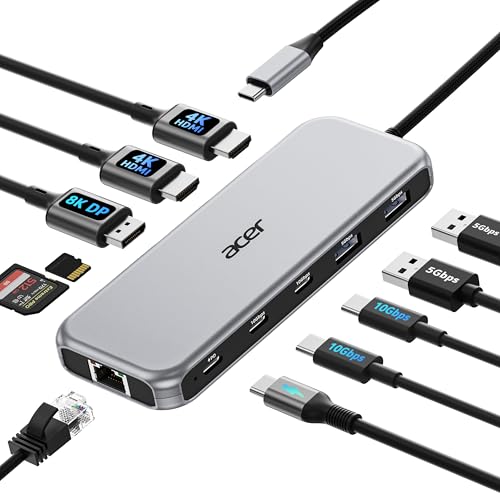
- Supports up to three displays
- 10Gbps USB-C connectivity
- 85W laptop charging and Gigabit Ethernet
Best For: Multi-monitor productivity and data-heavy work
Office Workstation Specialist
Plugable Dual-1080p Universal Dock

- Dual HDMI up to 1920x1200
- USB-C and USB-A host cables included
- Works across Windows, macOS, and ChromeOS
Best For: Business productivity and managed deployments
Most Versatile Multi-Monitor Dock

- Supports dual HDMI and DisplayPort monitor configurations
- Adds Gigabit Ethernet and 5Gbps USB connectivity
- Includes card readers, audio, and 100W power delivery
Best For: Windows productivity desks with multiple monitors
Best for DisplayPort Setups

- Two DisplayPort outputs support up to 4K at 60Hz
- Adds HDMI, VGA, and 100W charging
- Includes an 18-month warranty
Best For: Compatible laptops with multiple DisplayPort monitors
Best Value USB Dock
Plugable UD-3900 Dual HDMI Dock

- Dual HDMI supports two HD monitors
- Six USB ports plus Ethernet and audio
- Does not provide laptop charging
Best For: Budget productivity setups with two HD displays
Best Compact USB-C Dock

- Dual HDMI outputs support 4K at 60Hz
- Up to 90W laptop power delivery
- Includes USB ports and SD/MicroSD readers
Best For: USB-C laptops needing displays, charging, and card readers
Best Port Selection

- Two HDMI ports support dual 4K at 60Hz
- Includes Ethernet and eight USB data ports
- Up to 100W USB-C Power Delivery input
Best For: Peripherals-heavy USB-C workstations with wired networking
Reliable Dual-Display Value – Anker 8-in-1 Dual-Monitor USB-C Dock
For shoppers comparing budget USB docking stations, this Anker hub offers a useful balance of display connectivity, charging, networking, and card-reader support in a compact design. It can drive one 4K display at 60Hz or two displays at up to 4K at 30Hz, while providing up to 85W of USB-C pass-through charging.
Best For: Windows or ChromeOS users who need dual HDMI displays and everyday expansion from one USB-C port.
Pros:
- Includes two HDMI ports, Gigabit Ethernet, USB-A ports, and SD/microSD readers.
- Supports one 4K display at 60Hz or two displays at 4K at 30Hz.
- Provides up to 85W pass-through charging with a suitable 100W charger and cable.
- Compact, lightweight design with an 18-month warranty.
Cons:
- Charger and USB-C cable are not included.
- macOS mirrors the same image on both external monitors.
- Not compatible with Linux.
This is a practical pick when dual HDMI output matters more than maximum refresh rates. Verify that your laptop supports DisplayPort Alt Mode and Power Delivery before buying.
Triple-Screen Expansion – Acer 11-in-1 USB-C Dock
Among budget USB docking stations, this Acer model stands out for its unusually broad port selection and triple-display support. It combines HDMI, DisplayPort, fast USB ports, Ethernet, card readers, and up to 85W of laptop charging in one dock.
Best For: Multitaskers who need three external displays, fast USB transfers, and wired networking.
Pros:
- Supports triple displays up to 4K at 60Hz, 4K at 60Hz, and 1080p at 60Hz.
- Offers two 10Gbps USB-C ports and two 5Gbps USB-A ports.
- Includes 8K DisplayPort output, dual 4K HDMI output, Gigabit Ethernet, and SD/microSD slots.
- Accepts up to 100W input and delivers up to 85W to a compatible laptop.
Cons:
- A 100W power adapter is needed for stable full-power operation and is not identified as included.
- The laptop must support a full-featured USB-C port with DisplayPort Alt Mode.
- HDMI 2.0 or higher is recommended for optimal performance.
Choose this Acer when display expansion and port variety are priorities. Its triple-monitor capability is compelling, but compatibility checks are especially important for multi-screen setups.
Office Workstation Specialist – Plugable Dual-1080p Universal Dock
This Plugable dock is a practical option among budget USB docking stations for office users who want two HDMI screens without relying on a laptop’s native multi-monitor support. It works with Windows, macOS, and ChromeOS, but its DisplayLink-based setup and video limitations make it more suitable for productivity than entertainment.
Best For: Office and IT-managed workstations using mixed Windows, macOS, and ChromeOS laptop fleets.
Pros:
- Drives two HDMI displays at up to 1920×1200 from one USB connection.
- Includes both USB-C and USB-A host cables for newer and older laptops.
- Provides 10 ports, including Gigabit Ethernet, USB ports, and a 3.5mm audio jack.
- Supports Windows, macOS, and ChromeOS, with lifetime technical support.
Cons:
- Does not charge the connected laptop.
- macOS requires DisplayLink software installation.
- Does not support HDCP, DisplayPort monitors, gaming, or full-screen video playback.
This is best viewed as a dependable office dock rather than a high-performance multimedia station. Its dual HDMI support and broad host compatibility are useful for standardized desks, provided charging and protected video playback are not requirements.
Fast Windows Dual-4K Hub – Anker Nano 8-in-1 Dock
For buyers seeking budget USB docking stations with fast peripherals, the Anker Nano combines dual-monitor output, 10Gbps USB connectivity, card readers, and laptop charging in a compact 8-in-1 hub. On compatible Windows systems, it can support two 4K displays at 60Hz.
Best For: Windows laptop users who want dual 4K monitors, fast file transfers, and high-speed pass-through charging.
Pros:
- Supports up to two 4K displays at 60Hz when the host supports DP 1.4 with DSC 3:1.
- Provides 10Gbps speeds on its USB-C and USB-A data ports.
- Includes SD and TF card slots with transfer speeds up to 104MB/s.
- Supports up to 85W laptop charging through a 100W PD input.
Cons:
- 100W charger and cable are required and not included.
- macOS mirrors the same content on both external monitors.
- Not compatible with Linux; USB data ports do not provide video output or charging.
This is the stronger Anker choice for Windows users who value 4K refresh rates and fast data connections. Confirm your laptop’s USB-C video and charging capabilities to achieve the advertised performance.
Best Value All-in-One Hub – 11-in-1 USB-C Docking Station
For shoppers comparing budget USB docking stations, this 11-in-1 USB-C hub packs display output, wired networking, card readers, audio, and charging into a compact aluminum design. It supports 4K HDMI, 1080p VGA, and up to 100W power delivery, making it a practical choice for everyday office, travel, and remote-work setups.
Best For: Laptop users who want broad connectivity, dual-display support, and a compact travel-friendly hub.
Pros:
- Offers 11 connections, including HDMI, VGA, Ethernet, SD/TF readers, audio, and USB ports.
- Supports HDMI and VGA simultaneously for dual-screen productivity.
- Provides up to 100W pass-through charging and plug-and-play compatibility.
- Lightweight aluminum enclosure measures about 4.7 by 2.2 by 0.7 inches.
Cons:
- Ethernet is limited to 100Mbps rather than Gigabit speeds.
- Three USB ports use USB 2.0 speeds of up to 480Mbps.
This is a well-rounded budget USB docking station for users who prioritize port variety and portability. Its slower Ethernet and USB 2.0 connections are worth considering if your workflow involves frequent large file transfers.
Most Versatile Multi-Monitor Dock – 14-in-1 USB-C Docking Station
This 14-in-1 model is one of the more feature-heavy budget USB docking stations, combining dual HDMI, DisplayPort, Gigabit Ethernet, USB-C and USB-A ports, card readers, audio, and 100W charging. It is designed for Windows laptops that support video output through a full-featured USB-C port.
Best For: Windows users building dual- or triple-monitor workstations with wired networking and multiple accessories.
Pros:
- Includes dual 4K HDMI outputs, DisplayPort, Gigabit Ethernet, card readers, audio, and multiple USB ports.
- Supports dual-monitor and triple-monitor configurations on compatible Windows systems.
- Offers 5Gbps transfer speeds through USB 3.0 and USB-C data ports.
- Provides up to 100W laptop charging while connected to peripherals.
Cons:
- Power adapter and power cord are not included.
- macOS mirrors external screens rather than providing independent extended displays.
- Video features require a compatible, full-featured USB-C port.
Choose this dock when monitor expansion and port count matter more than absolute simplicity. Confirm your laptop’s USB-C display support before buying, and budget separately for the required power adapter.
Best for DisplayPort Setups – 8-in-1 Dual-Display Dock
Among budget USB docking stations, this MOKiN adapter stands out for its two DisplayPort outputs, plus HDMI, VGA, USB ports, and 100W power delivery. It is a focused multi-monitor solution for compatible laptops, though its peripheral ports are limited to USB 2.0 speeds.
Best For: Dell, HP, and Lenovo laptop users who need multiple DisplayPort outputs for a monitor-focused workstation.
Pros:
- Provides two DisplayPort outputs rated up to 4K at 60Hz.
- Also includes 4K HDMI, 1080p VGA, and a 100W PD charging port.
- Works with full-featured USB-C ports supporting display, charging, and data protocols.
- Includes an 18-month MOKiN warranty.
Cons:
- USB-C and USB-A data ports are limited to 480Mbps.
- On MacBook systems, connected monitors are limited to mirror mode rather than extended mode.
- It does not include Ethernet or card-reader connectivity.
This is a sensible pick if your priority is connecting several displays, especially DisplayPort models. Users needing fast storage transfers, wired networking, or memory-card access may prefer a broader dock.
Best Value USB Dock – Plugable UD-3900 Dual HDMI Dock
The Plugable UD-3900 is a practical choice among budget USB docking stations if you need dual-monitor support and plenty of USB connectivity without replacing your laptop charger. Its hybrid USB 3.0/USB-C host cable connects to two HDMI displays, Gigabit Ethernet, audio, and six USB ports.
Best For: Windows, macOS, and ChromeOS users who need an affordable productivity dock for web work, office software, peripherals, and two HD monitors.
Pros:
- Supports two HDMI displays up to 1920×1200 at 60Hz.
- Includes Gigabit Ethernet, audio jacks, two USB 3.0 ports, and four USB 2.0 ports.
- Works with Windows 11/10, macOS 14 or later with a DisplayLink driver, and ChromeOS 100 or later.
- Includes two-year coverage and lifetime support.
Cons:
- Does not charge the connected laptop.
- Does not support 4K, gaming, DisplayPort connections, or HDCP-protected streaming content.
- Not compatible with Linux or Unix systems.
This is a strong budget-oriented productivity dock, especially for users who already have a separate laptop charger and need broad port expansion. Its display limitations make it less suitable for high-resolution or entertainment-focused setups.
Best Compact USB-C Dock – Acer 9-in-1 Dual 4K Dock
The Acer 9-in-1 dock is a compact option among budget USB docking stations for laptops with a full-featured USB-C port. It combines dual HDMI outputs, fast USB connections, memory-card readers, and up to 90W laptop power delivery in an aluminum body.
Best For: USB-C laptop users who want dual 4K monitor support, card-reader access, fast peripheral connections, and charging from one small dock.
Pros:
- Supports two HDMI displays at up to 4K and 60Hz.
- Offers three USB-A 5Gbps ports, one USB-C 5Gbps port, and SD/MicroSD readers.
- Accepts up to 100W input and delivers up to 90W to a compatible laptop.
- Includes a built-in cable, aluminum enclosure, and lock button.
Cons:
- Requires a full-featured USB-C port with display, charging, and data support.
- Mac systems can only mirror the same content across external monitors.
- Does not include an Ethernet port or audio jack in the listed nine-port layout.
The Acer is a well-rounded choice when charging, display quality, and memory-card access matter more than wired networking. Check your laptop’s USB-C capabilities first, since ordinary USB-C data ports will not provide the full dock experience.
Best Port Selection – MOKiN 13-in-1 Dual HDMI Dock
The MOKiN 13-in-1 dock stands out among budget USB docking stations for its unusually broad port selection. It adds dual HDMI, Gigabit Ethernet, multiple USB-C and USB-A ports, and a dedicated USB-C charging input for compatible laptops.
Best For: Windows, macOS, Linux, and iOS users with a full-function USB-C or Thunderbolt laptop who need many peripherals, wired networking, dual displays, and laptop charging.
Pros:
- Provides two HDMI ports with dual 4K at 60Hz support when the host laptop supports DP 1.4.
- Includes four USB-C 3.0 ports, two USB-A 3.0 ports, and two USB-A 2.0 ports.
- Adds Gigabit Ethernet and a USB-C Power Delivery port rated up to 100W.
- Features a screen-off lock button and a two-year warranty.
Cons:
- Full display capability requires a compatible DP 1.4 USB-C or Thunderbolt connection.
- The supplied notes do not specify charging wattage delivered to the laptop after dock overhead.
- Requires a full-function USB-C port rather than a data-only USB-C connection.
For users who want maximum connectivity in a single dock, the MOKiN offers a compelling feature set at a budget-focused price point. Its high-resolution dual-display claims depend on the host computer’s USB-C and DisplayPort capabilities, so verify compatibility before buying.
How We Picked the Best Budget USB Docking Stations
We focused on docks and USB-C hubs that offer practical everyday value for home offices, study spaces, and hybrid workstations. Our selection emphasizes monitor support, useful port combinations, laptop compatibility, charging pass-through, and the number of accessories each dock can connect at once. We also included universal USB 3.0 options for laptops that lack a fully featured USB-C port.
Because specifications can vary by computer, we treated advertised display counts and resolutions as starting points rather than guarantees. Your laptop’s graphics hardware, USB-C mode, operating system, and monitor inputs can affect the final result.
Quick Comparison
| Feature | What to Compare |
|---|---|
| Display support | Single, dual, or triple monitors; HDMI, DisplayPort, or VGA outputs |
| USB connectivity | USB-A and USB-C port count, speed, and device compatibility |
| Charging | USB-C Power Delivery pass-through and the required wattage |
| Networking | Built-in Gigabit Ethernet for stable wired internet |
| Media access | SD and TF card slots for cameras and removable storage |
| Connection type | USB-C with video support or USB 3.0 universal docking technology |
Key Buying Factors for Budget USB Docking Stations
Check USB-C Video Support First
Not every USB-C port can carry video. Look for DisplayPort Alt Mode or Thunderbolt support in your laptop specifications. If the port supports data only, an ordinary USB-C dock may not drive an external display as expected.
Match the Outputs to Your Monitors
HDMI is common on TVs and office monitors, while DisplayPort is popular on desktop displays. VGA can help with older projectors or monitors but usually provides a less modern experience. Also verify whether the dock can run two screens independently on your operating system rather than mirroring one image.
Understand Resolution and Refresh Limits
A dock advertised with 4K HDMI may support 4K at a limited refresh rate, especially when several displays are connected. For office work, 1080p or 1440p can be sufficient; gamers and creative professionals should check refresh rates and graphics limitations carefully.
Consider Charging and Port Speed
Power Delivery pass-through lets one USB-C connection handle peripherals, displays, and laptop charging, but the dock normally does not include a full laptop charger. Confirm the required charger wattage. USB 3.x ports are better for external drives, while USB 2.0 ports are generally adequate for keyboards, mice, and printers.
Who Should Buy Which Budget USB Docking Stations?
Choose a compact USB-C hub if you mainly need HDMI, a few USB ports, and occasional charging. A dual-monitor USB-C dock is better for a permanent workstation with two displays, Ethernet, and several peripherals. Select a triple-monitor model only after confirming your laptop and operating system support the intended arrangement. If your computer lacks USB-C video output, a USB 3.0 universal dock may be the safer choice, though display performance and software requirements should be reviewed before purchase.