The best premium USB docking stations turn a laptop into a capable desktop setup with one cable for displays, charging, networking, storage, and accessories. The right choice depends on your laptop’s ports, monitor setup, operating system, and performance needs.
We selected 10 strong options ranging from Thunderbolt 5 and Thunderbolt 4 docks to versatile USB-C and DisplayLink models, with choices for office productivity, creative work, and multi-display home offices.
Best 10 Premium USB Docking Stations Picks for 2026
Maximum-Bandwidth Pick

- Thunderbolt 5 with up to 120Gbps transfer speeds
- Up to 8K display support and 140W charging
- Active cooling, 2.5Gbps Ethernet, and card readers
Best For: Thunderbolt 5 laptops and demanding creative workflows
Office Deployment Pick

- Up to 100W power delivery for compatible laptops
- Native support for up to four high-resolution displays
- Three-year warranty and broad OS compatibility
Best For: Business desks and managed office deployments
Smart-Management Pick
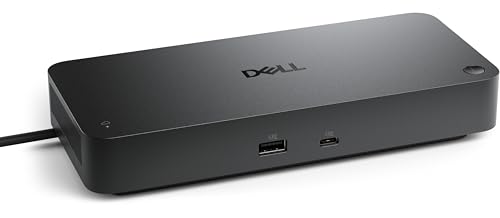
- Supports four displays with 130W power delivery
- Remote configuration and updates through Dell management tools
- WPA-3 and hardware-based encryption features
Best For: Enterprise IT fleets and security-focused workspaces
Power User Pick
Anker Prime 14-in-1 Dual-Monitor Dock

- 14 ports with up to 10Gbps data speeds
- 160W total output with high-power USB-C charging
- Dual HDMI display support for compatible laptops
Best For: Windows and ChromeOS power users building a dual-monitor workstation
Premium Thunderbolt Choice
Belkin Thunderbolt 4 Triple-Display Dock

- Up to three 4K displays at 60Hz
- 40Gbps Thunderbolt 4 and 2.5Gb Ethernet
- 96W laptop charging with daisy-chain support
Best For: Thunderbolt 4 workstations requiring multiple displays and fast networking
Budget-Friendly Workstation Pick
Plugable USB 3.0 Dual-HDMI Dock

- Dual HDMI output up to 1920×1200 at 60Hz
- Six USB ports plus Ethernet and audio
- Two-year coverage with lifetime support
Best For: Everyday office and web productivity with dual HD monitors
Best All-in-One Workstation
Anker 13-in-1 Triple-Display Dock

- 13 ports with dual HDMI and DisplayPort
- 85W laptop and 18W phone charging
- Up to three 1080p displays on Windows
Best For: Power users building a Windows or ChromeOS desktop workstation
Best for Hybrid Offices
Plugable 12-in-1 Triple-Display Dock

- Supports three extended HDMI displays
- 100W charging with DisplayLink technology
- Works across Windows, macOS, and ChromeOS
Best For: Hybrid teams and IT-managed mixed-device workspaces
Best for Business Desks
Kensington SD4760P Triple-Monitor Dock

- Three HDMI outputs with DisplayLink support
- 100W charging and six USB-A ports
- Three-year warranty with mounting options
Best For: Professional offices using multiple HDMI monitors and USB-A peripherals
Maximum-Bandwidth Pick – Anker Prime TB5 14-in-1 Dock
For demanding setups, this premium USB docking station pairs Thunderbolt 5 bandwidth with extensive connectivity. It supports up to 8K displays, 140W upstream charging, 2.5Gbps Ethernet, SD and TF card readers, and active cooling for sustained workloads.
Best For: Thunderbolt 5 laptops, large-file workflows, and high-resolution multi-display desks.
Pros:
- Thunderbolt 5 supports up to 120Gbps data transfer and dual 8K displays on compatible Windows laptops.
- Offers 14 connections, including USB-C, USB-A, HDMI or DisplayPort, Ethernet, audio, and card readers.
- Provides up to 140W upstream charging and includes active cooling for full-load use.
Cons:
- Its full display and Thunderbolt 5 capabilities require compatible hardware and operating systems.
- At 2.4 pounds, it is less travel-friendly than a compact hub.
This is the most performance-focused option in the group. It makes the strongest case for buyers who already own compatible Thunderbolt 5 or Thunderbolt 4 equipment and need maximum throughput.
Office Deployment Pick – Dell Pro Dock WD25
The Dell Pro Dock WD25 is a practical premium USB docking station for managed workspaces. It supports Dell and non-Dell PCs, delivers up to 100W to compatible laptops, and offers native support for up to four high-resolution displays.
Best For: Office users and IT teams that need broad compatibility, quad-display support, and long-term service coverage.
Pros:
- Works with Dell and non-Dell PCs and supports Windows, Ubuntu, Red Hat Enterprise Linux, and ChromeOS versions listed by Dell.
- Supports up to four high-resolution displays with DisplayPort, HDMI, and USB connectivity.
- Includes an ambidextrous USB-C cable, reduced standby power consumption, recycled materials, and a three-year limited warranty with advanced exchange.
Cons:
- The supplied notes do not specify the exact display resolutions or refresh rates.
- Its 10-port layout is less expansive than the 14-in-1 models in this roundup.
For a conventional business desk, the WD25 emphasizes compatibility, manageability, and support rather than headline Thunderbolt performance. It is a sensible choice for standardized office deployments.
Triple-Display Pick – Anker Prime DL7400 DisplayLink Dock
This premium USB docking station is built around Windows multitasking, with three simultaneous 4K displays through DisplayLink. It adds 14 ports, 2.5Gbps Ethernet, SD and TF readers, up to 140W upstream charging, and a smart display with built-in cooling controls.
Best For: Windows laptop users who want three 4K monitors and a broad selection of high-speed desktop connections.
Pros:
- Drives three external monitors at up to 4K resolution using two HDMI ports and one DisplayPort.
- Provides 14 connections, including multiple 10Gbps USB-C ports, Ethernet, audio, and card readers.
- Smart display, built-in fan, and ActiveShield 3.0 help monitor and manage operating temperatures.
Cons:
- Requires the latest DisplayLink driver and is designed for Windows 10/11 laptops.
- DisplayLink may show a black screen with DRM-protected streaming content.
- The supplied USB-C 3.2 Gen 2 cable should be used, and the front USB-C ports do not support USB-C monitor display.
The DL7400 is a strong productivity dock when three 4K screens matter more than native Thunderbolt display connectivity. Its driver and streaming limitations should be reviewed before purchase.
Smart-Management Pick – Dell Pro Smart Dock SD25
The Dell Pro Smart Dock SD25 is a premium USB docking station aimed at managed and security-conscious organizations. Along with support for four displays and 130W power delivery, it enables remote dock management, scheduled maintenance, and secure WPA-3 communication.
Best For: Enterprise fleets that need centralized dock administration, secure connectivity, and reduced user interruptions.
Pros:
- Supports four displays and provides up to 130W power delivery.
- Dell Device Management Console can configure, deploy, and update smart docks remotely over Wi-Fi.
- Includes WPA-3 192-bit encryption, hardware-based tamper-resistant encryption, and scheduled firmware maintenance.
Cons:
- Its smart-management features are most valuable in organization-managed deployments rather than casual home setups.
- The supplied specifications list six total ports, fewer than the 14-in-1 alternatives.
- Dell does not specify a detailed warranty term in the supplied notes.
The SD25 stands out for fleet administration and security rather than port quantity. It is a specialized choice for businesses that want to manage docking hardware alongside their broader IT environment.
Power User Pick – Anker Prime 14-in-1 Dual-Monitor Dock
For shoppers comparing premium USB docking stations, the Anker Prime combines extensive connectivity, high-output charging, and dual-display support in one desktop hub. It offers 14 ports, data speeds up to 10Gbps, and up to 160W of total charging output.
Best For: Windows and ChromeOS users who need dual-monitor connectivity, fast peripheral access, and substantial charging capacity.
Pros:
- 14-in-1 design with USB-C, USB-A, HDMI, audio, and Ethernet connectivity.
- Up to 160W total output, with USB-C charging up to 100W per port.
- Supports two HDMI displays at up to 2K at 60Hz with a DP 1.4 laptop.
- Includes a 24-month warranty and a 10Gbps USB-C upstream cable.
Cons:
- Not compatible with Linux systems.
- macOS mirrors the same image on both external monitors.
- Does not support a 5120×1440 monitor.
The Anker Prime is a strong choice when charging capacity and broad port selection matter most. Check your laptop’s display protocol and operating system first, especially if you use macOS or Linux.
Premium Thunderbolt Choice – Belkin Thunderbolt 4 Triple-Display Dock
The Belkin Thunderbolt 4 dock is a premium USB docking station for high-performance workspaces. Its 14-port layout supports Thunderbolt 4 speeds up to 40Gbps, up to three 4K displays at 60Hz, 96W laptop power delivery, and 2.5Gb Ethernet.
Best For: Thunderbolt 4 Mac and Windows users who need triple-display support, fast wired networking, and a scalable workstation setup.
Pros:
- Supports up to three extended 4K displays at 60Hz with compatible systems.
- Thunderbolt 4 data transfer speeds reach up to 40Gbps.
- Provides up to 96W of laptop power delivery and 2.5Gb Ethernet.
- Supports daisy chaining and includes safety protections plus three-year coverage.
Cons:
- Triple-display support depends on the host computer and operating system.
- Some Mac configurations have display limitations, including clamshell requirements for certain dual-display setups.
- It is designed around Thunderbolt 4 hosts, so compatibility should be checked before purchase.
Choose the Belkin when Thunderbolt bandwidth and multi-monitor expansion are higher priorities than basic USB connectivity. Its 2.5Gb Ethernet and daisy-chain support also suit demanding office or creative workflows.
Budget-Friendly Workstation Pick – Plugable USB 3.0 Dual-HDMI Dock
The Plugable UD-3900 is a straightforward option for shoppers who want practical USB docking without premium Thunderbolt features. Its hybrid USB 3.0 and USB-C connection adds dual HDMI, Gigabit Ethernet, audio, and six USB ports for everyday productivity.
Best For: Windows, macOS, and ChromeOS users who need dual HD monitors and extra peripherals for office or web-based work.
Pros:
- Supports two HDMI displays at up to 1920×1200 at 60Hz.
- Offers Gigabit Ethernet, headphone and microphone jacks, and six USB ports.
- Works with USB 3.0 or USB-C host connections across supported systems.
- Includes two-year coverage and lifetime support.
Cons:
- Does not support 4K displays or DisplayPort connections.
- Requires DisplayLink drivers for macOS and Windows driver installation.
- Does not charge the host laptop and is not intended for gaming or protected streaming content.
This Plugable dock makes sense for a basic productivity setup where dual HD screens and additional USB ports are enough. It is less suitable for gaming, 4K workflows, laptop charging, or users who want a driver-free experience on every platform.
Best All-in-One Workstation – Anker 13-in-1 Triple-Display Dock
For users building a powerful desk setup, this Anker dock is one of the more versatile premium USB docking stations. It combines 13 ports, 85W laptop charging, fast data connections, card readers, wired networking, and support for up to three 1080p displays in a compact vertical design.
Best For: Windows and ChromeOS users who need extensive connectivity, triple-monitor support, and a bundled power adapter.
Pros:
- Includes dual HDMI, DisplayPort, USB-C and USB-A data ports, Gigabit Ethernet, SD/microSD, and audio.
- Provides up to 85W laptop charging and 18W phone charging simultaneously.
- Supports up to three 1080p displays at 60Hz on Windows 10/11 and ChromeOS.
- Includes a 135W power adapter and an 18-month warranty.
Cons:
- macOS limits connected monitors to mirrored mode rather than extended displays.
- Triple-display support requires a compatible full-featured USB-C connection and is primarily suited to Windows or ChromeOS.
This is a strong choice when port variety and desktop-style expansion matter more than macOS multi-monitor flexibility. Its included power supply and compact upright footprint make it practical for a permanent workstation.
Best for Hybrid Offices – Plugable 12-in-1 Triple-Display Dock
This Plugable dock is a practical premium USB docking station for managed workspaces and mixed laptop fleets. It combines three-monitor support, 100W Power Delivery, Gigabit Ethernet, six USB 3.0 peripheral ports, and DisplayLink technology for broader multi-display compatibility.
Best For: Hybrid teams and IT departments supporting Windows, macOS, and ChromeOS laptops, including Apple Silicon MacBooks.
Pros:
- Supports up to three extended HDMI displays: one 4K at 30Hz and two 1080p at 60Hz.
- DisplayLink helps bypass native single-display limits on Apple Silicon MacBooks.
- Offers 100W USB-C Power Delivery, six USB 3.0 ports, Ethernet, audio, and broad device compatibility.
- Includes North American-based technical support and a compatibility guarantee.
Cons:
- macOS requires driver installation.
- It is not compatible with Linux, and HDCP is not supported.
- The supplied notes identify nine total ports, despite the product title describing it as 12-in-1.
Choose this model when reliable deployment across different operating systems is a priority. DisplayLink expands its usefulness for Mac-based teams, while the 100W charging and wired networking suit hot-desking and conference-room setups.
Best for Business Desks – Kensington SD4760P Triple-Monitor Dock
The Kensington SD4760P is a business-oriented premium USB docking station with three HDMI outputs, 100W charging, six USB-A ports, Ethernet, and DisplayLink support. Its mounting option, security-slot compatibility, DockWorks software, and three-year warranty make it particularly suited to organized office deployments.
Best For: Professional desks that need multiple HDMI monitors, abundant USB-A connectivity, and longer warranty coverage.
Pros:
- Supports one 4K display at 30Hz plus two 1080p displays at 60Hz through DisplayLink.
- Includes three HDMI ports, six USB-A 5Gbps ports, Gigabit Ethernet, and a combo audio jack.
- Delivers up to 100W laptop charging and supports Windows, macOS, and ChromeOS.
- Offers DockWorks software, optional zero-footprint mounting, security cable slots, and a three-year warranty.
Cons:
- DisplayLink drivers are required for the multi-monitor setup.
- The mounting bracket and Kensington security cable are sold separately.
- Its HDMI configuration is less flexible for users who specifically need DisplayPort.
This dock stands out for office environments where durability, security, and desk organization matter. It is a sensible fit for a fixed workstation with several HDMI monitors and multiple USB-A accessories.
How We Picked These Premium USB Docking Stations
We focused on docks that offer a practical combination of laptop charging, display connectivity, USB expansion, networking, and dependable everyday usability. The selection includes Thunderbolt, USB-C, USB 3.0, and DisplayLink designs so you can match the dock to your computer rather than assuming every laptop supports the same features.
We also considered the number and type of display outputs, power-delivery ratings, port variety, multi-monitor flexibility, and suitability for Windows, macOS, and mixed-device workspaces. A premium dock should reduce cable clutter without introducing unnecessary compatibility problems.
Quick Comparison
Thunderbolt 5 models are the most forward-looking choices for compatible laptops and high-bandwidth peripherals. Thunderbolt 4 docks remain excellent for fast storage, networking, and multiple displays. USB-C and DisplayLink docks can be more flexible, especially for office users who need several HDMI screens, while USB 3.0 models are often the most affordable way to add basic dual-monitor functionality.
- Best for maximum bandwidth: Thunderbolt 5 docking stations.
- Best for premium all-around performance: Thunderbolt 4 and advanced USB-C docks.
- Best for multiple HDMI displays: DisplayLink-based models.
- Best for straightforward office expansion: USB 3.0 universal docks.
Key Buying Factors for Premium USB Docking Stations
Host Connection and Bandwidth
Check whether your laptop has Thunderbolt 4, Thunderbolt 5, USB4, or standard USB-C. A USB-C-shaped port may not support video output or full docking features. Thunderbolt docks generally provide more bandwidth, while DisplayLink can drive additional screens through software.
Display Support
Confirm the maximum resolution, refresh rate, and number of monitors supported by your laptop and operating system. HDMI and DisplayPort outputs are convenient for direct connections, while DisplayLink is useful when you need more screens than the computer’s native graphics connection can handle.
Charging and Port Selection
Choose a dock with enough USB-C Power Delivery for your laptop. Around 90W to 100W is suitable for many productivity notebooks, but high-performance laptops may require more or may still need their original charger. Count the USB-A, USB-C, Ethernet, audio, SD, and video ports you actually use.
Software and Compatibility
DisplayLink docks typically require a driver and may behave differently across Windows and macOS. Check support for your operating system, sleep and wake behavior, security policies, and corporate device-management requirements before buying.
Who Should Buy Which Premium USB Docking Stations?
Choose a Thunderbolt 5 dock if you own a compatible newer laptop and want maximum headroom for high-speed storage, displays, and future peripherals. Thunderbolt 4 is a strong fit for professionals who want fast, stable connectivity in a refined desktop setup.
Pick a DisplayLink dock if your priority is running two or three monitors from a laptop with limited native display support. A USB-C model is often the best balance for general office work, while a USB 3.0 universal dock makes sense for basic monitors and accessories on a tighter budget. Before ordering, verify host-port capabilities, display requirements, charging needs, and the included power adapter.