A Mac Studio can handle demanding creative work, but its internal storage may not fit every project or archive. An external array can add working space, backup capacity, or convenient access to cards and peripherals.
These eight options span hard-drive RAID systems, NVMe enclosures, and multiport docks. The right choice depends on whether you prioritize sustained speed, usable capacity, redundancy, or desk connectivity.
Best 8 Mac Studio External Storage Arrays Picks for 2026
Best for Media Ingest
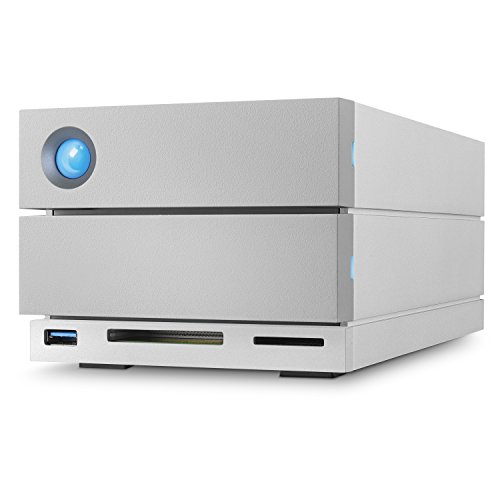
- SD and CF card slots
- Configurable RAID 0/1
- Up to 440MB/s claimed speeds
Best For: Desktop media offloads with drive redundancy
Best for Flexible Expansion

- Three Thunderbolt ports
- Supports 2.5- and 3.5-inch drives
- Up to 770MB/s claimed speeds
Best For: Compact storage and port expansion
Best for Large Project Libraries

- 16TB stated capacity
- RAID 0/1, JBOD, and SPAN
- Verify ports before purchase
Best For: High-capacity desktop HDD workflows
Best for NVMe Customization
StarTech 4-Bay Thunderbolt 3 Enclosure

- Holds up to four M.2 SSDs
- Supports macOS software RAID
- SSDs not included
Best For: Custom external NVMe arrays
Best High-Speed Dock
RayCue 80Gbps Dual-SSD Mac Studio Dock

- Two NVMe bays; up to 16TB
- RAID 0/1 and 80Gbps connection
- Display and CFexpress ports
Best For: Mac Studio users combining SSD expansion with a full-featured dock
Best Eight-Bay Array

- Eight hot-swappable drive bays
- RAID 0/1/5/10/50 and JBOD
- Dual Thunderbolt 3 ports
Best For: Large, configurable desktop RAID setups
Best Slim Expansion Hub

- M.2 and 2.5-inch SATA drive support
- 10Gbps USB-C and USB-A ports
- Slim aluminum-alloy enclosure
Best For: Two-drive expansion with convenient USB and card access
Best Ready-to-Use RAID

- 16TB with IronWolf Pro drives
- Configurable RAID 0/1
- Thunderbolt 3 and media card slots
Best For: Creators wanting included drives and media-ingest ports
Best for Media Ingest – LaCie 2big Dock RAID 8TB
Among mac studio external storage arrays, the LaCie 2big Dock is a practical choice when footage arrives on SD or CF cards. Its 8TB of included storage, RAID 0/1 options, and claimed speeds up to 440MB/s suit a desktop editing workflow.
Best For: Creators who want card ingestion and redundant storage in one desktop unit.
Pros:
- Built-in SD and CF slots simplify media offloads.
- RAID 0/1 lets you prioritize speed or drive redundancy.
- Dual Thunderbolt 3 ports support daisy chaining; a five-year limited warranty includes Rescue Data Recovery Services.
Cons:
- RAID 1 trades usable capacity for redundancy.
- Its 440MB/s stated ceiling is modest compared with faster SSD-based options.
The dock’s strongest case is workflow convenience rather than peak transfer speed. Choose RAID 1 when protecting against a single-drive failure matters more than maximizing capacity, and keep a separate backup either way.
Best for Flexible Expansion – OWC miniStack STX
The OWC miniStack STX takes a different approach to mac studio external storage arrays: it is an enclosure for adding storage and Thunderbolt connections, not a ready-to-use, multibay RAID system. Its aluminum housing includes a heat sink and cooling fan, and OWC claims real-world speeds up to 770MB/s.
Best For: Buyers who want to expand storage and Thunderbolt connectivity in a compact desktop setup.
Pros:
- Three Thunderbolt (USB-C) ports help connect additional accessories.
- Supports 2.5-inch and 3.5-inch drive form factors.
- Includes a Thunderbolt cable and uses an internally cooled aluminum housing.
Cons:
- The supplied enclosure listing does not establish that a drive is included.
- It is not presented as a multibay RAID enclosure.
Consider this when an adaptable storage-and-port expansion unit is more useful than a preconfigured array. Check the exact package and drive configuration before buying, since OWC lists different warranty terms for enclosure-only and drive-equipped solutions.
Best for Large Project Libraries – Glyph StudioRAID 16TB
For buyers comparing mac studio external storage arrays by capacity, the Glyph StudioRAID offers 16TB of stated storage and two 7,200 RPM hard drives. Its hardware RAID modes include RAID 0, RAID 1, JBOD, and SPAN, with claimed transfer speeds up to 360MB/s.
Best For: Large photo, audio, or video libraries that need configurable desktop HDD storage.
Pros:
- Four storage modes offer more setup flexibility than RAID 0/1 alone.
- Aluminum enclosure uses temperature-controlled fan cooling.
- Three-year hardware warranty includes two years of data recovery support and one year of advance replacement.
Cons:
- Up to 360MB/s is slower than the stated speeds of the other products here.
- Connection details in the supplied notes conflict: the title says USB-C, while the bullets list USB 3.0, FireWire 800, and eSATA. Verify the exact ports before ordering.
This is most compelling when capacity and selectable hardware RAID matter more than maximum speed. Confirm its connection to your Mac Studio and remember that RAID 1 reduces usable capacity rather than replacing a separate backup.
Best for NVMe Customization – StarTech 4-Bay Thunderbolt 3 Enclosure
The StarTech four-bay enclosure is the build-it-yourself option among these mac studio external storage arrays. It accommodates up to four 80mm M-key PCIe NVMe or AHCI SSDs over Thunderbolt 3 and supports software RAID through macOS RAID Assistant.
Best For: Users who want to select their own M.2 drives and configure a fast external SSD array.
Pros:
- Four SSD slots allow a customizable storage setup.
- 40Gbps Thunderbolt 3 connection, with a downstream Thunderbolt 3 port for daisy chaining.
- Vented metal housing includes thermal pads and a fan; cable and power adapter are supplied.
Cons:
- Drives must be sourced separately; SATA SSDs are not compatible.
- Software RAID requires configuration, and connected displays or devices share bandwidth with the SSDs.
This enclosure makes sense if you value drive choice over a preassembled system. Treat 40Gbps as the interface rating, not a guaranteed file-transfer speed, and budget for compatible SSDs.
Best High-Speed Dock – RayCue 80Gbps Dual-SSD Mac Studio Dock
For buyers comparing mac studio external storage arrays, the RayCue dock combines two NVMe SSD bays with display, card-reader, and USB connections. It supports up to 16TB of storage and RAID 0 or 1, making it a compact option for expanding a Mac Studio workspace.
Best For: Mac Studio users who want dual-SSD storage and creative-workflow ports in one stackable dock.
Pros:
- Dual NVMe bays support up to 16TB and RAID 0/1.
- 80Gbps connection, two HDMI 2.1 ports, and DisplayPort 2.1.
- CFexpress Type A/B readers and two 10Gbps USB-A ports.
Cons:
- Only two SSD bays, so it is less suited to larger multi-drive arrays.
- Listed Mac compatibility is limited to specified Mac Studio and Mac mini generations.
This is the connectivity-first pick: choose it when fast SSD expansion and easy access to displays and media cards matter more than having many drive bays.
Best Eight-Bay Array – HighPoint RocketStor 6618V
Among mac studio external storage arrays, the HighPoint RocketStor 6618V is the drive-heavy choice. Its eight hot-swappable 2.5- or 3.5-inch bays and Thunderbolt 3 connection suit workflows that need a configurable desktop RAID enclosure rather than a compact SSD dock.
Best For: Users building a large, multi-drive array with hardware RAID options.
Pros:
- Eight hot-swappable bays support 2.5- and 3.5-inch drives.
- Integrated RAID engine offers RAID 0, 1, 5, 10, 50, and JBOD.
- Dual 40Gb/s Thunderbolt 3 ports; supports Mac, Windows, and Linux.
Cons:
- At 7.96 kg, the enclosure is a substantial desktop unit.
- The supplied specifications describe an enclosure, not included storage drives.
Pick this model when bay count and RAID flexibility take priority. Plan your drive selection separately to match the capacity and redundancy your workflow requires.
Best Slim Expansion Hub – Qwiizlab UH25 Pro
If mac studio external storage arrays sound larger than you need, the Qwiizlab UH25 Pro offers a slimmer approach. It houses an M.2 SATA or NVMe SSD alongside a 2.5-inch SATA drive and adds front-of-desk USB and card-reader access.
Best For: Mac Studio owners who want modest two-drive expansion and extra everyday ports.
Pros:
- Supports an M.2 SSD up to 8TB plus a 2.5-inch SATA SSD up to 8TB.
- Includes 10Gbps USB-C and USB-A ports, two 5Gbps USB-A ports, and SD/microSD readers.
- Slim aluminum-alloy design with installation accessories and cables included.
Cons:
- No RAID support is specified in the supplied product notes.
- SD/microSD readers are rated up to 104MB/s.
This hub is more about convenient storage and peripheral access than building a dedicated RAID array. Check that its stated Mac Studio compatibility covers your model before buying.
Best Ready-to-Use RAID – LaCie 2big Dock 16TB
For shoppers seeking mac studio external storage arrays with drives already supplied, the LaCie 2big Dock provides 16TB of desktop HDD storage. It pairs configurable RAID 0/1 with Thunderbolt 3 connectivity and media-ingest ports useful in photo and video workflows.
Best For: Creators who want a two-drive RAID dock with built-in card readers.
Pros:
- Includes 16TB of storage on hot-swappable IronWolf Pro drives.
- RAID 0/1 setup supports a choice between performance and redundancy.
- Dual Thunderbolt 3 ports, CFexpress Type B, CFast 2.0, SD, and DisplayPort 1.4.
- Includes Rescue Data Recovery Services under its limited warranty protection plan.
Cons:
- Two bays offer less drive-count flexibility than larger RAID enclosures.
- Its stated speed of up to 550MB/s is below the connection speeds advertised for some SSD-focused docks.
Choose the 2big Dock if you prefer an included-drive solution with straightforward RAID choices and dedicated media slots; its two-bay HDD design is a different fit from an eight-bay enclosure or NVMe dock.
How We Picked the Best Mac Studio External Storage Arrays
We looked at the eight selected products as different ways to expand a Mac Studio setup, not as interchangeable drives. The shortlist includes preconfigured hard-drive RAID systems, empty multi-drive enclosures, SSD docks, and a Mac mini-focused hub. We prioritized connection type, drive configuration, stated compatibility, useful ports, and the practical trade-offs between speed, capacity, and redundancy. Published interface speeds are ceilings, not guaranteed transfer rates; actual performance depends on the installed drives, RAID mode, workload, and cable.
Quick Comparison: Which Type Fits Your Desk?
- Large media libraries: The LaCie 2big Dock models and Glyph StudioRAID offer substantial HDD capacity. Check the configured RAID mode to understand usable space and protection.
- Fast SSD workspace: The StarTech four-bay NVMe enclosure and RocketStor 6618V are better starting points if you want to choose drives and build an array around your workload. Budget separately for drives where required.
- Storage plus desk ports: The RayCue dock pairs SSD bays with display and card-reader connections; the OWC miniStack STX combines storage expansion with a compact desktop footprint. Confirm the exact port and drive specifications before buying.
- Small hub with drive bays: The Qwiizlab model is marketed for Mac mini. Verify Mac Studio compatibility, physical fit, and connection-speed limits before treating it as a Mac Studio dock.
Key Buying Factors for Mac Studio External Storage Arrays
Connection Speed and Real-World Throughput
Thunderbolt and USB-C describe connectors or connection families, not a single performance level. Check whether a product requires Thunderbolt, supports USB4, or operates over USB at a lower speed. A multi-NVMe enclosure needs adequate bandwidth to justify several fast drives; an HDD array may be limited by the disks instead. Use a compatible cable and check whether connecting other devices through a dock shares bandwidth.
Capacity, RAID, and Backup
Distinguish advertised raw capacity from usable capacity. Mirroring trades space for continued access after a drive failure, while striping can improve performance but increases exposure to a drive failure. Other RAID modes have their own capacity and recovery trade-offs. RAID is not a backup: keep a separate, preferably off-site copy of irreplaceable files.
Drives, Cooling, and Workflow
Check whether drives are included, which SSD sizes or HDD types the enclosure accepts, and whether it supports the configuration you intend to use on macOS. Fans and spinning disks can matter on a quiet desk; sustained SSD transfers also depend on cooling. Card slots and display outputs are valuable only if they match your cameras, monitors, and port needs.
Who Should Buy Which Mac Studio External Storage Arrays?
Choose a ready-to-use HDD RAID if you want high-capacity project storage with fewer setup decisions. Choose a multi-bay NVMe enclosure if fast active-project storage and drive selection matter more than upfront simplicity. Choose a storage dock if card ingest and peripheral connections are central to your workflow. For any of these Mac Studio External Storage Arrays, confirm current Mac Studio and macOS compatibility, included drives, warranty terms, and the required cable before checkout.