A good dock can turn an M1 or M2 MacBook into a one-cable desk setup, adding displays, peripherals, and charging. The tricky part is that a dock’s display claims do not necessarily describe what your particular MacBook can run.
These eight options cover compact Thunderbolt hubs and larger docks, including DisplayLink models for buyers who need more screens. Start with your Mac’s display support, then choose the ports and charging capacity that fit your desk.
Best 8 Macbook Thunderbolt Docks for M1 M2 Picks for 2026
Best Vertical Desk Setup
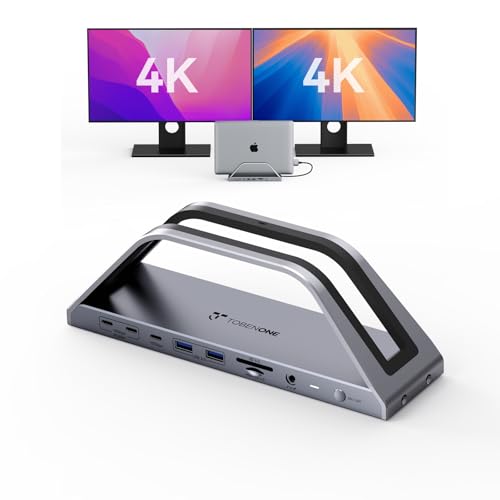
- Vertical MacBook stand with extensive ports
- Dual 4K/60Hz HDMI on compatible models
- Base M1/M2 limited to one extended display
Best For: MacBook Pro/Max users seeking a tidy desktop setup
Best for Multiple 4K Screens
Kensington SD5900T Thunderbolt 4 Dock

- Up to triple 4K/60Hz on base M1/M2
- Up to quad 4K/60Hz on listed Pro/Max Macs
- Thunderbolt 4, 2.5GbE, and card readers
Best For: Multi-monitor MacBook workstations
Best Mixed-Laptop Setup
WAVLINK Triple-Display DisplayLink Dock

- One 4K plus two 2K external displays
- 100W charging and six 10Gbps USB ports
- M1/M2 Macs require DisplayLink driver
Best For: Shared Mac and Windows home-office desks
Best Thunderbolt Expansion

- Three downstream 40Gbps Thunderbolt 4 ports
- Up to 85W laptop charging
- Base M1/M2 limited to one external display
Best For: Thunderbolt-heavy MacBook desks
Best for Fast Wired Networking

- 2.5GbE wired networking
- Up to 96W host charging
- Base M1/M2 Macs: one external display
Best For: Pro/Max MacBooks needing fast Ethernet and Thunderbolt 4 connectivity
Best Slim Thunderbolt Hub
Satechi Thunderbolt 4 Slim Hub Pro

- Three downstream Thunderbolt 4 ports
- Up to 100W host charging
- No built-in HDMI specified
Best For: Compact Thunderbolt accessory setups
Best for Multi-Monitor Office Work
WAVLINK DisplayLink Docking Station

- DisplayLink multi-display expansion
- Up to 100W host charging
- Driver installation required
Best For: Spreadsheet-heavy MacBook workstations
Best for Dual 4K on Base Macs
Plugable USB-C DisplayLink Dock

- Two 4K/60Hz external displays
- Works around base Mac display limits
- Driver required; no HDCP
Best For: Base M1/M2 MacBooks needing dual 4K office monitors
Best Vertical Desk Setup – TobenONE 17-in-2 MacBook Dock
Among macbook thunderbolt docks for m1 m2, the TobenONE is a MacBook-specific vertical dock for a tidier desk, though it is not listed as a Thunderbolt dock. It combines two HDMI outputs, seven USB-A/C ports, 2.5Gbps Ethernet, and SD/TF readers in a stand that holds your laptop upright.
Best For: MacBook Pro or Max users who want a vertical stand and a well-connected desk setup.
Pros:
- Two HDMI outputs support dual 4K at 60Hz on compatible MacBooks.
- Included 150W adapter provides up to 100W laptop charging.
- Includes 2.5Gbps Ethernet, SD/TF 4.0 readers, and seven USB-A/C ports.
Cons:
- Base M1 and M2 MacBooks support only one extended monitor.
- The approximately 0.8-inch stand slot may not fit a MacBook with a protective case.
Choose this for its stand-and-dock design rather than Thunderbolt connectivity. Check your MacBook chip before buying if two external screens are essential.
Best for Multiple 4K Screens – Kensington SD5900T Thunderbolt 4 Dock
If you are comparing macbook thunderbolt docks for m1 m2 with several external screens in mind, the Kensington SD5900T combines Thunderbolt 4 connectivity with DisplayLink display support. Its 16-port layout includes two downstream Thunderbolt 4 ports, flexible HDMI/DisplayPort connections, card readers, and 2.5Gbps Ethernet.
Best For: MacBook users building a three- or four-monitor 4K workstation.
Pros:
- Supports up to three 4K/60Hz external displays on base M1/M2 models and up to four on listed Pro/Max models.
- Two downstream Thunderbolt 4 ports support 40Gbps connectivity and daisy-chaining.
- Provides 100W-class laptop charging, SD and microSD readers, and 2.5Gbps Ethernet.
Cons:
- Display counts depend on the MacBook chipset and DisplayLink support.
- The optional mounting bracket is sold separately.
This is the feature-rich pick when display count matters more than a minimal port layout. Verify the supported configuration for your exact MacBook before planning the full monitor setup.
Best Mixed-Laptop Setup – WAVLINK Triple-Display DisplayLink Dock
For shoppers browsing macbook thunderbolt docks for m1 m2 who also use Windows laptops, this WAVLINK is a USB-C DisplayLink alternative rather than a native Thunderbolt dock. It offers up to three external displays, 100W laptop charging, six 10Gbps USB ports, and Gigabit Ethernet.
Best For: Home offices that share a dock between a MacBook and compatible Windows or USB-C laptops.
Pros:
- Supports a 4K/60Hz display plus two 2K/60Hz displays.
- Supplies up to 100W laptop charging with the included 130W adapter.
- Includes six 10Gbps USB ports and wired Gigabit Ethernet.
Cons:
- MacBook M1/M2 users must install a DisplayLink driver.
- Not recommended for gaming or HDCP-protected 4K streaming.
Its appeal is cross-platform flexibility and extra screens through one USB-C connection. Factor in the required Mac driver and its stated media limitations before choosing it over a Thunderbolt model.
Best Thunderbolt Expansion – UGREEN Revodok Max 208 Dock
Among macbook thunderbolt docks for m1 m2, the UGREEN Revodok Max 208 is a straightforward choice when fast Thunderbolt peripherals matter more than a long list of built-in display connectors. It has three downstream Thunderbolt 4 ports, three 10Gbps USB-A ports, and Gigabit Ethernet.
Best For: MacBook users connecting multiple Thunderbolt devices and willing to match display plans to their chip.
Pros:
- Three downstream Thunderbolt 4 ports support up to 40Gbps connections.
- Supports dual 4K/60Hz external displays on the listed Pro/Max and Intel MacBooks.
- Included 140W GaN charger enables up to 85W laptop charging.
Cons:
- Base M1/M2 MacBooks are limited to one 4K/60Hz external display.
- The dock must be connected to its charger to work.
Pick this for high-speed Thunderbolt expansion, not as a workaround for base-chip MacBook display limits. The downstream video connections also call for compatible Thunderbolt display hardware or adapters.
Best for Fast Wired Networking – WAVLINK Thunderbolt 4 Dock
Among macbook thunderbolt docks for m1 m2, this WAVLINK model stands out for its 2.5GbE port, 96W host charging, and fast SD/microSD readers. It also provides Thunderbolt 4 connectivity and two HDMI ports, but Mac display behavior needs a close look.
Best For: M1 Pro/Max or M2 Pro/Max owners who want fast wired networking and can connect a second extended display through the downstream Thunderbolt 4 port.
Pros:
- 2.5GbE supports faster wired connections than a standard Gigabit port.
- Up to 96W host charging from the included 160W adapter.
- SD and microSD V4.0 readers are rated up to 312MB/s.
Cons:
- Base M1 and M2 Macs support only one external display through this dock.
- On M1 Pro/Max and M2 Pro/Max Macs, the two HDMI ports mirror rather than provide two extended displays; use one HDMI port and the downstream Thunderbolt 4 port instead.
Choose this dock for its networking and peripheral connections, not as a shortcut around a base MacBook’s display limit. Plan your monitor cables before buying.
Best Slim Thunderbolt Hub – Satechi Thunderbolt 4 Slim Hub Pro
If you are comparing macbook thunderbolt docks for m1 m2 and prefer a compact setup, Satechi’s Slim Hub Pro offers three downstream Thunderbolt 4 ports, up to 100W host charging, and an aluminum enclosure. It is built around flexible Thunderbolt connections rather than dedicated HDMI sockets.
Best For: MacBook users who want a slim hub for Thunderbolt accessories, wired networking, and an SD card reader.
Pros:
- Three downstream Thunderbolt 4 ports support up to 40Gbps connections.
- Includes UHS-II SD reading, USB-A connectivity, and Gigabit Ethernet.
- Comes with a Thunderbolt 4 cable and 150W GaN power supply.
Cons:
- No built-in HDMI port is specified, so HDMI monitors require an appropriate adapter or cable.
- Its stated dual-display capability does not override an M1 or M2 MacBook’s native external-display limits.
This is a tidy choice when Thunderbolt expansion matters most. Check your Mac’s display support and budget for the right monitor connections if needed.
Best for Multi-Monitor Office Work – WAVLINK DisplayLink Docking Station
For shoppers searching macbook thunderbolt docks for m1 m2 primarily to gain more office screen space, this WAVLINK dock takes a different route: DisplayLink. It pairs multiple video connections with five USB ports, card readers, Gigabit Ethernet, and up to 100W laptop charging.
Best For: MacBook users building a multi-monitor workspace for spreadsheets, reports, and other everyday productivity tasks.
Pros:
- DisplayLink supports expanded multi-display setups on compatible Mac and Windows laptops.
- Offers three HDMI sockets and two DisplayPort sockets, with HDMI and DisplayPort on the same display channel serving as alternatives.
- Two 10Gbps USB-C ports, three 5Gbps USB-A ports, and up to 100W host power cover common desk needs.
Cons:
- Requires DisplayLink driver installation; it is not plug-and-play.
- The manufacturer recommends it for office productivity rather than gaming or professional video editing.
- Its stated dual 2K/60Hz output applies to the DisplayLink display channels; verify the complete monitor configuration you need.
This is an office-focused way to expand screen space, not a native Thunderbolt 4 dock. Confirm driver access and your laptop’s USB-C video-output support before ordering.
Best for Dual 4K on Base Macs – Plugable USB-C DisplayLink Dock
Many macbook thunderbolt docks for m1 m2 cannot add a second extended screen to a base M1 or M2 MacBook. Plugable addresses that specific need with a DisplayLink USB-C dock rated for two 4K/60Hz monitors, alongside 100W charging and everyday desk connections.
Best For: Base M1 or M2 MacBook owners who need two external 4K productivity displays and are willing to install DisplayLink software.
Pros:
- Supports two 4K/60Hz monitors using HDMI, DisplayPort, or a mix of both on supported systems.
- DisplayLink can enable dual external displays on Macs that natively support only one.
- Includes Ethernet, SD and microSD readers, USB ports, a headset jack, and 100W charging.
Cons:
- Requires DisplayLink software installation for full functionality and dual displays.
- HDCP is not supported, which can limit protected-video playback.
Pick this over a native Thunderbolt dock when dual 4K screens on a base MacBook are the priority. The driver requirement and HDCP limitation are the key trade-offs.
How We Picked the Best Macbook Thunderbolt Docks for M1 M2
We focused on the decisions that matter most for an M1 or M2 setup: the dock’s connection type, how it handles external displays, available ports, and laptop charging. The selection includes Thunderbolt 4 docks and hubs alongside DisplayLink docks and a USB-C docking option. Those categories are not interchangeable, so compare them by the job you need done rather than by a headline monitor count.
Quick Comparison: Choose by Display Needs
For a tidy one-monitor desk with extra USB-C or Thunderbolt connectivity, a compact hub such as the Satechi Thunderbolt 4 Slim Hub Pro or UGREEN 8-in-1 may be enough. For a fuller desk setup, compare the larger Thunderbolt docks from WAVLINK and the port-heavy TobenONE option. If you have a base M1 or M2 MacBook and need more external screens than macOS natively supports, start with the DisplayLink-equipped Kensington or WAVLINK options. Plugable’s USB-C dock is another option to investigate, but verify its exact display technology before assuming it will bypass your Mac’s native limit.
Key Buying Factors for Macbook Thunderbolt Docks for M1 M2
Check Your Mac’s Native Display Limit
Base M1 and M2 MacBook Air models and base-chip 13-inch MacBook Pro models generally support one external display natively. Pro and Max chips can support more, with limits that vary by model. A dock advertised for dual or quad 4K output cannot override those native limits simply because it has enough video ports. Check your Mac’s exact chip and Apple’s display specifications before buying.
Understand DisplayLink Versus Native Video
DisplayLink can add screens beyond a Mac’s native limit, but it requires software and permissions. That trade-off can be worthwhile for spreadsheets, documents, and general office work. If you want a driver-free setup or prioritize tasks sensitive to display compression or latency, favor native video connections and stay within your Mac’s supported display count. Also check whether the advertised monitor total applies to macOS, your chip, and your intended resolution and refresh rate.
Match Ports, Power, and Desk Layout
Count the ports you will use simultaneously: HDMI or DisplayPort, USB-A, USB-C, Ethernet, audio, and card readers. Confirm whether USB-C ports carry data, video, or charging; the connector shape alone does not tell you. Check the dock’s stated power delivery to the laptop separately from its power-adapter rating. For a power-hungry MacBook Pro, make sure that delivered wattage suits your workload. Consider cable placement and whether a small hub or a stationary desktop dock will be easier to live with.
Who Should Buy Which Macbook Thunderbolt Docks for M1 M2?
Choose a compact Thunderbolt hub if you mainly want one native external display and fast peripheral connections without a large dock. Pick a full-size dock if you need more built-in ports and a permanent desk setup. For a base M1 or M2 MacBook that must drive two or more external monitors, prioritize a DisplayLink model and confirm its macOS setup requirements. If you own an M1 Pro, M1 Max, M2 Pro, or M2 Max MacBook, first check your chip’s native display allowance; you may not need DisplayLink at all. The best Macbook Thunderbolt Docks for M1 M2 are the ones that match your actual display limit, not the largest number printed on the box.