Need more external screens than your MacBook supports natively? A DisplayLink dock can add monitor connections through a USB-C port, making it a practical way to build a multi-screen desk setup.
These 10 picks span compact display adapters and full-size docks. The right choice depends on your monitor count, required ports, charging needs, and willingness to install DisplayLink software.
Best 10 Macbook Docking Stations with Displaylink Picks for 2026
Most Displays
TobenONE 20-in-1 Quad-Monitor Dock

- Up to four external 4K@60Hz displays
- 20 ports for a full desktop setup
- Up to 100W compatible laptop charging
Best For: Screen-heavy MacBook workstations
Office Multitasker
WAVLINK 15-in-1 Triple-Monitor Dock

- Dual DisplayLink channels up to 2K@60Hz
- 15 connections for office peripherals
- Up to 100W compatible laptop charging
Best For: Multi-screen office productivity
Triple 4K Pick

- Up to three 4K@60Hz displays
- Third screen needs USB-C video output
- 15 ports and up to 100W laptop charging
Best For: Triple-4K productivity desks
Portable Dual-Display Pick
ACASIS USB-C DisplayLink Adapter

- Two extended 4K@60Hz HDMI displays
- Compact aluminum design
- Three 480Mbps USB-A ports
Best For: Portable dual-monitor MacBook setups
Best for Mixed-Fleet Offices
Plugable USB-C Triple HDMI Dock

- Three HDMI displays: 4K/30Hz plus two 1080p/60Hz
- 100W charging and Gigabit Ethernet
- Six USB 3.0 peripheral ports
Best For: Shared desks serving Mac, Windows, and ChromeOS laptops
Best for Fast Peripheral Connections

- Up to two 4K/60Hz screens plus one 2K/60Hz screen
- Six USB ports rated at 10Gbps each
- 100W charging and Gigabit Ethernet
Best For: Three-screen home offices with fast external drives
Best for Dual 4K Displays
Belkin 14-in-1 DisplayLink Dock

- Two external displays at up to 4K/60Hz
- 100W charging and 1Gb Ethernet
- VESA mounting, lock compatibility, three-year coverage
Best For: Dual-4K MacBook workstations with mounting needs
Triple-Monitor Pick
TobenONE 14-in-1 DisplayLink Dock
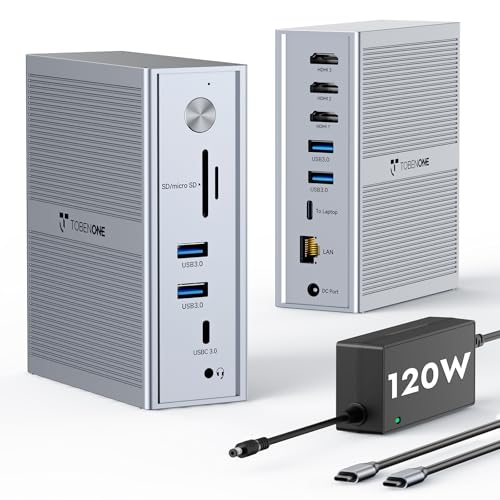
- Three HDMI displays: 4K@30Hz plus two 1920x1200@60Hz
- Included 120W adapter; up to 100W laptop charging
- Five 5Gbps USB ports and Gigabit Ethernet
Best For: Three-monitor MacBook desk setups
Dual-4K Desk Pick
UGREEN 9-in-1 DisplayLink Dock

- Two external 4K@60Hz displays
- HDMI or DisplayPort connections
- 10Gbps USB ports; charger sold separately
Best For: Dual-4K desks with mixed monitor connectors
Portable DP Pick
ACASIS Dual DisplayPort Adapter

- Two 4K@60Hz DisplayPort outputs
- Three USB-A ports and 100W PD port
- DisplayLink driver and DP-compatible cables required
Best For: Portable dual-DisplayPort MacBook setups
Most Displays – TobenONE 20-in-1 Quad-Monitor Dock
Among macbook docking stations with displaylink, this TobenONE dock is the option for a desk packed with screens and peripherals. It offers 20 ports and supports up to four external 4K@60Hz monitors on compatible systems, although M1 MacBooks are limited to three.
Best For: MacBook users building a multi-monitor workstation with plenty of room for USB devices, cards, and wired networking.
Pros:
- Up to four 4K@60Hz external displays on compatible laptops.
- 20 ports include HDMI, DisplayPort, USB, card readers, Ethernet, and audio.
- Included 150W adapter supports up to 100W laptop charging when the host supports it.
Cons:
- M1 MacBooks are limited to three external monitors.
- Requires a DisplayLink driver; HDCP content is not supported.
Choose it for maximum screen and port capacity, but check your MacBook’s display limit and install the driver before setting up your desk.
Office Multitasker – WAVLINK 15-in-1 Triple-Monitor Dock
For shoppers comparing macbook docking stations with displaylink for everyday office work, this WAVLINK dock combines multi-screen expansion with useful desk connections. Its DisplayLink-6350 chipset supports up to dual 2K@60Hz through its first two display channels; using its third HDMI display requires a host USB-C port that supports video output.
Best For: Spreadsheet, dashboard, and general office setups that need multiple screens plus wired peripherals.
Pros:
- 15 connections include USB-C, USB-A, Ethernet, SD/TF readers, and audio.
- Up to 100W laptop Power Delivery with a compatible host.
- Two USB-C 10Gbps ports accommodate faster data peripherals.
Cons:
- DisplayLink driver installation is required.
- The HDMI and DisplayPort connectors sharing a display channel cannot be used simultaneously.
- Recommended for productivity rather than gaming or professional video editing.
This is a practical office dock if its display-resolution limits suit your monitors. Confirm USB-C video-output support if you plan to use the third screen.
Triple 4K Pick – WAVLINK DisplayLink-6950 Dock
If you want three high-resolution screens, this is one of the macbook docking stations with displaylink worth a closer look. The WAVLINK DisplayLink-6950 dock supports two 4K@60Hz displays through its DisplayLink channels and a third 4K@60Hz display through HDMI Alt Mode, which requires compatible USB-C video output.
Best For: MacBook and Windows users who need a triple-4K productivity workspace for research, spreadsheets, or dashboards.
Pros:
- Supports up to three 4K@60Hz displays with a compatible host.
- 15 ports include five USB data ports, Gigabit Ethernet, SD/TF readers, and audio.
- Included 130W adapter enables up to 100W Power Delivery to compatible laptops.
Cons:
- Requires DisplayLink software and driver installation.
- The third display depends on USB-C HDMI Alt Mode support.
- HDMI and DisplayPort on the same display channel cannot be used together.
Its advantage over a lower-resolution office dock is the stated triple-4K capability. Verify your laptop’s USB-C video output before counting on all three displays.
Portable Dual-Display Pick – ACASIS USB-C DisplayLink Adapter
Not every search for macbook docking stations with displaylink calls for a full desktop dock. This compact ACASIS adapter adds two extended 4K@60Hz HDMI displays through a USB-C or USB-A connection, with three USB-A ports for basic accessories.
Best For: MacBook users who want a portable dual-monitor setup for coding or office work.
Pros:
- Supports two extended 4K@60Hz HDMI monitors.
- Compact aluminum design is easier to carry than a full-size dock.
- Includes a USB-C port rated for up to 100W Power Delivery.
Cons:
- DisplayLink driver installation is required.
- Three USB-A ports run at 480Mbps, making them poorly suited to large file transfers.
- Not intended for gaming or HDCP-protected content.
Pick this adapter when dual displays and portability matter more than high-speed peripheral connections. Plan for the required driver and a separate compatible charging source for its PD function.
Best for Mixed-Fleet Offices – Plugable USB-C Triple HDMI Dock
Among macbook docking stations with displaylink, this Plugable dock is a practical choice for shared desks that also serve Windows or ChromeOS laptops. It connects up to three HDMI monitors while adding wired networking, six USB 3.0 ports, and laptop charging.
Best For: Hybrid offices that need a consistent triple-monitor setup across MacBooks and other USB-C laptops.
Pros:
- Supports one 4K display at 30Hz plus two 1080p displays at 60Hz.
- Provides up to 100W USB-C Power Delivery and Gigabit Ethernet.
- Offers six USB 3.0 ports for desk peripherals.
Cons:
- macOS 11 or later requires DisplayLink driver installation.
- Does not support Linux or HDCP-protected content.
The main trade-off is display resolution: only one of the three outputs reaches 4K, and it runs at 30Hz. If dependable connectivity matters more than uniformly high-resolution monitors, this is a well-specified office dock.
Best for Fast Peripheral Connections – WAVLINK Triple-Monitor Dock
If your search for macbook docking stations with displaylink includes fast external drives as well as extra screens, the WAVLINK dock deserves a look. It supports three external monitors and gives each of its six USB-A and USB-C ports a stated 10Gbps transfer capability.
Best For: Home-office users who want three monitors, fast USB connections, and wired internet through one dock.
Pros:
- Supports up to two 4K/60Hz displays plus one 2K/60Hz display.
- Includes four USB-A and two USB-C ports, each rated for 10Gbps transfers.
- Provides up to 100W laptop charging and Gigabit Ethernet.
Cons:
- MacBook M-series setups require a DisplayLink driver and USB-C video output.
- Not recommended for gaming or HDCP-protected 4K streaming.
This is a strong fit when both display resolution and peripheral speed matter. Check that your laptop’s USB-C port supports video output before counting on the full monitor setup.
Best for Dual 4K Displays – Belkin 14-in-1 DisplayLink Dock
For shoppers comparing macbook docking stations with displaylink but needing only two external screens, this Belkin dock pairs dual 4K/60Hz output with a broad selection of connections. Its 14-port design also includes laptop charging, wired Ethernet, and up to 10Gbps data transfers.
Best For: MacBook users building a dual-4K desk setup who value mounting and security options.
Pros:
- Supports up to two external displays at 4K/60Hz using HDMI or DisplayPort.
- Delivers up to 100W Power Delivery and includes 1Gb Ethernet.
- VESA mountable and compatible with a Kensington Lock; includes three-year coverage.
Cons:
- Limited to two external monitors rather than three.
- Requires DisplayLink installation on macOS.
Choose this over a triple-display model if two sharp, smooth-running monitors are enough. The mounting and lock options are useful for a tidier or more secure workstation.
Triple-Monitor Pick – TobenONE 14-in-1 DisplayLink Dock
Among macbook docking stations with displaylink, this TobenONE dock is a practical choice when you need three external HDMI screens and a full set of desk connections. Its stated display support is one 4K screen at 30Hz plus two 1920×1200 screens at 60Hz, so check those limits against your monitors before buying.
Best For: MacBook users building a three-monitor desk setup who also want laptop charging and wired networking.
Pros:
- Supports three extended HDMI displays with the DisplayLink driver installed.
- Includes a 120W power adapter and supplies up to 100W laptop charging.
- Provides five 5Gbps USB ports and Gigabit Ethernet.
Cons:
- The 4K output is limited to 30Hz; the other two displays top out at 1920×1200 at 60Hz.
- Requires DisplayLink driver installation for the multi-monitor setup.
Choose it for screen count and an included power supply rather than three matching 4K displays. It is the most straightforward fit here for a permanent three-monitor workstation.
Dual-4K Desk Pick – UGREEN 9-in-1 DisplayLink Dock
If your search for macbook docking stations with displaylink centers on two sharper external screens, the UGREEN dock supports dual 4K at 60Hz. Its two HDMI and two DisplayPort connections give you a choice of display connectors, while the dock supports two external monitors rather than four.
Best For: A dual-4K MacBook workspace that needs fast USB transfers and Gigabit Ethernet.
Pros:
- Supports two extended 4K@60Hz monitors through DisplayLink.
- Offers HDMI and DisplayPort output options.
- Includes two USB-A and one USB-C data port rated up to 10Gbps, plus Gigabit Ethernet.
Cons:
- Driver installation is required for display and network functions.
- The 100W PD charging port requires a separate charger; no power adapter is included.
This is a strong match when dual 4K@60Hz matters more than a third screen. Budget for a compatible charger if you plan to power your laptop through the dock.
Portable DP Pick – ACASIS Dual DisplayPort Adapter
For buyers comparing macbook docking stations with displaylink but needing a smaller adapter, the ACASIS offers two DisplayPort outputs rated for 4K at 60Hz. It also brings three USB-A ports and a 100W PD port in an aluminum-alloy design intended for travel between workspaces.
Best For: MacBook users with two DisplayPort monitors who want a compact dual-screen adapter.
Pros:
- Supports two 4K@60Hz DisplayPort displays with the DisplayLink driver installed.
- Includes three USB-A ports for peripherals.
- Provides a 100W PD port and a compact aluminum-alloy body.
Cons:
- Has DisplayPort video outputs, not HDMI; HDMI-only monitors require a suitable DP-to-HDMI cable.
- Requires DisplayLink driver installation before first use.
This adapter makes the most sense when your monitors already accept DisplayPort. Confirm your cable setup before ordering, especially if you rely on HDMI-only displays.
How We Picked the Best Macbook Docking Stations with Displaylink
We focused on the decisions that matter when comparing Macbook Docking Stations with Displaylink: usable external-display connections, the mix of HDMI and DisplayPort, USB and Ethernet connectivity, charging claims, and whether a product is a full dock or a display-only adapter. We also considered setup requirements and the practical difference between a compact travel accessory and a permanent desk hub. Listed monitor counts and resolutions are manufacturer claims; confirm the exact configuration for your MacBook, monitors, cables, and macOS version before buying.
Quick Comparison: Which Type Fits Your Desk?
- Two external monitors: The Belkin and UGREEN docks suit a simpler desk setup; the ACASIS dual-HDMI and dual-DisplayPort adapters make more sense if you mainly need video outputs and already have charging and USB covered.
- Three external monitors: Consider the Plugable, TobenONE triple-display, or WAVLINK triple-display options. Compare their actual HDMI and DisplayPort combinations rather than assuming every connector works simultaneously.
- Four external monitors: The TobenONE 20-in-1 is the option to examine for a higher-screen-count setup. Check its supported display arrangement and your available desk space before committing.
Key Buying Factors for Macbook Docking Stations with Displaylink
Display Count and Port Layout
Start with the number of external monitors you will use today, then check each monitor’s input. A dock with three HDMI sockets is not automatically the best fit if your screens use DisplayPort. Some docks offer alternative output combinations, not an additive total; verify the supported simultaneous displays and refresh rates in the product documentation.
Mac Compatibility and Software
DisplayLink requires DisplayLink Manager and macOS permissions to run. Check support for your specific MacBook model and current macOS release, especially if you use a work-managed laptop that restricts software installation. DisplayLink can be useful for productivity screens, but a native display connection is preferable for latency-sensitive gaming or color-critical workflows.
Power and Everyday Connections
If the dock will be your single-cable desk connection, check its stated USB-C Power Delivery output against your MacBook’s charging needs. Then look at the ports you actually use: fast USB for external drives, Ethernet for wired networking, and audio or card-reader connections if needed. A small adapter may be cheaper and easier to carry, but it will not replace a full hub.
Who Should Buy Which Macbook Docking Stations with Displaylink?
Choose a dual-display adapter if you only need extra video outputs and want to keep your existing charger. Pick a dual-monitor dock for a tidy home-office setup, or a triple-monitor dock if three external screens are central to your workflow. A four-monitor model is worth considering only when you have the displays, desk space, and a clear need for that many screens. Whatever the format, verify software permissions, simultaneous output limits, and charging specifications before purchase.