Running three external monitors from a MacBook takes more than a dock with three video ports. Your Mac’s display limits, the dock’s video technology, and the resolution you want all affect what will actually work.
These eight docks offer different combinations of HDMI, DisplayPort, USB ports, and laptop charging. Use the buying guide below to narrow your choice before checking the details of a specific model.
Best 8 Macbook Docks for Triple Display Picks for 2026
Best for Fast USB Transfers
WAVLINK Triple 4K DisplayLink Dock

- Up to three 4K 60Hz displays
- Six USB ports rated at 10Gbps each
- Up to 100W laptop charging
Best For: Three-screen desks with several fast USB peripherals
Best for 4K and Card Readers

- Up to three 4K 60Hz displays
- Built-in SD/TF card readers
- Up to 100W laptop charging
Best For: Three-screen 4K workflows with memory cards
Best for Everyday Office Work

- Two DisplayLink channels support up to 2K 60Hz
- SD/TF readers and Gigabit Ethernet
- Up to 100W laptop charging
Best For: Spreadsheet and dashboard work across three screens
Best for Mixed-Device Offices

- Three extended HDMI screens
- One 4K 30Hz plus two 1080p 60Hz outputs
- 100W charging and six USB 3.0 ports
Best For: Shared MacBook and Windows office desks
High-Resolution Pick
WAVLINK Triple 4K DisplayLink Dock

- Stated triple 4K@60Hz support
- Up to 100W laptop charging
- Six 10Gbps USB ports
Best For: High-resolution MacBook workstations
Office Deployment Pick
Plugable 13-in-1 Triple HDMI Dock

- Three extended HDMI displays
- 100W laptop and 20W device charging
- Business-oriented port selection
Best For: Standardized office desks
Home-Office Pick
TobenONE 14-in-1 Triple HDMI Dock
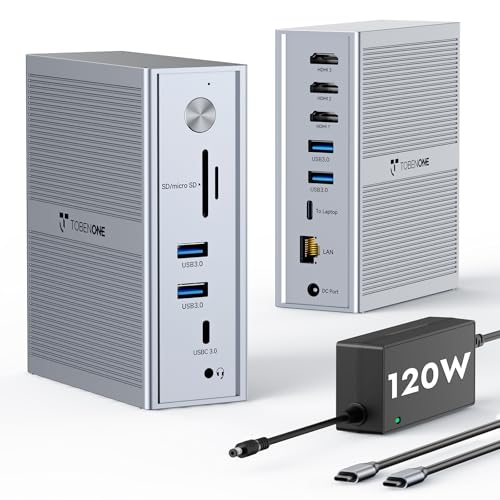
- Three extended HDMI screens
- Included supply; up to 100W charging
- Five 5Gbps USB ports
Best For: Everyday three-screen home offices
Port-Rich Pick
19-in-1 Triple 4K DisplayLink Dock

- Claims triple 4K@60Hz output
- HDMI and DisplayPort options
- 100W PD charger sold separately
Best For: Peripheral-heavy MacBook desks
Best for Fast USB Transfers – WAVLINK Triple 4K DisplayLink Dock
Among macbook docks for triple display, this WAVLINK model stands out for pairing up to three 4K 60Hz external displays with six USB ports, each rated for 10Gbps transfers. It is a practical fit for a desk with several drives and peripherals.
Best For: MacBook users who need three work screens and multiple fast USB connections.
Pros:
- Supports up to three 4K 60Hz displays through its HDMI and DisplayPort outputs.
- Offers four USB-A and two USB-C ports rated at 10Gbps each, plus Gigabit Ethernet.
- Includes a 130W adapter and provides up to 100W laptop charging.
Cons:
- MacBook multi-display use requires a DisplayLink driver and a USB-C port that supports video output.
- Not recommended for gaming or HDCP-protected 4K streaming.
Choose this one when fast peripheral access matters as much as screen space; check your MacBook’s USB-C capabilities before buying.
Best for 4K and Card Readers – WAVLINK DisplayLink-6950 Dock
If your shortlist of macbook docks for triple display includes photo-file transfers, this WAVLINK dock combines SD/TF readers with support for up to three 4K 60Hz screens. Its DisplayLink-6950 channels handle two displays, while a separate HDMI Alt Mode port handles the third.
Best For: MacBook workstations that need three 4K displays and built-in memory-card access.
Pros:
- Supports up to three 4K 60Hz displays on compatible laptops.
- Includes SD/TF readers, Gigabit Ethernet, two 10Gbps USB-C ports and three 5Gbps USB-A ports.
- Provides up to 100W laptop charging with its included 130W adapter.
Cons:
- Requires DisplayLink software; it is not plug-and-play.
- The third display requires USB-C video output, and HDMI and DisplayPort on the same display channel cannot be used together.
This is the stronger pick when 4K across all three screens and card readers are priorities, provided your MacBook meets the video-output requirement.
Best for Everyday Office Work – WAVLINK DisplayLink-6350 Dock
For shoppers comparing macbook docks for triple display mainly for spreadsheets and dashboards, this WAVLINK model focuses on office productivity rather than high-end graphics. Its DisplayLink-6350 channels support up to two 2K 60Hz screens, with a separate HDMI Alt Mode connection for a third display.
Best For: MacBook users building a three-screen office workspace with Ethernet and card access.
Pros:
- Offers three HDMI outputs and two DisplayPort outputs across its display channels.
- Includes SD/TF readers, Gigabit Ethernet, two 10Gbps USB-C ports and three 5Gbps USB-A ports.
- Supplies up to 100W laptop charging from an included 130W adapter.
Cons:
- Requires a DisplayLink driver and is not plug-and-play.
- The third screen needs USB-C video output; this model is recommended for office work rather than gaming or professional video editing.
It makes sense for document-heavy work, but buyers seeking three confirmed 4K outputs should look at the higher-resolution options in this roundup.
Best for Mixed-Device Offices – Plugable Triple HDMI Dock
For shared desks evaluating macbook docks for triple display, the Plugable dock offers three extended HDMI screens alongside six USB 3.0 ports and wired Ethernet. Its display limits are specific: one 4K 30Hz screen through USB-C Alt Mode and two 1080p 60Hz screens through DisplayLink.
Best For: Mixed MacBook and Windows offices that value straightforward triple-HDMI connectivity and technical support.
Pros:
- Supports three extended HDMI displays, including on compatible Apple Silicon MacBooks.
- Provides up to 100W USB-C laptop charging, six USB 3.0 ports and Gigabit Ethernet.
- Includes North American-based technical support and a compatibility guarantee.
Cons:
- Only one screen reaches 4K, and it is limited to 30Hz; the other two top out at 1080p 60Hz.
- MacOS requires a driver, and the host must support USB-C Alt Mode and Power Delivery; HDCP is not supported.
Pick this for office deployment and support rather than for a three-screen 4K setup.
High-Resolution Pick – WAVLINK Triple 4K DisplayLink Dock
For shoppers comparing macbook docks for triple display, this WAVLINK dock stands out for its stated support for three 4K monitors at 60Hz. It also combines up to 100W laptop charging with six 10Gbps USB ports.
Best For: MacBook users who want a high-resolution, three-monitor desk setup with fast USB connectivity.
Pros:
- Supports up to three 4K@60Hz monitors, subject to the host connection requirements.
- Includes a 160W power adapter and provides up to 100W laptop charging.
- Offers six 10Gbps USB ports, Gigabit Ethernet, and audio connectivity.
Cons:
- Requires DisplayLink drivers before use.
- The HDMI Alt Mode port needs a laptop USB-C port that supports video output; laptop charging also requires host Power Delivery support.
Check your MacBook’s USB-C capabilities and plan for driver installation before buying. Those requirements matter if you intend to use all three displays.
Office Deployment Pick – Plugable 13-in-1 Triple HDMI Dock
Among macbook docks for triple display, Plugable’s 13-in-1 model is a practical office choice: it supports three extended HDMI screens, up to 100W laptop charging, and a useful mix of desk peripherals. Its stated display limits are 4K@30Hz on HDMI 1 and 1920×1200@60Hz on HDMI 2 and 3.
Best For: Offices standardizing MacBook workstations with three monitors and one charging connection.
Pros:
- Supports three extended HDMI displays, including on supported M-series MacBooks with DisplayLink installed.
- Provides up to 100W laptop charging and a front USB-C port with 20W device charging.
- Includes Gigabit Ethernet, an SD card reader, four 5Gbps USB-A ports, and audio in/out.
- Listed as TAA, NDAA, and Section 889 compliant for procurement needs.
Cons:
- HDMI 2 and 3 require DisplayLink Manager installation on macOS.
- Does not support protected-content playback such as Netflix or Hulu through the dock.
- Only the first HDMI output reaches 4K, and it is limited to 30Hz.
This is a stronger fit for documents and office apps than for users expecting three 4K screens. Its port selection and included power supply make it particularly straightforward to deploy across desks.
Home-Office Pick – TobenONE 14-in-1 Triple HDMI Dock
If you’re weighing macbook docks for triple display, the TobenONE 14-in-1 dock offers three HDMI outputs through DisplayLink and up to 100W charging from its included 120W power supply. Its stated display configuration is one 4K@30Hz screen plus two 1920×1200@60Hz screens.
Best For: Home-office MacBook users who need three extended screens for everyday multitasking.
Pros:
- Enables three extended monitors on supported Macs after installing the DisplayLink driver.
- Includes a 120W power adapter and delivers up to 100W laptop charging.
- Provides five 5Gbps USB ports and Gigabit Ethernet.
- Lists 24-month defect coverage and lifetime technical support.
Cons:
- Requires DisplayLink driver installation.
- Only one of the three stated display outputs supports 4K, at 30Hz.
It covers the core needs of a three-screen workspace without requiring a separate laptop charger. Choose it for screen space and connectivity, rather than triple-4K performance.
Port-Rich Pick – 19-in-1 Triple 4K DisplayLink Dock
For buyers exploring macbook docks for triple display, this 19-in-1 model claims up to three extended 4K@60Hz screens and offers HDMI and DisplayPort connection options. It also packs seven USB ports, card readers, Gigabit Ethernet, and several audio connections.
Best For: MacBook desks that need numerous peripheral ports and flexible monitor connectors.
Pros:
- Claims up to three extended 4K@60Hz displays with the specified drivers installed.
- Offers HDMI and DisplayPort outputs, plus SD and microSD readers.
- Includes seven USB ports, Gigabit Ethernet, and multiple audio connections.
- Provides a stated 18W quick-charge output for compatible devices.
Cons:
- A 100W USB-C PD charger is sold separately and is needed to power the laptop through the dock; the included 12V/3A adapter powers the dock.
- The third monitor uses either its HDMI or DisplayPort output, not both at once.
- Driver setup is required for the stated triple-display modes.
The broad port selection is appealing, but budget for a separate PD charger if you want single-cable laptop charging. Confirm the monitor-output arrangement matches your cables and displays before ordering.
How We Picked These Macbook Docks for Triple Display
We focused on docks marketed for three external monitors and compared their stated video outputs, charging capability, and MacBook compatibility. We also weighed a practical distinction: a dock with three display connectors does not necessarily support three independent extended desktops on every Mac. Before buying, verify the exact dock model against your Mac chip, macOS version, and intended monitor setup.
Quick Comparison: Match the Dock to Your Desk
If your monitors all use HDMI, start with the Plugable USB C Triple Display Docking Station with three HDMI outputs or a WAVLINK model listing three HDMI ports. For a mix of HDMI and DisplayPort monitors, compare the WAVLINK options that list both connector types. If you want fewer separate power connections on your desk, look at the Plugable and WAVLINK models advertising 100W or 130W power delivery, then confirm whether the listed wattage is delivered to the laptop or describes the dock’s power adapter.
TobenONE’s triple-4K DisplayLink model and the other docks advertising triple 4K are worth a closer look for high-resolution workstations. Treat “triple 4K” as a specification to verify, not a guarantee that every port combination will run three 4K screens at 60Hz.
Key Buying Factors for Macbook Docks for Triple Display
Display Technology and Mac Compatibility
Many MacBooks have native external-display limits that a conventional USB-C dock cannot bypass. Several docks here advertise DisplayLink, which uses software to drive additional extended displays. Check whether the dock requires DisplayLink Manager, whether it supports your macOS release, and whether any screen-recording permission is needed. DisplayLink can be useful for productivity, but a native video connection may be preferable for color-critical work, protected video playback, or latency-sensitive tasks.
Resolution, Refresh Rate, and Connectors
Count usable outputs, not just sockets: some HDMI and DisplayPort connections may be alternatives rather than simultaneous outputs. Check the manufacturer’s supported three-monitor configuration for your Mac, including resolution and refresh rate on each screen. Match those outputs to your monitors’ inputs to avoid unnecessary adapters.
Charging and Everyday Ports
Choose laptop power delivery that meets your MacBook’s needs, especially if you use a higher-power MacBook Pro. Then check the ports you will use daily—USB-A, USB-C, Ethernet, audio, and card readers—rather than assuming a higher port count means a better fit. Confirm the included host cable and power supply, too.
Who Should Buy Which Macbook Docks for Triple Display?
For an HDMI-only desk, prioritize a three-HDMI Plugable or WAVLINK option. For mixed monitor inputs, choose a model with a clearly documented HDMI/DisplayPort combination. For a single-cable workspace, shortlist docks with confirmed laptop charging wattage. If you have an M-series MacBook with limited native display support, start with a DisplayLink model and check its software requirements before ordering. Whatever you choose, verify the exact three-display mode you need against the manufacturer’s specifications—not just the product name.